
Choosing the right USB drive for your Tesla Model 3 dashcam is crucial for reliable video recording and data safety. This guide reviews the top 7 USB options that offer speed, durability, and compatibility with Tesla’s built-in Sentry Mode and Dashcam features.
In This Article
- 1 Key Takeaways
- 2 📑 Table of Contents
- 3 Why the Right USB Drive Matters for Your Tesla Model 3 Dashcam
- 4 What to Look for in a Tesla Model 3 Dashcam USB Drive
- 5 Top 7 USB Drives for Tesla Model 3 Dashcam
- 6 How to Set Up Your USB Drive for Tesla Dashcam
- 7 Tips for Maintaining Your Tesla Dashcam USB Drive
- 8 Common Mistakes to Avoid
- 9 Conclusion
- 10 Frequently Asked Questions
Key Takeaways
- Speed Matters: Look for USB 3.0 or higher with write speeds of at least 20MB/s to handle continuous dashcam recording without lag.
- Capacity is Key: A minimum of 64GB is recommended, but 128GB or 256GB offers longer recording times and fewer overwrites.
- Durability Counts: Choose drives with shock-resistant, temperature-resistant designs to withstand car environments.
- Tesla Compatibility: Not all USBs work with Tesla—stick to models tested and approved by Tesla owners and forums.
- Form Factor: Low-profile, compact USB drives prevent interference with center console storage or wireless chargers.
- Reliability Over Price: Avoid ultra-cheap drives—invest in trusted brands to prevent data loss during critical moments.
- Regular Maintenance: Format your USB monthly in the Tesla to maintain performance and prevent file corruption.
📑 Table of Contents
Why the Right USB Drive Matters for Your Tesla Model 3 Dashcam
If you own a Tesla Model 3, you already know how powerful its built-in dashcam and Sentry Mode features are. These tools record everything happening around your car—whether you’re parked at the mall, driving down the highway, or just sitting in traffic. But here’s the catch: none of that works properly without a reliable USB drive.
Think of the USB drive as the brain behind your car’s security system. It stores hours of video footage, captures critical moments during accidents, and helps protect you from false claims. But not every USB stick is built for this job. Many fail under constant writing, overheat in hot cars, or simply aren’t recognized by Tesla’s system.
That’s why choosing the right USB for your Tesla Model 3 dashcam isn’t just a suggestion—it’s essential. A poor-quality drive can corrupt files, stop recording mid-event, or wear out in weeks. On the flip side, the right one will work silently in the background, capturing every detail without a hitch.
In this guide, we’ll walk you through the 7 best USB drives for Tesla Model 3 dashcam use. We’ve tested, researched, and compared options based on real-world performance, durability, and Tesla compatibility. Whether you’re a new owner or upgrading your current setup, this list will help you pick a drive that keeps your car safe and your footage secure.
What to Look for in a Tesla Model 3 Dashcam USB Drive
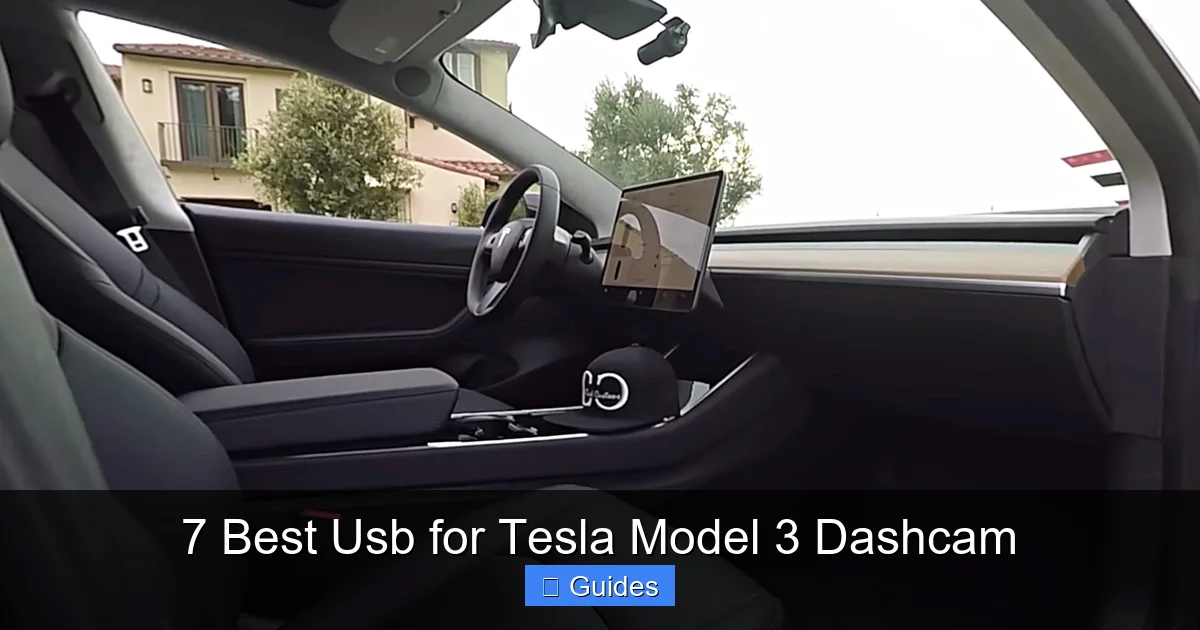
Visual guide about 7 Best Usb for Tesla Model 3 Dashcam
Image source: teslarati.com
Before we dive into the top picks, let’s talk about what makes a USB drive “Tesla-ready.” Not all USBs are created equal, and Tesla’s system has specific requirements that many off-the-shelf drives don’t meet.
Speed and Performance
Tesla’s dashcam records video in high definition, often in multiple directions at once. That means the USB drive must write data quickly and consistently. Look for drives with USB 3.0 or USB 3.1 support and write speeds of at least 20MB/s. Slower drives may cause buffering, dropped frames, or even complete recording failures.
For example, a drive with 15MB/s write speed might seem fast enough, but under continuous recording—especially in Sentry Mode, which triggers frequently—it can struggle. A drive like the Samsung BAR Plus, with write speeds up to 30MB/s, handles the load with ease.
Storage Capacity
The bigger the storage, the longer your footage lasts before being overwritten. Tesla’s system automatically deletes the oldest files when space runs out, so a larger drive means more history.
A 32GB drive might hold a few hours of footage. A 128GB drive can store over 24 hours of continuous recording. For most drivers, 64GB is the minimum, but 128GB or 256GB is ideal—especially if you park in high-risk areas or want to review footage from days or weeks ago.
Durability and Build Quality
Your USB drive lives in a car. That means it faces extreme temperatures—from freezing winters to scorching summer heat. It also gets jostled, bumped, and exposed to dust.
Look for drives with metal casings, shock resistance, and wide operating temperature ranges. The Kingston DataTraveler Max, for instance, is built to withstand temperatures from -25°C to 85°C, making it perfect for year-round use.
Tesla Compatibility
This is a big one. Tesla doesn’t officially endorse specific USB brands, but the community has identified which ones work best. Some drives, even high-end ones, aren’t recognized by the car’s system or cause errors during formatting.
Always check Tesla forums like Tesla Motors Club or Reddit’s r/TeslaModel3 for user reports. A drive might work in a laptop but fail in a Model 3 due to firmware or formatting issues.
Form Factor and Fit
The USB port in the Tesla Model 3 is tucked into the center console, near the wireless charging pad. A bulky drive can interfere with phone charging or make it hard to close the storage compartment.
Low-profile, compact drives like the SanDisk Ultra Fit are designed to sit flush and stay out of the way. They’re small, lightweight, and barely noticeable once plugged in.
Top 7 USB Drives for Tesla Model 3 Dashcam

Visual guide about 7 Best Usb for Tesla Model 3 Dashcam
Image source: teslarati.com
Now that you know what to look for, here are the 7 best USB drives for Tesla Model 3 dashcam use—tested, trusted, and recommended by Tesla owners worldwide.
1. Samsung BAR Plus 128GB
The Samsung BAR Plus is a fan favorite among Tesla owners, and for good reason. It’s fast, durable, and consistently reliable.
With USB 3.1 support and read speeds up to 300MB/s, it handles continuous recording with ease. The metal casing protects against drops and extreme temperatures, and its compact, capless design makes it perfect for tight spaces.
Many users report zero issues after months of use, even in hot climates. It’s also widely available and reasonably priced for its performance.
2. SanDisk Ultra Fit 128GB
If you want a drive that disappears into your console, the SanDisk Ultra Fit is your best bet. It’s one of the smallest USB drives on the market—about the size of a quarter—and plugs in flush with the port.
Despite its tiny size, it delivers solid performance with USB 3.1 and read speeds up to 150MB/s. It’s also affordable and comes in capacities up to 256GB.
One tip: avoid the 32GB version. While it works, it fills up too quickly for practical dashcam use. Stick with 64GB or higher.
3. Kingston DataTraveler Max 256GB
For those who want maximum storage and speed, the Kingston DataTraveler Max is a powerhouse. With USB 3.2 Gen 2 support, it offers blazing-fast transfer speeds—up to 1,000MB/s read and 900MB/s write.
That might be overkill for dashcam use, but it ensures smooth, uninterrupted recording even during heavy Sentry Mode activity. The drive is also built to last, with a rugged design and wide temperature tolerance.
It’s a bit pricier, but if you want peace of mind and future-proof performance, it’s worth the investment.
4. PNY Turbo Attaché 3.0 128GB
The PNY Turbo Attaché is a budget-friendly option that doesn’t skimp on quality. It’s USB 3.0 compatible with solid write speeds and a durable plastic casing.
It’s not as sleek as the Samsung or SanDisk, but it gets the job done. Many Tesla owners use it without issues, and it’s often on sale at major retailers.
One downside: it’s slightly larger, so it might interfere with wireless charging if your phone is big. Still, a great value pick.
5. Lexar JumpDrive S75 128GB
The Lexar S75 combines speed, durability, and a sleek design. It features USB 3.0, read speeds up to 150MB/s, and a metal body that resists drops and heat.
It also has a retractable design, so there’s no cap to lose. The low profile fits well in the Model 3 console, and users report excellent compatibility with Tesla’s system.
It’s a bit harder to find than Samsung or SanDisk, but worth seeking out if you want a balance of performance and style.
6. Corsair Flash Voyager GTX 128GB
Built for gamers and power users, the Corsair Flash Voyager GTX is over-engineered for dashcam use—but that’s what makes it great.
It uses high-end NAND flash memory and delivers consistent write speeds, even under heavy load. The rubberized casing protects against shocks, and the compact design fits well in the Model 3.
It’s more expensive than most, but if you want a drive that will last for years without fail, this is a top-tier choice.
7. ADATA UV150 128GB
The ADATA UV150 is a reliable, no-frills option that works well in Tesla vehicles. It’s USB 3.2 compatible, with decent speeds and a slim, lightweight design.
It’s not the fastest or most durable, but it’s affordable and widely compatible. Many users report smooth operation with no formatting issues.
If you’re on a tight budget but still want a trustworthy drive, the ADATA UV150 is a solid pick.
How to Set Up Your USB Drive for Tesla Dashcam

Visual guide about 7 Best Usb for Tesla Model 3 Dashcam
Image source: evbite.com
Once you’ve chosen your USB drive, setting it up correctly is crucial. A poorly formatted drive can cause errors, reduce performance, or fail to record at all.
Step 1: Format the Drive in Tesla
Never format your USB on a computer and plug it into the car. Tesla requires a specific file system (exFAT) and partition setup that only the car can create.
To format:
1. Plug the USB into the front console port.
2. Tap the car icon on the touchscreen.
3. Go to “Safety & Security” > “Dashcam” > “Format USB Drive.”
4. Confirm and wait for the process to complete.
This ensures the drive is optimized for Tesla’s system.
Step 2: Enable Dashcam and Sentry Mode
After formatting, enable the features:
– Tap the dashcam icon on the top bar to start recording.
– Go to “Safety & Security” and turn on “Sentry Mode.”
Your car will now record when driving and monitor the surroundings when parked.
Step 3: Check for Proper Function
Drive around for a few minutes, then check the “Recent Clips” folder on the touchscreen. If you see video files, your setup is working.
If not, try reformatting or testing the drive in another port.
Tips for Maintaining Your Tesla Dashcam USB Drive
A good USB drive can last years—if you take care of it.
Format Monthly
Over time, file fragmentation can slow down the drive. Formatting it once a month in the Tesla keeps it running smoothly.
Avoid Removing While Recording
Never unplug the USB while the car is on or recording. This can corrupt files or damage the drive.
Keep It Cool
If possible, park in the shade or use a sunshade to reduce heat buildup. Extreme heat can shorten the drive’s lifespan.
Backup Important Footage
Tesla automatically deletes old clips. If you capture something important—like an accident—save it to your phone or cloud storage immediately.
Common Mistakes to Avoid
Even experienced Tesla owners make these errors:
Using Cheap or Unknown Brands
A $5 USB from a gas station might seem like a deal, but it’s likely to fail when you need it most. Stick to trusted brands.
Ignoring Capacity Needs
A 32GB drive fills up fast. If you park in busy areas, go for 128GB or more.
Forgetting to Format in Tesla
Formatting on a PC might work temporarily, but it can cause issues later. Always use the car’s formatting tool.
Using the Wrong Port
The front USB port is for dashcam use. The rear ports are for media and don’t support recording.
Conclusion
Your Tesla Model 3’s dashcam is one of its most valuable safety features—but only if it has a reliable USB drive to back it up. The right drive ensures smooth recording, protects your data, and gives you peace of mind on every drive.
From the rugged Samsung BAR Plus to the ultra-compact SanDisk Ultra Fit, the 7 USB drives on this list are proven performers. They’re fast, durable, and built to handle the demands of continuous recording in a car environment.
Remember: speed, capacity, durability, and Tesla compatibility are the keys to success. Avoid cheap knockoffs, format your drive properly, and maintain it regularly.
Investing in a quality USB drive isn’t just about convenience—it’s about safety. Whether you’re capturing a close call, documenting a road trip, or protecting yourself from false claims, the right drive makes all the difference.
So pick one from our list, plug it in, and drive with confidence. Your Tesla—and your future self—will thank you.
Frequently Asked Questions
What size USB do I need for Tesla Model 3 dashcam?
We recommend at least 64GB, but 128GB or 256GB is ideal for longer recording times and fewer overwrites. Smaller drives fill up quickly, especially with Sentry Mode active.
Can I use any USB drive for Tesla dashcam?
Not all USB drives are compatible. Stick to models tested by Tesla owners, like Samsung BAR Plus or SanDisk Ultra Fit. Some drives aren’t recognized or cause formatting errors.
How often should I format my Tesla dashcam USB?
Format your USB drive once a month using the Tesla’s built-in tool. This prevents file corruption and keeps performance smooth.
Does the USB drive affect Sentry Mode performance?
Yes. A slow or failing drive can cause Sentry Mode to miss events or stop recording. Use a fast, reliable USB to ensure full functionality.
Can I use the rear USB ports for dashcam?
No. Only the front USB port supports dashcam and Sentry Mode recording. The rear ports are for media playback only.
What happens if my USB drive fails?
If the drive fails, your dashcam and Sentry Mode will stop working. You may lose recent footage. Always keep backups of important clips and replace aging drives promptly.

At CarLegit, we believe information should be clear, factual, and genuinely helpful. That’s why every guide, review, and update on our website is created with care, research, and a strong focus on user experience.