
Lost your Toyota Sienna DVD remote? Don’t worry—you can still enjoy movies on the go. This guide shows you multiple ways to play DVDs using the vehicle’s built-in controls, USB ports, or even your smartphone.
In This Article
- 1 Key Takeaways
- 2 📑 Table of Contents
- 3 Introduction: The Remote Dilemma in Your Toyota Sienna
- 4 Understanding Your Toyota Sienna’s Entertainment System
- 5 Method 1: Using Built-In Physical Controls
- 6 Method 2: Using USB or SD Card to Bypass the DVD Player
- 7 Method 3: Screen Mirroring and Smartphone Integration
- 8 Method 4: Accessing Hidden Menus and Touchscreen Controls
- 9 Method 5: Replacing or Using a Universal Remote
- 10 Conclusion: Stay Entertained, Remote or Not
- 11 Frequently Asked Questions
- 11.1 Can I play a DVD in my Toyota Sienna without the remote?
- 11.2 Where are the DVD control buttons on a Toyota Sienna?
- 11.3 Can I use my phone to control the DVD player in my Sienna?
- 11.4 Why won’t my DVD play even with the buttons?
- 11.5 Can I play Netflix or YouTube on my Sienna’s DVD screen?
- 11.6 Is it legal to watch movies while driving in a Toyota Sienna?
Key Takeaways
- Use the rear-seat entertainment system’s built-in buttons: Most Toyota Sienna models have physical controls on the screen or headrest for basic playback functions like play, pause, and stop.
- Connect via USB or SD card: Insert a USB drive or SD card with video files to bypass the DVD player entirely and use the system’s media player.
- Leverage smartphone screen mirroring: Use Apple CarPlay, Android Auto, or wireless casting apps to stream content directly to the Sienna’s display.
- Check for hidden menu access: Some models allow you to access DVD functions through the touchscreen menu when the vehicle is in park.
- Consider a replacement remote or universal remote: If other methods fail, purchasing an OEM or compatible universal remote is a reliable long-term solution.
- Ensure safety and legality: Always operate the system while parked or have a passenger handle playback to avoid distracted driving.
- Update your infotainment system: Software updates can restore functionality or add new features that make playing DVDs easier without a remote.
📑 Table of Contents
- Introduction: The Remote Dilemma in Your Toyota Sienna
- Understanding Your Toyota Sienna’s Entertainment System
- Method 1: Using Built-In Physical Controls
- Method 2: Using USB or SD Card to Bypass the DVD Player
- Method 3: Screen Mirroring and Smartphone Integration
- Method 4: Accessing Hidden Menus and Touchscreen Controls
- Method 5: Replacing or Using a Universal Remote
- Conclusion: Stay Entertained, Remote or Not
Introduction: The Remote Dilemma in Your Toyota Sienna
Picture this: You’re about to hit the road for a long family trip, snacks packed, kids buckled in, and the excitement is building. You pop in a favorite DVD into your Toyota Sienna’s rear-seat entertainment system—only to realize the remote control is missing. Again. It’s a frustrating moment, especially when you’ve been relying on that little black device to manage movie time during drives.
But here’s the good news: you don’t actually need the remote to play a DVD in your Toyota Sienna. While the remote offers convenience, modern Sienna models come equipped with alternative ways to control your entertainment system. Whether you’ve misplaced the remote, it’s broken, or the batteries died at the worst possible moment, there are several practical workarounds that let you keep the fun rolling—literally.
In this comprehensive guide, we’ll walk you through every method to play a DVD in your Toyota Sienna without a remote. From using built-in buttons and USB drives to leveraging your smartphone, we’ve got you covered. Whether you’re driving a 2011 model or a newer 2023 Sienna, these tips apply across most trims and entertainment packages. So buckle up, because we’re about to turn that remote-free frustration into a stress-free movie experience.
Understanding Your Toyota Sienna’s Entertainment System
Before diving into solutions, it’s important to understand how your Toyota Sienna’s rear-seat entertainment (RSE) system works. Most Siennas equipped with RSE feature a drop-down screen mounted in the ceiling or integrated into the headrests, connected to a DVD player typically located in the center console or trunk area. The system is designed for passenger use, especially during long drives, and supports DVD playback, USB media, and sometimes even HDMI inputs.
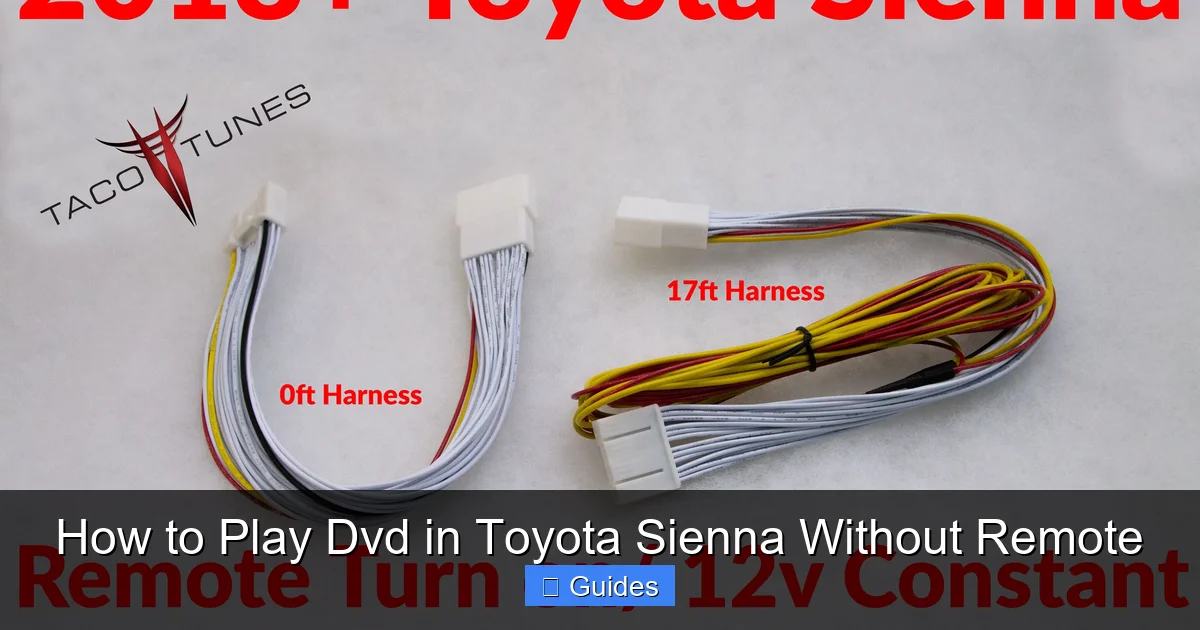
Visual guide about How to Play Dvd in Toyota Sienna Without Remote
Image source: tacotunes.com
Types of Entertainment Systems in the Sienna
Toyota has offered several versions of the RSE system over the years. Older models (2004–2010) often used a ceiling-mounted screen with a built-in DVD player and a wired or wireless remote. Newer models (2011–present) may include dual screens, Bluetooth connectivity, and integration with the vehicle’s main infotainment system. Some higher trims even support streaming via Wi-Fi or smartphone mirroring.
Regardless of the model year, the core function remains the same: play video content for rear passengers. However, the way you control it can vary. While the remote is the most common interface, it’s not the only one. Many Siennas include physical buttons on the screen bezel, headrest, or center console that allow basic control. These buttons are often overlooked but can be lifesavers when the remote goes missing.
Why the Remote Isn’t Always Necessary
The remote control is designed for ease of use—especially for kids who might struggle with small buttons or complex menus. But it’s not essential. The system is built to respond to multiple input methods, including direct touch (on touchscreen models), physical buttons, and even voice commands in newer vehicles. Additionally, Toyota has gradually moved toward more integrated systems where the main display or smartphone apps can manage rear entertainment.
Understanding your system’s capabilities is the first step to playing DVDs without a remote. Check your owner’s manual or look for labels near the screen or DVD slot. You might find labels like “Play,” “Stop,” or “Menu” next to small buttons—these are your ticket to remote-free operation.
Method 1: Using Built-In Physical Controls
The simplest and most reliable way to play a DVD without a remote is by using the physical buttons located on or near the entertainment screen. These buttons are often hidden in plain sight—on the bezel of the screen, the headrest, or the center console.
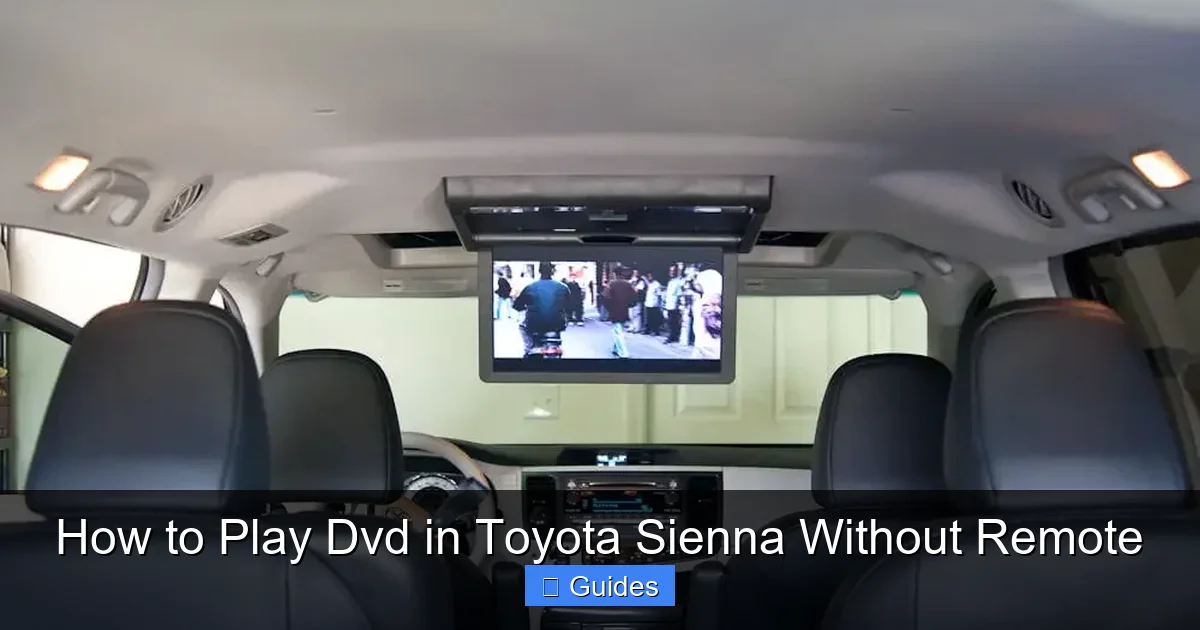
Visual guide about How to Play Dvd in Toyota Sienna Without Remote
Image source: automotiveex.com
Locating the Control Buttons
Start by inspecting the edges of the rear entertainment screen. On many Sienna models, you’ll find a small cluster of buttons labeled with icons like a triangle (play), square (stop), and double lines (pause). These are typically backlit and may require a firm press to activate. If your screen is mounted in the ceiling, check the sides or bottom edge. For headrest-mounted screens, the buttons are usually on the side of the headrest or the base of the screen.
Some models also have a “Menu” or “Source” button that lets you switch between DVD, USB, and auxiliary inputs. Pressing this button cycles through available media sources until you reach the DVD player. Once selected, use the play button to start the disc.
Step-by-Step: Playing a DVD with Physical Buttons
Here’s how to do it:
- Ensure the vehicle is in Park and the ignition is on (or the engine is running).
- Insert the DVD into the player. You’ll hear a soft whirring sound as the disc loads.
- Wait for the screen to display the DVD menu or title screen.
- Press the “Play” button on the screen bezel or headrest. The movie should start automatically.
- Use “Pause,” “Stop,” or “Skip” buttons as needed during playback.
If the screen doesn’t respond, try pressing and holding the “Power” or “Source” button for 3–5 seconds. This can reset the system and restore functionality. Also, make sure the DVD is clean and properly inserted—scratches or upside-down discs can cause playback issues.
Tips for Better Control
While physical buttons are handy, they’re limited in functionality. You won’t be able to access advanced features like subtitles, audio tracks, or scene selection without a remote. However, for basic playback, they’re more than sufficient. To improve usability:
- Use a small flashlight to locate buttons in low light.
- Label the buttons with tape or stickers if they’re hard to identify.
- Have a passenger assist with navigation if the menu is complex.
Remember: these buttons are designed for safety. They won’t work while the vehicle is in motion on some models, so always ensure the car is parked before attempting to control the system.
Method 2: Using USB or SD Card to Bypass the DVD Player
If your Sienna’s DVD player is malfunctioning or you simply want to avoid using discs altogether, you can play video content directly from a USB drive or SD card. This method is not only remote-free but also more reliable, as USB playback is less prone to skipping or freezing.

Visual guide about How to Play Dvd in Toyota Sienna Without Remote
Image source: tacotunes.com
Preparing Your Media Files
Not all video formats are supported by the Sienna’s entertainment system. To ensure compatibility, convert your movies to a supported format. Common compatible formats include:
- MP4 (H.264 video codec, AAC audio)
- AVI (DivX or XviD codec)
- MOV (H.264)
- WMV (Windows Media Video)
Use free software like HandBrake or VLC Media Player to convert your DVDs or video files. Aim for a resolution of 720p or lower for smoother playback. Higher resolutions may cause lag or fail to load.
Loading Content onto a USB Drive or SD Card
Once your files are converted, copy them to a USB flash drive or SD card. Use a card reader if needed. Organize files into folders (e.g., “Movies,” “Kids”) for easier navigation. Avoid using exFAT formatting—stick to FAT32 for maximum compatibility.
Insert the USB drive into the front or rear USB port (usually located in the center console or near the rear seats). For SD cards, use the SD card slot if your Sienna has one—typically found near the DVD player or infotainment screen.
Accessing and Playing Videos
After inserting the media:
- Turn on the entertainment system.
- Press the “Source” or “Menu” button until you see “USB” or “SD” on the screen.
- Navigate through folders using the arrow buttons (on the screen or main display).
- Select a video file and press “Play.”
Playback controls (play, pause, skip) should be available via the screen buttons or main infotainment system. Some models allow you to control playback from the front seat using the touchscreen—ideal for parents who want to manage content without turning around.
Advantages of USB/SD Playback
This method offers several benefits:
- No need for DVDs or a remote.
- Faster loading and more reliable playback.
- Ability to store multiple movies on one drive.
- Easier to update content—just swap out the USB drive.
It’s also a great way to future-proof your entertainment system. As DVDs become less common, USB and digital media are the way forward.
Method 3: Screen Mirroring and Smartphone Integration
For tech-savvy drivers, screen mirroring is a game-changer. By connecting your smartphone to the Sienna’s display, you can stream movies, play videos from apps, or even mirror your phone’s screen—all without a remote or DVD.
Using Apple CarPlay or Android Auto
If your Sienna supports Apple CarPlay or Android Auto (available on 2018 and newer models), you can stream content directly from your phone. While these systems are primarily designed for navigation and music, some video apps like YouTube, Netflix, or Plex can be accessed in parked mode.
To use this method:
- Connect your iPhone or Android phone via USB.
- Enable CarPlay or Android Auto on the main infotainment screen.
- Open a video app and select content to play.
- Use the touchscreen or voice commands to control playback.
Note: Video playback is typically restricted while driving for safety reasons. Always ensure the vehicle is in Park before starting a movie.
Wireless Casting with Miracast or AirPlay
Some newer Siennas support wireless screen mirroring via Miracast (for Android) or AirPlay (for iPhone). This allows you to cast your phone’s screen to the rear entertainment display without cables.
To set up wireless casting:
- Ensure both your phone and the Sienna’s system are on the same Wi-Fi network.
- On your phone, enable screen mirroring (Settings > Display > Cast or Screen Mirroring).
- Select the Sienna’s display from the list of available devices.
- Open a video app and start playback.
This method works best with strong Wi-Fi signals. If your Sienna doesn’t have built-in Wi-Fi, consider using a mobile hotspot.
Third-Party Apps and Streaming Devices
If your Sienna lacks native mirroring support, you can use external devices like:
- Chromecast: Plug into the HDMI port (if available) and cast from your phone.
- Roku Streambar: Connects via HDMI and offers dedicated streaming apps.
- Amazon Fire Stick: Plugs into HDMI and supports thousands of apps.
These devices require an HDMI input, which is available on some higher-trim Siennas. Check your owner’s manual or look for an HDMI port near the DVD player or center console.
Method 4: Accessing Hidden Menus and Touchscreen Controls
Some Toyota Sienna models allow you to control the DVD player through the main infotainment touchscreen—especially when the vehicle is in Park. This hidden feature can be a lifesaver when the remote is missing.
Enabling Rear Entertainment Control
To access this feature:
- Start the vehicle and shift into Park.
- Press the “Menu” or “Settings” button on the main display.
- Look for an option like “Rear Entertainment,” “DVD Player,” or “Source.”
- Select the DVD player from the list of available sources.
- Use the touchscreen to navigate the DVD menu and control playback.
This method works best on Siennas with integrated infotainment systems (2015 and newer). Older models may not support touchscreen control of the rear system.
Using Voice Commands
On vehicles with Toyota’s Entune or newer multimedia systems, you may be able to use voice commands to control playback. Say “Play DVD” or “Pause movie” while in Park. This feature is limited but can be useful for hands-free operation.
Method 5: Replacing or Using a Universal Remote
If all else fails, consider replacing the original remote or using a universal remote. This is the most straightforward long-term solution.
Buying a Replacement Remote
OEM remotes can be purchased from Toyota dealerships or online retailers like Amazon. Search for your Sienna’s model year and entertainment system type to find the correct part number. Prices typically range from $30 to $80.
Using a Universal Remote
Universal remotes like the Logitech Harmony or GE Universal Remote can be programmed to work with your Sienna’s DVD system. Follow the setup instructions to sync the remote with your vehicle. These remotes often support multiple devices, making them ideal for home and car use.
Conclusion: Stay Entertained, Remote or Not
Losing the remote doesn’t have to mean losing movie time. With the methods outlined in this guide, you can easily play DVDs in your Toyota Sienna using built-in buttons, USB drives, smartphone integration, or even the main touchscreen. Each approach has its strengths, so choose the one that best fits your needs and vehicle setup.
Remember to prioritize safety—always operate the system while parked or have a passenger assist. And if you frequently travel with kids, consider keeping a backup remote in the glove box or investing in a universal remote for peace of mind. With a little know-how, your Sienna’s entertainment system can keep the whole family happy, no remote required.
Frequently Asked Questions
Can I play a DVD in my Toyota Sienna without the remote?
Yes, you can play a DVD without the remote by using the physical buttons on the screen, accessing the system through the main touchscreen, or switching to USB/SD playback. Most Siennas have multiple control options built in.
The control buttons are usually located on the bezel of the rear entertainment screen, the headrest, or near the center console. Look for icons like play, pause, and stop—they’re often small and backlit.
Can I use my phone to control the DVD player in my Sienna?
You can’t directly control the DVD player with your phone, but you can mirror your phone’s screen or stream content via CarPlay, Android Auto, or devices like Chromecast if your Sienna has HDMI input.
Check if the vehicle is in Park, the DVD is clean and properly inserted, and the system is powered on. Some models disable rear controls while driving for safety.
Can I play Netflix or YouTube on my Sienna’s DVD screen?
Only if you use screen mirroring or a streaming device like Chromecast. The built-in DVD player doesn’t support internet apps, but newer systems with CarPlay or Android Auto may allow limited streaming in Park.
Is it legal to watch movies while driving in a Toyota Sienna?
No. Video playback is restricted to passengers and only allowed when the vehicle is in Park in most regions. Always follow local laws to avoid fines or safety risks.

At CarLegit, we believe information should be clear, factual, and genuinely helpful. That’s why every guide, review, and update on our website is created with care, research, and a strong focus on user experience.