
Keeping your Acura MDX navigation system up to date ensures accurate directions, real-time traffic, and access to new roads and points of interest. This guide walks you through free, official methods to update your system without paying dealership fees or third-party services.
If you own an Acura MDX, you know how valuable the built-in navigation system is—especially on long road trips, daily commutes, or when exploring unfamiliar cities. But like any technology, it needs regular maintenance to stay useful. Over time, new roads open, traffic patterns shift, and points of interest (like restaurants, gas stations, and charging stations) change. If your navigation system isn’t updated, you might end up with outdated routes, missed exits, or even getting lost.
The good news? You don’t have to pay a dealership $100–$200 for a simple map update. Acura offers free navigation updates directly to owners through their official website. Yes, really—free. While some automakers charge for map refreshes, Acura has made it possible for MDX owners to download and install the latest navigation data at no cost. This guide will walk you through every step, from checking your eligibility to safely installing the update in your vehicle. Whether you drive a 2014 MDX with a DVD-based system or a 2023 model with the latest infotainment setup, we’ve got you covered.
In This Article
- 1 Key Takeaways
- 2 📑 Table of Contents
- 3 Why Updating Your Acura MDX Navigation System Matters
- 4 How to Check If Your Acura MDX Is Eligible for Free Updates
- 5 Preparing for the Update: What You’ll Need
- 6 Step-by-Step Guide to Downloading and Installing the Update
- 7 Troubleshooting Common Update Issues
- 8 Tips for Maintaining Your Navigation System
- 9 Conclusion
- 10 Frequently Asked Questions
- 10.1 Can I update my Acura MDX navigation system for free?
- 10.2 How often should I update my MDX navigation system?
- 10.3 What USB drive size do I need for the update?
- 10.4 Will updating the navigation system delete my saved destinations?
- 10.5 Can I update the system while driving?
- 10.6 What if my MDX is older than 10 years? Can I still get free updates?
Key Takeaways
- Free updates are available directly from Acura: You don’t need to pay a dealer—official map updates can be downloaded at no cost through Acura’s owner portal.
- Use a USB drive for installation: Most MDX models require a USB flash drive (8GB or larger, formatted to FAT32) to transfer update files to your vehicle.
- Check your model year and infotainment system: Update methods vary slightly between older DVD-based systems and newer USB-compatible setups.
- Create or log in to your Acura Owner account: This is essential for accessing downloadable updates and verifying vehicle eligibility.
- Allow 1–2 hours for the full process: Downloading, preparing the USB, and installing the update takes time—plan accordingly.
- Keep your VIN handy: You’ll need your Vehicle Identification Number to register your car and confirm update availability.
- Regular updates improve safety and convenience: Fresh maps reduce wrong turns, improve route accuracy, and enhance overall driving experience.
📑 Table of Contents
- Why Updating Your Acura MDX Navigation System Matters
- How to Check If Your Acura MDX Is Eligible for Free Updates
- Preparing for the Update: What You’ll Need
- Step-by-Step Guide to Downloading and Installing the Update
- Troubleshooting Common Update Issues
- Tips for Maintaining Your Navigation System
- Conclusion
Outdated navigation systems can be more than just an inconvenience—they can be a safety hazard. Imagine relying on your GPS to guide you through a construction zone, only to find the road closed because the map hasn’t been updated in two years. Or worse, being directed down a private driveway or a one-way street because the system doesn’t recognize recent changes. These scenarios aren’t just frustrating; they can lead to accidents, traffic violations, or unnecessary stress.
Beyond safety, updated maps improve efficiency. New highways, bypass routes, and traffic cameras are constantly being added. Real-time traffic data (if your system supports it) works best when the base map is current. Plus, updated systems often include new points of interest—like EV charging stations, which are especially important if you’re driving an MDX with hybrid capabilities or planning a road trip in an electric vehicle.
Another benefit? Resale value. A well-maintained vehicle with up-to-date software signals to potential buyers that you’ve taken good care of your MDX. It’s a small detail, but it can make a difference when it’s time to trade in or sell.
The Risks of Ignoring Updates
Many drivers assume that because their navigation system “works,” it doesn’t need updating. But that’s a dangerous assumption. Maps are dynamic. According to the Federal Highway Administration, over 1.5 million miles of public roads are added or modified in the U.S. each year. That’s a lot of changes your GPS might miss if it’s running on old data.
For example, let’s say you’re driving through a growing suburb where a new shopping center just opened. If your map hasn’t been updated, the system might not show the new roads leading to it—or worse, direct you to a closed entrance. Similarly, toll roads, HOV lanes, and speed limit changes often aren’t reflected in outdated systems.
There’s also the issue of software compatibility. Newer apps and smartphone integrations (like Apple CarPlay or Android Auto) may not function properly if your infotainment system is running on old firmware. While this guide focuses on navigation maps, keeping your entire system updated ensures everything works smoothly together.
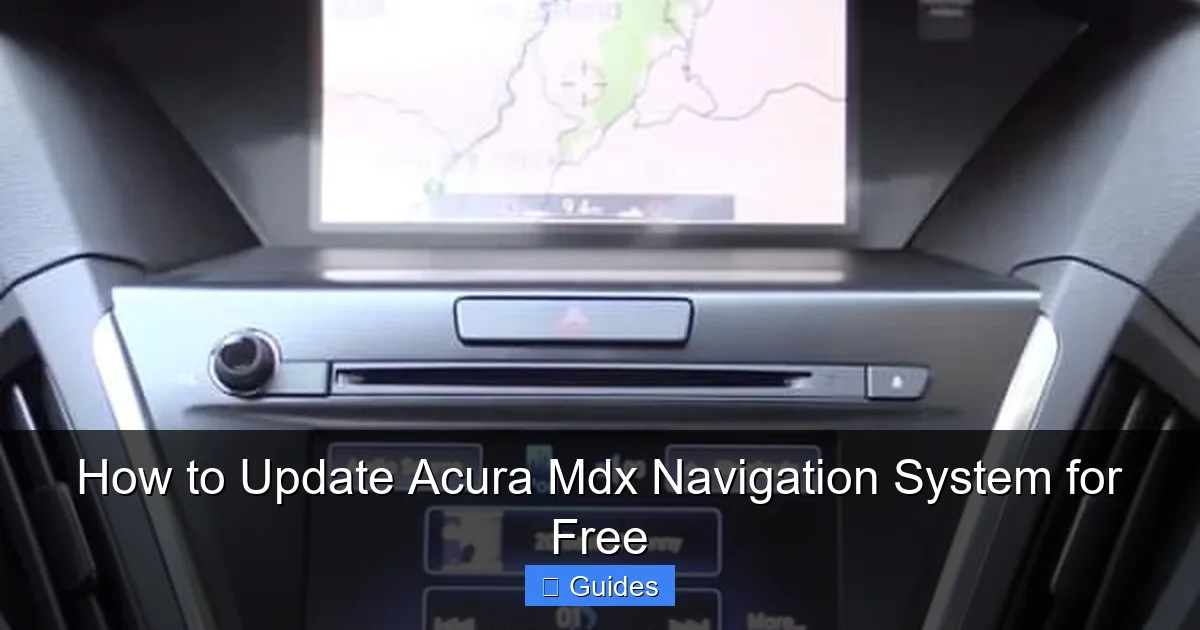
How to Check If Your Acura MDX Is Eligible for Free Updates
Visual guide about How to Update Acura Mdx Navigation System for Free
Image source: cdn-0.truckomize.com
Before you start the update process, you need to confirm that your vehicle qualifies for free navigation updates. Acura offers these updates to owners of eligible models, typically those still under warranty or within a certain timeframe after purchase. However, even out-of-warranty vehicles often qualify—especially if they’re less than 10 years old.
Step 1: Locate Your Vehicle Identification Number (VIN)
Your VIN is a 17-character code unique to your vehicle. You can find it in several places:
– On the driver’s side dashboard, visible through the windshield
– On the driver’s side door jamb (look for a sticker when you open the door)
– In your owner’s manual or registration documents
– On your insurance card
Write it down or take a photo—you’ll need it to register your vehicle on Acura’s website.
Go to the official Acura navigation update website: [https://owners.acura.com](https://owners.acura.com). This is the only trusted source for free updates. Avoid third-party sites that claim to offer “free” updates—they often contain malware or charge hidden fees.
Once there, click on “Navigation Updates” or “Map Updates” in the menu. You’ll be prompted to log in or create an Acura Owner account. If you already have an account (used for service reminders, manuals, or recalls), use those credentials. If not, click “Register” and follow the steps to create one.
Step 3: Register Your Vehicle
After logging in, you’ll need to add your MDX to your account. Enter your VIN, vehicle year, make, model, and current mileage. Acura uses this information to verify eligibility and determine which update version is compatible with your system.
Once registered, the website will tell you whether a free update is available. If it is, you’ll see a download button or instructions for obtaining the update. If not, it may mean your system is already up to date, or your vehicle isn’t eligible (though this is rare for MDX models from 2010 onward).
Preparing for the Update: What You’ll Need
Visual guide about How to Update Acura Mdx Navigation System for Free
Image source: thecarhow.com
Updating your Acura MDX navigation system isn’t complicated, but it does require some preparation. Rushing through the steps can lead to errors, corrupted files, or a failed installation. Here’s what you’ll need to gather before starting:
1. A USB Flash Drive (8GB or Larger)
Most newer Acura MDX models (2016 and later) use USB-based updates. You’ll need a USB drive with at least 8GB of storage. For older models (2014–2015), you may need a DVD, but USB is preferred if your system supports it.
Important tips:
– Use a reliable brand (SanDisk, Samsung, Kingston)
– Format the drive to FAT32 (not NTFS or exFAT)
– Back up any data on the drive—it will be erased during formatting
To format on Windows:
1. Insert the USB drive
2. Open “This PC” or “My Computer”
3. Right-click the drive and select “Format”
4. Choose “FAT32” as the file system
5. Click “Start” and wait for completion
On Mac:
1. Open “Disk Utility”
2. Select the USB drive
3. Click “Erase”
4. Choose “MS-DOS (FAT)” as the format
5. Click “Erase”
2. A Stable Internet Connection
The update file can be large—anywhere from 4GB to 8GB, depending on your model. Download it over Wi-Fi to avoid data charges or slow speeds. Make sure your connection is stable; interruptions can corrupt the file.
3. Your Acura Owner Account Login
You’ll need your username and password to access the download. Keep them handy.
4. Your Vehicle Parked in a Safe, Well-Ventilated Area
The update process can take 30–60 minutes, and your vehicle’s ignition must remain on (but not running) during installation. Park in a garage or shaded area to prevent overheating. Never leave the car unattended with the ignition on.
5. A Fully Charged Battery or Battery Maintainer
Since the engine won’t be running, the car’s battery powers the system during the update. If your battery is weak, the process could fail. Consider using a battery maintainer or trickle charger to ensure consistent power.
Step-by-Step Guide to Downloading and Installing the Update
Visual guide about How to Update Acura Mdx Navigation System for Free
Image source: thecarhow.com
Now that you’re prepared, let’s walk through the actual update process. Follow these steps carefully to avoid mistakes.
Step 1: Download the Update File
1. Log in to your Acura Owner account at [https://owners.acura.com](https://owners.acura.com)
2. Navigate to “Navigation Updates” or “Map Updates”
3. Select your vehicle (your MDX should appear if registered)
4. Click “Download Update”
5. Choose the correct file for your model year and region (e.g., North America)
6. Save the file to your computer (it will likely be a .zip or .iso file)
The download may take 20–40 minutes, depending on your internet speed. Do not interrupt it.
Step 2: Extract and Transfer the Files to Your USB Drive
Once downloaded, you’ll need to extract the files:
– On Windows: Right-click the .zip file and select “Extract All”
– On Mac: Double-click the .zip file to unzip it
After extraction, you should see a folder containing navigation data files (often labeled “MAP” or “NAV”). Copy this entire folder to your formatted USB drive.
Important: Do not rename files or folders. The system reads them in a specific order.
Step 3: Insert the USB Drive into Your MDX
1. Turn on your vehicle (ignition on, engine off)
2. Locate the USB port—usually in the center console or dashboard
3. Insert the USB drive firmly
The infotainment screen should detect the update automatically. If not, go to:
– “Settings” > “System” > “Navigation Update” or
– “Map” > “Update” > “From USB”
Step 4: Begin the Installation
Follow the on-screen prompts:
1. Confirm you want to update
2. Wait for the system to verify the files
3. The update will begin—do not turn off the ignition or remove the USB
The progress bar will show installation status. This can take 30–60 minutes. Your screen may go blank or show “Updating…” repeatedly—this is normal.
Step 5: Complete the Update
Once finished, the system will restart automatically. You’ll see a confirmation message like “Update Complete” or “Navigation System Updated.”
Remove the USB drive and restart the vehicle. Test the navigation by entering a new destination to ensure it recognizes recent roads or POIs.
Troubleshooting Common Update Issues
Even with careful preparation, issues can arise. Here’s how to handle the most common problems:
“Update Not Detected” Error
If your MDX doesn’t recognize the USB drive:
– Ensure the USB is formatted to FAT32
– Try a different USB port
– Use a different USB drive (some brands aren’t compatible)
– Re-download the update file—it may have been corrupted
Update Stalls or Freezes
If the progress bar stops moving:
– Wait at least 10 minutes—some systems pause during data transfer
– If still stuck, turn off the ignition, wait 30 seconds, then restart
– Do not remove the USB during installation
“Invalid File” or “Corrupted Data” Message
This usually means the download was interrupted or the file was altered.
– Delete the downloaded file
– Re-download from the official Acura site
– Extract and copy again—do not open files before transfer
Battery Drains During Update
If your car shuts off mid-update:
– Use a battery maintainer next time
– Ensure all lights and accessories are off
– Park in a cool area to reduce electrical load
Sometimes, the system needs a reset:
– Go to “Settings” > “System” > “Reset to Factory Defaults” (this won’t delete your personal settings)
– Restart the vehicle
– Test navigation again
Updating your maps is just one part of keeping your MDX’s infotainment system running smoothly. Here are a few extra tips:
Check for Updates Annually
Acura typically releases new map data once or twice a year. Set a calendar reminder to check for updates every 12 months.
Keep Your Acura Owner Account Active
Log in periodically to ensure your vehicle info is current. This helps you receive notifications about updates, recalls, and service offers.
Use Genuine Accessories
Avoid cheap USB cables or third-party adapters. They can cause connection issues or slow down data transfer.
Clean the Screen and Ports
Dust and debris can interfere with touch sensitivity or USB connections. Use a microfiber cloth and compressed air to keep things clean.
Backup Your Settings
Before major updates, note your favorite destinations, radio presets, and Bluetooth pairings. Some updates may reset these.
Conclusion
Updating your Acura MDX navigation system for free is not only possible—it’s straightforward when you follow the right steps. By using Acura’s official portal, a properly formatted USB drive, and a little patience, you can keep your maps current without spending a dime. Regular updates improve safety, save time, and enhance your overall driving experience.
Remember, technology evolves quickly, and so do our roads. Staying up to date ensures your MDX remains a reliable companion on every journey. Whether you’re navigating city streets or crossing the country, a fresh navigation system gives you confidence behind the wheel.
So don’t wait—log in to your Acura Owner account today, download the latest update, and hit the road with peace of mind. Your future self (and your passengers) will thank you.
Frequently Asked Questions
Yes, Acura offers free navigation updates to eligible MDX owners through their official website. You don’t need to visit a dealership or pay for third-party services.
It’s recommended to check for updates once a year. Acura typically releases new map data annually, so staying current ensures you have the latest roads and points of interest.
What USB drive size do I need for the update?
Use a USB flash drive with at least 8GB of storage. Make sure it’s formatted to FAT32 for compatibility with your MDX’s infotainment system.
Generally, no. Saved destinations, radio presets, and Bluetooth pairings are stored separately. However, it’s wise to note your favorites before updating, just in case.
Can I update the system while driving?
No. The vehicle must be parked with the ignition on (engine off) during the update. Never attempt to update while driving—it’s unsafe and can cause system errors.
What if my MDX is older than 10 years? Can I still get free updates?
Many older MDX models still qualify for free updates, especially if they’re from 2010 or later. Check your eligibility on the Acura Owner portal using your VIN.

At CarLegit, we believe information should be clear, factual, and genuinely helpful. That’s why every guide, review, and update on our website is created with care, research, and a strong focus on user experience.