
Turning off auto high beams on your GMC Terrain is quick and easy, whether you’re driving at night or in low-light conditions. This guide walks you through the process using the dashboard controls, explains when it’s useful, and offers tips to avoid accidental reactivation.
Driving at night can be challenging, especially when visibility drops due to fog, rain, or poorly lit roads. That’s why modern vehicles like the GMC Terrain come equipped with advanced lighting systems designed to help drivers see better and stay safer. One of these features is the auto high beam system—a smart technology that automatically switches between high and low beams based on surrounding traffic and lighting conditions. While this sounds convenient, it’s not always ideal. Sometimes, the system might activate too late, leave high beams on too long, or behave unpredictably in urban areas with frequent streetlights.
If you’ve ever been blinded by your own high beams or felt frustrated when the system didn’t respond the way you expected, you’re not alone. Many GMC Terrain owners find themselves asking: “How do I turn off auto high beams?” The good news is that disabling this feature is straightforward and can be done in just a few seconds. Whether you’re driving a 2018 model or a newer 2023 Terrain, the process is similar across most trims and years. This guide will walk you through every step, explain how the system works, and offer practical tips to help you make the most of your vehicle’s lighting controls.
In This Article
- 1 Key Takeaways
- 2 📑 Table of Contents
- 3 Understanding Auto High Beams in the GMC Terrain
- 4 When Should You Turn Off Auto High Beams?
- 5 Step-by-Step Guide to Turn Off Auto High Beams
- 6 How to Re-Enable Auto High Beams
- 7 Troubleshooting Common Issues
- 8 Best Practices for Night Driving
- 9 Conclusion
- 10 Frequently Asked Questions
Key Takeaways
- Auto high beams use sensors to detect oncoming traffic and switch lights automatically. This feature improves visibility but may not always suit your driving style or road conditions.
- You can disable auto high beams using the steering wheel controls or the headlight switch. The method varies slightly by model year, so check your owner’s manual if unsure.
- Disabling the feature gives you full manual control over high and low beams. This is helpful in areas with frequent street lighting or when driving behind slow-moving vehicles.
- The auto high beam setting can usually be re-enabled just as easily. Toggle it back on when you want the convenience of automatic lighting again.
- Some GMC Terrain models display a green “AUTO” icon when auto high beams are active. Watch for this indicator to confirm the current status.
- Regularly check your headlight settings before long trips or night drives. Ensuring your lights work properly enhances safety for you and other drivers.
- If the system malfunctions, a warning light may appear on the dashboard. In such cases, visit a certified technician for diagnosis and repair.
📑 Table of Contents
Understanding Auto High Beams in the GMC Terrain
The auto high beam system in the GMC Terrain uses a forward-facing camera mounted near the rearview mirror to detect headlights from oncoming vehicles and taillights from vehicles ahead. When the road is dark and no other vehicles are detected, the system automatically switches to high beams for maximum visibility. Once it senses another vehicle, it switches back to low beams to avoid blinding other drivers. This technology is part of GMC’s broader suite of driver assistance features aimed at reducing driver fatigue and improving nighttime safety.
While the system is designed to be intelligent, it’s not perfect. In some cases, it may fail to detect motorcycles, bicycles, or vehicles with dim lights. It might also struggle in heavy rain, fog, or snow, where visibility is already compromised. Additionally, in cities or suburban areas with frequent street lighting, the system may constantly toggle between high and low beams, which can be distracting. That’s why many drivers prefer to take manual control—especially when driving on familiar roads or in conditions where the auto system behaves unpredictably.
How the System Detects Other Vehicles
The camera used by the auto high beam system scans the road ahead up to about 1,000 feet. It analyzes light patterns to distinguish between streetlights, reflective signs, and actual vehicle lights. When it identifies headlights or taillights, it triggers the switch to low beams. The system is calibrated to respond quickly—usually within a second or two—but environmental factors like fog, glare, or dirty camera lenses can affect its accuracy.
Benefits and Limitations of Auto High Beams
The main benefit of auto high beams is convenience. You don’t have to constantly flip the stalk or remember to dim your lights. This reduces cognitive load, especially on long drives. However, the system isn’t foolproof. It may not detect vehicles in curves, over hills, or in heavy traffic. It also doesn’t account for pedestrian crossings or animals on the road. For these reasons, it’s important to stay alert and ready to override the system when needed.
When Should You Turn Off Auto High Beams?
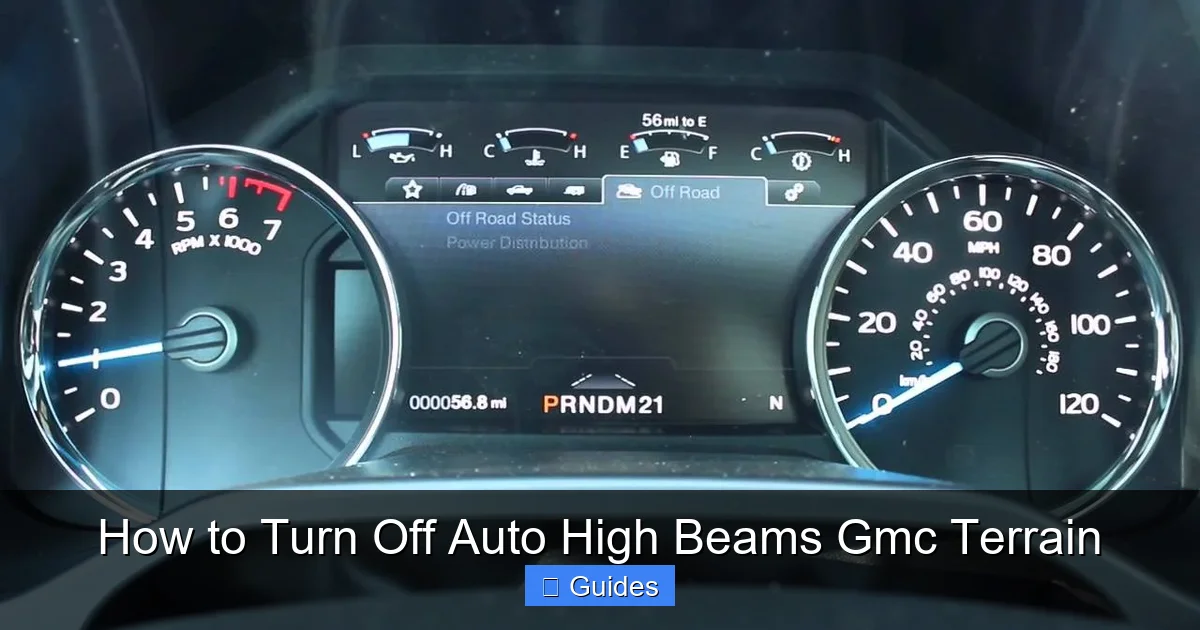
Visual guide about How to Turn Off Auto High Beams Gmc Terrain
Image source: i.ytimg.com
There are several situations where turning off auto high beams makes sense. If you frequently drive in urban areas with well-lit streets, the system may constantly switch between high and low beams, which can be annoying and even dangerous if it leaves high beams on too long. Similarly, if you’re driving behind a slow-moving vehicle like a truck or RV, the system might not dim the lights quickly enough, potentially blinding the driver ahead.
Another common scenario is driving in fog or heavy rain. In these conditions, high beams can reflect off water droplets and create a “wall of light” that reduces visibility. Turning off auto high beams and using low beams or fog lights (if equipped) is often the safer choice. Additionally, if you’re towing a trailer or driving with a roof rack that affects airflow, the camera sensor might be obstructed, leading to inaccurate readings.
Driving in Urban and Suburban Areas
In cities and suburbs, streetlights are common, and traffic is frequent. The auto high beam system may interpret streetlights as oncoming vehicles and keep the high beams off, even when it’s safe to use them. Alternatively, it might briefly flash high beams between streetlights, creating a flickering effect. For many drivers, this constant switching is more distracting than helpful. Turning off the feature allows you to use low beams consistently, which is often sufficient in well-lit areas.
Driving in Rural or Unlit Areas
On the other hand, rural roads with little to no lighting are where auto high beams shine—literally. Here, the system can significantly improve visibility without the risk of blinding others. However, if you know the road well and prefer to control your lights manually, you can still disable the feature. Some drivers feel more confident when they’re in full control, especially on winding roads or during wildlife crossings.
Step-by-Step Guide to Turn Off Auto High Beams
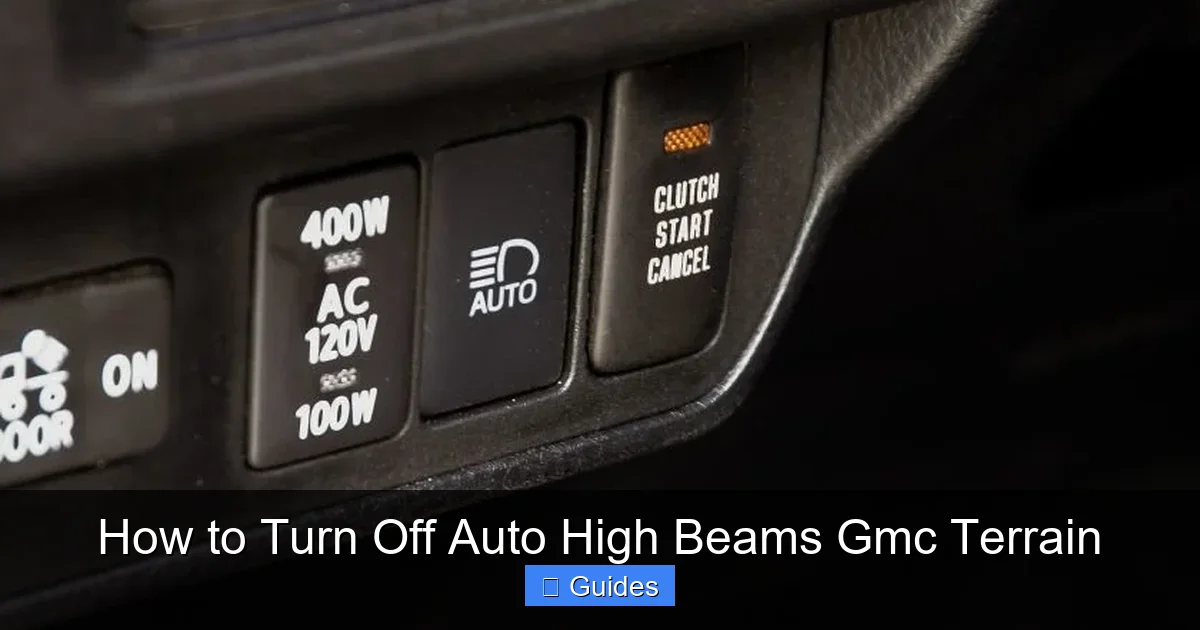
Visual guide about How to Turn Off Auto High Beams Gmc Terrain
Image source: twstatic.net
Turning off auto high beams on your GMC Terrain is a simple process that takes less than a minute. The exact steps may vary slightly depending on your model year and trim level, but the general method remains consistent. Below is a detailed guide to help you disable the feature quickly and safely.
Method 1: Using the Steering Wheel Controls
Most GMC Terrain models from 2017 onward allow you to turn off auto high beams using the steering wheel-mounted controls. Here’s how:
1. Start your vehicle and ensure the headlights are turned on.
2. Locate the steering wheel control stalk on the left side (behind the wheel).
3. Push the stalk forward to activate high beams momentarily, or pull it back to turn them off.
4. To disable auto high beams, press and hold the “AUTO” button on the stalk for about 3 seconds. You should see the green “AUTO” indicator on the dashboard turn off.
5. Confirm the change by checking the instrument cluster—no “AUTO” light means the feature is disabled.
This method works on most Terrain models with the IntelliBeam system. If you don’t see an “AUTO” button, your vehicle may use a different control layout.
Method 2: Using the Headlight Switch
If your Terrain has a rotary headlight switch on the dashboard (common in earlier models), follow these steps:
1. Turn the headlight switch to the “Auto” position to activate automatic lighting.
2. Look for a small button or toggle near the switch labeled “AUTO” or “High Beam Assist.”
3. Press and hold this button for 3–5 seconds until the dashboard indicator turns off.
4. The system is now disabled, and you’ll need to manually control high and low beams using the stalk.
Some models may require you to cycle through menu options using the driver information center (DIC). In that case, use the steering wheel buttons to navigate to “Vehicle Settings” > “Lighting” > “Auto High Beams” and toggle it off.
Method 3: Through the Infotainment System
On newer GMC Terrain models (2020 and later), you can also manage auto high beams through the touchscreen infotainment system:
1. Tap the “Settings” icon on the home screen.
2. Select “Vehicle” from the menu.
3. Scroll to “Lighting” or “Exterior Lighting.”
4. Find the “Auto High Beams” option and toggle it off.
5. Exit the menu and confirm the change by checking the dashboard.
This method is user-friendly and allows you to customize other lighting features at the same time, such as daytime running lights or automatic headlights.
How to Re-Enable Auto High Beams
Visual guide about How to Turn Off Auto High Beams Gmc Terrain
Image source: fulloctanegarage.com
If you’ve turned off auto high beams and later decide you want the feature back, re-enabling it is just as easy. Simply reverse the steps you used to disable it. For example, if you turned it off using the steering wheel stalk, press and hold the “AUTO” button again until the green light reappears. If you used the infotainment system, go back to the “Lighting” menu and toggle the setting back on.
It’s a good idea to re-enable auto high beams before driving on highways or rural roads at night, where the feature can provide significant safety benefits. However, always stay alert and ready to override the system if it behaves unexpectedly.
Tips for Smooth Reactivation
– Make sure your vehicle is running and the headlights are on before attempting to re-enable the feature.
– If the system doesn’t respond, try turning the ignition off and on again to reset the electronics.
– Check that the forward-facing camera is clean and unobstructed by dirt, snow, or stickers.
Troubleshooting Common Issues
Sometimes, the auto high beam system may not work as expected—even when it’s turned on. Here are a few common issues and how to fix them:
Auto High Beams Won’t Turn On
If the system won’t activate, first check that the feature is enabled in the settings. Also, ensure the headlights are in “Auto” mode and the ambient light sensor detects darkness. If the problem persists, the camera may be dirty or misaligned. Clean the area around the rearview mirror gently with a microfiber cloth.
System Switches Too Late or Too Early
This could be due to sensor sensitivity or environmental factors. Avoid placing stickers or covers near the camera. If the issue continues, visit a GMC service center for calibration.
Warning Light on Dashboard
A warning light (often labeled “Service Front Camera” or “Check Driver Assistance Systems”) indicates a malfunction. This could be due to a software glitch, damaged sensor, or wiring issue. Schedule a diagnostic check as soon as possible.
Best Practices for Night Driving
Whether you use auto high beams or not, safe night driving requires attention and preparation. Here are some tips:
– Always keep your headlights clean and properly aligned.
– Use low beams in fog, rain, or snow to avoid glare.
– Dim your dashboard lights to reduce eye strain.
– Take breaks on long drives to stay alert.
– Know when to override automated systems—your judgment is still the most important tool.
Conclusion
The auto high beam feature in the GMC Terrain is a helpful tool, but it’s not always the right choice for every driving situation. Knowing how to turn it off—and when to do so—gives you greater control and confidence behind the wheel. Whether you’re navigating city streets, rural highways, or adverse weather, being able to manage your vehicle’s lighting ensures a safer, more comfortable drive.
With the steps outlined in this guide, you can easily disable or re-enable auto high beams in just a few seconds. Remember to check your settings regularly, keep your sensors clean, and always prioritize safety over convenience. Your GMC Terrain is designed to adapt to your needs—so take charge and drive with confidence.
Frequently Asked Questions
How do I know if auto high beams are active?
A green “AUTO” icon appears on the instrument cluster when auto high beams are enabled. This light indicates the system is actively monitoring road conditions and switching beams as needed.
Can I permanently disable auto high beams?
Yes, you can disable the feature using the steering wheel controls, headlight switch, or infotainment system. However, it’s not permanently removed—you can re-enable it anytime.
Why won’t my auto high beams turn off?
If the system won’t disable, check that you’re holding the “AUTO” button long enough (3–5 seconds). Also, ensure the vehicle is running and the headlights are on. A dirty camera sensor can also cause malfunctions.
Do auto high beams work in fog?
No, auto high beams are not recommended in fog. High beams reflect off water droplets and reduce visibility. Use low beams or fog lights instead for better clarity.
Will turning off auto high beams save battery?
Not significantly. The auto system uses minimal power. However, manually controlling lights may help if you frequently drive short distances where the system cycles on and off.
Is the auto high beam feature available on all GMC Terrain trims?
The feature is standard on higher trims (like SLT and Denali) and optional on lower trims. Check your owner’s manual or vehicle specifications to confirm if your model includes it.

At CarLegit, we believe information should be clear, factual, and genuinely helpful. That’s why every guide, review, and update on our website is created with care, research, and a strong focus on user experience.