
Removing a Bluetooth device from your 2016 Honda Civic is simple and can be done directly through the infotainment system. Whether you’re switching phones, clearing old connections, or troubleshooting pairing issues, this guide walks you through every step with clear instructions and helpful tips.
In This Article
- 1 Key Takeaways
- 2 📑 Table of Contents
- 3 Introduction: Why You Might Need to Remove a Bluetooth Device
- 4 Understanding Your Honda Civic 2016 Infotainment System
- 5 Step-by-Step Guide: How to Remove a Bluetooth Device
- 6 Troubleshooting Common Issues
- 7 How to Remove All Bluetooth Devices at Once
- 8 Best Practices for Managing Bluetooth Devices
- 9 Conclusion: Keep Your Honda Civic’s Bluetooth Running Smoothly
- 10 Frequently Asked Questions
- 10.1 Can I remove a Bluetooth device while driving?
- 10.2 Will removing a device delete my call history?
- 10.3 How many devices can my 2016 Honda Civic pair with?
- 10.4 What if I can’t find the delete option?
- 10.5 Do I need to remove old devices when getting a new phone?
- 10.6 Can I remove Bluetooth devices using the steering wheel controls?
Key Takeaways
- Access the Bluetooth settings through the Home menu: Use the touchscreen or steering wheel controls to navigate to the Bluetooth device list.
- Select the device you want to remove: Highlight the paired phone or audio device and choose the delete or forget option.
- Confirm the deletion: Always confirm when prompted to ensure the device is fully removed from the system.
- Restart the system if needed: A quick reboot can resolve glitches if the device still appears after deletion.
- Clear all devices for a fresh start: Use the “Delete All” feature when selling the car or resetting connections.
- Re-pair new devices easily: Once old devices are removed, connecting a new phone takes just minutes.
- Keep your system updated: Software updates can improve Bluetooth performance and fix bugs.
📑 Table of Contents
- Introduction: Why You Might Need to Remove a Bluetooth Device
- Understanding Your Honda Civic 2016 Infotainment System
- Step-by-Step Guide: How to Remove a Bluetooth Device
- Troubleshooting Common Issues
- How to Remove All Bluetooth Devices at Once
- Best Practices for Managing Bluetooth Devices
- Conclusion: Keep Your Honda Civic’s Bluetooth Running Smoothly
Introduction: Why You Might Need to Remove a Bluetooth Device
So, you’ve got a 2016 Honda Civic—great choice! It’s reliable, fuel-efficient, and packed with tech features for its time. One of the most convenient features is Bluetooth connectivity, which lets you make hands-free calls, stream music, and use voice commands without fumbling with your phone. But what happens when that connection starts acting up? Or maybe you’re selling your car and want to wipe out your personal data? Or perhaps you’ve upgraded to a new phone and need to remove the old one from the system?
Whatever the reason, knowing how to remove a Bluetooth device from your Honda Civic 2016 is a handy skill. It’s not always obvious where to find the settings, and the process can vary slightly depending on whether you’re using the touchscreen or physical buttons. But don’t worry—this guide will walk you through it step by step, with clear instructions, real-life examples, and troubleshooting tips to make the process smooth and stress-free.
Bluetooth issues are more common than you might think. Maybe your phone won’t connect anymore, or the audio keeps cutting out during calls. Sometimes, the system gets confused when multiple devices are paired, leading to lag or failed connections. Removing old or unused devices can free up space, reduce interference, and help your car’s infotainment system run more efficiently. Plus, if you’re handing over the keys to a new owner, removing your personal devices is a smart privacy move.
Understanding Your Honda Civic 2016 Infotainment System
Visual guide about How to Remove Bluetooth Device from Honda Civic 2016
Image source: autorideup.com
Before diving into the removal process, it’s helpful to understand how the 2016 Honda Civic’s infotainment system works. This model typically comes with a 5-inch or 7-inch touchscreen display, depending on the trim level (LX, EX, EX-T, EX-L, or Touring). The system runs on Honda’s proprietary software and supports Bluetooth for both phone calls and audio streaming.
The Bluetooth functionality allows you to pair up to six devices, though only one can be actively connected for calls and audio at a time. This means you could have your phone, your partner’s phone, and a tablet all saved, but only one will work during a drive. The system remembers each device’s settings, including contact lists and call history, which is convenient—but also why it’s important to remove devices you no longer use.
Navigating the system is done primarily through the touchscreen, but you can also use the steering wheel controls or the physical buttons near the screen. The Home button (usually marked with a house icon) is your gateway to all major functions, including Bluetooth settings. From there, you can access phone, audio, navigation, and system settings.
One thing to note: the exact menu layout might vary slightly depending on whether your Civic has the standard audio system or the upgraded Display Audio system with HondaLink. However, the core steps for removing a Bluetooth device remain largely the same. The key is knowing where to look and what buttons to press.
Bluetooth Pairing Basics
When you first pair a device, the system walks you through a simple process: turn on Bluetooth on your phone, search for “Honda Civic” in the available devices list, and enter a PIN (usually 0000 or 1234) when prompted. Once paired, the device is saved in the system’s memory. Over time, you might accumulate several paired devices—old phones, tablets, or even a friend’s phone that borrowed your car for a weekend trip.
While having multiple devices saved isn’t a problem in theory, it can lead to confusion. For example, if your old phone is still paired, the system might try to connect to it automatically when you start the car, even if it’s not in the vehicle. This can cause delays or failed connections with your current phone. That’s why it’s a good idea to periodically review and clean up your paired devices.
Signs You Need to Remove a Bluetooth Device
How do you know it’s time to remove a device? Here are a few common scenarios:
– Your phone won’t connect, but it used to work fine.
– The audio skips or cuts out during calls or music playback.
– You’re selling or trading in your car and want to protect your privacy.
– You’ve upgraded to a new phone and want to remove the old one.
– The system shows a device that you no longer own or use.
– You’re experiencing lag or slow response times when using Bluetooth features.
In any of these cases, removing the problematic or unused device is a smart first step. It’s a quick fix that can resolve many common Bluetooth issues without needing to visit a dealership or spend money on repairs.
Step-by-Step Guide: How to Remove a Bluetooth Device
Visual guide about How to Remove Bluetooth Device from Honda Civic 2016
Image source: hondatheotherside.com
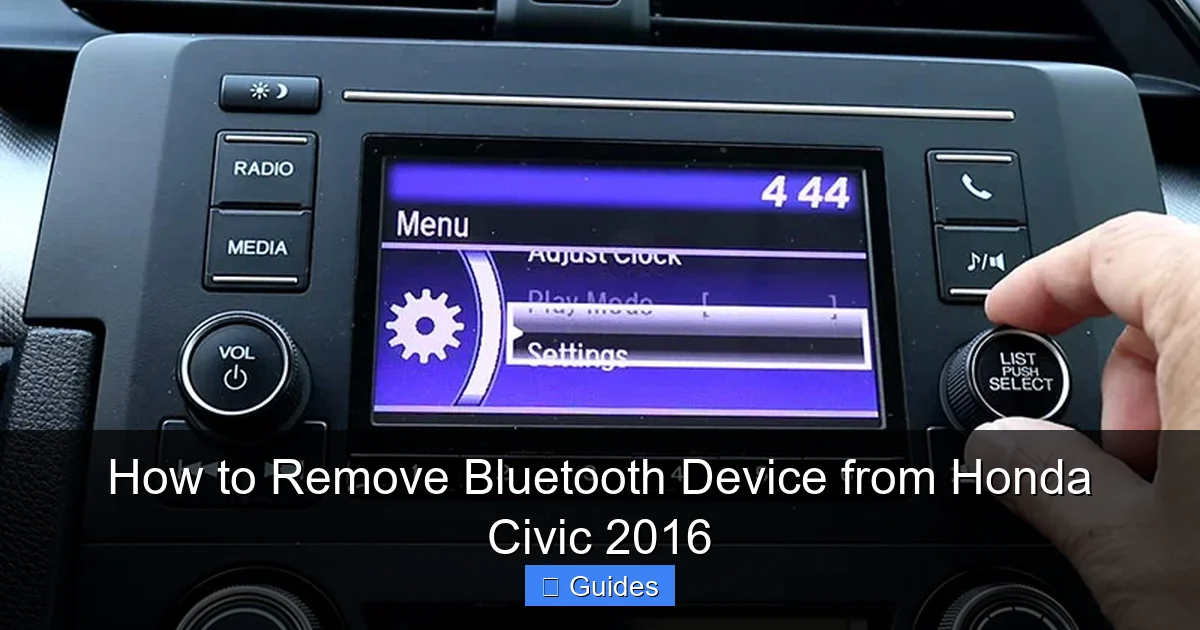
Now that you understand the basics, let’s get into the nitty-gritty: how to actually remove a Bluetooth device from your 2016 Honda Civic. The process is straightforward, but it’s important to follow each step carefully to avoid accidentally deleting the wrong device or missing a confirmation prompt.
Step 1: Turn On the Ignition
First, make sure your car is in the “On” position. You don’t need to start the engine, but the ignition should be turned to the “Accessory” or “On” mode so the infotainment system powers up. This is essential because the Bluetooth settings won’t be accessible if the system is off.
If you’re parked and just want to remove a device, you can do this with the engine off—just turn the key to the second position (where the dashboard lights up) or press the Start button without pressing the brake pedal (on push-button start models).
Step 2: Access the Home Menu
Once the system is on, look for the Home button on the touchscreen or near the display. It’s usually labeled with a house icon and is located at the bottom of the screen or on the center console. Tap it to open the main menu.
From the Home screen, you’ll see icons for Phone, Audio, Navigation, Settings, and more. We’re interested in the Phone section, since that’s where Bluetooth device management happens.
Step 3: Open the Phone Menu
Tap the “Phone” icon on the Home screen. This will take you to the phone interface, where you can make calls, view recent calls, and manage contacts. But we’re not here to make a call—we’re here to manage paired devices.
Look for a button or menu option labeled “Phone Setup,” “Bluetooth Settings,” or “Device List.” The exact wording may vary, but it’s usually located in the upper-right corner of the screen or within a submenu.
Step 4: View Paired Devices
Once you’re in the Phone Setup or Bluetooth Settings menu, you should see a list of all devices that are currently paired with your Civic. This list might include your phone, a tablet, or even a smartwatch if you’ve paired one before.
Each device will be listed by name—usually the name you gave it when pairing, like “John’s iPhone” or “Sarah’s Galaxy.” If you’re not sure which device is which, look for clues like the model name (e.g., “iPhone 12”) or the last four digits of the Bluetooth address (if displayed).
Step 5: Select the Device to Remove
Now, tap on the device you want to remove. This will highlight it and usually bring up additional options, such as “Connect,” “Disconnect,” or “Delete.” We want the “Delete” or “Forget Device” option.
If you don’t see a delete option immediately, look for a gear icon, three dots, or a “More” button. Tapping that should reveal the delete function.
Step 6: Confirm the Deletion
After selecting “Delete,” the system will ask you to confirm. This is a safety feature to prevent accidental deletions. You’ll typically see a pop-up message like “Are you sure you want to delete this device?” with “Yes” and “No” buttons.
Tap “Yes” to confirm. The device will be removed from the list, and you’ll be taken back to the device list or the main Phone menu.
Step 7: Verify the Device Is Gone
To make sure the device was successfully removed, go back to the device list and check that it’s no longer there. If it’s still showing up, try repeating the process or restart the system (more on that below).
Troubleshooting Common Issues
Visual guide about How to Remove Bluetooth Device from Honda Civic 2016
Image source: hondatheotherside.com
Even with clear instructions, things don’t always go smoothly. Here are some common problems you might encounter when trying to remove a Bluetooth device—and how to fix them.
The Delete Option Is Grayed Out or Missing
If you can’t find the delete option, or it’s grayed out and unclickable, there are a few possible reasons:
– The device is currently connected. Try disconnecting it first by selecting “Disconnect” or turning off Bluetooth on the device itself.
– The system is in a restricted mode. Some features are disabled while the car is in motion for safety. Make sure the vehicle is parked and the parking brake is engaged.
– The menu layout is different. If you’re using a HondaLink-enabled system, the options might be nested under “Settings” instead of “Phone.” Try navigating to Settings > Device > Bluetooth Devices.
The Device Reappears After Deletion
Sometimes, a device seems to disappear but shows up again the next time you start the car. This usually happens because the device is still trying to reconnect automatically.
To prevent this:
– Turn off Bluetooth on the device you removed.
– Restart the infotainment system by turning the car off and on again.
– If the problem persists, try a full system reset (see below).
System Freezes or Responds Slowly
If the touchscreen becomes unresponsive or lags during the process, it might be due to a software glitch. Try these steps:
– Wait a few minutes—sometimes the system just needs time to process.
– Restart the system by turning the ignition off and on.
– If that doesn’t work, perform a soft reset by holding the Power and Home buttons simultaneously for 10 seconds (on some models).
Can’t Find the Bluetooth Settings
If you’re having trouble locating the Bluetooth menu, try this alternative path:
– Go to the Home screen.
– Tap “Settings.”
– Look for “Device” or “Bluetooth.”
– Select “Paired Devices” or “Device List.”
This route works on many Honda models and can be a helpful backup if the Phone menu doesn’t show the options you need.
How to Remove All Bluetooth Devices at Once
If you’re preparing to sell your car, upgrading your phone, or just want a clean slate, you might want to remove all paired devices at once. The 2016 Honda Civic doesn’t have a built-in “Delete All” button in the standard menu, but you can achieve the same result with a few extra steps.
Method 1: Delete Devices One by One
The most straightforward way is to go through the device list and delete each one individually, as described earlier. It’s a bit time-consuming if you have several devices, but it’s reliable and ensures nothing is missed.
Method 2: Perform a System Reset
A more thorough approach is to reset the entire infotainment system. This will erase all paired devices, saved settings, and sometimes even navigation favorites—so use it with caution.
To reset the system:
– Turn off the car.
– Open the glove compartment and locate the small reset button (usually near the fuse box or behind a panel).
– Use a paperclip or similar tool to press and hold the reset button for 5–10 seconds.
– Close the glove compartment and restart the car.
After the reset, the system will boot up as if it’s new, with no paired devices. You’ll need to reconfigure your settings, including Bluetooth pairing, but this is the most effective way to wipe everything clean.
Method 3: Use HondaLink (If Equipped)
If your Civic has HondaLink, you might be able to manage devices remotely through the HondaLink app. While you can’t delete devices directly from the app, you can view paired devices and get support from Honda customer service for advanced troubleshooting.
Best Practices for Managing Bluetooth Devices
Now that you know how to remove devices, here are some tips to keep your Bluetooth system running smoothly in the future.
Regularly Review Paired Devices
Make it a habit to check your paired devices every few months. Remove any that you no longer use—old phones, borrowed devices, or gadgets that are no longer in service. This keeps the list clean and reduces the chance of connection conflicts.
Name Your Devices Clearly
When pairing a new device, give it a descriptive name like “Mom’s iPhone” or “Work Phone” instead of just “iPhone” or “Samsung.” This makes it easier to identify and manage devices later.
Keep Your Phone’s Bluetooth On
If you frequently remove and re-pair devices, you might be tempted to turn off Bluetooth on your phone. But keeping it on allows for automatic reconnection when you enter the car, saving you time and hassle.
Update Your System Software
Honda occasionally releases software updates for the infotainment system that can improve Bluetooth performance, fix bugs, and add new features. Check for updates through the Honda website or visit a dealership if you’re unsure how to do it yourself.
Use One Primary Device
To avoid confusion, designate one phone as your primary device for calls and audio. Remove or disconnect other devices when not in use to prevent the system from trying to connect to the wrong one.
Conclusion: Keep Your Honda Civic’s Bluetooth Running Smoothly
Removing a Bluetooth device from your 2016 Honda Civic might seem like a small task, but it can make a big difference in your daily driving experience. Whether you’re troubleshooting a connection issue, protecting your privacy, or just keeping your system organized, knowing how to manage paired devices is a valuable skill.
The process is simple: access the Phone menu, find the device list, select the device you want to remove, and confirm the deletion. With a little practice, you’ll be able to do it in under a minute. And if you run into problems, the troubleshooting tips in this guide will help you get back on track.
Remember, a clean Bluetooth system leads to better performance, fewer glitches, and a more enjoyable time behind the wheel. So take a few minutes today to review your paired devices and remove any that are no longer needed. Your future self—and your next phone—will thank you.
Frequently Asked Questions
Can I remove a Bluetooth device while driving?
No, for safety reasons, the system restricts access to certain settings while the vehicle is in motion. Always remove Bluetooth devices when the car is parked and the parking brake is engaged.
Will removing a device delete my call history?
Removing a Bluetooth device only deletes the pairing information. Your call history and contacts stored on your phone remain unaffected. However, any call logs saved in the car’s system may be cleared.
How many devices can my 2016 Honda Civic pair with?
The 2016 Honda Civic can store up to six paired Bluetooth devices, though only one can be actively connected for calls and audio at a time.
What if I can’t find the delete option?
If the delete option is missing or grayed out, try disconnecting the device first or check under the Settings menu instead of the Phone menu. Restarting the system may also help.
Do I need to remove old devices when getting a new phone?
It’s not required, but it’s recommended. Removing old devices prevents connection conflicts and ensures your new phone pairs smoothly without interference.
Can I remove Bluetooth devices using the steering wheel controls?
No, the steering wheel controls are limited to basic functions like volume and call answering. You must use the touchscreen or physical buttons near the display to access Bluetooth settings.

At CarLegit, we believe information should be clear, factual, and genuinely helpful. That’s why every guide, review, and update on our website is created with care, research, and a strong focus on user experience.