
Installing a Mercedes Benz navigation SD card is a simple process that ensures your in-car GPS stays up to date with the latest maps and points of interest. This guide walks you through every step—from locating the SD card slot to confirming a successful installation—so you can drive confidently with accurate navigation.
In This Article
- 1 Key Takeaways
- 2 📑 Table of Contents
- 3 Introduction: Why Your Mercedes Navigation Needs an SD Card
- 4 Understanding the Mercedes Benz Navigation SD Card
- 5 Preparing for Installation: What You’ll Need
- 6 Step-by-Step Guide to Installing the SD Card
- 7 Troubleshooting Common Issues
- 8 Tips for Maintaining Your Navigation System
- 9 Conclusion: Drive with Confidence
- 10 Frequently Asked Questions
- 10.1 Where is the navigation SD card slot located in a Mercedes?
- 10.2 Can I use a third-party SD card for Mercedes navigation?
- 10.3 How often should I update my Mercedes navigation SD card?
- 10.4 What should I do if my navigation system doesn’t recognize the SD card?
- 10.5 Can I install the SD card while driving?
- 10.6 Is it safe to remove the SD card while the car is on?
Key Takeaways
- Locate the correct SD card slot: Most Mercedes models have the navigation SD card slot in the glove compartment or center console.
- Use only official Mercedes-Benz SD cards: Third-party cards may not be compatible or could cause system errors.
- Ensure the car is powered on: The ignition should be in accessory mode or the engine running during installation.
- Handle the SD card carefully: Avoid touching the gold contacts and store it in a protective case when not in use.
- Wait for the system to recognize the card: It may take a few minutes for the navigation system to load the new map data.
- Update your maps regularly: New SD cards are released annually with updated roads, traffic patterns, and POIs.
- Contact Mercedes support if issues arise: If the system doesn’t recognize the card, professional assistance may be needed.
📑 Table of Contents
- Introduction: Why Your Mercedes Navigation Needs an SD Card
- Understanding the Mercedes Benz Navigation SD Card
- Preparing for Installation: What You’ll Need
- Step-by-Step Guide to Installing the SD Card
- Troubleshooting Common Issues
- Tips for Maintaining Your Navigation System
- Conclusion: Drive with Confidence
Your Mercedes-Benz is more than just a luxury vehicle—it’s a high-tech command center on wheels. One of the most essential features is the built-in navigation system, which relies on detailed digital maps to guide you from point A to point B with precision. But here’s the catch: those maps aren’t stored permanently in the car’s memory. Instead, they’re loaded from a small, removable SD card that slots into your vehicle’s infotainment system. This means that to keep your GPS accurate and up to date, you need to install or replace the Mercedes Benz navigation SD card regularly.
Whether you’re preparing for a long road trip, moving to a new city, or simply noticing that your navigation is showing outdated roads or missing landmarks, updating your SD card is a smart move. The good news? It’s easier than you might think. You don’t need to be a tech expert or visit a dealership to get it done. With the right card and a few simple steps, you can install the navigation SD card yourself in under 10 minutes. This guide will walk you through everything you need to know—from identifying the correct card to troubleshooting common issues—so you can keep your Mercedes navigation running smoothly.
Before diving into the installation process, it’s important to understand what the navigation SD card actually does and why it’s so crucial to your driving experience. Think of the SD card as the “brain” of your GPS system. It contains all the map data, including highways, local streets, traffic signs, speed limits, and points of interest (POIs) like gas stations, restaurants, and hotels. Without a properly installed and updated SD card, your navigation system may give incorrect directions, fail to recognize new roads, or even stop working altogether.

Visual guide about How to Install Mercedes Benz Navigation Sd Card
Image source: i0.wp.com
What’s on the SD Card?
The Mercedes Benz navigation SD card is preloaded with high-resolution map data for your region—whether that’s North America, Europe, Asia, or another supported area. These maps are updated annually by Mercedes-Benz in partnership with leading mapping providers like HERE Technologies. Each new version includes thousands of changes: new construction zones, updated speed limits, revised one-way streets, and newly opened businesses. For example, if a new shopping center opened near your home last year, the latest SD card will include it, while an older card might direct you to a closed road or missing exit.
Why Use an Official SD Card?
You might be tempted to use a generic SD card or download maps from the internet, but this is strongly discouraged. Mercedes-Benz designs its navigation system to work exclusively with official SD cards that are encrypted and formatted specifically for their hardware. Using a third-party card—even if it fits—can result in error messages, system freezes, or complete failure to load maps. Plus, unofficial cards won’t receive automatic updates, leaving you with outdated information. Always purchase your navigation SD card directly from a Mercedes-Benz dealership or an authorized online retailer to ensure compatibility and reliability.
How Often Should You Update?
Mercedes-Benz typically releases a new navigation SD card once per year, usually in the first quarter. While your current card may still function, it’s best to update annually to take advantage of the latest map improvements. If you frequently drive in areas with rapid development—like new suburbs, highway expansions, or downtown revitalization zones—updating more often can make a big difference in navigation accuracy. Some drivers even keep two cards on hand: one for everyday use and a backup in case of damage or loss.
Preparing for Installation: What You’ll Need
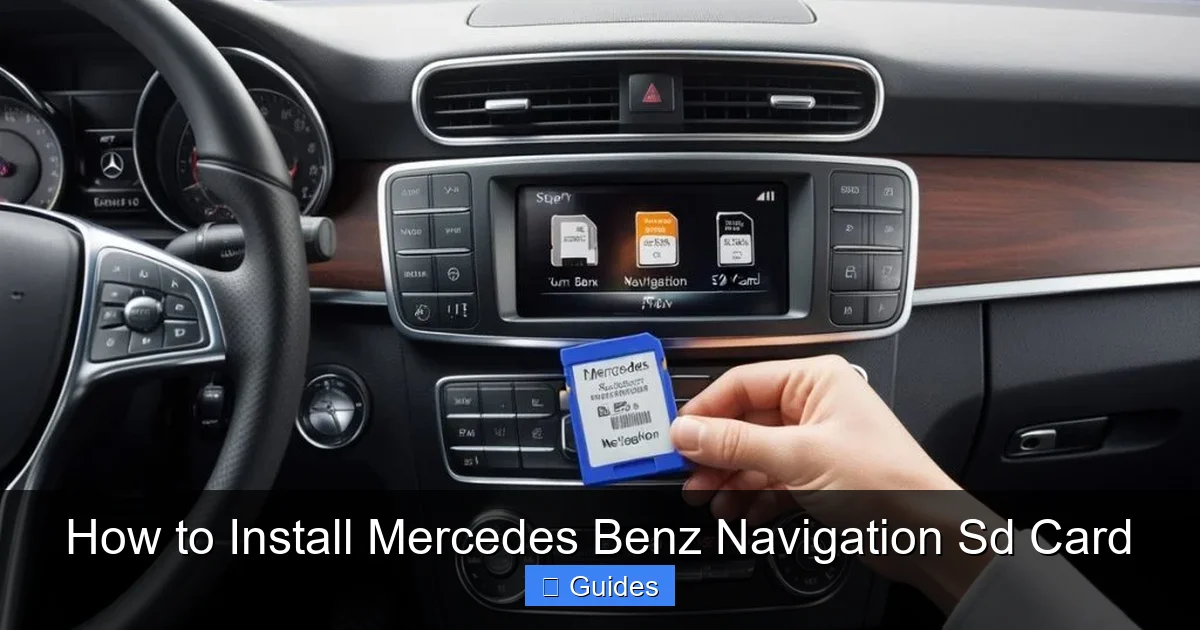
Installing the Mercedes Benz navigation SD card is a straightforward process, but a little preparation goes a long way. Before you begin, make sure you have everything you need to complete the installation without interruptions. Rushing or skipping steps can lead to mistakes, so take a moment to gather your materials and review the basics.
Visual guide about How to Install Mercedes Benz Navigation Sd Card
Image source: thecarguider.com
The Right SD Card
First and foremost, confirm that you have the correct navigation SD card for your Mercedes model and region. These cards are model-specific and often labeled with details like “NTG4,” “NTG5,” or “COMAND APS,” which refer to the generation of your infotainment system. For example, a 2018 Mercedes C-Class with the NTG5 system requires a different card than a 2012 E-Class with NTG4. You can usually find this information in your owner’s manual or by checking the part number on your current SD card. If you’re unsure, visit the Mercedes-Benz website or contact your local dealer for assistance.
Tools and Environment
You won’t need any special tools to install the SD card—just your hands and a clean, well-lit workspace. However, it’s a good idea to park your car in a safe, flat area with the engine off or in accessory mode. Avoid installing the card while driving or in direct sunlight, as extreme temperatures can affect the SD card’s performance. Also, make sure your hands are clean and dry to prevent transferring dirt or moisture to the card’s contacts.
Backup Your Current Card (Optional)
If you’re replacing an old SD card, consider keeping it as a backup. While rare, SD cards can fail due to physical damage or corruption. Having a spare means you won’t be left without navigation if your new card has an issue. Store the old card in a protective case or envelope, and label it with the year and region for easy reference. Just remember: only one card can be used at a time, so don’t leave both inserted simultaneously.
Step-by-Step Guide to Installing the SD Card
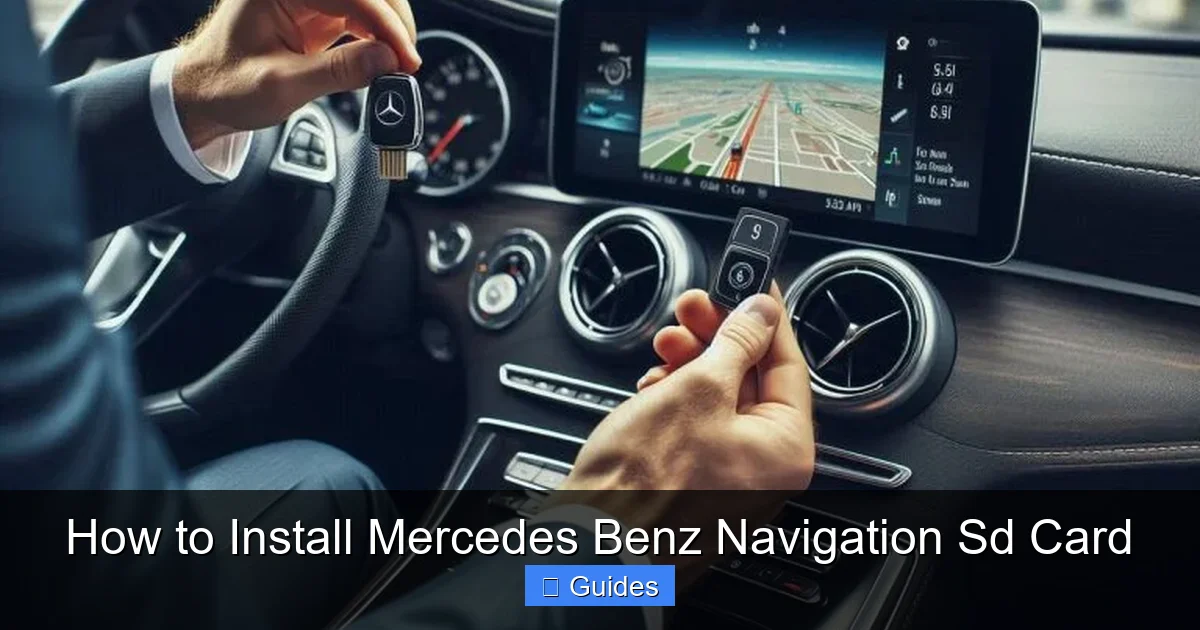
Now that you’re prepared, it’s time to install the Mercedes Benz navigation SD card. The exact steps may vary slightly depending on your model, but the general process is consistent across most Mercedes-Benz vehicles. Follow these instructions carefully to ensure a smooth installation.
Visual guide about How to Install Mercedes Benz Navigation Sd Card
Image source: thecarguider.com
Step 1: Locate the SD Card Slot
The first step is finding where the SD card slot is located. In most Mercedes models, the navigation SD card slot is hidden inside the glove compartment. Open the glove box and look for a small, rectangular slot—usually on the side or back wall. Some newer models, like the GLE or S-Class, may have the slot in the center console near the armrest or under the climate controls. If you can’t find it, consult your owner’s manual or search online for your specific model year and trim.
Step 2: Power On the Vehicle
Before inserting the card, turn on the ignition. You don’t need to start the engine, but the car should be in accessory mode (key turned to position 1 or 2) so the infotainment system is active. This allows the system to detect and read the SD card immediately. If the car is completely off, the system may not recognize the card when you insert it.
Step 3: Insert the SD Card
Take your new navigation SD card and inspect it for any visible damage. Hold it by the edges, avoiding contact with the gold-colored metal contacts on the bottom. These are sensitive and can be easily damaged by fingerprints or static electricity. Align the card with the slot—there’s usually only one way it will fit—and gently push it in until it clicks into place. Don’t force it; if it doesn’t slide in easily, double-check the orientation.
Step 4: Wait for System Recognition
Once the card is inserted, the infotainment screen may display a message like “Loading map data” or “Please wait.” This is normal and can take anywhere from 30 seconds to 3 minutes, depending on the size of the map data and the speed of your system. Avoid turning off the car or removing the card during this time. Once the process is complete, the navigation system should automatically launch, showing your current location on the updated map.
Step 5: Verify the Installation
To confirm the installation was successful, open the navigation menu and check the map version. You can usually find this under “Settings” > “System Information” or “Map Data.” The date should match the release year of your new SD card. Try entering a destination you’ve never visited before—like a new restaurant or park—to see if the system recognizes it. If everything works as expected, you’re all set!
Troubleshooting Common Issues
Even with careful installation, you might encounter a few hiccups. Don’t panic—most issues are easy to resolve with a little patience and troubleshooting. Here are some common problems and how to fix them.
“No Map Data Found” Error
If your screen displays an error message saying “No map data found” or “Navigation system unavailable,” the most likely cause is an incompatible or damaged SD card. Double-check that you’re using an official Mercedes-Benz card for your specific model. If the card is correct, try removing and reinserting it to ensure a secure connection. If the problem persists, the card may be defective—contact the seller or Mercedes support for a replacement.
Card Not Recognized
Sometimes the system fails to detect the SD card at all. This could be due to a dirty slot or a card that wasn’t fully inserted. Turn off the car, remove the card, and inspect both the card and the slot for dust or debris. Use a can of compressed air to gently clean the slot if needed. Reinsert the card firmly and restart the system. If it still doesn’t work, try the card in another compatible Mercedes (if available) to determine if the issue is with the card or the vehicle.
Slow Loading or Freezing
If the navigation system takes unusually long to load or freezes during use, it may be struggling with corrupted data or a faulty card. Try restarting the infotainment system by turning the car off and on again. If the problem continues, consider formatting the card (only if it’s not encrypted) or replacing it with a new one. Avoid using the system extensively until the issue is resolved to prevent further damage.
Incorrect Map Display
In rare cases, the system may load the wrong region or show outdated roads. This usually happens if the SD card is for a different geographic area. For example, a European map card won’t work properly in a U.S.-spec vehicle. Always ensure you’re using the correct regional version. If you’ve recently moved countries, you may need to purchase a new card for your current location.
Once your Mercedes Benz navigation SD card is installed and working, a little maintenance can go a long way in keeping it reliable for years to come. Here are some best practices to follow.
Handle with Care
SD cards are small but delicate. Always store your navigation card in a protective case when not in use, and avoid exposing it to extreme heat, cold, or moisture. Never bend, drop, or scratch the card, and keep it away from magnets or electronic devices that could interfere with its data.
Update Annually
Make it a habit to check for new map updates each year. Set a calendar reminder for January or February to visit your local dealership or order a new card online. Even if your current maps seem fine, annual updates ensure you have the latest safety features, like new school zones or construction alerts.
Keep a Backup
As mentioned earlier, having a backup SD card is a smart precaution. Store it in your glove box or home office, and label it clearly. If your primary card fails, you can swap it in instantly without losing navigation functionality.
Monitor System Performance
Pay attention to how your navigation system behaves over time. If you notice frequent glitches, slow response times, or inaccurate directions, it could be a sign of a failing card or software issue. Don’t ignore these symptoms—address them early to avoid being stranded with no GPS.
Conclusion: Drive with Confidence
Installing a Mercedes Benz navigation SD card is a simple yet essential task that ensures your luxury vehicle lives up to its full potential. With accurate, up-to-date maps at your fingertips, you can navigate unfamiliar cities, avoid traffic jams, and discover new places with ease. By following the steps in this guide—choosing the right card, inserting it correctly, and maintaining it properly—you’ll enjoy reliable navigation for every journey.
Remember, your Mercedes-Benz is designed to make driving safer, smarter, and more enjoyable. Don’t let an outdated or missing SD card hold you back. Take a few minutes today to install your new navigation card, and experience the peace of mind that comes with knowing you’re always on the right path. Whether you’re commuting to work or embarking on a cross-country adventure, your GPS will be ready when you are.
Frequently Asked Questions
The SD card slot is typically found inside the glove compartment, often on the side or back panel. Some newer models may have it in the center console or under the armrest. Check your owner’s manual for the exact location.
No, you should only use official Mercedes-Benz navigation SD cards. Third-party cards are not encrypted or formatted correctly and may cause system errors or fail to load maps.
Mercedes-Benz releases a new map update once per year, usually in the first quarter. It’s recommended to update your SD card annually to ensure the most accurate and current map data.
First, ensure the card is fully inserted and the car is powered on. If it still doesn’t work, try cleaning the slot or testing the card in another compatible vehicle. If the issue persists, contact Mercedes support.
Can I install the SD card while driving?
It’s not recommended. Always install the SD card when the vehicle is parked and the ignition is in accessory mode. Installing while driving can be distracting and may prevent proper system recognition.
Is it safe to remove the SD card while the car is on?
No, avoid removing the SD card while the system is actively using it. Turn off the infotainment system or put the car in park before removing the card to prevent data corruption or system errors.

At CarLegit, we believe information should be clear, factual, and genuinely helpful. That’s why every guide, review, and update on our website is created with care, research, and a strong focus on user experience.