
Changing the time on your Lexus RX 350 is easier than you think—no dealership visit needed. Whether you’ve just switched time zones or daylight saving time has kicked in, this guide walks you through every step using your vehicle’s intuitive infotainment system.
In This Article
- 1 Key Takeaways
- 2 📑 Table of Contents
- 3 Why Changing the Time on Your Lexus RX 350 Matters
- 4 Understanding Your Lexus RX 350’s Clock System
- 5 Step-by-Step Guide: How to Change Time on Lexus RX 350 (2016 and Newer Models)
- 6 Step-by-Step Guide: How to Change Time on Lexus RX 350 (2007–2015 Models)
- 7 Troubleshooting Common Issues When Changing the Time
- 8 Best Practices for Maintaining Accurate Time in Your Lexus RX 350
- 9 Why This Simple Task Makes a Big Difference
- 10 Final Thoughts
- 11 Frequently Asked Questions
- 11.1 Can I change the time on my Lexus RX 350 while driving?
- 11.2 Does the Lexus RX 350 automatically adjust for daylight saving time?
- 11.3 Why does my clock reset every time I turn off the car?
- 11.4 Can I sync my car’s clock with my smartphone?
- 11.5 What if my Remote Touch controller is broken?
- 11.6 How do I switch between 12-hour and 24-hour time format?
Key Takeaways
- Access the clock settings through the main menu: Use the touchscreen or Remote Touch controller to navigate to “Settings” and select “Clock.”
- Manual vs. automatic time sync: You can choose to let your Lexus sync with GPS for accurate time or set it manually for full control.
- Daylight saving adjustments are built-in: The system automatically adjusts for DST if enabled, but you can disable this feature if preferred.
- Model year matters: Older RX 350 models (2007–2015) use different menus than newer ones (2016+), so follow the right instructions for your year.
- Remote Touch users take note: If your RX 350 uses the Remote Touch interface, use the controller instead of touching the screen directly.
- Double-check time zone settings: Incorrect time zones can throw off your clock even with GPS sync—always verify your current zone.
- Reset after battery disconnect: If you’ve recently replaced your car battery, you may need to reset the time as a one-time step.
📑 Table of Contents
- Why Changing the Time on Your Lexus RX 350 Matters
- Understanding Your Lexus RX 350’s Clock System
- Step-by-Step Guide: How to Change Time on Lexus RX 350 (2016 and Newer Models)
- Step-by-Step Guide: How to Change Time on Lexus RX 350 (2007–2015 Models)
- Troubleshooting Common Issues When Changing the Time
- Best Practices for Maintaining Accurate Time in Your Lexus RX 350
- Why This Simple Task Makes a Big Difference
- Final Thoughts
Why Changing the Time on Your Lexus RX 350 Matters
Imagine you’re running late for an important meeting, and your car’s clock is still set to yesterday’s time. Or worse—you’ve just flown across time zones on vacation, and your navigation system keeps suggesting routes based on the wrong hour. Frustrating, right? That’s why knowing how to change time on Lexus RX 350 isn’t just a nice-to-have skill—it’s essential for staying punctual, organized, and stress-free behind the wheel.
The good news? Lexus designed the RX 350 with user-friendly technology that makes adjusting the clock straightforward—even if you’re not tech-savvy. Whether you drive a 2007 model with a basic display or a 2023 version packed with advanced infotainment features, the process is intuitive once you know where to look. Plus, with options for both automatic GPS synchronization and manual input, you have full control over how your vehicle keeps time. In this guide, we’ll walk you through every step, clarify differences between model years, and share pro tips to avoid common pitfalls.
Understanding Your Lexus RX 350’s Clock System
Before diving into the steps, it helps to understand how your RX 350 manages time. Unlike older cars with analog clocks you wind by hand, modern Lexus vehicles rely on digital systems integrated into the multimedia unit. This system pulls data from multiple sources: GPS satellites, your connected smartphone (if paired), and internal memory. Most drivers prefer the automatic GPS sync because it’s accurate and requires zero maintenance—but sometimes, you’ll want to override it manually.
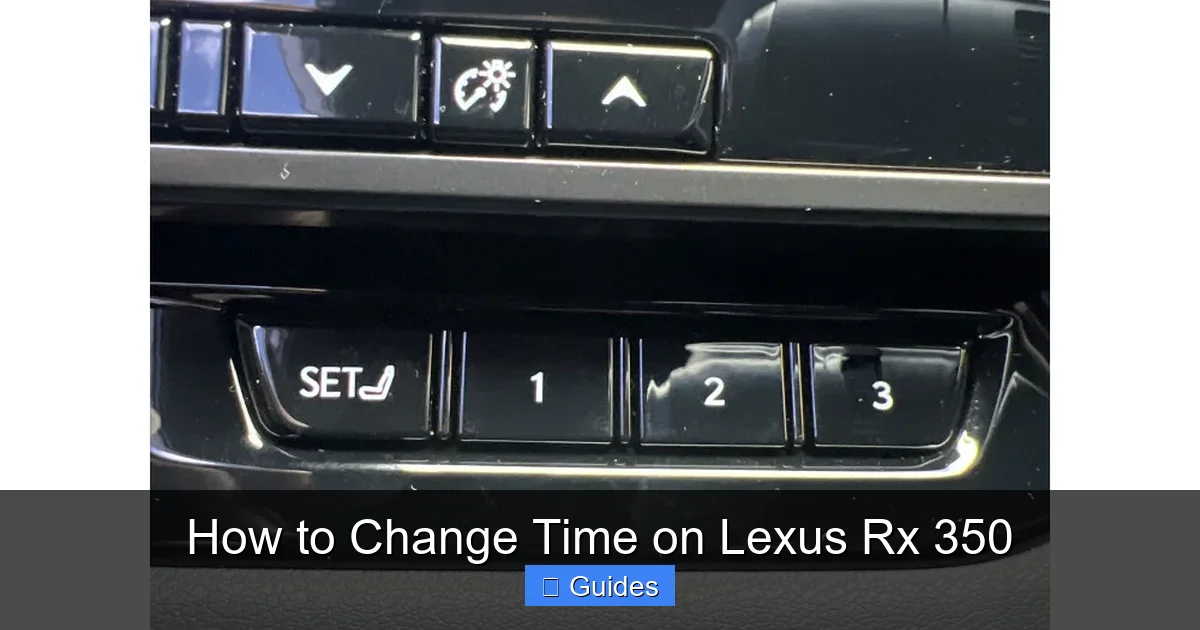
Visual guide about How to Change Time on Lexus Rx 350
Image source: manuals.ca
Automatic Time Sync (GPS-Based)
When enabled, your RX 350 uses GPS signals to determine the correct local time based on your geographic location. This feature is especially handy when traveling across time zones—your car essentially “knows” where you are and adjusts accordingly. It also handles daylight saving time changes automatically, so you don’t have to remember to spring forward or fall back.
Manual Time Setting
If you prefer full control—or if you’re in an area with weak GPS signal (like a parking garage or rural zone)—you can disable automatic sync and set the time yourself. This is also useful if you want to keep a consistent time reference (e.g., for shift work or international travel) without your car constantly updating.
Model Year Differences
Here’s a crucial detail: the interface and menu structure changed significantly after the 2015 model year. Pre-2016 RX 350s typically use a simpler touchscreen or button-based system, while 2016 and newer models feature the Enform infotainment platform with either a touchscreen or Remote Touch controller. We’ll cover both setups in detail below, so you can follow along no matter which RX 350 you drive.
Step-by-Step Guide: How to Change Time on Lexus RX 350 (2016 and Newer Models)
If your Lexus RX 350 was manufactured in 2016 or later, you likely have the Enform system with a central display screen. Depending on your trim level, you may control it via direct touch or the Remote Touch interface (a mouse-like controller between the front seats). Don’t worry—both methods are covered here.
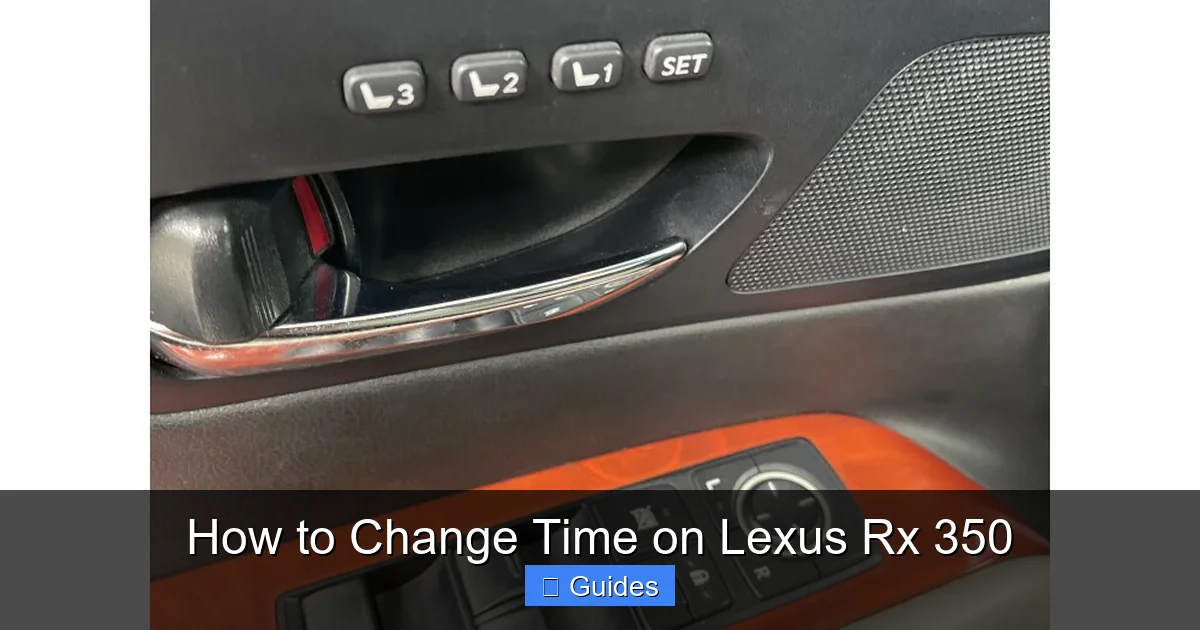
Visual guide about How to Change Time on Lexus Rx 350
Image source: manua.ls
Using the Touchscreen (Direct Input)
Start by ensuring your vehicle is powered on—you don’t need to drive, but the ignition should be in “Accessory” or “On” mode. Look at the home screen of your infotainment system. You’ll see icons for Navigation, Audio, Phone, and Settings. Tap the Settings icon (usually represented by a gear or wrench symbol).
Inside Settings, scroll down until you find Clock or Clock Settings. Tap it. You’ll now see two main options: Automatic (GPS sync) and Manual. If Automatic is enabled, toggle it off to unlock manual editing.
Once in Manual mode, you’ll see fields for Hour, Minute, and AM/PM (or 24-hour format, depending on your preference). Tap the hour field, use the on-screen keypad to enter the correct value, then do the same for minutes. Don’t forget to confirm AM or PM! When done, tap Set or OK to save your changes. The clock on your dashboard and center display will update instantly.
Using the Remote Touch Controller
If your RX 350 uses the Remote Touch interface (common on higher trims like the Luxury or F Sport), you won’t be tapping the screen directly. Instead, use the controller near your gear shifter. Press the controller to wake up the display, then navigate to Menu > Setup > General > Clock.
From there, select Clock Adjustment. Use the directional pad to highlight “Manual” and press the center button to confirm. Now, use the controller to adjust hours and minutes—press up/down to change values, left/right to move between fields. Once set, press the Back button or look for a “Save” option to apply your changes.
Pro Tip: Verify Time Zone Settings
Even with manual time entry, your RX 350 may still reference your time zone for other functions (like scheduled maintenance reminders). To check or change your time zone, go back to the main Settings menu and look for Region or Time Zone. Select your current zone (e.g., Pacific, Eastern, Central, Mountain). This ensures consistency across all vehicle systems.
Step-by-Step Guide: How to Change Time on Lexus RX 350 (2007–2015 Models)
Older RX 350 models (2007 through 2015) use a different infotainment layout, often referred to as the “Display Audio” system. These vehicles typically have a smaller screen and rely more on physical buttons or basic touch input. The process is still simple—but the menu path is slightly different.

Visual guide about How to Change Time on Lexus Rx 350
Image source: i2.wp.com
Accessing Clock Settings on Older Models
Turn on your vehicle and wait for the display to fully load. On the home screen, look for a button labeled Menu or Setup—this might be a physical button below the screen or an on-screen icon. Press it.
Navigate to Vehicle Settings or System Settings. Within that menu, find Clock or Clock Adjustment. Unlike newer models, older RX 350s often don’t offer automatic GPS sync—so you’ll always be setting the time manually.
Use the on-screen arrows or adjacent buttons to adjust the hour and minute. Some models require you to hold the button to scroll quickly through numbers. Once you’ve entered the correct time, press Set or Confirm. The change takes effect immediately.
Handling Daylight Saving Time Manually
Since pre-2016 models lack automatic DST adjustment, you’ll need to remember to change the clock twice a year. Mark your calendar for the second Sunday in March (spring forward) and the first Sunday in November (fall back). It’s a small task, but skipping it can throw off your schedule—and your car’s reminder systems.
What If the Clock Resets After Battery Replacement?
If you’ve recently replaced your car battery or had electrical work done, your RX 350’s clock may have reset to 12:00. This is normal—the system loses power and defaults to a blank state. Simply follow the steps above to re-enter the correct time. Consider keeping a sticky note in your glovebox with the current time as a quick reference until you can reset it.
Troubleshooting Common Issues When Changing the Time
Even with clear instructions, things don’t always go smoothly. Here are some common hiccups Lexus RX 350 owners encounter—and how to fix them.
“My Clock Keeps Reverting to the Wrong Time”
This usually happens when Automatic GPS sync is enabled, but your vehicle can’t get a strong satellite signal (e.g., in a parking structure or dense urban canyon). The system tries to auto-correct but fails, causing confusion. Solution: Temporarily disable automatic sync, set the time manually, and re-enable GPS once you’re in an open area.
“I Can’t Find the Clock Settings Menu”
Menu layouts vary slightly by model year and trim. If you’re stuck, consult your owner’s manual—Lexus includes a detailed section on clock adjustment. Alternatively, try searching the menu for keywords like “Time,” “Date,” or “System.” On some older models, clock settings are nested under “Display” or “Preferences.”
“The Remote Touch Controller Isn’t Responding”
Dirt, moisture, or wear can affect the Remote Touch pad. Clean it gently with a microfiber cloth. If it’s still unresponsive, restart your vehicle by turning it off completely for 30 seconds, then back on. This resets the infotainment system and often resolves glitches.
“My Phone Shows the Right Time, But My Car Doesn’t”
Even if your smartphone is paired via Bluetooth, your RX 350 doesn’t automatically sync time from your phone. The car relies solely on GPS or manual input. However, if you use Apple CarPlay or Android Auto, those apps may display the correct time—but they won’t change your vehicle’s internal clock. Stick to the built-in settings for accuracy.
Best Practices for Maintaining Accurate Time in Your Lexus RX 350
Once you’ve mastered how to change time on Lexus RX 350, a few habits can keep your clock reliable long-term.
Enable GPS Sync When Traveling
If you frequently drive across state or time zone lines, keep automatic GPS sync turned on. Your RX 350 will handle the adjustments seamlessly—no mental math required. Just remember to verify your time zone in settings if you notice inconsistencies.
Check After Major Electrical Work
Any service involving the battery, alternator, or fuse box can reset your clock. Make it a habit to glance at the time display after such repairs. A quick 30-second adjustment saves future confusion.
Use the 24-Hour Format for Clarity
If you often mix up AM and PM (we’ve all been there!), switch to 24-hour format in your clock settings. It eliminates ambiguity—especially helpful for early-morning or late-night drives.
Update Your Vehicle Software
Lexus periodically releases infotainment updates that improve system stability, including clock functionality. Visit your local dealer or check the Lexus Enform website to see if your RX 350 is eligible for a free update. A well-maintained system means fewer surprises.
Why This Simple Task Makes a Big Difference
At first glance, changing a car’s clock seems trivial—but it’s one of those small details that quietly impacts your daily routine. A correct time display ensures your navigation estimates are accurate, your calendar alerts sync properly, and you never miss a pickup or appointment because your car thought it was an hour earlier (or later). In a world where timing is everything, your Lexus RX 350’s clock is more than just a convenience—it’s a reliability tool.
And let’s be honest: there’s something deeply satisfying about mastering a feature in your own vehicle. No more guessing, no more frustration, no more relying on your phone as a backup timepiece. With the steps in this guide, you’re equipped to handle time changes like a pro—whether it’s for daylight saving, a cross-country road trip, or just keeping your daily schedule on track.
Final Thoughts
Learning how to change time on Lexus RX 350 is a quick win that pays dividends in peace of mind and punctuality. From navigating menu differences between model years to troubleshooting signal issues, you now have everything you need to keep your clock accurate and your drives stress-free. Remember: whether you’re using a touchscreen or Remote Touch, the process is designed to be intuitive—and with practice, it’ll take you less than a minute.
So next time the clocks shift or you land in a new time zone, don’t reach for your phone. Grab your keys, hop in your RX 350, and take control. Your future self—and your punctuality—will thank you.
Frequently Asked Questions
Can I change the time on my Lexus RX 350 while driving?
Yes, but for safety, it’s best to do it when parked. While the system allows adjustments on the move, handling the screen or controller while driving can be distracting. Pull over if needed.
Does the Lexus RX 350 automatically adjust for daylight saving time?
Only on 2016 and newer models with GPS sync enabled. Older models (2007–2015) require manual adjustment twice a year.
Why does my clock reset every time I turn off the car?
This shouldn’t happen under normal conditions. If it does, there may be a battery or electrical issue. Have your vehicle inspected by a Lexus technician to rule out faulty wiring or a weak battery.
Can I sync my car’s clock with my smartphone?
No, the RX 350 doesn’t sync time via Bluetooth or USB. It relies on GPS or manual input. However, Apple CarPlay and Android Auto will show the correct time within their apps.
What if my Remote Touch controller is broken?
You can still use the touchscreen directly on most 2016+ models. If your vehicle doesn’t support touch input, visit a Lexus dealer for repair or replacement—Remote Touch is integral to the interface on those trims.
How do I switch between 12-hour and 24-hour time format?
Go to Clock Settings in your infotainment menu. Look for “Time Format” or “Display Format” and select your preference. This option is available on all RX 350 models from 2010 onward.

At CarLegit, we believe information should be clear, factual, and genuinely helpful. That’s why every guide, review, and update on our website is created with care, research, and a strong focus on user experience.