
Turning off My Key on your Ford F150 is simple once you know the right steps. Whether you’re dealing with speed or audio restrictions, this guide walks you through every method—from using the admin key to accessing the settings menu—so you can regain full control of your truck.
If you’ve ever handed your Ford F150 keys to a teen driver or a friend and noticed the radio won’t go past a certain volume, the speed seems capped, or warning chimes keep going off—you’ve likely encountered Ford’s My Key system. It’s a smart safety feature designed to promote responsible driving, especially for younger or less experienced drivers. But what happens when you need full control back? That’s where knowing how to turn off My Key on your Ford F150 becomes essential.
My Key is part of Ford’s intelligent access system, introduced in the late 2000s and now standard on most F150 models. It allows the vehicle owner—the “admin”—to program specific restrictions on secondary keys. These can include limiting top speed (often to 80 mph), capping audio volume at 45%, disabling traction control, or enabling mandatory safety belt reminders. While these features are great for peace of mind, they can be frustrating if you’re the primary driver and suddenly find your own truck acting like it’s in “training mode.”
The good news? Turning off My Key isn’t complicated—but it does require using the right key and following the correct sequence. Whether you’ve misplaced your admin key, inherited a used F150 with My Key active, or simply want to disable the restrictions, this guide will walk you through every step. We’ll cover multiple methods, troubleshooting tips, and what to do if things don’t go as planned. By the end, you’ll have full command of your truck again—no dealership visit required.
In This Article
- 1 Key Takeaways
- 2 📑 Table of Contents
- 3 What Is My Key and Why Does It Matter?
- 4 How to Identify If My Key Is Active
- 5 Step-by-Step: How to Turn Off My Key Using the Admin Key
- 6 Alternative Methods to Disable My Key
- 7 Troubleshooting Common My Key Issues
- 8 Preventing My Key Issues in the Future
- 9 Conclusion
- 10 Frequently Asked Questions
Key Takeaways
- Understanding How To Turn Off My Key Ford F150: Provides essential knowledge
📑 Table of Contents
What Is My Key and Why Does It Matter?
Before diving into how to turn off My Key on your Ford F150, it’s important to understand what this feature actually does—and why Ford included it in the first place. My Key is an innovative driver-assist technology that lets the vehicle owner set customizable driving parameters on specific keys. Think of it like a parental control system for your truck. When a My Key is inserted into the ignition, the vehicle automatically applies pre-set restrictions based on how the admin configured it.
For example, if you lend your F150 to your 17-year-old who just got their license, you might program the My Key to limit the top speed to 70 mph, reduce the audio system’s maximum volume, and ensure that chimes remind the driver to buckle up. Some versions even prevent the radio from playing until the seatbelt is fastened. These features are designed to encourage safer driving habits and reduce distractions.
But here’s the catch: if you’re not aware that your key is a My Key—or if you’ve bought a used F150 and the previous owner didn’t disable it—you might suddenly find yourself frustrated by unexpected limitations. Maybe your favorite playlist cuts out at half volume, or your truck won’t accelerate past a certain speed on the highway. That’s your clue that My Key is active.
Understanding how My Key works also helps explain why simply turning the key off and on won’t reset it. The system is tied to the key itself, not just the ignition cycle. That’s why you need the admin key—the master key that has full privileges—to make changes. Without it, you won’t be able to disable My Key settings, which is why keeping track of your admin key is so important.
How to Identify If My Key Is Active
Visual guide about How to Turn Off My Key Ford F150
Image source: roadsumo.com
Not sure if your Ford F150 is currently running on a My Key? There are several telltale signs that can help you confirm whether the system is active. The most obvious clue is behavior that feels “off” compared to how your truck normally operates. For instance, if you suddenly can’t turn the volume up past a certain point—even when you crank the knob all the way—it’s likely due to a My Key audio restriction.
Another common indicator is a speed limiter. If your F150 seems to hit a ceiling around 80 mph and won’t go faster, even on open highways, My Key may be enforcing a speed cap. This is especially noticeable if you’ve driven the same truck before without this issue. Additionally, you might hear persistent chimes reminding you to fasten your seatbelt, even if you’ve already done so. While seatbelt reminders are standard, My Key can make them more aggressive or unskippable.
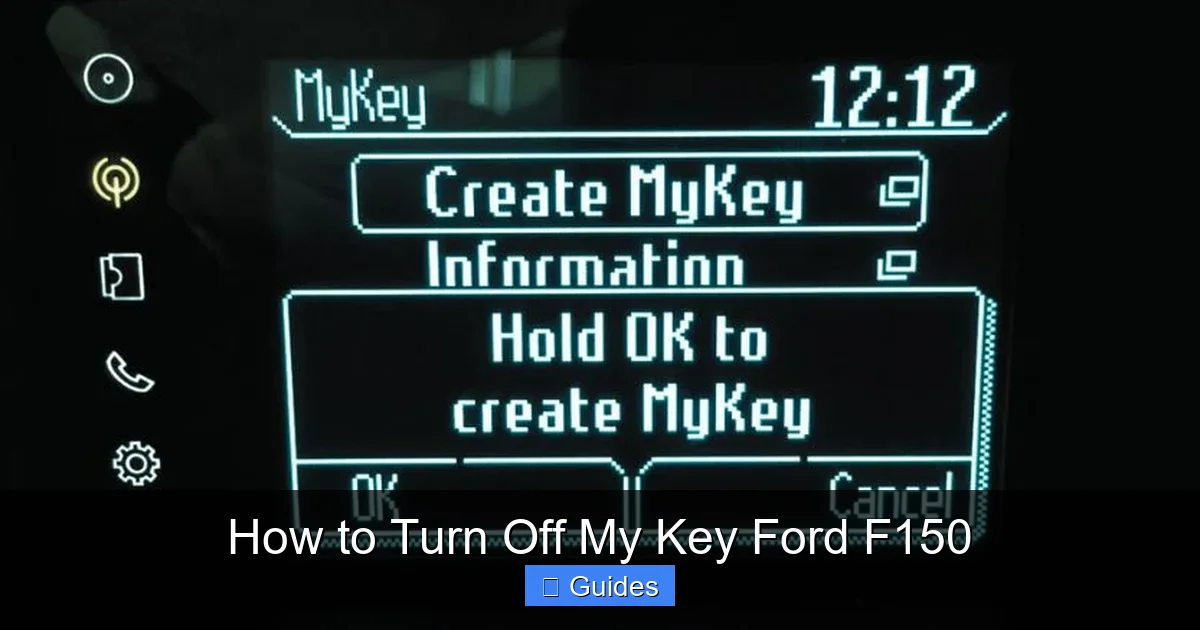
You can also check the instrument cluster or SYNC display for messages. When you start the truck with a My Key, you may see a brief message like “My Key Active” or “Speed Limited” appear on the screen. On newer F150 models with the SYNC 3 or SYNC 4 infotainment system, you might find My Key settings under the “Settings” menu. Look for options labeled “My Key,” “Driver Settings,” or “Key Programming.”
If you’re still unsure, try using a different key—if you have one. If the restrictions disappear when you switch keys, then the original key is definitely a My Key. This is a quick and easy way to confirm the issue without digging into menus or manuals.
Step-by-Step: How to Turn Off My Key Using the Admin Key
Visual guide about How to Turn Off My Key Ford F150
Image source: roadsumo.com
The most reliable and straightforward way to turn off My Key on your Ford F150 is by using the admin key. This is the master key that was originally programmed to have full control over the vehicle’s settings. If you still have this key, you’re in luck—disabling My Key takes just a few minutes.
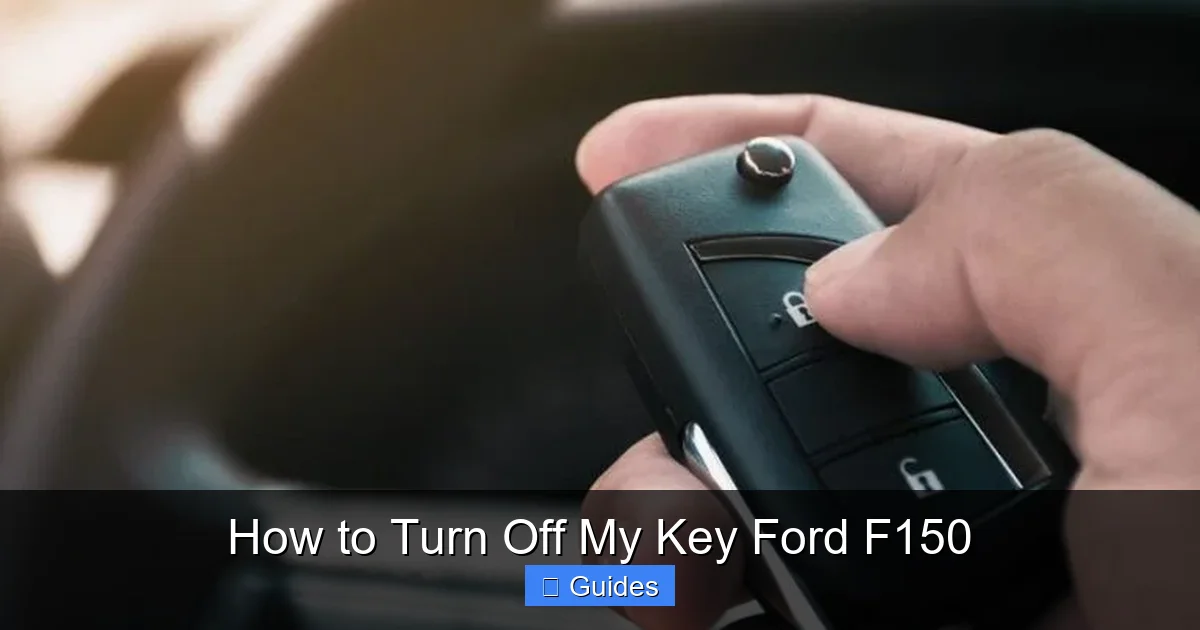
Start by ensuring the vehicle is in Park and the engine is off. Insert the admin key into the ignition or, if your F150 has push-button start, place the key fob inside the vehicle so it’s recognized. Turn the ignition to the “On” position—this means the dashboard lights up, but you don’t start the engine. You should see various indicators light up on the instrument cluster.
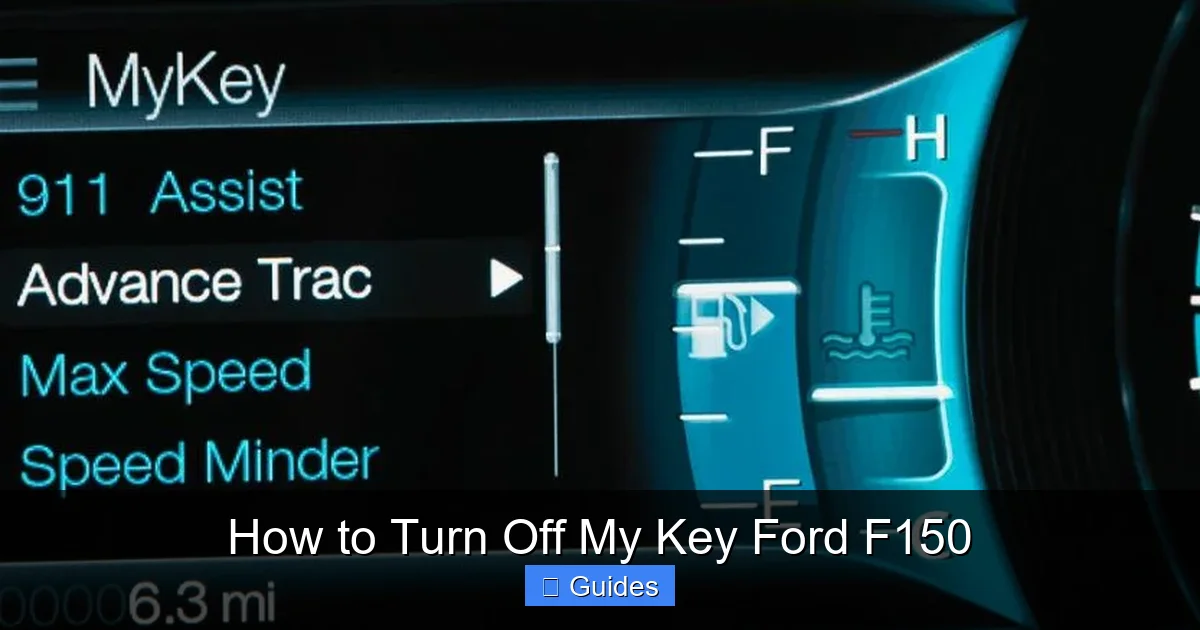
Within a few seconds, the system will detect the admin key and display a message on the screen, such as “Admin Key Detected” or “My Key Settings Available.” At this point, you’ll need to navigate to the My Key menu. On older F150 models (2010–2014), this is typically done using the steering wheel controls or the message center buttons on the dashboard. Look for options like “Settings,” “Vehicle,” or “My Key.”
Once you’re in the My Key menu, you’ll see a list of current restrictions—like speed limit, audio limit, and seatbelt reminders. To turn off My Key entirely, select the option labeled “Turn Off My Key” or “Disable My Key.” Confirm your choice when prompted. The system will reset, and the restrictions will be removed from all keys—including the one you were using.
After completing the process, turn the ignition off and remove the key. Start the truck again with any key, and you should notice that the previous limitations are gone. The radio will play at full volume, the speed limiter will be lifted, and the seatbelt chimes will behave normally.
It’s worth noting that this method only works if you have the admin key. If you’ve lost it or never received one, you’ll need to explore alternative solutions, which we’ll cover later.
Alternative Methods to Disable My Key
Visual guide about How to Turn Off My Key Ford F150
Image source: roadsumo.com
What if you don’t have the admin key? Don’t panic—there are still ways to regain control of your Ford F150, though they may require a bit more effort. One option is to visit a Ford dealership or authorized service center. They have specialized tools and access to Ford’s database, which allows them to reprogram the keys and reset the My Key system. This is often the safest and most reliable method if you’re stuck.
When you go to the dealership, bring your vehicle registration, proof of ownership, and any keys you currently have. The technician will connect a diagnostic tool to your truck’s OBD-II port (usually under the dashboard) and access the vehicle’s computer system. From there, they can identify which key is the admin and either reprogram it or create a new admin key. In some cases, they may need to reset the entire key system, which could involve programming new fobs.
Another option—though less common—is using a third-party automotive locksmith who specializes in Ford vehicles. Some advanced locksmiths have the equipment to interface with Ford’s security systems and can disable My Key or reprogram keys. However, this can be risky if the locksmith isn’t certified or experienced with Ford’s latest technology. Always check reviews and ask for proof of training before proceeding.
If your F150 has a SYNC system with touchscreen capabilities, you might also be able to access My Key settings through the infotainment menu. On SYNC 3 or SYNC 4 systems, go to “Settings” > “Vehicle” > “My Key.” From there, you may see an option to “Reset My Key” or “Turn Off My Key.” However, this still typically requires the admin key to be present or recognized by the system.
One important note: attempting to disable My Key without proper authorization or tools can trigger security features or void your warranty. Always proceed with caution and consider professional help if you’re unsure.
Troubleshooting Common My Key Issues
Even when you follow the steps correctly, you might run into issues when trying to turn off My Key on your Ford F150. One common problem is the system not recognizing the admin key. This can happen if the key is damaged, the battery in a key fob is dead, or there’s a communication error between the key and the vehicle.
If your admin key isn’t being detected, try replacing the battery in the fob (if applicable). Most Ford key fobs use a CR2032 battery, which is inexpensive and easy to swap. Remove the key blade from the fob, open the casing, and replace the old battery. Then, try the process again.
Another issue is the menu not appearing after turning the ignition to “On.” This could be due to a software glitch or an outdated SYNC system. In some cases, simply turning the key off, waiting 30 seconds, and trying again can reset the system. If that doesn’t work, check for any available SYNC updates. Ford periodically releases firmware updates that fix bugs and improve functionality. You can check for updates on Ford’s official website or through the SYNC system itself if it’s connected to Wi-Fi.
If your F150 is older (pre-2015), the instrument cluster buttons might be worn or unresponsive. In this case, gently pressing and holding the buttons or cleaning them with compressed air might help. Avoid using excessive force, as this can damage the controls.
Finally, if you’ve tried everything and My Key still won’t turn off, it’s time to contact Ford Customer Service or visit a dealership. Persistent issues could indicate a deeper electrical or software problem that requires professional diagnosis.
Preventing My Key Issues in the Future
Now that you’ve successfully turned off My Key, it’s smart to take steps to avoid running into the same problem again. The best way to do this is by clearly labeling your keys. Use a permanent marker or a key tag to distinguish the admin key from any My Keys. Store the admin key in a safe place—like a locked drawer or a key safe—so it doesn’t get misplaced or accidentally given away.
If you frequently lend your truck to others, consider programming a My Key with mild restrictions instead of disabling it entirely. For example, you might allow full audio volume but keep the speed limiter at 85 mph. That way, you maintain some safety oversight without sacrificing your own driving experience.
Regularly check your SYNC system for updates. Ford often releases patches that improve key recognition and menu navigation. Keeping your software up to date can prevent glitches and ensure smooth operation.
Lastly, educate anyone who drives your F150 about My Key. Let them know what to expect and how to identify if they’re using a restricted key. This small step can save a lot of confusion and frustration down the road.
Conclusion
Knowing how to turn off My Key on your Ford F150 is a valuable skill that puts you back in control of your vehicle. Whether you’re dealing with speed limits, audio restrictions, or annoying chimes, the process is straightforward when you have the right key and follow the correct steps. From using the admin key to navigating the settings menu, this guide has covered all the essential methods and troubleshooting tips.
Remember, My Key is designed to promote safety—but it shouldn’t get in the way of your daily driving. By understanding how it works and how to manage it, you can enjoy the full capabilities of your F150 without unnecessary limitations. And if you ever find yourself stuck, don’t hesitate to reach out to Ford support or visit a trusted technician.
With a little knowledge and preparation, you’ll never be surprised by a silent radio or a sluggish accelerator again. Your Ford F150 is built for power, performance, and freedom—make sure My Key doesn’t hold you back.
Frequently Asked Questions
Can I turn off My Key without the admin key?
Unfortunately, no—only the admin key can disable My Key settings. Without it, you’ll need to visit a Ford dealership or authorized service center to have the system reset professionally.
Will turning off My Key affect my warranty?
No, disabling My Key using the correct method does not void your warranty. However, tampering with the system using unauthorized tools or methods could potentially cause issues.
How do I know which key is the admin key?
The admin key is usually the one that came with the vehicle or was programmed first. It’s often labeled or kept separate. If unsure, try each key—the one that removes restrictions when used is the admin.
Can I reactivate My Key after turning it off?
Yes, you can re-enable My Key at any time by inserting the admin key and navigating back to the My Key menu to set new restrictions.
Does My Key work on all Ford F150 models?
My Key has been available on most F150 models since 2009. However, features and menu locations may vary slightly depending on the year and trim level.
What if my SYNC system doesn’t show a My Key option?
If the menu isn’t visible, your vehicle may have an older system or a software glitch. Try updating SYNC or consult your owner’s manual for model-specific instructions.

At CarLegit, we believe information should be clear, factual, and genuinely helpful. That’s why every guide, review, and update on our website is created with care, research, and a strong focus on user experience.