
Connecting your phone to your Nissan via Bluetooth is simpler than you think. Whether you’re making hands-free calls or streaming music, this guide walks you through every step—from pairing to troubleshooting—so you can stay connected safely on the road.
In This Article
- 1 Key Takeaways
- 2 📑 Table of Contents
- 3 Why Connecting Your Phone to Nissan Bluetooth Matters
- 4 Understanding Nissan’s Bluetooth System
- 5 Step-by-Step Guide: How to Connect Your Phone to Nissan Bluetooth
- 6 Troubleshooting Common Bluetooth Connection Issues
- 7 Tips for Maintaining a Stable Bluetooth Connection
- 8 Advanced Features: Getting More Out of Nissan Bluetooth
- 9 Conclusion: Stay Connected, Stay Safe
- 10 Frequently Asked Questions
- 10.1 Can I connect an iPhone to a Nissan Bluetooth system?
- 10.2 Why won’t my Android phone connect to my Nissan?
- 10.3 Does my older Nissan model support Bluetooth music streaming?
- 10.4 How do I disconnect my phone from Nissan Bluetooth?
- 10.5 Will my phone connect automatically every time I start the car?
- 10.6 What if my Nissan doesn’t have built-in Bluetooth?
Key Takeaways
- Check compatibility first: Most modern Nissan models support Bluetooth, but older vehicles may require an aftermarket adapter.
- Enable Bluetooth on your phone: Make sure your device’s Bluetooth is turned on and set to “discoverable” mode before pairing.
- Use the Nissan infotainment system: Access the Bluetooth menu through the touchscreen or steering wheel controls, depending on your model.
- Enter the correct PIN: Common default codes include 0000, 1234, or 1111—check your owner’s manual if these don’t work.
- Test audio and calling features: After pairing, verify that both music playback and hands-free calling function properly.
- Reconnect automatically: Once paired, your phone should connect automatically when you start the car (if Bluetooth is enabled).
- Troubleshoot common issues: If connection fails, try restarting devices, clearing old pairings, or updating your phone’s software.
📑 Table of Contents
- Why Connecting Your Phone to Nissan Bluetooth Matters
- Understanding Nissan’s Bluetooth System
- Step-by-Step Guide: How to Connect Your Phone to Nissan Bluetooth
- Troubleshooting Common Bluetooth Connection Issues
- Tips for Maintaining a Stable Bluetooth Connection
- Advanced Features: Getting More Out of Nissan Bluetooth
- Conclusion: Stay Connected, Stay Safe
Why Connecting Your Phone to Nissan Bluetooth Matters
In today’s fast-paced world, staying connected while driving isn’t just convenient—it’s essential. Whether you’re navigating rush-hour traffic, catching up on calls during your commute, or enjoying your favorite playlist on a weekend road trip, having your smartphone seamlessly integrated with your car’s audio system makes all the difference. For Nissan owners, this integration is made simple through built-in Bluetooth technology, which allows you to pair your phone wirelessly for hands-free calling, music streaming, and even voice commands.
But let’s be honest: not everyone finds the process intuitive right away. You might have tried pairing once, only to forget how you did it—or worse, given up after a failed attempt. That’s totally normal! Different Nissan models have slightly different infotainment systems, and phone settings can vary between iPhone and Android. The good news? Once you understand the core steps, connecting your phone to car Bluetooth in a Nissan becomes second nature. This guide will walk you through everything you need to know—no tech degree required.
Understanding Nissan’s Bluetooth System
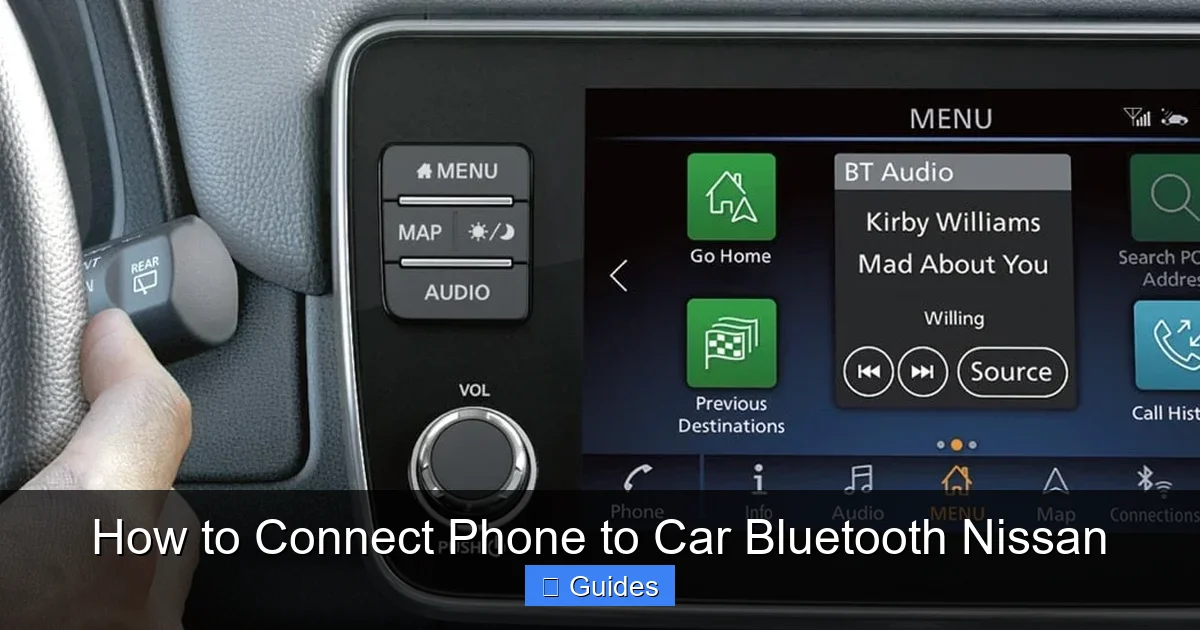
Visual guide about How to Connect Phone to Car Bluetooth Nissan
Image source: ncitadvantage-com.cdn-convertus.com
Before diving into the setup process, it helps to understand what Nissan’s Bluetooth system actually does. At its core, it’s a wireless communication protocol that lets your phone “talk” to your car’s audio and communication systems. This enables two main functions: **hands-free calling** and **audio streaming**.
Hands-free calling uses your car’s built-in microphone and speakers so you can take calls without touching your phone—keeping your hands on the wheel and eyes on the road. Audio streaming, on the other hand, lets you play music, podcasts, audiobooks, or navigation prompts directly through your car’s sound system. Many newer Nissan models also support advanced features like contact syncing (so your phonebook appears on the screen), voice dialing, and even text message readouts (where supported by local laws).
It’s worth noting that not all Nissan models come with the same level of Bluetooth capability. For example:
– **Older models (pre-2010):** May only support basic hands-free calling, not music streaming.
– **Mid-range models (2010–2016):** Typically offer both calling and audio streaming via Bluetooth.
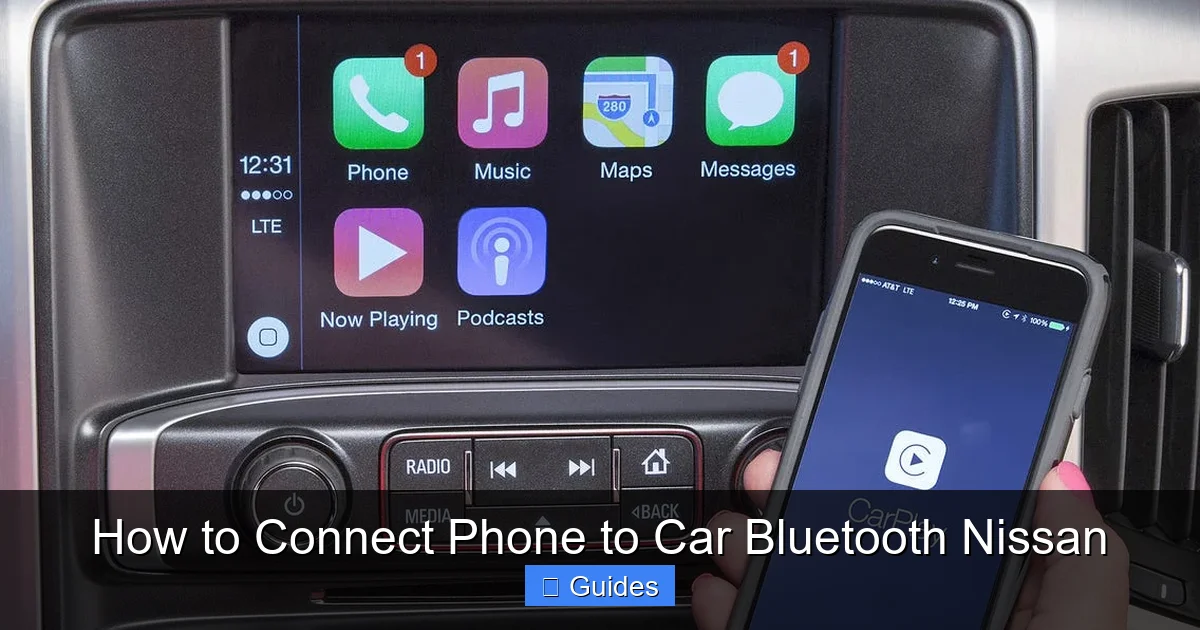
– **Newer models (2017–present):** Often include Apple CarPlay and Android Auto alongside enhanced Bluetooth, plus larger touchscreens and better voice recognition.
If you’re unsure about your specific model’s capabilities, check your owner’s manual or visit Nissan’s official website and enter your VIN for detailed specs. And if your Nissan doesn’t have factory-installed Bluetooth? Don’t worry—there are affordable aftermarket Bluetooth adapters that plug into your auxiliary port or USB, giving you wireless functionality without a full stereo upgrade.
Step-by-Step Guide: How to Connect Your Phone to Nissan Bluetooth
Visual guide about How to Connect Phone to Car Bluetooth Nissan
Image source: hiride.com
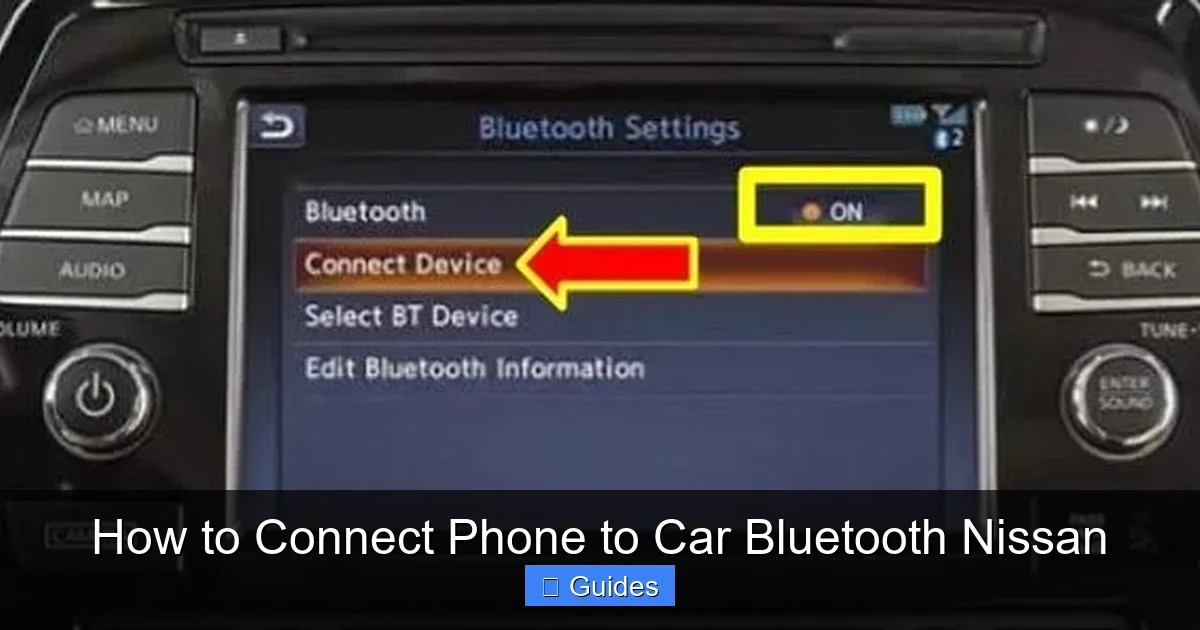
Now for the main event: actually connecting your phone. The process is nearly identical across most recent Nissan models (like the Altima, Rogue, Sentra, Maxima, and Pathfinder), though minor differences may exist based on your infotainment system (NissanConnect, NissanConnect Services, etc.). Below is a universal step-by-step method that works for the majority of vehicles.
Step 1: Prepare Your Phone
First things first—make sure your phone is ready to pair. Go to your phone’s Settings menu and turn on Bluetooth. On iPhones, tap “Bluetooth” and toggle it on. On Android devices, go to “Connections” or “Network & Internet,” then select “Bluetooth” and enable it. Your phone should now be in “discoverable” mode, meaning other devices (like your car) can find it.
Pro tip: If you’ve previously paired your phone with another car or device, consider removing those old connections to avoid confusion. On iPhone, go to Settings > Bluetooth, tap the “i” next to the old device, and select “Forget This Device.” On Android, tap the gear icon next to the paired device and choose “Unpair.”
Step 2: Access the Bluetooth Menu in Your Nissan
Start your car—Bluetooth won’t work if the ignition is off. Once the engine is running (or in accessory mode), look for the “Menu,” “Settings,” or “Phone” button on your dashboard or center console. Most Nissans use a touchscreen interface, so tap the screen to wake it up.
Navigate to the Bluetooth or Phone section. This might be labeled as:
– “Bluetooth Settings”
– “Phone Setup”
– “Device Connection”
– “Paired Devices”
Some models (especially those with physical buttons) may require you to press the “Phone” button on the steering wheel or center stack first. If you’re using a voice command system, you can often say, “Hey Nissan, open Bluetooth settings” (if supported).
Step 3: Initiate Pairing Mode
Once you’re in the Bluetooth menu, look for an option like “Add New Device,” “Pair Device,” or “Search for Devices.” Select it. Your Nissan will begin scanning for nearby Bluetooth-enabled phones—this usually takes 10–20 seconds.
During this time, keep your phone nearby and unlocked. You may see a notification on your phone asking if you want to allow the connection. Tap “Allow” or “Pair.”
Step 4: Enter the PIN Code
Here’s where many people get stuck. When your phone and car detect each other, your Nissan’s screen (or your phone) will prompt you to enter a PIN code. This is a security measure to ensure only authorized devices connect.
The most common default PINs used by Nissan are:
– 0000
– 1234
– 1111
Try these in order. If none work, consult your owner’s manual—some models use unique codes or generate a random one displayed on the car’s screen. Never guess wildly; too many incorrect attempts can temporarily lock the system.
Once you enter the correct PIN, both devices should confirm the pairing. You’ll usually see a message like “Connected” or “Pairing Successful” on both your phone and the car display.
Step 5: Test the Connection
Don’t just assume it worked—test it! Make a quick hands-free call (to a friend or voicemail) to confirm the microphone and speakers are working. Then, open a music app like Spotify, Apple Music, or YouTube Music and play a song. The audio should stream through your car’s speakers.
If music doesn’t play automatically, check your phone’s audio output settings. On iPhone, swipe down from the top-right corner to open Control Center and tap the audio icon to select your car as the output device. On Android, pull down the notification shade and tap the Bluetooth audio icon to switch sources.
Troubleshooting Common Bluetooth Connection Issues
Visual guide about How to Connect Phone to Car Bluetooth Nissan
Image source: autovaluable.com
Even with perfect steps, sometimes things go sideways. Here are the most common problems Nissan owners face—and how to fix them.
Problem: Phone Not Found During Pairing
If your Nissan can’t detect your phone, double-check that Bluetooth is enabled and your phone is in discoverable mode. Also, ensure you’re within 3 feet of the car’s infotainment system—Bluetooth has a limited range. Restarting both your phone and the car’s system often resolves detection issues.
Problem: Incorrect or Missing PIN
If the default PINs don’t work, your car might be using a custom code. Check the owner’s manual or look for a PIN displayed on the car’s screen during pairing. Some newer Nissans show a 4-digit code on the dashboard that you must enter on your phone—not the other way around.
Problem: Audio Plays Through Phone Instead of Car
This usually means the audio routing isn’t set correctly. On your phone, go to Bluetooth settings, tap your Nissan’s name, and make sure “Media Audio” or “Music” is enabled (not just “Phone Audio”). Also, check that your car’s audio source is set to Bluetooth—not AM/FM or AUX.
Problem: Disconnects Frequently or Won’t Reconnect Automatically
Bluetooth connections can drop due to interference, low battery, or software glitches. Try these fixes:
– Restart your phone and car.
– Delete the pairing from both devices and re-pair.
– Update your phone’s operating system.
– Ensure your Nissan’s software is up to date (visit a dealership if needed).
Problem: Only Calling Works, Not Music Streaming
This often happens on older Nissan models that support hands-free calling but not A2DP (the Bluetooth profile for audio streaming). In this case, you’ll need to use an auxiliary cable or a Bluetooth FM transmitter as a workaround. Alternatively, upgrade to a newer head unit that supports full Bluetooth audio.
Tips for Maintaining a Stable Bluetooth Connection
Once you’ve successfully connected your phone, you’ll want that connection to stay strong every time you drive. Here are some pro tips to keep things running smoothly:
– **Keep your phone charged:** Low battery can weaken Bluetooth signals.
– **Avoid metal obstructions:** Don’t place your phone in a metal phone mount or glove compartment—it can block the signal.
– **Update regularly:** Both your phone’s OS and your Nissan’s infotainment software should be kept current. Nissan occasionally releases updates that improve Bluetooth stability.
– **Limit paired devices:** Only pair one primary phone at a time. Having multiple devices connected can cause conflicts.
– **Use original cables:** If you charge your phone while driving, use the manufacturer’s cable—cheap knockoffs can interfere with wireless signals.
Also, remember that extreme temperatures (like leaving your phone in a hot car) can affect performance. If you live in a very hot or cold climate, consider using a sunshade or bringing your phone inside when parked.
Advanced Features: Getting More Out of Nissan Bluetooth
Once you’ve mastered the basics, explore these advanced features to maximize your Nissan’s Bluetooth potential:
Voice Commands
Many Nissan models support voice control through Bluetooth. Press the voice command button on your steering wheel and say things like:
– “Call John Smith”
– “Play music by Coldplay”
– “Navigate to nearest gas station”
This keeps your hands free and reduces distractions.
Contact Syncing
After pairing, your phonebook may automatically sync to your car’s system. This lets you browse contacts directly on the touchscreen or via voice commands. If it doesn’t sync automatically, check your phone’s Bluetooth settings and enable “Contact Sharing” or “Phone Book Access.”
Text Message Readouts (Where Legal)
In regions where it’s permitted, some Nissans can read incoming text messages aloud and let you reply using preset responses. To enable this, go to your phone’s Bluetooth settings, select your Nissan, and turn on “Message Access” or “SMS Sync.” Note: This feature is disabled in many U.S. states due to distracted driving laws.
Multiple Device Management
While most Nissans only allow one active audio stream at a time, you can often store multiple paired devices. This is useful for households with more than one driver. Just remember to select the correct device when switching users.
Conclusion: Stay Connected, Stay Safe
Connecting your phone to your Nissan via Bluetooth doesn’t have to be frustrating. With the right steps—and a little patience—you can enjoy seamless hands-free calling, crystal-clear music streaming, and smarter driving in just minutes. Whether you drive a compact Sentra or a rugged Titan, Nissan’s Bluetooth system is designed to make your time behind the wheel safer and more enjoyable.
Remember: the key is preparation. Make sure both your phone and car are ready, follow the pairing steps carefully, and don’t skip the testing phase. And if you run into trouble? Don’t panic—most issues are easily fixed with a restart or a quick settings tweak.
By mastering how to connect your phone to car Bluetooth in a Nissan, you’re not just upgrading your audio experience—you’re embracing a smarter, safer way to drive. So next time you hop in your car, fire up that engine, and let the music play… all without ever touching your phone.
Frequently Asked Questions
Can I connect an iPhone to a Nissan Bluetooth system?
Yes, iPhones are fully compatible with Nissan’s Bluetooth system. Just enable Bluetooth on your iPhone, follow the pairing steps, and enter the correct PIN when prompted. Music streaming and hands-free calling work seamlessly.
Why won’t my Android phone connect to my Nissan?
Common causes include outdated software, incorrect PIN entry, or Bluetooth being disabled. Try restarting both devices, ensuring “Media Audio” is enabled in your phone’s Bluetooth settings, and re-pairing from scratch.
Does my older Nissan model support Bluetooth music streaming?
Not all older models do. Vehicles made before 2010 typically only support hands-free calling. Check your owner’s manual or look for “A2DP” support in the Bluetooth specs. If unavailable, use an aux cable or Bluetooth adapter.
How do I disconnect my phone from Nissan Bluetooth?
Go to your car’s Bluetooth menu, select your phone from the paired devices list, and choose “Delete” or “Unpair.” You can also forget the device from your phone’s Bluetooth settings.
Will my phone connect automatically every time I start the car?
Yes, once successfully paired, your phone should reconnect automatically when you start the engine—as long as Bluetooth is enabled on your phone and within range.
What if my Nissan doesn’t have built-in Bluetooth?
You can use a Bluetooth FM transmitter that plugs into your cigarette lighter or aux port. These devices broadcast your phone’s audio over an FM frequency your car radio can pick up. Look for models with hands-free calling support for full functionality.

At CarLegit, we believe information should be clear, factual, and genuinely helpful. That’s why every guide, review, and update on our website is created with care, research, and a strong focus on user experience.