
Making Android Auto full screen on your Hyundai is easier than you think—no rooting or hacks required. With a few quick settings tweaks and the right cable, you can maximize your infotainment screen for a better driving experience.
In This Article
- 1 Key Takeaways
- 2 📑 Table of Contents
- 3 Introduction: Why Full-Screen Android Auto Matters in Your Hyundai
- 4 Understanding Android Auto and Hyundai Infotainment Systems
- 5 Step-by-Step Guide: How to Make Android Auto Full Screen on Hyundai
- 5.1 Step 1: Verify Your Hyundai Model and Android Auto Compatibility
- 5.2 Step 2: Use a High-Quality USB Cable
- 5.3 Step 3: Update Your Android Phone and Android Auto App
- 5.4 Step 4: Enable Developer Options on Your Android Phone
- 5.5 Step 5: Adjust Android Auto Display Settings
- 5.6 Step 6: Restart Your Phone and Car System
- 6 Troubleshooting Common Issues
- 7 Advanced Tips and Pro Settings
- 8 Safety and Best Practices
- 9 Conclusion: Enjoy a Better Android Auto Experience in Your Hyundai
- 10 Frequently Asked Questions
- 10.1 Can I make Android Auto full screen on any Hyundai model?
- 10.2 Do I need to root my phone to enable full-screen mode?
- 10.3 Why does my Android Auto still show black bars after following all steps?
- 10.4 Is wireless Android Auto better for full-screen display?
- 10.5 Will enabling Developer Options harm my phone?
- 10.6 Can I revert the changes if full-screen mode causes problems?
Key Takeaways
- Check your Hyundai model and infotainment system: Not all Hyundai vehicles support full-screen Android Auto, so verify compatibility first.
- Use a high-quality USB cable: A reliable USB 2.0 or 3.0 cable ensures stable connectivity and prevents glitches.
- Update your Android Auto app and phone software: Outdated apps can cause display issues; always keep everything current.
- Enable Developer Options on your Android phone: This unlocks advanced settings needed to force full-screen mode.
- Adjust Android Auto projection settings: Tweak display preferences within the app to optimize screen usage.
- Restart your phone and car system after changes: A simple reboot often resolves syncing or display problems.
- Consider third-party apps cautiously: Some apps claim to enable full screen but may compromise security or functionality.
📑 Table of Contents
- Introduction: Why Full-Screen Android Auto Matters in Your Hyundai
- Understanding Android Auto and Hyundai Infotainment Systems
- Step-by-Step Guide: How to Make Android Auto Full Screen on Hyundai
- Troubleshooting Common Issues
- Advanced Tips and Pro Settings
- Safety and Best Practices
- Conclusion: Enjoy a Better Android Auto Experience in Your Hyundai
Introduction: Why Full-Screen Android Auto Matters in Your Hyundai
If you’ve ever used Android Auto in your Hyundai, you know how helpful it is—turn-by-turn navigation, hands-free calls, voice-controlled music, and real-time traffic updates all at your fingertips. But have you noticed that the display doesn’t always fill the entire infotainment screen? That black bar on the side or top can be annoying, especially on newer Hyundai models with large, high-resolution displays like the Hyundai Palisade, Santa Fe, or Elantra.
You’re not alone. Many Hyundai owners want to make Android Auto full screen to get the most out of their vehicle’s tech. A larger display means easier reading of maps, bigger buttons for safer interaction, and a more immersive experience overall. The good news? You don’t need to buy new hardware or modify your car’s system. With a few smart tweaks on your Android phone, you can unlock full-screen mode and enjoy a seamless, expansive interface.
This guide will walk you through everything you need to know—from checking compatibility to adjusting settings step by step. Whether you drive a 2020 Hyundai Tucson or a 2023 Hyundai Ioniq 5, these tips are designed to work across most modern Hyundai models equipped with Android Auto support.
Understanding Android Auto and Hyundai Infotainment Systems
Visual guide about How to Make Android Auto Full Screen Hyundai
Image source: briskoda.net
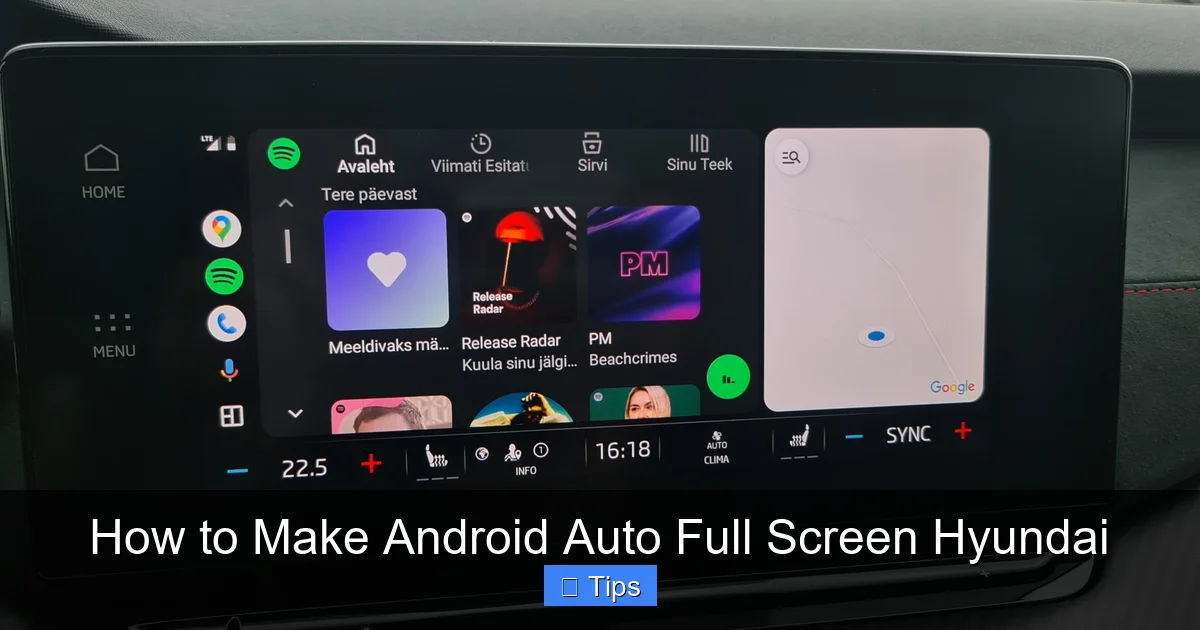
Before diving into the how-to, it’s important to understand how Android Auto works with Hyundai’s infotainment systems. Android Auto is a smartphone projection technology developed by Google that mirrors select apps from your Android phone onto your car’s display. It’s designed to reduce distractions by simplifying the interface and enabling voice control through Google Assistant.
Hyundai has been a strong supporter of Android Auto, integrating it into most of its vehicles since around 2017. Models like the Hyundai Sonata, Kona, Santa Cruz, and Genesis lineup all come with compatible infotainment systems. However, the way Android Auto displays on the screen depends on both the car’s hardware and the phone’s software.
Most Hyundai infotainment systems use either the Blue Link platform or a customized version of Android Automotive (in newer EVs like the Ioniq 5). While Android Automotive is a full-fledged operating system built into the car, Android Auto is an app-based projection system that runs on your phone. This distinction matters because only Android Auto (not Android Automotive) can be adjusted for full-screen display using phone settings.
One key limitation is that Hyundai’s factory software often restricts Android Auto to a fixed aspect ratio—usually 16:9 or 4:3—depending on the screen size. This means even if your car has a wide, cinematic display, Android Auto may not automatically expand to fill it. That’s where user-initiated adjustments come in.
Why Isn’t Android Auto Full Screen by Default?
Google and Hyundai prioritize safety and consistency. A standardized display ensures that buttons, text, and maps remain readable and accessible across different vehicles. Additionally, forcing a full-screen mode could lead to UI elements being cut off or misaligned on certain screens.
However, many users find the default layout too small, especially on larger displays. Fortunately, Google allows advanced users to override these settings through Developer Options—a hidden menu on Android phones that unlocks experimental features.
Step-by-Step Guide: How to Make Android Auto Full Screen on Hyundai
Visual guide about How to Make Android Auto Full Screen Hyundai
Image source: s1.cdn.autoevolution.com
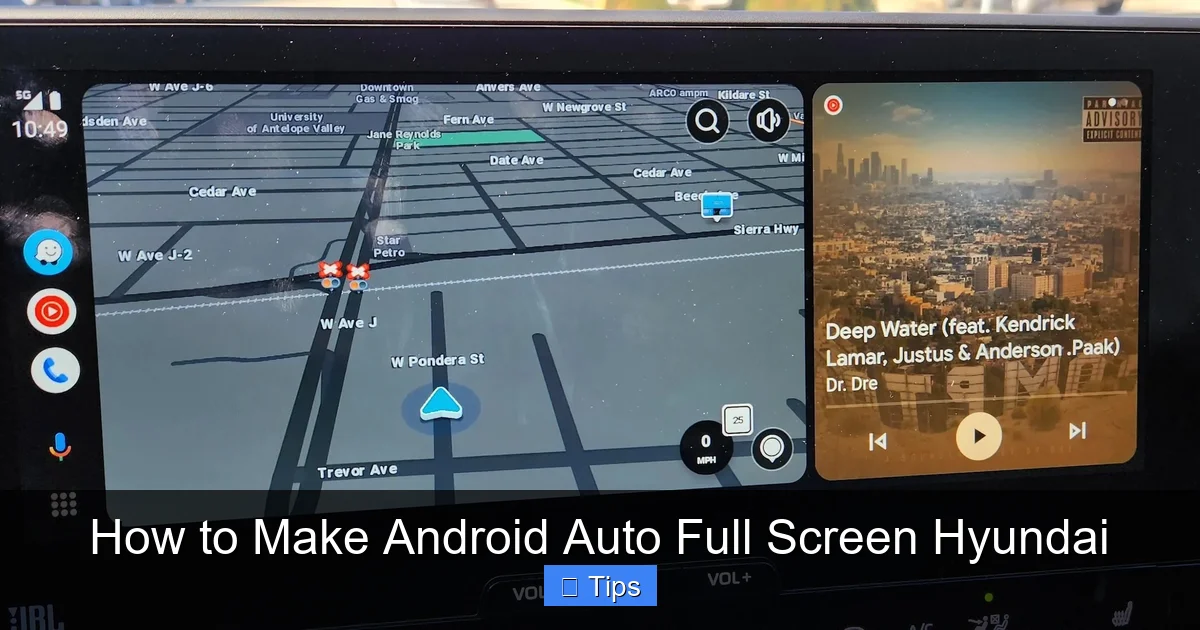
Now let’s get to the heart of the matter: how to make Android Auto full screen on your Hyundai. Follow these steps carefully, and you’ll have a larger, more usable display in minutes.
Step 1: Verify Your Hyundai Model and Android Auto Compatibility
Not every Hyundai supports full-screen Android Auto, even if it has the feature. Start by checking your vehicle’s infotainment system. Look for models with an 8-inch or larger touchscreen, such as:
– Hyundai Palisade (2020–2024)
– Hyundai Santa Fe (2019–2024)
– Hyundai Elantra (2021–2024)
– Hyundai Tucson (2022–2024)
– Hyundai Ioniq 5 and Ioniq 6 (2022–2024)
– Hyundai Sonata (2018–2024)
These models typically have widescreen displays that benefit most from full-screen mode. You can confirm Android Auto compatibility in your owner’s manual or by visiting Hyundai’s official website and searching for your model year.
Also, ensure your car’s software is up to date. Hyundai occasionally releases infotainment updates via USB or over-the-air (OTA) that improve Android Auto performance. Check for updates in the Settings menu under “System” or “Software Update.”
Step 2: Use a High-Quality USB Cable
A common reason Android Auto doesn’t display correctly is a faulty or low-quality USB cable. Many users try wireless Android Auto first, but for full-screen mode, a wired connection is more reliable and often required.
Use the original USB cable that came with your phone, or purchase a certified USB 2.0 or USB 3.0 cable from a reputable brand like Anker, Belkin, or Amazon Basics. Avoid cheap, off-brand cables—they can cause connection drops, lag, or incorrect display scaling.
Plug the cable into the correct USB port in your Hyundai. Most models have a dedicated “Android Auto” or “Smartphone” USB port, usually located in the center console or armrest. Using a different port (like one labeled for charging only) may prevent proper communication between your phone and the car.
Step 3: Update Your Android Phone and Android Auto App
Outdated software is a frequent culprit behind display issues. Make sure both your Android phone and the Android Auto app are running the latest versions.
To update your phone:
– Go to Settings > System > Software Update (or System Updates).
– Tap “Check for updates” and install any available updates.
To update the Android Auto app:
– Open the Google Play Store.
– Search for “Android Auto.”
– If an update is available, tap “Update.”
Google frequently releases patches that improve compatibility with various car systems, including Hyundai. Staying current ensures you have the latest fixes for display, performance, and security.
Step 4: Enable Developer Options on Your Android Phone
Developer Options is a hidden menu on Android phones that gives you access to advanced settings. You’ll need to enable it to adjust Android Auto’s display behavior.
Here’s how:
1. Open Settings on your Android phone.
2. Scroll down and tap “About phone” or “About device.”
3. Find “Build number” and tap it seven times. You’ll see a message saying “You are now a developer!”
4. Go back to the main Settings menu. You should now see “Developer options” near the bottom.
Once Developer Options is enabled, tap to open it. Scroll down until you find settings related to “Android Auto” or “Desktop mode.” The exact wording may vary depending on your Android version (e.g., Android 11, 12, 13, or 14).
Step 5: Adjust Android Auto Display Settings
Inside Developer Options, look for the following settings:
– **Force activities to be resizable**: Enable this option. It allows apps to adapt to different screen sizes, which is crucial for full-screen mode.
– **Disable USB audio routing**: Some users report this helps with display stability.
– **Enable “Don’t keep activities”**: This is optional but can prevent app crashes during projection.
Next, open the Android Auto app on your phone. Go to Settings (usually a gear icon) and look for “Display” or “Projection” options. Some versions allow you to toggle “Use full screen” or “Stretch to fit display.” If you see this option, enable it.
If you don’t see a full-screen toggle, don’t worry—many Hyundai systems rely on the phone’s Developer Options to force the change.
Step 6: Restart Your Phone and Car System
After making these changes, restart both your phone and your Hyundai’s infotainment system. This ensures all settings are applied correctly.
To restart your car’s system:
– Turn off the engine.
– Wait 30 seconds.
– Turn the ignition back on (or press the Start button without pressing the brake).
Then reconnect your phone via USB. Android Auto should now launch in full-screen mode. If not, try unplugging and reconnecting the cable, or restarting your phone again.
Troubleshooting Common Issues
Visual guide about How to Make Android Auto Full Screen Hyundai
Image source: i.redd.it
Even with the right steps, you might run into problems. Here are some common issues and how to fix them.
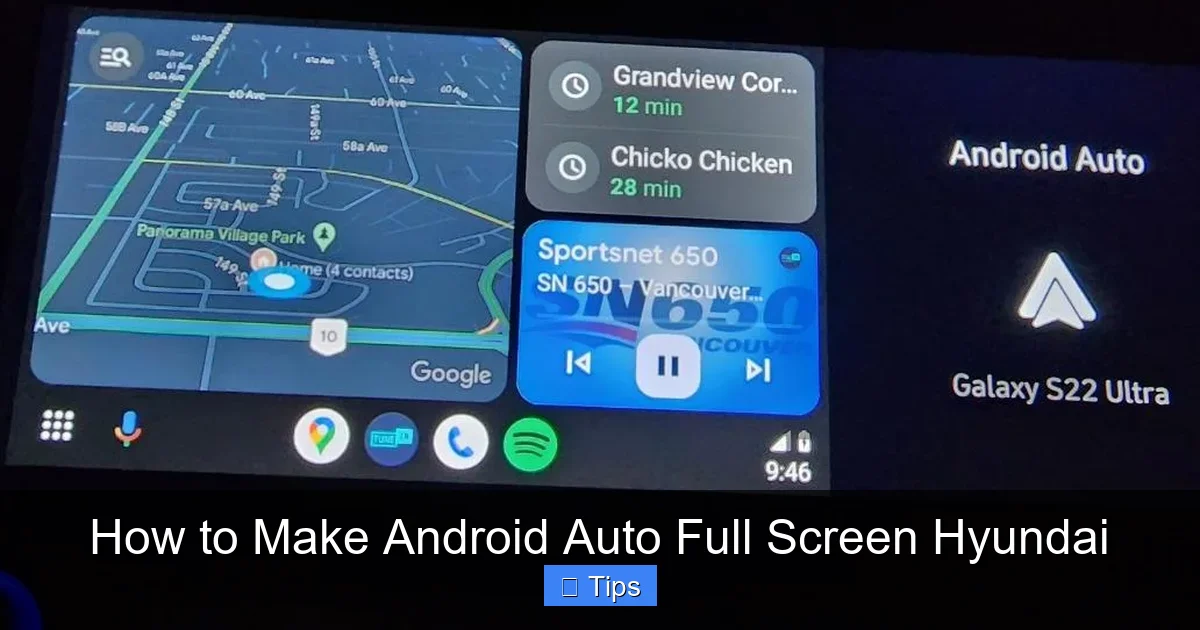
Android Auto Still Shows Black Bars
If you still see black bars on the sides or top, your Hyundai’s infotainment system may be locked to a specific aspect ratio. Unfortunately, some older models (pre-2020) don’t support full-screen Android Auto, no matter what you do.
In this case, your best option is to use wireless Android Auto (if supported) and accept the default layout. Alternatively, consider using a third-party launcher app like “Auto Head Unit” or “Car Launcher Pro,” though these come with risks and may not work reliably.
Screen Flickers or Freezes
Flickering or freezing usually points to a connection issue. Try:
– Using a different USB cable.
– Cleaning the USB port on your phone and car.
– Disabling battery optimization for Android Auto (go to Settings > Apps > Android Auto > Battery > Unrestricted).
Google Maps or Music Apps Don’t Fill the Screen
Some apps within Android Auto have their own display settings. For example, Google Maps may not expand fully even if Android Auto does. This is normal—Google limits map scaling for safety.
To improve readability, use voice commands (“Hey Google, zoom in”) or pinch-to-zoom when the car is parked.
Wireless Android Auto Doesn’t Support Full Screen
Wireless Android Auto is convenient, but it often has more display limitations than wired connections. For the best full-screen experience, stick with a wired USB connection.
Advanced Tips and Pro Settings
If you’re comfortable with more advanced tweaks, here are a few extra steps to optimize your full-screen experience.
Use ADB Commands (For Tech-Savvy Users)
Android Debug Bridge (ADB) is a command-line tool that lets you send advanced instructions to your phone. With ADB, you can force Android Auto into full-screen mode by modifying system settings.
Warning: This method requires enabling USB debugging and may void your warranty or cause instability if done incorrectly. Only proceed if you’re experienced with ADB.
Steps:
1. Install ADB on your computer (available from Google’s developer site).
2. Enable USB debugging in Developer Options.
3. Connect your phone to the computer via USB.
4. Open a command prompt and enter:
“`
adb shell settings put global force_fullscreen_apps com.google.android.projection.gearhead
“`
5. Restart your phone and reconnect to your Hyundai.
This command forces Android Auto (package name: gearhead) to use full screen. To revert, change “put” to “delete.”
Custom Launcher Apps (Use with Caution)
Apps like “Car Launcher Pro” or “Drivemode” can replace your phone’s home screen with a driving-friendly interface. Some claim to enable full-screen Android Auto, but they often require rooting your phone or granting extensive permissions.
We recommend avoiding these unless absolutely necessary. They can slow down your phone, drain the battery, or expose you to security risks.
Check for Hyundai Firmware Updates
Hyundai occasionally releases infotainment updates that improve Android Auto compatibility. Visit your local dealership or use the Blue Link app to check for updates. Some updates have been known to enable full-screen support on previously limited models.
Safety and Best Practices
While a full-screen display is nice, safety should always come first. Remember:
– Never adjust settings while driving. Pull over or have a passenger help.
– Use voice commands instead of touching the screen.
– Keep your eyes on the road—larger screens can be more distracting if not used responsibly.
– Regularly update your phone and car software to maintain performance and security.
Also, be cautious with third-party apps or mods. They may promise full screen but could compromise your phone’s stability or your car’s warranty.
Conclusion: Enjoy a Better Android Auto Experience in Your Hyundai
Making Android Auto full screen on your Hyundai is a simple yet powerful upgrade that enhances usability, safety, and enjoyment. By following the steps in this guide—checking compatibility, using a quality cable, enabling Developer Options, and adjusting settings—you can unlock the full potential of your infotainment system.
While not every Hyundai model supports full-screen mode out of the box, most modern vehicles can be optimized with a few tweaks. And even if you can’t achieve perfect full screen, keeping your software updated and using a wired connection will ensure the best possible experience.
So go ahead—plug in your phone, tweak those settings, and enjoy a bigger, brighter, and more immersive Android Auto display on your next drive. Your Hyundai deserves it.
Frequently Asked Questions
Can I make Android Auto full screen on any Hyundai model?
Most Hyundai models from 2019 onward with an 8-inch or larger touchscreen support full-screen Android Auto with the right settings. Older models or those with smaller screens may not allow it due to hardware limitations.
Do I need to root my phone to enable full-screen mode?
No, rooting is not required. You can enable full-screen Android Auto using Developer Options on your Android phone, which is a built-in feature and doesn’t void your warranty.
Why does my Android Auto still show black bars after following all steps?
This could be due to your Hyundai’s infotainment system being locked to a specific aspect ratio. Some models don’t support full-screen projection, regardless of phone settings. Try updating your car’s software or using a different USB cable.
Is wireless Android Auto better for full-screen display?
No, wireless Android Auto often has more display limitations than wired connections. For the best full-screen experience, use a high-quality USB cable and connect directly to the car.
Will enabling Developer Options harm my phone?
Enabling Developer Options itself is safe and commonly used by Android users. However, changing advanced settings incorrectly can cause issues. Only adjust settings you understand, and avoid modifying system files unless you’re experienced.
Can I revert the changes if full-screen mode causes problems?
Yes, you can disable full-screen mode by turning off “Force activities to be resizable” in Developer Options or by deleting the ADB command if you used one. Simply restart your phone and reconnect to your Hyundai.

At CarLegit, we believe information should be clear, factual, and genuinely helpful. That’s why every guide, review, and update on our website is created with care, research, and a strong focus on user experience.