
Resetting your BMW audio system can fix glitches, restore sound quality, and reconnect Bluetooth devices. This guide walks you through simple methods for both modern iDrive and older models—no tools or dealership visit required.
So, you’re driving your BMW, cruising down the highway with your favorite playlist—then suddenly, the audio cuts out. Or maybe the Bluetooth won’t connect, the volume won’t adjust, or the screen freezes on “No Signal.” Frustrating, right? You’re not alone. Thousands of BMW owners face audio system hiccups each year, and while it might feel like a major issue, the solution is often simpler than you think: resetting the audio system.
The good news? You don’t need to visit a dealership or spend hundreds on diagnostics. Most BMW audio problems can be resolved with a few button presses or a quick power cycle. Whether you drive a sleek 2023 3 Series with the latest iDrive 8 or a classic 2006 5 Series with analog controls, there’s a reset method that works for your car. This guide will walk you through every step—clearly, simply, and without technical jargon—so you can get your music, calls, and navigation audio back on track in minutes.
We’ll cover everything from soft resets (great for minor glitches) to hard resets (for stubborn issues), plus troubleshooting tips to make sure the problem isn’t something even easier to fix—like a loose cable or a blown fuse. By the end, you’ll know exactly how to reset your BMW audio system, no matter the model or year.
In This Article
- 1 Key Takeaways
- 2 📑 Table of Contents
- 3 Why Would You Need to Reset Your BMW Audio System?
- 4 Understanding BMW Audio System Types
- 5 How to Perform a Soft Reset (Quick Fix)
- 6 How to Perform a Hard Reset (Factory Audio Reset)
- 7 Troubleshooting Before You Reset
- 8 When to Seek Professional Help
- 9 Tips to Prevent Future Audio Issues
- 10 Frequently Asked Questions
- 10.1 Will resetting my BMW audio system delete my saved radio stations?
- 10.2 Can I reset the audio system while driving?
- 10.3 Why does my BMW audio system keep resetting on its own?
- 10.4 Do I need a radio code after resetting?
- 10.5 How long does it take for the audio system to reboot after a reset?
- 10.6 Can I reset the audio system using the BMW app?
Key Takeaways
- Soft resets work for minor audio glitches: Restarting the infotainment system often resolves temporary software hiccups without affecting vehicle settings.
- Hard resets restore factory audio settings: This clears saved preferences but can fix persistent issues like no sound or distorted playback.
- BMW iDrive systems require specific button combinations: Newer models use the iDrive controller or touchscreen menus to access reset options.
- Older BMWs may need a battery disconnect: Pre-2010 models often rely on power cycling the entire system via the 12V battery.
- Always check fuses and connections first: A blown fuse or loose wiring could mimic a system failure—verify basics before resetting.
- Resetting won’t delete your personal data: Unlike a full factory reset, audio-only resets preserve contacts, navigation history, and paired devices.
- Consult your owner’s manual for model-specific steps: BMW updates its systems regularly, so your car’s year and trim matter.
📑 Table of Contents
Why Would You Need to Reset Your BMW Audio System?
Before diving into the how-to, let’s talk about the why. Why reset your audio system in the first place? BMWs are packed with advanced electronics, and like any complex system, they can occasionally misbehave. The audio system—especially when integrated with navigation, Bluetooth, and smartphone apps—relies on software that can freeze, crash, or lose connection.
Common signs that a reset might help include:
– No sound from speakers, even when volume is up
– Bluetooth devices failing to pair or disconnecting frequently
– Audio cutting in and out during playback
– The infotainment screen freezing or going blank
– Navigation voice guidance not working
– USB or AUX inputs not recognizing devices
These issues often stem from temporary software glitches, corrupted cache data, or communication errors between modules. Think of it like your smartphone: sometimes it just needs a restart to clear out the digital clutter. Resetting the audio system does the same thing—it refreshes the software, reinitializes connections, and gives the system a clean slate to work from.
It’s also worth noting that after software updates, battery replacements, or even long periods of inactivity (like during winter storage), the audio system may need a reset to sync properly with the car’s other electronics. So even if everything seemed fine yesterday, a simple reset today could prevent tomorrow’s headache.
Understanding BMW Audio System Types
Visual guide about How Do I Reset My Bmw Audio System
Image source: thedailyautomotive.com
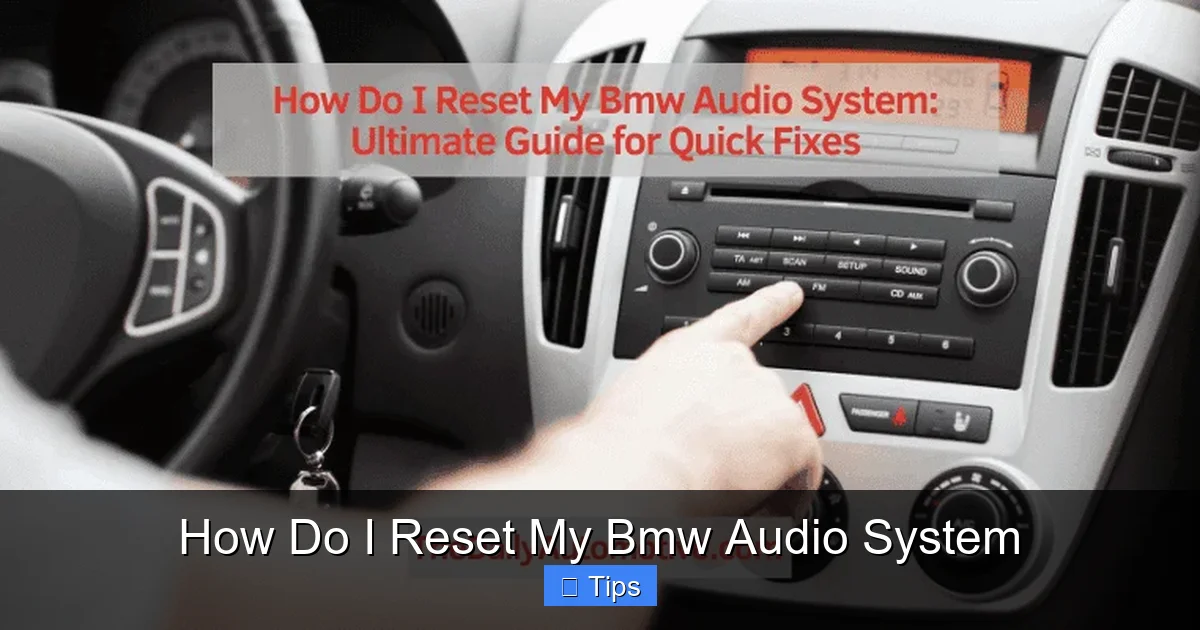
Not all BMW audio systems are created equal. Over the years, BMW has introduced several generations of infotainment technology, each with its own interface and reset method. Knowing which type your car has is the first step to a successful reset.
iDrive Systems (2001–Present)
The iDrive system, introduced in 2001, revolutionized in-car controls by centralizing functions through a single controller and display. Today’s iDrive versions (up to iDrive 8 as of 2024) feature touchscreens, voice commands, and seamless smartphone integration.
Key features:
– Central control knob (or touchpad in newer models)
– High-resolution display (usually 6.5” to 12.3”)
– Integration with Apple CarPlay, Android Auto, and BMW ConnectedDrive
– Over-the-air software updates
Resetting iDrive systems typically involves menu navigation or specific button combinations.
Pre-iDrive Systems (1990s–Early 2000s)
Older BMWs, like the E36 3 Series or E39 5 Series, used analog or early digital audio systems without iDrive. These often had separate head units, CD changers, and basic radio controls.
Key features:
– Physical buttons and knobs
– No central display (audio info shown on small LCD screens)
– Limited connectivity (cassette, CD, early Bluetooth in some models)
Resetting these systems usually requires a power cycle—turning the car off and on, or disconnecting the battery.
BMW Individual Audio Systems
Some high-end BMWs come with premium audio packages like Harman Kardon, Bowers & Wilkins, or B&O. These systems have more amplifiers and speakers, but the reset process is generally the same as standard systems. The only difference? You might need to wait a bit longer for all components to reboot.
Aftermarket Upgrades
If you’ve installed an aftermarket head unit (like from Pioneer or Alpine), the reset process will follow the manufacturer’s instructions, not BMW’s. Always check your aftermarket system’s manual.
How to Perform a Soft Reset (Quick Fix)
Visual guide about How Do I Reset My Bmw Audio System
Image source: thedailyautomotive.com
A soft reset is the first thing you should try when your BMW audio system acts up. It’s fast, safe, and doesn’t erase any of your personal settings. Think of it as giving your system a quick nap to clear its head.
Step-by-Step Soft Reset for iDrive Systems (2010–Present)
1. **Turn on the ignition** – You don’t need to start the engine, but the car should be in accessory mode (key turned to position 1 or press Start/Stop without pressing the brake).
2. **Locate the audio power button** – This is usually on the center console, near the climate controls. It may say “Audio” or have a speaker icon.
3. **Press and hold the audio power button** – Hold it down for 10–15 seconds. You’ll see the screen go black, then reboot.
4. **Wait for the system to restart** – This takes about 30–60 seconds. Once the BMW logo appears, the system is back online.
5. **Test the audio** – Play music via radio, Bluetooth, or USB to confirm it’s working.
*Pro Tip:* If your BMW has a touchscreen, you can also try restarting via the menu. Go to **Settings > General Settings > Reset > Restart iDrive**. This is especially useful if the physical button isn’t responding.
Soft Reset for Older BMWs (Pre-2010)
1. **Turn off the car completely** – Remove the key or press the Start/Stop button with the brake to shut down the engine.
2. **Wait 2–3 minutes** – This allows the system’s capacitors to discharge and the modules to fully power down.
3. **Turn the car back on** – Start the engine or turn the key to accessory mode.
4. **Turn on the audio system** – Press the power button and test playback.
*Note:* Some older models may require you to press and hold the “Mode” or “Source” button for 10 seconds to force a restart.
When a Soft Reset Works Best
– Audio suddenly stops working
– Bluetooth won’t connect
– Screen freezes but buttons still respond
– Navigation voice cuts out
If the problem persists after a soft reset, it’s time to try a hard reset.
How to Perform a Hard Reset (Factory Audio Reset)
Visual guide about How Do I Reset My Bmw Audio System
Image source: cararac.com
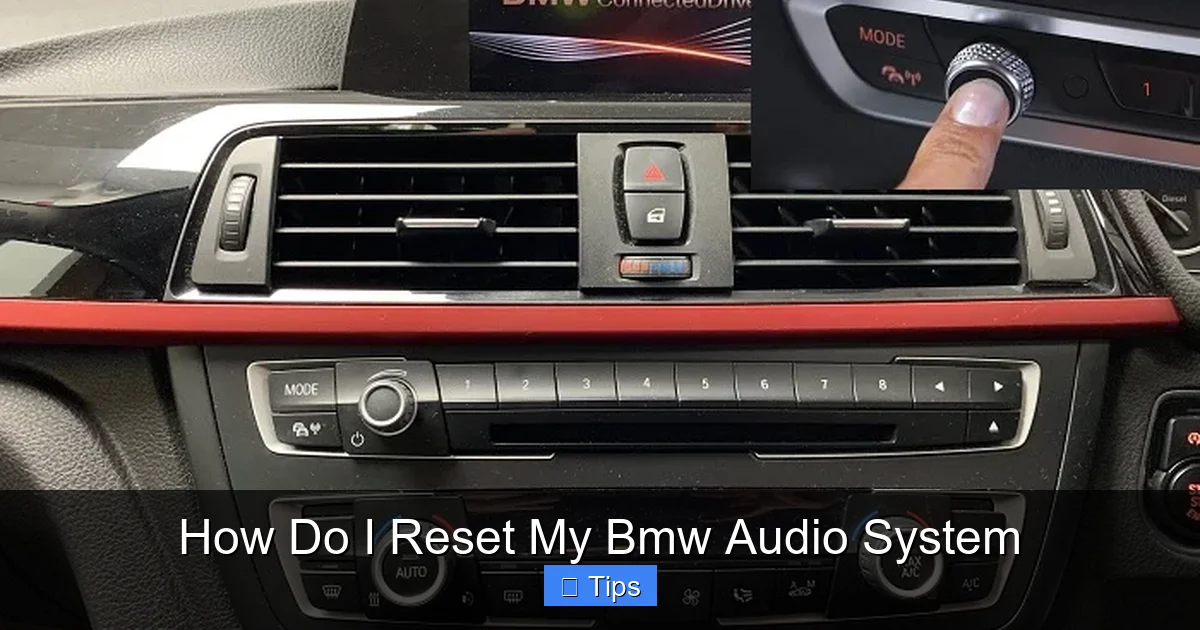
A hard reset goes deeper than a soft reset. It restores the audio system to its factory settings, clearing saved preferences like radio presets, equalizer settings, and paired devices. Use this method when a soft reset doesn’t work or when you’re experiencing consistent, recurring issues.
Hard Reset for iDrive 6, 7, and 8 (2015–Present)
1. **Turn on the ignition** – Accessory mode is sufficient.
2. **Open the iDrive menu** – Use the controller or touchscreen.
3. **Navigate to Settings** – Look for the gear icon.
4. **Select “General Settings”** – Scroll down and tap or click.
5. **Choose “Reset”** – You’ll see options like “Reset to Factory Settings” or “Reset Audio System.”
6. **Confirm the reset** – The system will warn you that settings will be lost. Confirm to proceed.
7. **Wait for reboot** – The system will restart automatically. This can take 2–5 minutes.
8. **Reconfigure your settings** – Re-pair Bluetooth devices, set radio presets, and adjust audio preferences.
*Important:* This reset only affects the infotainment system. It won’t delete your navigation history, contacts, or vehicle settings like seat positions or climate preferences.
Hard Reset for iDrive 4 and 5 (2010–2014)
1. **Turn on the ignition.**
2. **Press and hold the “Menu” button** on the iDrive controller for 10–15 seconds.
3. **A hidden menu will appear** – Use the controller to navigate to “Reset” or “Factory Reset.”
4. **Select “Audio System”** – Avoid selecting “Full System Reset” unless necessary.
5. **Confirm and wait** – The system will reboot.
*Note:* On some models, you may need to press and hold the “Menu” and “Radio” buttons simultaneously.
Hard Reset for Pre-iDrive Systems
For older BMWs without iDrive, a hard reset often involves disconnecting the battery:
1. **Turn off the car and remove the key.**
2. **Locate the 12V battery** – Usually in the trunk or under the hood.
3. **Disconnect the negative terminal** – Use a wrench to loosen the clamp and remove the cable.
4. **Wait 10–15 minutes** – This ensures all systems fully power down.
5. **Reconnect the battery** – Secure the negative terminal.
6. **Start the car and test the audio.**
*Warning:* Disconnecting the battery may reset other systems like the clock, radio presets, and seat memory. Some cars may also require a radio code to reactivate the audio system—check your owner’s manual or glove box for a code card.
Troubleshooting Before You Reset
Before jumping into a reset, it’s smart to rule out simpler causes. Sometimes, the issue isn’t the system itself—it’s a loose wire, a blown fuse, or a settings glitch.
Check the Fuses
A blown fuse is one of the most common causes of audio failure. BMWs have multiple fuses for the audio system, usually located in the glove box, under the dashboard, or in the engine bay.
– **Locate the fuse box** – Refer to your owner’s manual for the exact location.
– **Find the audio fuses** – Look for labels like “Radio,” “Audio,” or “Infotainment.”
– **Inspect the fuses** – Use a fuse puller or tweezers to remove and check for a broken filament.
– **Replace if necessary** – Use a fuse of the same amperage. Never use a higher-rated fuse—it could cause damage.
*Pro Tip:* Keep a spare fuse kit in your glove box. They’re cheap and can save you a tow.
Inspect Cables and Connections
Loose or damaged cables can interrupt audio signals. Check:
– **AUX and USB ports** – Make sure they’re clean and not bent.
– **Antenna connection** – A loose antenna can cause poor radio reception.
– **Amplifier connections** – If your BMW has a premium audio system, the amp may have loose power or signal wires.
Use compressed air to clean ports and gently reseat any removable cables.
Verify Audio Source and Settings
Sometimes the issue is as simple as the wrong input being selected.
– **Check the source** – Make sure you’re on “Radio,” “Bluetooth,” or “USB,” not “Aux” or “CD.”
– **Adjust volume and balance** – Ensure volume isn’t muted and balance/fade settings aren’t skewed.
– **Test different sources** – Try radio, Bluetooth, and USB to isolate the problem.
Update Software
Outdated software can cause compatibility issues. BMW releases updates for iDrive systems that fix bugs and improve performance.
– **Check for updates** – Go to **Settings > General Settings > Remote Software Upgrade**.
– **Download via Wi-Fi** – Connect your car to a stable network and follow prompts.
– **Install when parked** – Updates can take 20–40 minutes and require the car to remain on.
When to Seek Professional Help
Most audio issues can be fixed with a reset or basic troubleshooting. But if you’ve tried everything and the problem persists, it might be time to visit a BMW specialist.
Signs you need professional help:
– **No power to the audio system at all** – Even after fuse checks and resets.
– **Burning smell or smoke** – Indicates electrical damage.
– **Distorted or crackling sound** – Could point to a failing amplifier or speaker.
– **Error messages on the screen** – Like “Audio System Fault” or “No Signal.”
– **Water damage** – Common in older BMWs with leaking sunroofs or trunks.
A certified BMW technician can run diagnostics, check module communication, and replace faulty components. While dealerships can be expensive, independent BMW specialists often offer more affordable rates with the same expertise.
Tips to Prevent Future Audio Issues
Once your audio system is working again, take steps to keep it that way:
– **Avoid extreme temperatures** – Don’t leave your car in direct sunlight for long periods, as heat can damage electronics.
– **Use quality cables** – Cheap USB or AUX cables can cause connection issues.
– **Keep software updated** – Regular updates prevent bugs and improve performance.
– **Don’t overload the system** – Avoid running too many apps or devices at once.
– **Park in a garage when possible** – Protects electronics from moisture and temperature swings.
A little maintenance goes a long way in keeping your BMW’s audio system running smoothly for years.
Resetting your BMW audio system doesn’t have to be intimidating. Whether you’re dealing with a frozen screen, silent speakers, or a Bluetooth that won’t cooperate, the solution is often just a few button presses away. Start with a soft reset—it’s quick and non-invasive. If that doesn’t work, move on to a hard reset or check the basics like fuses and cables. And remember, knowing your car’s system type (iDrive vs. older models) makes all the difference.
With this guide, you’re equipped to handle most audio glitches like a pro. No dealership visit, no unnecessary spending—just clear, crisp sound right where you left it. So the next time your BMW’s audio acts up, don’t panic. Take a breath, follow these steps, and get back to enjoying the drive.
Frequently Asked Questions
Will resetting my BMW audio system delete my saved radio stations?
Yes, a hard reset will erase saved radio presets and audio settings. A soft reset will not. Always try a soft reset first to preserve your preferences.
Can I reset the audio system while driving?
No, it’s not safe or recommended. Always perform resets when the car is parked and the engine is off or in accessory mode.
Why does my BMW audio system keep resetting on its own?
Frequent automatic resets may indicate a failing battery, loose wiring, or a software bug. Have a technician inspect the electrical system.
Do I need a radio code after resetting?
Only if you disconnected the battery on an older BMW. Check your owner’s manual or glove box for a code card. Newer iDrive systems don’t require codes.
How long does it take for the audio system to reboot after a reset?
A soft reset takes 30–60 seconds. A hard reset can take 2–5 minutes, depending on the model and system complexity.
Can I reset the audio system using the BMW app?
No, the BMW ConnectedDrive app doesn’t support audio system resets. You must use the in-car controls or physical buttons.

At CarLegit, we believe information should be clear, factual, and genuinely helpful. That’s why every guide, review, and update on our website is created with care, research, and a strong focus on user experience.