
Kia software updates typically take between 30 minutes to 2 hours, depending on the vehicle model, update type, and connection quality. While some updates are quick and automatic, others require a visit to a dealership. Understanding what influences update time helps you plan better and avoid surprises.
In This Article
- 1 Key Takeaways
- 2 📑 Table of Contents
- 3 How Long Does the Kia Software Update Take? A Complete Guide
- 4 Understanding Kia Software Updates
- 5 Average Time for Kia Software Updates
- 6 Preparing for a Kia Software Update
- 7 What Happens During a Kia Software Update?
- 8 Troubleshooting Common Update Issues
- 9 Tips for a Smooth Kia Software Update Experience
- 10 The Future of Kia Software Updates
- 11 Conclusion
- 12 Frequently Asked Questions
- 12.1 How long does a Kia software update usually take?
- 12.2 Can I drive my Kia during a software update?
- 12.3 Why does my Kia restart multiple times during an update?
- 12.4 What if my Kia software update fails?
- 12.5 Do I need to be connected to Wi-Fi for a Kia software update?
- 12.6 Will a software update improve my Kia’s performance?
Key Takeaways
- Update duration varies: Most over-the-air (OTA) updates take 30–90 minutes, while dealership-installed updates can take 1–2 hours or longer.
- Vehicle model matters: Newer Kia models with advanced infotainment systems (like the Kia EV6 or Sorento) may require longer updates due to larger software packages.
- Internet connection is key: A strong Wi-Fi signal speeds up download and installation; weak connections can delay or interrupt the process.
- Preparation saves time: Ensure your battery is charged, the car is parked safely, and no one uses the infotainment system during the update.
- Dealership vs. OTA: Over-the-air updates are faster and more convenient, but critical safety or system updates may still require a technician.
- Post-update restart: Your vehicle may restart multiple times during the update—this is normal and part of the process.
- Check for notifications: Kia Connect or the UVO app will alert you when an update is available and provide estimated completion time.
📑 Table of Contents
- How Long Does the Kia Software Update Take? A Complete Guide
- Understanding Kia Software Updates
- Average Time for Kia Software Updates
- Preparing for a Kia Software Update
- What Happens During a Kia Software Update?
- Troubleshooting Common Update Issues
- Tips for a Smooth Kia Software Update Experience
- The Future of Kia Software Updates
- Conclusion
How Long Does the Kia Software Update Take? A Complete Guide
If you own a modern Kia—whether it’s a sleek EV6, a family-friendly Telluride, or a compact Seltos—you’ve probably noticed that your car gets regular software updates. These aren’t just for fun; they improve performance, fix bugs, enhance safety features, and sometimes even add new functionality to your infotainment system. But one question keeps popping up among Kia owners: *How long does the Kia software update take?*
The short answer? It depends. But the good news is that most updates are designed to be quick, convenient, and non-disruptive. Whether you’re updating over-the-air (OTA) from your driveway or visiting a dealership for a more complex patch, knowing what to expect can save you time, stress, and confusion.
In this guide, we’ll break down everything you need to know about Kia software update times—from average durations to factors that can slow things down. We’ll also share practical tips to ensure your next update goes smoothly, whether you’re a tech-savvy driver or just getting comfortable with connected car features.
Understanding Kia Software Updates
Visual guide about How Long Does the Kia Software Update Take
Image source: thecarhow.com
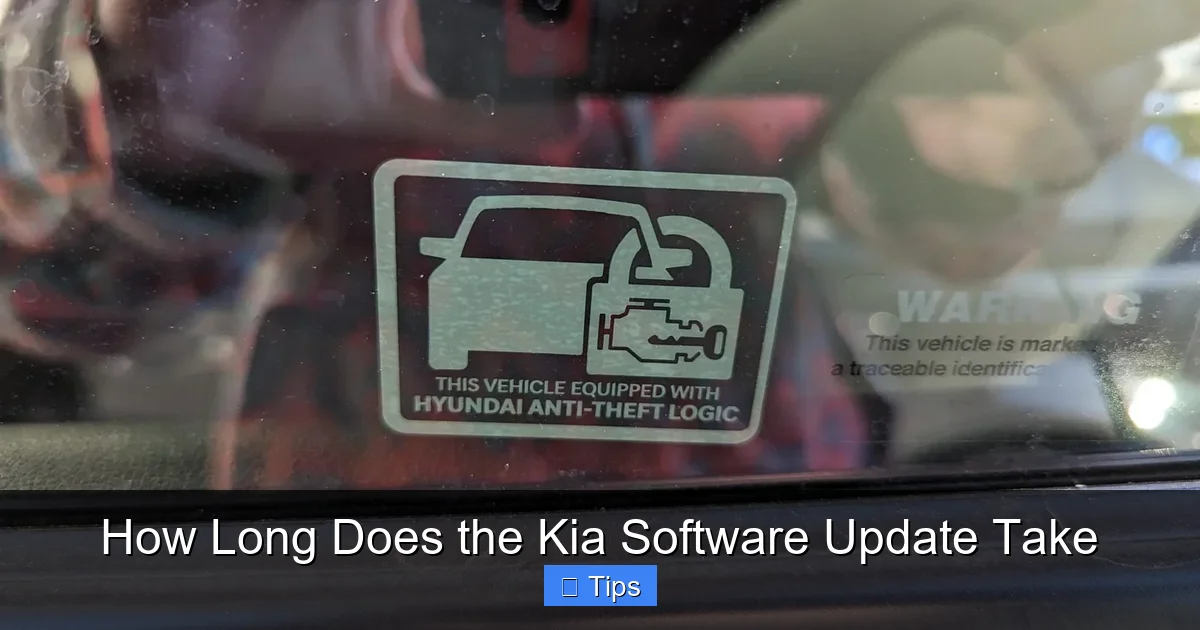
Before diving into timing, it helps to understand what a Kia software update actually does. These updates are like digital tune-ups for your vehicle. They can affect multiple systems, including the infotainment unit (the screen you use for navigation, music, and phone calls), the engine control module, advanced driver-assistance systems (ADAS), and even battery management in electric models.
Kia releases updates for several reasons:
– **Bug fixes:** Resolving glitches like frozen screens or Bluetooth pairing issues.
– **Security patches:** Protecting your vehicle from cyber threats.
– **Feature enhancements:** Adding new apps, improving voice recognition, or enabling wireless Apple CarPlay.
– **Performance improvements:** Optimizing fuel efficiency, charging speed (for EVs), or transmission responsiveness.
Some updates are small and routine—like a phone app update—while others are major overhauls that can change how your car behaves. The size and scope of the update directly impact how long it takes.
Types of Kia Software Updates
Kia uses two main methods to deliver software updates: over-the-air (OTA) and dealership-installed.
Over-the-air (OTA) updates are the most common and convenient. If your Kia is equipped with Kia Connect (formerly UVO), you’ll receive notifications via the app or on your dashboard when an update is available. These updates download and install while your car is parked and connected to Wi-Fi. They’re ideal for infotainment and minor system tweaks.
Dealership-installed updates are typically reserved for more complex changes—like engine calibrations, transmission logic, or critical safety system upgrades. These require a technician with specialized tools and often take longer because they involve deeper system access.
Knowing which type of update you’re dealing with helps set the right expectations for timing.
Average Time for Kia Software Updates
Visual guide about How Long Does the Kia Software Update Take
Image source: playbite.com
So, how long does the Kia software update take in real-world scenarios? Let’s look at typical durations based on update type and vehicle model.
Over-the-Air (OTA) Updates
Most OTA updates take between 30 to 90 minutes. Here’s a breakdown:
– **Minor updates (bug fixes, app updates):** 30–45 minutes
– **Moderate updates (new features, UI improvements):** 45–75 minutes
– **Major updates (system overhauls, new OS versions):** 75–90 minutes
For example, a recent OTA update for the Kia EV6 added wireless Android Auto and improved climate control logic. Owners reported installation times of about 65 minutes when connected to a strong home Wi-Fi network.
Dealership-Installed Updates
These updates usually take 1 to 2 hours, but can extend longer depending on the dealership’s workload and the complexity of the update. Some recalls or technical service bulletins (TSBs) may require multiple systems to be updated sequentially, pushing the total time to 2.5 or even 3 hours.
For instance, a 2022 Kia Sorento recall involving the engine control module required a dealership visit. Technicians spent about 90 minutes reprogramming the engine and transmission modules, plus additional time for system checks and test drives.
Factors That Influence Update Duration
While averages are helpful, your actual update time may vary. Here are the key factors that can speed up or slow down the process:
- Internet speed and stability: A fast, reliable Wi-Fi connection is crucial for OTA updates. Slow or intermittent signals can cause delays or failed downloads.
- Vehicle battery level: Kia recommends at least 30% battery for OTA updates. If your battery is low, the system may delay the update to avoid draining it.
- System complexity: Vehicles with larger infotainment screens, multiple cameras, or advanced driver aids (like Highway Driving Assist) have more software to update.
- Update size: A 500MB update will take longer than a 50MB one. Major OS upgrades can be several gigabytes.
- Background processes: If your car is running diagnostics, charging, or connected to a phone, it may slow down the update.
Preparing for a Kia Software Update
Visual guide about How Long Does the Kia Software Update Take
Image source: citizenside.com
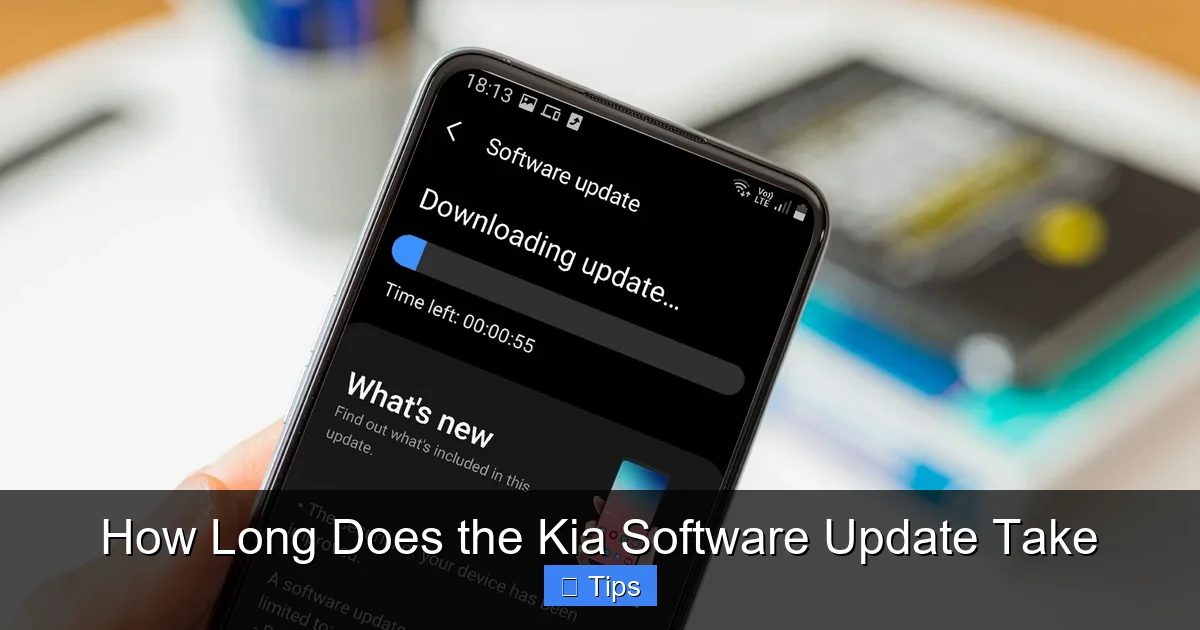
A little preparation goes a long way in ensuring your update finishes quickly and without issues. Think of it like updating your phone—you wouldn’t do it while running on 5% battery, right?
Step-by-Step Preparation Guide
Follow these steps before starting any software update:
- Check your battery: Ensure your vehicle has at least 30–50% charge. For plug-in hybrids and EVs, consider plugging in to maintain power.
- Connect to strong Wi-Fi: Use a reliable home network. Avoid public or weak signals. If your car doesn’t connect automatically, go to Settings > Wi-Fi and manually select your network.
- Park in a safe, shaded area: Updates can cause the system to heat up. Parking in the shade helps prevent overheating.
- Turn off accessories: Disable Bluetooth, navigation, and any active apps. This reduces system load and prevents conflicts.
- Don’t drive or interrupt: Never start the car or open doors during an update. Interrupting the process can corrupt the software and require a dealership reset.
- Allow extra time: Even if the estimate says 45 minutes, give yourself a 90-minute window in case of delays.
Real-Life Example: Updating a Kia Sportage
Let’s say you own a 2023 Kia Sportage with the 12.3-inch touchscreen. You get a notification: “Software update available. Estimated time: 50 minutes.”
You park in your garage, plug in the car (it’s a hybrid), connect to your home Wi-Fi, and confirm the update. The system downloads for 20 minutes, then installs for another 30. During this time, the screen may go black, show progress bars, or restart twice. After 52 minutes, the update completes, and you’re greeted with a “Update Successful” message.
This is a typical OTA experience—smooth, quiet, and hands-off.
What Happens During a Kia Software Update?
Curious about what’s going on under the hood (or under the dashboard)? Here’s a behind-the-scenes look at the update process.
The Update Process Step-by-Step
- Notification: You receive an alert via the Kia Connect app or on your dashboard.
- Download: The system downloads the update package over Wi-Fi. This can take 10–30 minutes depending on file size and speed.
- Verification: The car checks the update for integrity and compatibility.
- Installation: The software is installed in stages. The system may restart multiple times—this is normal.
- Finalization: Settings are restored, and the system runs a quick diagnostic to confirm everything works.
- Completion: You’ll see a confirmation message, and the update is ready to use.
During installation, you might notice:
– The screen turning off and on
– Fans running (to cool the system)
– Brief loss of audio or navigation
– A “Do Not Turn Off” warning
These are all expected behaviors. Resist the urge to touch anything—just let it do its thing.
Why Restarts Are Normal
You might wonder why your Kia restarts several times during an update. It’s because different modules (infotainment, telematics, ADAS) are updated separately. Each restart allows the system to apply changes safely and verify functionality.
For example, the first restart might update the main operating system, the second could refresh the navigation maps, and the third might calibrate the camera system. Think of it like rebooting your computer after installing a major Windows update.
Troubleshooting Common Update Issues
Even with the best preparation, things can go wrong. Here’s how to handle common problems.
Update Stuck or Frozen
If your screen freezes or the progress bar doesn’t move for over 20 minutes:
– Wait it out: Sometimes the system is busy in the background. Give it another 10–15 minutes.
– Check connection: Ensure Wi-Fi is still active. Move closer to your router if needed.
– Restart the process: If it’s truly stuck, turn the car off and on. The system may resume or offer to retry.
Update Fails or Rolls Back
In rare cases, an update may fail due to power loss or corruption. The system will usually roll back to the previous version and notify you.
What to do:
– Reconnect to Wi-Fi and try again.
– Ensure the battery is stable (plug in if possible).
– Contact Kia support if it fails repeatedly.
Post-Update Glitches
After an update, you might notice minor issues like:
– Bluetooth not pairing
– Navigation lag
– App crashes
These are usually resolved with a simple restart. Turn the car off, wait 30 seconds, and turn it back on. If problems persist, check for a follow-up update or visit a dealership.
Tips for a Smooth Kia Software Update Experience
Want to make your next update as painless as possible? Follow these expert tips.
Use Off-Peak Hours
Schedule updates during off-peak internet hours (early morning or late evening). This reduces network congestion and speeds up downloads.
Keep Your Kia Connect App Updated
The app often provides better notifications and update management than the in-car system. Make sure it’s always up to date.
Monitor Update Notifications
Don’t ignore update alerts. Delaying updates can lead to compatibility issues or missed safety fixes.
Ask Your Dealership About Pending Updates
If you’re due for service, ask if any software updates are available. Technicians can often install them during routine maintenance—saving you a separate trip.
Join Kia Owner Forums
Communities like Kia Forums or Reddit’s r/KiaMotors share real-time experiences. You can learn how long a specific update took for your model and get troubleshooting tips.
The Future of Kia Software Updates
Kia is investing heavily in connected car technology. With the rise of electric vehicles and autonomous features, software updates are becoming more frequent and sophisticated.
Faster Updates with 5G
Newer Kia models are beginning to support 5G connectivity, which could drastically reduce download times. Imagine a 2GB update taking just 10 minutes instead of 45.
Predictive Updates
Future systems may analyze your driving habits and schedule updates during your least active times—like when your car is parked at work.
Remote Diagnostics and Fixes
Kia is working on systems that can detect issues and push fixes automatically, often before you even notice a problem.
As technology evolves, the question “How long does the Kia software update take?” may soon have a much shorter answer.
Conclusion
So, how long does the Kia software update take? On average, expect 30 to 90 minutes for over-the-air updates and 1 to 2 hours for dealership installations. While timing varies based on your vehicle, connection, and update type, proper preparation ensures a smooth experience.
These updates are more than just technical chores—they’re a sign that your Kia is getting smarter, safer, and more capable over time. By understanding the process and planning ahead, you can make the most of your connected car without the stress.
Next time you see that update notification, don’t panic. Grab a coffee, park in the shade, and let your Kia do its thing. In less than two hours, you’ll be back on the road with a better, more refined driving experience.
Frequently Asked Questions
How long does a Kia software update usually take?
Most over-the-air updates take 30 to 90 minutes, while dealership-installed updates can take 1 to 2 hours or more, depending on the complexity.
Can I drive my Kia during a software update?
No, you should never drive or turn on the engine during an update. Interrupting the process can cause software corruption and require professional repair.
Why does my Kia restart multiple times during an update?
Restarts are normal and allow different systems (infotainment, navigation, safety features) to install updates safely and verify functionality.
What if my Kia software update fails?
If an update fails, the system usually rolls back to the previous version. Try again with a stable Wi-Fi connection and sufficient battery. Contact Kia support if issues persist.
Do I need to be connected to Wi-Fi for a Kia software update?
Yes, over-the-air updates require a strong Wi-Fi connection. Mobile data is not supported for downloading large update files.
Will a software update improve my Kia’s performance?
Yes, updates can enhance performance, fix bugs, improve fuel efficiency, add new features, and strengthen security—making your driving experience better over time.

At CarLegit, we believe information should be clear, factual, and genuinely helpful. That’s why every guide, review, and update on our website is created with care, research, and a strong focus on user experience.