
Changing the time on a 2013 Nissan Altima is simple once you know where to look. This guide walks you through every step—whether you’re using the touchscreen display or physical buttons—so you can set the correct time in minutes.
Have you ever hopped into your 2013 Nissan Altima, glanced at the dashboard, and realized the clock is off by an hour—or worse, stuck in last week? It’s a small thing, but a wrong clock can throw off your entire day. Maybe you’re rushing to a meeting, or you rely on the clock to time your parking meter. Whatever the reason, keeping your car’s time accurate is more important than it seems. The good news? Changing the time on your 2013 Nissan Altima is easier than you might think—once you know where to look.
Unlike older cars with analog dials or basic digital displays, the 2013 Altima uses a modern infotainment system that integrates time settings into its central display. Depending on your trim level—whether it’s the base S, mid-tier SV, or premium SL—the interface might look slightly different, but the core process remains consistent. Some models even offer GPS-based time synchronization, which automatically adjusts based on your location. But if you’re not near a GPS signal or prefer manual control, you can always set it yourself. In this guide, we’ll walk you through every method, from touchscreen navigation to using physical buttons, so you’ll never be late—or early—because of a faulty clock again.
In This Article
- 1 Key Takeaways
- 2 📑 Table of Contents
- 3 Understanding Your 2013 Nissan Altima’s Clock System
- 4 Step-by-Step Guide: Changing Time via the Touchscreen Display
- 5 Alternative Method: Using Physical Buttons (Non-Touchscreen Models)
- 6 Syncing Time with GPS (Automatic Mode)
- 7 Troubleshooting Common Time-Setting Issues
- 8 Maintenance Tips to Keep Your Clock Accurate
- 9 Conclusion
- 10 Frequently Asked Questions
- 10.1 How do I change the time on a 2013 Nissan Altima without a touchscreen?
- 10.2 Why does my Nissan Altima clock keep resetting?
- 10.3 Can the 2013 Altima automatically adjust for daylight saving time?
- 10.4 How do I enable GPS time sync on my 2013 Altima?
- 10.5 What if the touchscreen won’t respond when I try to change the time?
- 10.6 Does the time setting affect other functions in the car?
Key Takeaways
- Access the clock settings via the display screen: Most 2013 Altima models use the central touchscreen to adjust time and date.
- Use the “Settings” menu for time adjustments: Navigate through the main menu to find “Clock” or “Time” options.
- Manual vs. automatic time sync: You can choose to set the time manually or let the system sync with GPS for accuracy.
- Physical buttons may be an alternative: Some trims use steering wheel or center console buttons to access time settings.
- Daylight saving time requires manual updates: The system doesn’t auto-adjust, so you’ll need to change it twice a year.
- Reset after battery replacement: Disconnecting the battery may reset the clock, requiring a quick time update.
- Consult your owner’s manual for model-specific steps: Trim levels (S, SV, SL) may have slight interface differences.
📑 Table of Contents
- Understanding Your 2013 Nissan Altima’s Clock System
- Step-by-Step Guide: Changing Time via the Touchscreen Display
- Alternative Method: Using Physical Buttons (Non-Touchscreen Models)
- Syncing Time with GPS (Automatic Mode)
- Troubleshooting Common Time-Setting Issues
- Maintenance Tips to Keep Your Clock Accurate
- Conclusion
Understanding Your 2013 Nissan Altima’s Clock System
Before diving into the steps, it helps to understand how the clock system works in your 2013 Nissan Altima. This model year introduced a more advanced dashboard layout compared to earlier versions, with a central display screen that controls audio, navigation, climate, and yes—time settings. The clock isn’t a standalone unit; it’s part of the vehicle’s integrated information system.
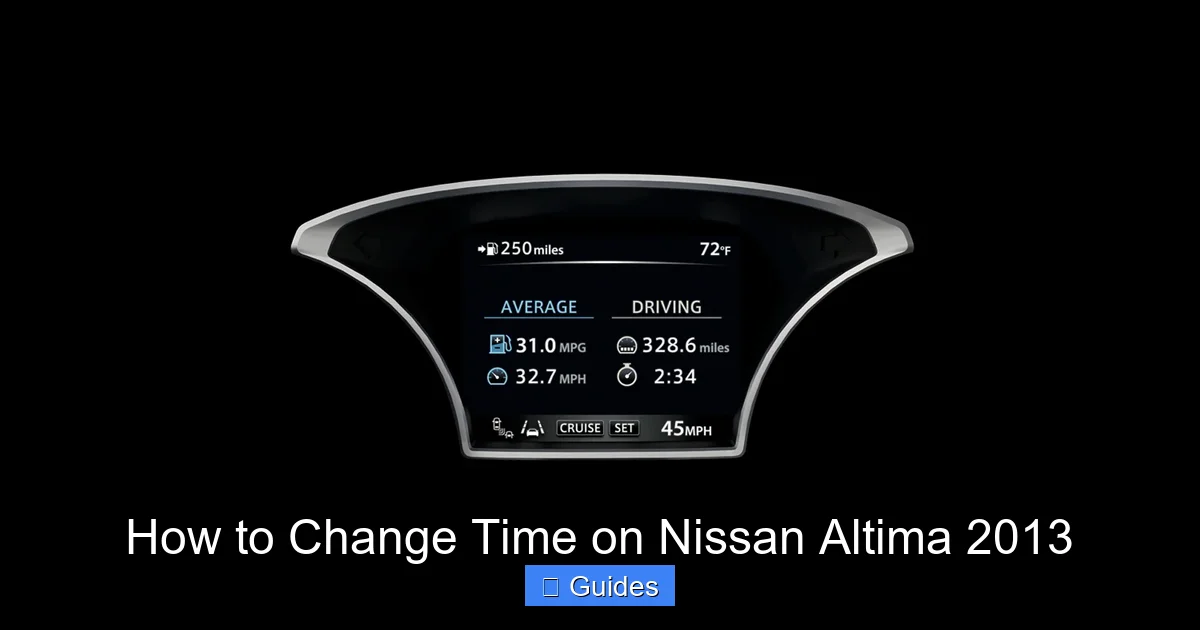
The display screen, usually a 4.3-inch or 5-inch color LCD, is the main hub for adjusting time. Depending on your trim, you might have a touchscreen or rely on physical buttons around the screen to navigate menus. Higher trims like the SL often come with a larger, more responsive touchscreen, while base models may use a combination of buttons and a smaller display. Regardless of the setup, the clock settings are typically found under the “Settings” or “System” menu.
One key feature of the 2013 Altima is the option for automatic time synchronization via GPS. If your vehicle has navigation, it can pull the correct time from satellite signals, ensuring accuracy without manual input. However, this feature only works when the car is on and has a clear view of the sky. If you’re parked in a garage or underground lot, the GPS signal may be weak, and the time might not update automatically. That’s when manual adjustment becomes necessary.
Another thing to note is that the 2013 Altima does not automatically adjust for daylight saving time. Unlike some newer models or smartphones, the system won’t “spring forward” or “fall back” on its own. You’ll need to manually change the time by one hour when the shift occurs. This is a common oversight, especially for drivers who rely on their car’s clock as their primary time reference.
It’s also worth mentioning that disconnecting the car battery—whether for maintenance, replacement, or jump-starting—can reset the clock to factory defaults. If you’ve recently had work done on your vehicle and noticed the time is wrong, this is likely the cause. Fortunately, resetting it is quick and straightforward.
Step-by-Step Guide: Changing Time via the Touchscreen Display
Visual guide about How to Change Time on Nissan Altima 2013
Image source: images.caricos.com
If your 2013 Nissan Altima has a touchscreen (common in SV and SL trims), this is the most direct way to change the time. The process is intuitive, but it requires navigating through a few menu layers. Don’t worry—we’ll break it down step by step.
Step 1: Turn On the Ignition
First, make sure your car is in the “ON” position. You don’t need to start the engine, but the ignition must be on for the display screen to power up. If the screen is off or dim, press the power button (usually labeled “PWR” or “VOL”) to activate it.
Step 2: Access the Main Menu
Once the screen lights up, look for the “Menu” or “Settings” button. On most 2013 Altimas, this is a physical button located below or beside the screen, or it may appear as an icon on the touchscreen itself. Tap or press it to open the main menu.
In the main menu, you’ll see options like “Audio,” “Navigation,” “Climate,” and “Settings.” Tap on “Settings.” Inside the Settings menu, look for “Clock,” “Time,” or “Date/Time.” The exact wording may vary slightly depending on your trim and software version.
Step 4: Choose Manual or Automatic Time
Once you’re in the Clock settings, you’ll usually see two options: “Automatic” and “Manual.” If “Automatic” is selected, the system will try to sync with GPS time. If you want full control, select “Manual.” This allows you to set the hour and minute yourself.
Step 5: Adjust the Time
With “Manual” selected, you’ll see fields for hours and minutes. Use the on-screen arrows or +/- buttons to increase or decrease the values. Some systems let you tap directly on the numbers to edit them. Make sure to set the correct AM/PM if your display uses a 12-hour format. If it’s a 24-hour format, simply enter the time as it appears on a digital clock.
Step 6: Confirm and Exit
After setting the correct time, look for a “Set,” “OK,” or “Save” button. Tap it to confirm your changes. The screen should return to the main menu or clock display, now showing the updated time. You can exit the menu by pressing the “Back” button or waiting for it to time out.
Pro Tip: Use the Steering Wheel Controls (If Available)
Some 2013 Altima models come with steering wheel-mounted audio and menu controls. If yours does, you can use the “Menu” or “Enter” button on the wheel to access settings without taking your hands off the wheel. This is especially useful while driving, though we recommend adjusting the time when parked for safety.
Alternative Method: Using Physical Buttons (Non-Touchscreen Models)
Visual guide about How to Change Time on Nissan Altima 2013
Image source: manua.ls
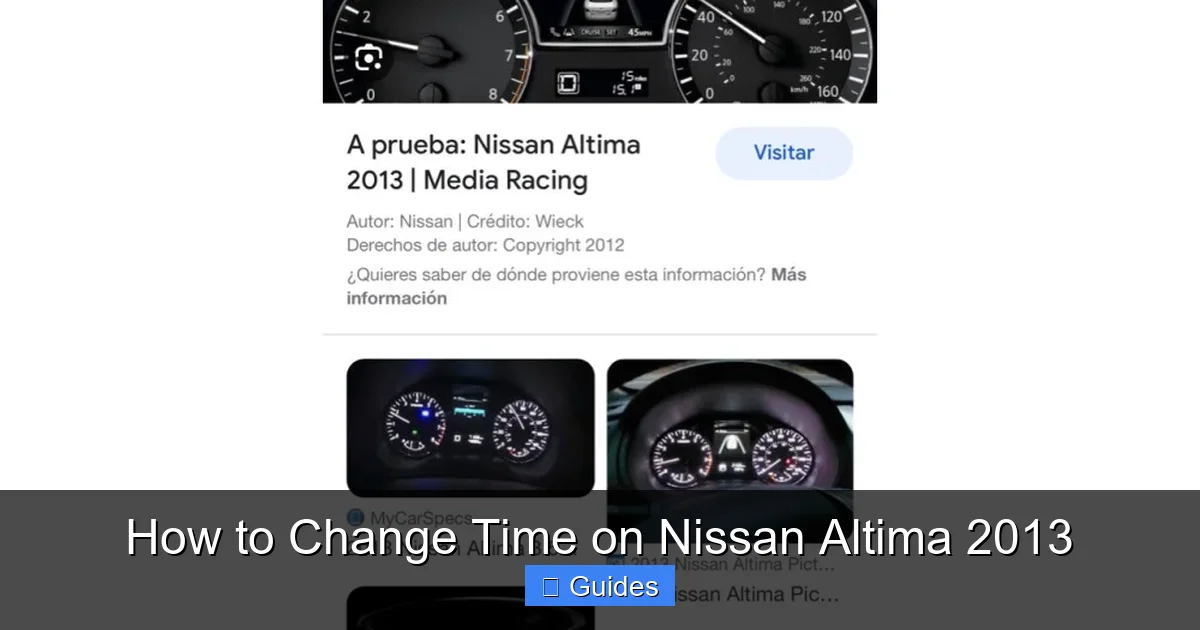
Not all 2013 Nissan Altimas come with a touchscreen. Base models, particularly the S trim, may use a simpler display with physical buttons for navigation. If your car falls into this category, don’t worry—you can still change the time using the button-based interface.
Step 1: Power On the Display
As with the touchscreen method, start by turning the ignition to the “ON” position. The display should light up, showing the current time, radio station, or other info.
Step 2: Locate the “Menu” or “Settings” Button
Look for a physical button labeled “Menu,” “Settings,” or “Info” near the display. It’s usually on the center console, below the screen, or on the side. Press it to enter the menu system.
Once in the menu, use the arrow buttons (up, down, left, right) to scroll through the options. Look for “Clock,” “Time,” or “System Settings.” Press the “Enter” or “OK” button to select it.
Step 4: Toggle Between Automatic and Manual
Inside the Clock menu, you’ll see the same automatic/manual choice. Use the arrow buttons to highlight “Manual,” then press “Enter” to select it.
Step 5: Adjust Hour and Minute
Now, use the arrow buttons to change the hour and minute values. Some systems require you to press “Enter” after each adjustment, while others let you cycle through all fields at once. Pay attention to the AM/PM indicator if applicable.
Step 6: Save and Exit
After setting the correct time, look for a “Save” or “Set” option. Press “Enter” to confirm. The display should update immediately. Use the “Back” or “Exit” button to return to the main screen.
Tip: Check Your Owner’s Manual for Button Layouts
Button layouts can vary slightly between trims. If you’re unsure which button does what, consult your owner’s manual. It will have a diagram of the center console and explain each button’s function.
Syncing Time with GPS (Automatic Mode)

Visual guide about How to Change Time on Nissan Altima 2013
Image source: manua.ls
If your 2013 Nissan Altima has navigation, you can take advantage of GPS-based time synchronization. This feature automatically sets the clock based on your current location and time zone, ensuring accuracy without manual input. It’s especially useful for long trips or if you frequently travel across time zones.
How GPS Time Sync Works
When the car is on and has a clear view of the sky, the navigation system receives signals from GPS satellites. These signals include precise time data, which the system uses to update the clock. This method is far more accurate than manual setting and eliminates the need to adjust for time zone changes.
Enabling Automatic Time Sync
To turn on automatic time sync, follow these steps:
- Go to the “Settings” menu on your display.
- Select “Clock” or “Time.”
- Choose “Automatic” instead of “Manual.”
- Ensure your navigation system is active and has a GPS signal.
Once enabled, the clock should update within a few minutes of driving in an open area.
Limitations of GPS Sync
While convenient, GPS time sync isn’t perfect. If you’re parked in a garage, underground lot, or under heavy tree cover, the GPS signal may be weak or unavailable. In these cases, the system won’t update the time automatically. Additionally, if your navigation system is turned off or malfunctioning, automatic sync won’t work.
When to Use Manual Mode
We recommend switching to manual mode if:
- You’re in an area with poor GPS reception.
- You’ve recently replaced the battery and the clock reset.
- You need to adjust for daylight saving time.
- You prefer full control over your settings.
Manual mode gives you reliability, even when technology fails.
Troubleshooting Common Time-Setting Issues
Even with clear instructions, you might run into a few hiccups when changing the time on your 2013 Nissan Altima. Here are some common problems and how to fix them.
The Clock Won’t Change
If the time won’t update after following the steps, check if “Automatic” mode is still enabled. Sometimes the system gets stuck trying to sync with GPS. Switch to “Manual” mode and try again. Also, ensure the ignition is on—some systems won’t allow changes when the car is off.
Time Resets After Turning Off the Car
This usually happens after a battery disconnect. The clock loses power and reverts to default. Simply re-enter the correct time using the manual method. To prevent frequent resets, avoid disconnecting the battery unless necessary.
AM/PM Confusion
If your display uses a 12-hour format, double-check whether you’ve set AM or PM correctly. A common mistake is setting 3:00 PM as 3:00 AM. Look for an “AM/PM” toggle in the time settings and adjust accordingly.
Buttons or Touchscreen Not Responding
If the menu buttons or touchscreen aren’t working, try turning the car off and on again. A soft reset can often restore functionality. If the problem persists, there may be a software glitch or hardware issue—consult a Nissan dealer.
Time Zone Mismatch
If you’ve traveled to a new time zone and the clock hasn’t updated, make sure automatic GPS sync is enabled. If it’s still wrong, manually adjust it or wait for the GPS to detect your new location.
Maintenance Tips to Keep Your Clock Accurate
Keeping your 2013 Nissan Altima’s clock accurate isn’t just about changing the time—it’s about maintaining the system that controls it. Here are a few tips to ensure your clock stays reliable.
Regularly Check the Time
Make it a habit to glance at your clock during routine drives. If you notice it’s off, correct it immediately. Small drifts can add up over time.
Update for Daylight Saving Time
Set a calendar reminder for the second Sunday in March and the first Sunday in November. When daylight saving time begins or ends, manually adjust your clock by one hour.
If you use GPS time sync, ensure your navigation system has the latest software updates. Nissan occasionally releases updates that improve GPS accuracy and system performance.
Avoid Frequent Battery Disconnects
Disconnecting the battery resets the clock and other settings. If you need to work on your electrical system, consider using a memory saver device to preserve settings.
Consult the Owner’s Manual
Your owner’s manual is the best resource for model-specific instructions. It includes diagrams, troubleshooting tips, and detailed steps for your exact trim level.
Conclusion
Changing the time on your 2013 Nissan Altima might seem like a minor task, but it’s one of those small things that can make a big difference in your daily routine. Whether you’re using the touchscreen, physical buttons, or GPS sync, the process is straightforward once you know where to look. With the steps outlined in this guide, you’ll be able to set the correct time in just a few minutes—no dealership visit required.
Remember, the key is knowing your trim level and which interface your car uses. Higher trims offer more automation, while base models give you manual control. Either way, you’ve got the tools to keep your clock accurate. And don’t forget to adjust for daylight saving time—your future self will thank you when you’re not an hour early (or late) to your next appointment.
So the next time you hop in your Altima and notice the clock is off, don’t stress. Grab this guide, follow the steps, and get back on schedule. After all, time waits for no one—but with a little know-how, you can always stay one step ahead.
Frequently Asked Questions
How do I change the time on a 2013 Nissan Altima without a touchscreen?
Use the physical buttons near the display to navigate to the “Settings” menu, then select “Clock” and switch to “Manual” mode. Adjust the hour and minute using the arrow buttons and confirm your changes.
Why does my Nissan Altima clock keep resetting?
The clock may reset after a battery disconnect or if the system loses power. Re-enter the correct time manually. To prevent this, avoid unnecessary battery disconnections and use a memory saver if working on the electrical system.
Can the 2013 Altima automatically adjust for daylight saving time?
No, the 2013 Nissan Altima does not automatically adjust for daylight saving time. You must manually change the clock by one hour when the time shifts in spring and fall.
How do I enable GPS time sync on my 2013 Altima?
Go to “Settings” > “Clock” and select “Automatic” mode. Ensure your navigation system is on and has a clear GPS signal. The clock will update based on satellite time.
What if the touchscreen won’t respond when I try to change the time?
Try turning the car off and on again to reset the system. If the touchscreen remains unresponsive, there may be a software or hardware issue—consult a Nissan service center.
Does the time setting affect other functions in the car?
The clock setting primarily affects the display and does not impact engine performance or safety systems. However, accurate time is important for features like scheduled maintenance reminders and navigation logs.

At CarLegit, we believe information should be clear, factual, and genuinely helpful. That’s why every guide, review, and update on our website is created with care, research, and a strong focus on user experience.