
Connecting Bluetooth to your Nissan Altima is simple and enhances your driving experience with hands-free calling and wireless music streaming. This guide walks you through every step, whether you’re using an older model or the latest infotainment system.
If you’ve ever fumbled with cords while trying to play your favorite playlist or answer a call while driving, you’re not alone. Modern cars like the Nissan Altima are designed to keep you connected—safely and seamlessly—through Bluetooth technology. Whether you’re commuting to work, running errands, or heading out on a road trip, being able to connect your phone wirelessly means fewer distractions and more enjoyment behind the wheel.
The good news? Setting up Bluetooth in your Nissan Altima is easier than you might think. From model years 2007 onward, most Altimas come equipped with Bluetooth capabilities, though the exact process can vary slightly depending on your trim level and infotainment system. Don’t worry—we’ll cover all the bases so you can get connected quickly, no matter which Altima you drive. In this guide, we’ll walk you through every step, share pro tips, and help you troubleshoot any hiccups along the way.
In This Article
- 1 Key Takeaways
- 2 📑 Table of Contents
- 3 Why Bluetooth Matters in Your Nissan Altima
- 4 What You’ll Need Before You Start
- 5 Step-by-Step Guide to Connecting Bluetooth
- 6 Advanced Pairing Tips for Different Altima Models
- 7 Troubleshooting Common Bluetooth Issues
- 8 Maintaining Your Bluetooth Connection
- 9 Final Thoughts: Enjoy a Smarter, Safer Drive
- 10 Frequently Asked Questions
- 10.1 Can I connect multiple phones to my Nissan Altima via Bluetooth?
- 10.2 Why won’t my iPhone connect to my Altima’s Bluetooth?
- 10.3 Does my 2006 Nissan Altima have Bluetooth?
- 10.4 How do I reset the Bluetooth system in my Altima?
- 10.5 Can I use Bluetooth for navigation voice prompts?
- 10.6 What if my Altima’s screen is frozen during pairing?
Key Takeaways
- Check your model year: Bluetooth compatibility varies by Altima generation, so confirm your vehicle supports it before starting.
- Use the steering wheel or touchscreen: Most models allow pairing via buttons on the steering wheel or the central display.
- Enable Bluetooth on your phone: Make sure your smartphone’s Bluetooth is turned on and discoverable during setup.
- Enter the correct PIN: Common default codes include 0000, 1234, or 1111—check your owner’s manual if unsure.
- Test audio and calling features: After pairing, verify both music playback and voice calls work properly.
- Update your system if needed: Some older Altimas may require a software update from a Nissan dealer for full functionality.
- Troubleshoot common issues: Restarting devices, clearing paired lists, or resetting the infotainment system often resolves connection problems.
📑 Table of Contents
Why Bluetooth Matters in Your Nissan Altima
Bluetooth isn’t just a fancy feature—it’s a practical tool that improves both safety and convenience. With Bluetooth enabled, you can make and receive phone calls without taking your hands off the wheel or your eyes off the road. Many states even require hands-free calling while driving, making Bluetooth not just helpful but essential for legal compliance.
Beyond calls, Bluetooth lets you stream music, podcasts, audiobooks, and navigation prompts directly through your car’s speakers. Imagine starting your drive with your favorite Spotify playlist or getting turn-by-turn directions from Google Maps—all without plugging in a single cable. It’s clean, clutter-free, and keeps your phone charged and accessible.
Moreover, newer Nissan Altimas integrate Bluetooth with advanced voice recognition systems. You can say “Call Mom” or “Play jazz music,” and the car responds instantly. This level of integration turns your vehicle into a smart, responsive companion rather than just a mode of transportation.
What You’ll Need Before You Start
Visual guide about How to Connect Bluetooth to a Nissan Altima
Image source: hiride.com
Before diving into the pairing process, it’s smart to gather a few things to ensure a smooth experience. First and foremost, make sure your Nissan Altima actually supports Bluetooth. While most models from 2007 onward do, some base trims—especially in earlier years—may lack this feature. Check your owner’s manual or look for a Bluetooth icon on your dashboard or touchscreen.
Next, ensure your smartphone is compatible. Virtually all modern phones (iPhone, Android, etc.) support Bluetooth, but double-check that it’s updated to the latest operating system. Outdated software can cause pairing issues or limit functionality.
You’ll also want your phone fully charged or plugged into a charger during setup. Pairing can drain battery quickly, especially if you’re troubleshooting. And don’t forget your Nissan key fob—you’ll need to be inside the car with the ignition on (or in accessory mode) to access the infotainment system.
Lastly, have your owner’s manual handy. Nissan occasionally updates pairing procedures or PIN codes, and the manual will have the most accurate info for your specific model year.
Step-by-Step Guide to Connecting Bluetooth
Visual guide about How to Connect Bluetooth to a Nissan Altima
Image source: cdn-ds.com
Now for the main event: getting your phone paired with your Altima. The process is straightforward, but attention to detail matters. Follow these steps carefully, and you’ll be streaming music and taking calls in under five minutes.
Step 1: Turn On Your Vehicle
Start by entering your Nissan Altima and turning the ignition to the “ON” position. You don’t need to start the engine—just press the start button once (or turn the key to accessory mode) so the dashboard and infotainment screen light up. This powers the Bluetooth module and prepares the system for pairing.
If your car has a traditional key, insert it and turn it to the second position (where accessories like the radio turn on). For push-button start models, press the button once without pressing the brake pedal.
Step 2: Access the Bluetooth Menu
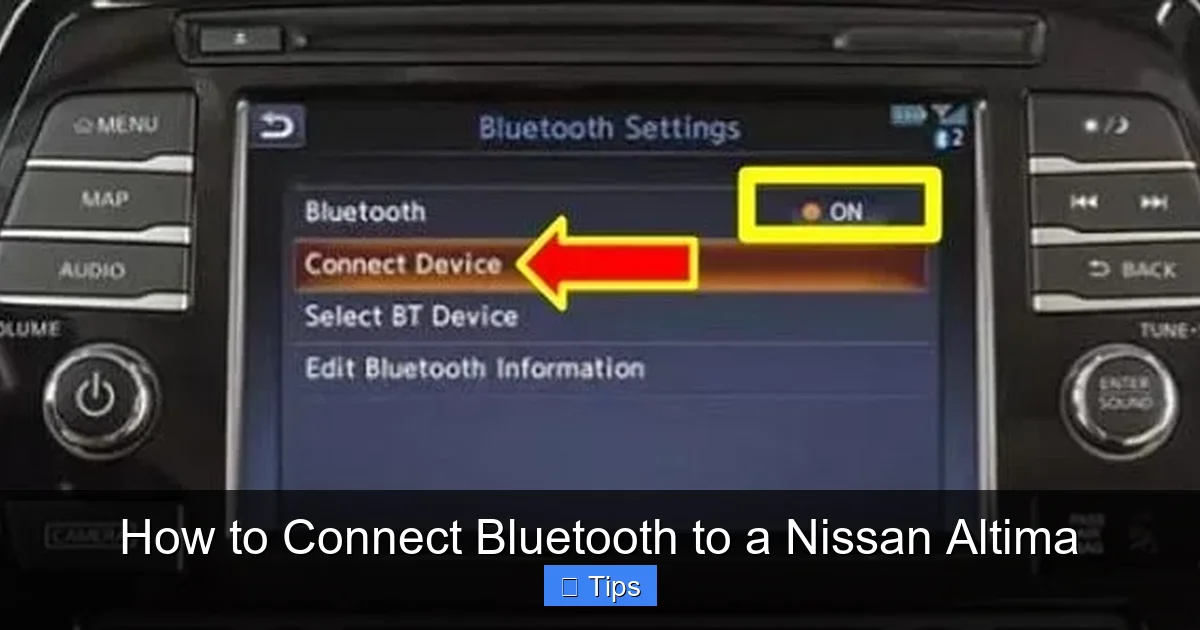
Once the system is powered, locate the Bluetooth settings. On most Altimas, you’ll find this through the central touchscreen. Look for a menu labeled “Settings,” “Phone,” or “Connections.” Tap it, then select “Bluetooth” or “Pair Device.”
Alternatively, many models allow you to initiate pairing using buttons on the steering wheel. Look for a phone icon or a button labeled “PHONE” or “CALL.” Press and hold it for a few seconds until you hear a voice prompt or see a message on the screen saying “Ready to pair” or “Searching for devices.”
Step 3: Enable Bluetooth on Your Phone
Now grab your smartphone and go to Settings > Bluetooth (or Connections > Bluetooth on Android). Make sure Bluetooth is toggled ON. Your phone will begin scanning for nearby devices. Keep it unlocked and within a few feet of the car’s dashboard for the best signal.
Some phones may ask if you want to make the device discoverable. Say yes—this allows your Altima to detect it during the scan.
Step 4: Select Your Nissan Altima
Within 10–30 seconds, your phone should display a list of available devices. Look for something like “Nissan Altima,” “My Altima,” or “Nissan [Your Model Year].” Tap it to initiate pairing.
If you don’t see your car listed, try refreshing the scan or restarting Bluetooth on your phone. Sometimes the car’s system takes a moment to broadcast its signal.
Step 5: Enter the Pairing PIN
Once selected, your phone will prompt you to enter a PIN (Personal Identification Number). This is a security code that verifies the connection. Common default PINs for Nissan vehicles include:
– 0000
– 1234
– 1111
– 9999
Try 0000 first—it works for most Altimas. If that doesn’t work, consult your owner’s manual or try the others in order. Enter the code using your phone’s keypad and tap “Pair” or “Connect.”
Step 6: Confirm the Connection
After entering the PIN, both your phone and the car’s display should show a confirmation message like “Connected” or “Pairing Successful.” You may also hear a chime or voice announcement from the car.
At this point, your phone is officially paired! Test it by making a quick call (using the steering wheel button) or playing a song from your music app. The audio should route through the car’s speakers automatically.
Advanced Pairing Tips for Different Altima Models
Visual guide about How to Connect Bluetooth to a Nissan Altima
Image source: vehiclechef.com
Not all Nissan Altimas are created equal when it comes to Bluetooth. Depending on your model year and trim, the interface and steps may differ slightly. Here’s how to handle some common variations.
2007–2012 Nissan Altima (Older Models)
These early models often use a simpler system without a full-color touchscreen. Instead, you’ll interact with physical buttons and a small LCD display. To pair:
1. Press and hold the “PHONE” button on the steering wheel until you hear “Ready to pair.”
2. On your phone, search for “Nissan Altima” and select it.
3. Enter the PIN (usually 0000).
4. Confirm on both devices.
Note: Some 2007–2009 models require you to press “SOURCE” repeatedly until “BT” appears on the display before pairing.
2013–2018 Nissan Altima (NissanConnect Era)
These years introduced the NissanConnect infotainment system with a larger touchscreen. The process is more intuitive:
1. Tap the “Menu” button on the screen.
2. Go to “Settings” > “Bluetooth” > “Add Device.”
3. Follow on-screen prompts to search and pair.
4. Enter the PIN when prompted.
Bonus: These models often support dual-device pairing, so you can connect both a driver and passenger phone simultaneously.
2019–2024 Nissan Altima (Latest Models)
The newest Altimas feature upgraded NissanConnect with Apple CarPlay and Android Auto integration. Bluetooth pairing is even smoother:
1. Tap the “Phone” icon on the home screen.
2. Select “Pair New Device.”
3. Choose your phone from the list.
4. Confirm the matching code on both devices (some models use a numeric match instead of a PIN).
These systems also remember your preferences, so reconnecting after turning the car off is automatic.
Troubleshooting Common Bluetooth Issues
Even with perfect steps, sometimes things go sideways. Don’t panic—most Bluetooth problems in the Altima are easy to fix with a few simple tricks.
Phone Not Showing Up in Device List
If your car doesn’t appear on your phone’s Bluetooth scan, try these fixes:
– Restart your phone’s Bluetooth: Turn it off, wait 10 seconds, then turn it back on.
– Move closer to the car: Bluetooth range is short—stay within 3 feet.
– Clear old pairings: Go to your phone’s Bluetooth settings and “Forget” any previous Nissan connections.
– Reset the car’s system: Turn the car off, wait 2 minutes, then restart.
Connection Drops Frequently
Intermittent disconnections are frustrating but common. Causes include:
– Low phone battery: Keep your phone charged.
– Interference: Avoid placing your phone near metal objects or other wireless devices.
– Software glitches: Update your phone’s OS and check for Nissan system updates at a dealership.
Audio Plays Through Phone, Not Car Speakers
If music or calls still come from your phone’s speaker, check your audio output settings:
– On iPhone: Swipe down from the top-right corner, tap the AirPlay icon, and select “Nissan Altima.”
– On Android: Open your music app, tap the cast icon, and choose your car.
Also, ensure “Media Audio” is enabled in your phone’s Bluetooth settings for the Altima.
Can’t Make or Receive Calls
If calls aren’t routing properly:
– Verify “Phone Audio” is enabled in Bluetooth settings.
– Check that your phone’s microphone isn’t muted.
– Test with a different contact—sometimes network issues mimic Bluetooth problems.
Forgot the PIN or Can’t Connect
If you’ve tried all common PINs and nothing works:
– Reset the infotainment system: Disconnect the car battery for 10 minutes (consult your manual first).
– Visit a Nissan dealer: They can reset the system or update firmware if needed.
– Use the owner’s manual: The exact PIN may be printed inside the glove box or manual.
Maintaining Your Bluetooth Connection
Once paired, your Nissan Altima should automatically reconnect whenever you enter the car with your phone. But a little maintenance goes a long way in preventing future issues.
First, keep your phone’s software updated. Manufacturers frequently release patches that improve Bluetooth stability and compatibility. Similarly, check with your Nissan dealer about infotainment system updates—they’re free and can resolve hidden bugs.
Second, avoid overloading the system. While many Altimas support multiple paired devices, storing too many can slow down reconnection times. If you share the car with family, consider removing old devices you no longer use.
Third, clean your phone’s charging port and case. Dust and debris can interfere with wireless signals, even over short distances. A quick wipe with a dry cloth can make a difference.
Finally, if you sell or trade in your Altima, remember to unpair your phone. Go to your phone’s Bluetooth settings, find the Altima, and select “Forget This Device.” This protects your privacy and makes it easier for the next owner to set up their own connection.
Final Thoughts: Enjoy a Smarter, Safer Drive
Connecting Bluetooth to your Nissan Altima isn’t just about convenience—it’s about creating a safer, more enjoyable driving environment. With wireless calling and music streaming, you stay focused on the road while staying connected to what matters most.
The process is simple, reliable, and well worth the few minutes it takes to set up. Whether you’re driving a 2008 base model or a 2024 premium trim, the steps are designed to be user-friendly and consistent across the lineup.
So next time you hop into your Altima, don’t reach for that aux cable. Let Bluetooth do the work. Pair your phone, press play, and enjoy the ride—hands-free, hassle-free, and totally wireless.
Frequently Asked Questions
Can I connect multiple phones to my Nissan Altima via Bluetooth?
Yes, most Nissan Altimas from 2013 onward support dual-device pairing. This allows two phones to be connected simultaneously, though only one can stream audio or make calls at a time.
Why won’t my iPhone connect to my Altima’s Bluetooth?
Ensure your iPhone’s Bluetooth is on, the car is in pairing mode, and you’ve entered the correct PIN (usually 0000). Also, check that “Media Audio” and “Phone Audio” are enabled in your iPhone’s Bluetooth settings for the Altima.
Does my 2006 Nissan Altima have Bluetooth?
No, the 2006 model does not come with factory Bluetooth. You’d need an aftermarket Bluetooth adapter or upgrade the infotainment system to add this feature.
How do I reset the Bluetooth system in my Altima?
Turn off the car, disconnect the negative battery terminal for 10 minutes, then reconnect it. This resets the infotainment system. Alternatively, visit a Nissan dealer for a software reset.
Yes! Once paired, apps like Google Maps or Waze will route turn-by-turn directions through your car’s speakers, provided “Media Audio” is enabled in your phone’s Bluetooth settings.
What if my Altima’s screen is frozen during pairing?
Restart the infotainment system by turning the car off and on. If that doesn’t work, perform a hard reset by holding the power and volume buttons (if available) for 10 seconds until the screen reboots.

At CarLegit, we believe information should be clear, factual, and genuinely helpful. That’s why every guide, review, and update on our website is created with care, research, and a strong focus on user experience.