
Connecting Bluetooth to your Alfa Romeo Giulietta is simple and enhances your driving experience. Whether you’re making hands-free calls or streaming music, this guide walks you through every step—from setup to troubleshooting—so you can stay connected safely on the road.
So, you’ve got yourself an Alfa Romeo Giulietta—a stylish Italian hatchback that turns heads wherever it goes. But now you want to do more than just look good behind the wheel; you want to stay connected safely while driving. That’s where Bluetooth comes in. Whether you’re jamming to your favorite playlist, taking important calls without taking your hands off the wheel, or using voice commands for navigation, pairing your phone via Bluetooth makes life easier and safer.
The good news? Connecting Bluetooth to your Alfa Romeo Giulietta isn’t rocket science. In fact, once you know which infotainment system your model uses and follow a few straightforward steps, you’ll be streaming music and making calls in under five minutes. The Giulietta, produced from 2010 to 2019, came with different tech packages over the years—some featuring the Blue&Me system (common in earlier models) and others using Uconnect (in later trims). Don’t worry if you’re not sure which one you have—we’ll cover both. This guide is designed for real people, not tech wizards. No jargon, no confusion—just clear, practical advice so you can get connected fast and enjoy every drive.
In This Article
- 1 Key Takeaways
- 2 📑 Table of Contents
- 3 Understanding Your Alfa Romeo Giulietta’s Bluetooth System
- 4 Preparing Your Phone and Vehicle for Pairing
- 5 Step-by-Step Guide: Connecting via Blue&Me (2010–2013 Models)
- 6 Step-by-Step Guide: Connecting via Uconnect (2014–2019 Models)
- 7 Troubleshooting Common Bluetooth Issues
- 8 Tips for a Seamless Bluetooth Experience
- 9 When to Seek Professional Help
- 10 Conclusion
- 11 Frequently Asked Questions
- 11.1 Can I connect multiple phones to my Alfa Romeo Giulietta via Bluetooth?
- 11.2 Why won’t my iPhone connect to my Giulietta’s Bluetooth?
- 11.3 Does the Alfa Romeo Giulietta support wireless Apple CarPlay or Android Auto?
- 11.4 What if my Giulietta doesn’t have Bluetooth at all?
- 11.5 How do I reset the Bluetooth system in my Giulietta?
- 11.6 Can I stream high-quality music via Bluetooth in my Giulietta?
Key Takeaways
- Check your Giulietta’s infotainment system version: Models from 2010–2016 typically use Uconnect or Blue&Me, while newer versions may have updated software. Knowing your system helps avoid confusion during setup.
- Enable Bluetooth on your phone first: Always turn on Bluetooth and ensure your device is discoverable before starting the pairing process in the car.
- Use the steering wheel or touchscreen controls: Most Giulietta models allow you to manage Bluetooth connections via buttons on the steering wheel or the central display screen.
- Enter the correct PIN when prompted: The default PIN is often “0000” or “1234”—check your owner’s manual if these don’t work.
- Re-pair if connection fails: If audio or calls drop, delete the old pairing from both your phone and car, then reconnect fresh.
- Update your car’s software if needed: Some older Giuliettas benefit from firmware updates that improve Bluetooth stability and compatibility.
- Keep your phone charged and nearby: Weak battery or distance can disrupt Bluetooth signals—stay within 10 feet for best results.
📑 Table of Contents
- Understanding Your Alfa Romeo Giulietta’s Bluetooth System
- Preparing Your Phone and Vehicle for Pairing
- Step-by-Step Guide: Connecting via Blue&Me (2010–2013 Models)
- Step-by-Step Guide: Connecting via Uconnect (2014–2019 Models)
- Troubleshooting Common Bluetooth Issues
- Tips for a Seamless Bluetooth Experience
- When to Seek Professional Help
- Conclusion
Understanding Your Alfa Romeo Giulietta’s Bluetooth System
Before diving into the connection process, it helps to know what kind of Bluetooth setup your Giulietta has. Not all models are created equal when it comes to infotainment tech. Early Giuliettas (2010–2013) often came equipped with Fiat Chrysler’s Blue&Me system—a voice-controlled interface developed in partnership with Microsoft. It supports hands-free calling, SMS reading, and basic music streaming via Bluetooth. Later models (especially from 2014 onward) may feature the Uconnect system, which offers a more modern touchscreen interface, better audio quality, and improved smartphone integration.
To identify your system, look at your dashboard. If you see a small monochrome display with physical buttons below it and a USB port nearby, you likely have Blue&Me. If there’s a larger color touchscreen (usually 5 or 7 inches) with intuitive menus and app icons, you’re probably running Uconnect. You can also check your owner’s manual or look up your vehicle’s VIN online to confirm the trim level and included tech features. Knowing this upfront saves time and prevents frustration—because the pairing steps differ slightly between systems.
Another thing to note: some Giulietta trims didn’t include Bluetooth at all, especially base models in certain markets. If your car lacks Bluetooth capability, you might need an aftermarket adapter (like a Bluetooth FM transmitter or AUX dongle) to wirelessly connect your phone. But assuming your Giulietta came with factory-installed Bluetooth, you’re all set to proceed.
Preparing Your Phone and Vehicle for Pairing
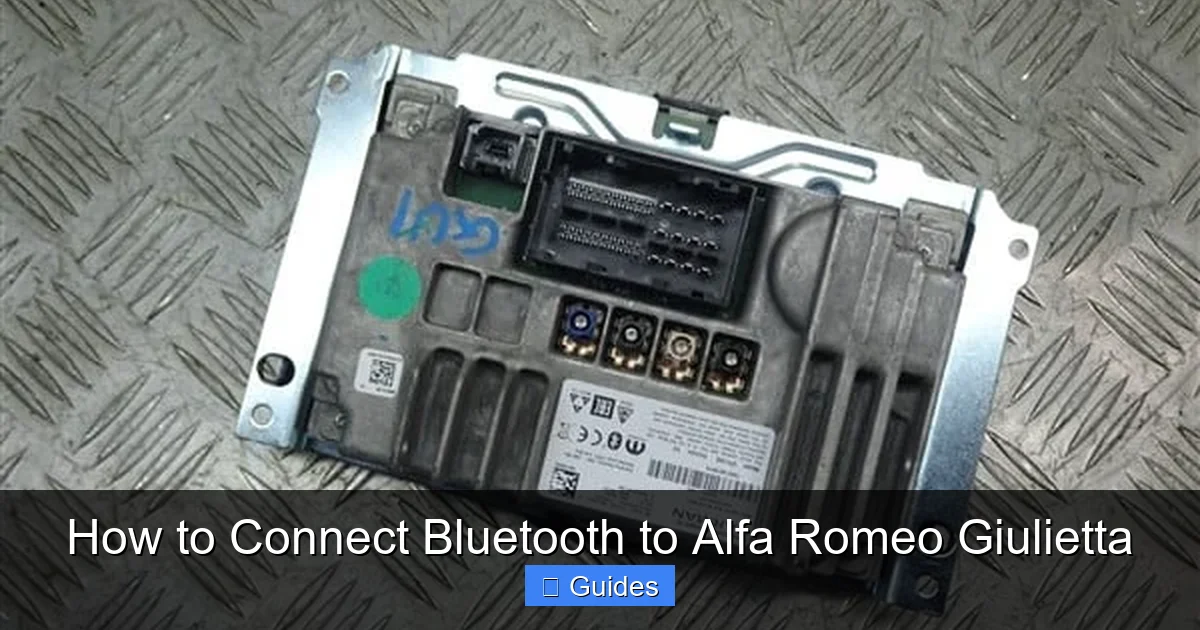
Visual guide about How to Connect Bluetooth to Alfa Romeo Giulietta
Image source: cloverparts.shop
Great! Now that you’ve confirmed your Giulietta has Bluetooth, let’s get your phone ready. First, make sure your smartphone’s Bluetooth is turned on. On iPhone, go to Settings > Bluetooth and toggle it on. On Android, swipe down from the top of your screen to access Quick Settings and tap the Bluetooth icon. Ensure your device is set to “discoverable” or “visible to other devices”—this allows your car to find it during the search phase.
Next, park your car in a safe, stationary location. Never attempt to pair devices while driving—it’s distracting and potentially dangerous. Turn on the ignition (you don’t need to start the engine, but the infotainment system must be powered). If your Giulietta has a touchscreen, wait for it to fully boot up—this can take 10–20 seconds after turning the key.
Also, close any apps that might interfere with Bluetooth, like music players or navigation tools. And if you’ve previously paired your phone with another car or speaker, consider forgetting those connections temporarily to avoid conflicts. Finally, keep your phone within arm’s reach—Bluetooth has a limited range (typically up to 30 feet), but for reliable pairing, stay within 3–5 feet of the car’s head unit.
Step-by-Step Guide: Connecting via Blue&Me (2010–2013 Models)
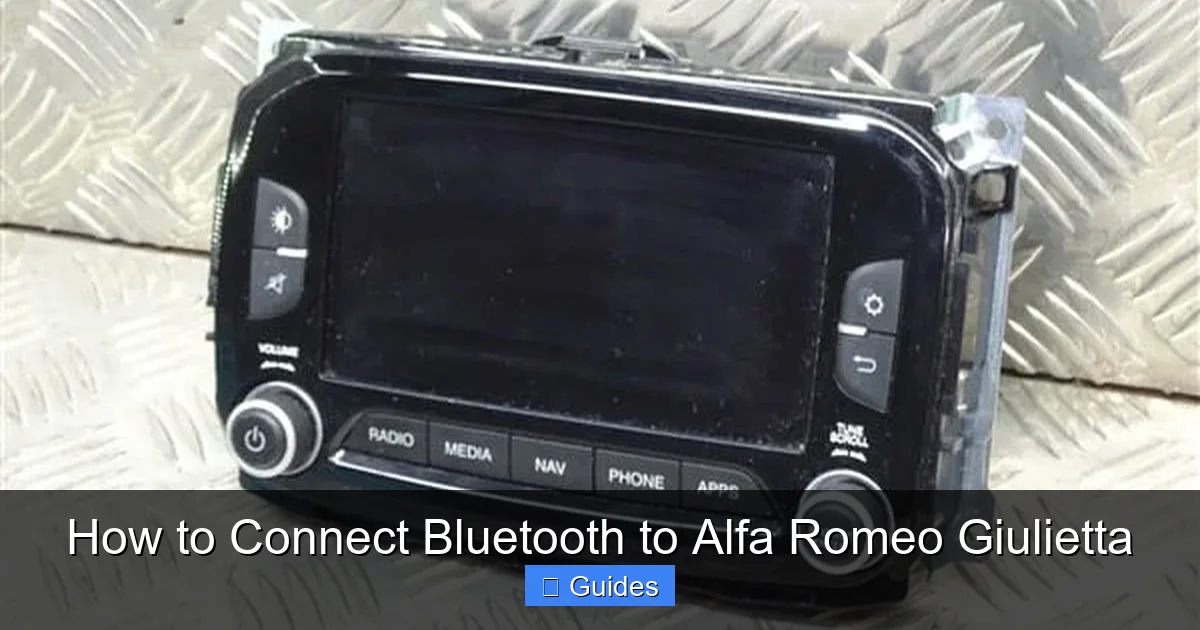
Visual guide about How to Connect Bluetooth to Alfa Romeo Giulietta
Image source: cloverparts.shop
If your Giulietta uses the Blue&Me system, here’s how to pair your phone:
Step 1: Activate Pairing Mode
Press and hold the “Phone” button on your steering wheel for about 3 seconds. You’ll hear a voice prompt saying, “Ready to pair a new device.” Alternatively, if your car has a central display, navigate to Menu > Phone > Add New Device.
Step 2: Search for Your Car on Your Phone
On your smartphone, go to Bluetooth settings and scan for available devices. Look for “Blue&Me” or “Alfa Romeo” in the list. Tap it to initiate pairing.
Step 3: Enter the PIN
Your phone will prompt you to enter a PIN. The default for Blue&Me is usually **0000** or **1234**. Enter it and confirm. If successful, you’ll hear a confirmation tone and see “Connected” on your phone.
Step 4: Test the Connection
Make a test call (using voice dial or your phone) or play music through your phone—it should stream through the car’s speakers. If calls work but music doesn’t, you may need to enable media audio in your phone’s Bluetooth settings (more on that later).
Pro tip: Blue&Me supports up to 8 paired devices, but only one can be active at a time. If you switch phones frequently, remember to select the correct device from the car’s menu.
Step-by-Step Guide: Connecting via Uconnect (2014–2019 Models)
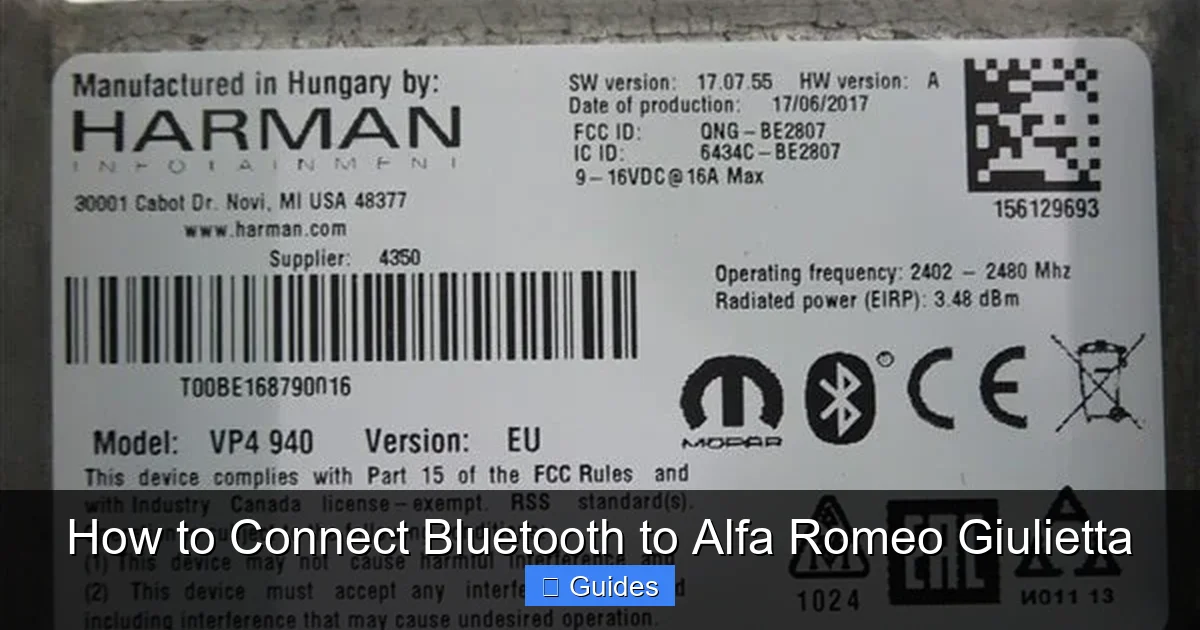
Visual guide about How to Connect Bluetooth to Alfa Romeo Giulietta
Image source: cloverparts.shop
For Giuliettas with the Uconnect touchscreen system, the process is even more user-friendly:
Step 1: Access the Bluetooth Menu
From the home screen, tap the “Phone” or “Connections” icon. Then select “Add Device” or “Pair New Device.”
Step 2: Put Your Phone in Discovery Mode
Ensure your phone’s Bluetooth is on and visible. On the Uconnect screen, tap “Search” or “Scan.” Your phone should appear in the list within 10–15 seconds.
Step 3: Confirm Pairing
Tap your phone’s name on the Uconnect screen. A PIN will appear on both your phone and the car display (e.g., “123456”). Verify they match, then accept the connection on both devices.
Step 4: Enable Media Audio (If Needed)
After pairing, go to your phone’s Bluetooth settings, find your Giulietta, and tap the gear icon (or “i”). Make sure “Media Audio” or “Music” is enabled. This ensures your tunes play through the car stereo.
Uconnect also supports Apple CarPlay and Android Auto in some trims—so if your model has those, you might prefer using them for a richer experience. But standard Bluetooth still works great for calls and basic audio.
Troubleshooting Common Bluetooth Issues
Even with perfect steps, things can go wrong. Here’s how to fix the most common problems:
Phone Not Found During Search?
Restart both your phone and the car’s infotainment system. Sometimes a simple reboot clears glitches. Also, ensure no other Bluetooth devices are actively connected to your phone.
Connected But No Sound?
Check your phone’s volume and the car’s audio source. Make sure the input is set to “Bluetooth” or “Phone” (not radio or AUX). On iPhones, go to Settings > Bluetooth, tap the “i” next to your car, and enable “Media Audio.”
Calls Work, But Music Doesn’t Play?
This is a classic media profile issue. On Android, go to Settings > Connected Devices > Bluetooth > [Your Car] > toggle on “Media.” On iPhone, as mentioned above, enable Media Audio in Bluetooth settings.
Frequent Disconnections?
Keep your phone charged—low battery weakens Bluetooth signals. Also, avoid placing your phone in the glovebox or under seats, as metal and distance block signals. Update your car’s firmware if possible (visit an Alfa Romeo dealer for assistance).
PIN Not Working?
Try “0000,” “1234,” or “1111.” If none work, consult your owner’s manual or reset the system by disconnecting the car battery for 10 minutes (not recommended unless necessary).
Tips for a Seamless Bluetooth Experience
Once connected, a few habits keep your Bluetooth running smoothly:
– **Name your device clearly**: If you have multiple cars or gadgets, rename your phone’s Bluetooth ID to something like “John’s iPhone” to avoid confusion.
– **Update regularly**: Keep your phone’s OS and your car’s software updated. Manufacturers often release patches that improve Bluetooth stability.
– **Use voice commands**: Both Blue&Me and Uconnect support voice control. Say “Call Mom” or “Play Spotify” to minimize distractions.
– **Clean your USB port**: Dust buildup can interfere with wired connections if you ever use USB for charging or data.
– **Reset as a last resort**: If nothing works, delete the pairing from both your phone and car, then start fresh.
Remember, Bluetooth in older cars like the Giulietta may not support the latest codecs (like aptX), so audio quality might not match a modern system—but it’s more than adequate for calls and casual listening.
When to Seek Professional Help
Most Bluetooth issues are DIY-friendly, but sometimes you need expert support. Visit an Alfa Romeo dealership if:
– The infotainment screen is frozen or unresponsive.
– Bluetooth options are missing from the menu (could indicate a hardware fault).
– You suspect a software bug that requires a firmware update.
– Your Giulietta has been in an accident affecting the electrical system.
Dealers have diagnostic tools that can reset modules or flash new software—something you can’t do at home. While service visits cost money, they’re worth it for persistent issues that compromise safety or usability.
Conclusion
Connecting Bluetooth to your Alfa Romeo Giulietta is a small step that makes a big difference. It transforms your drives from mundane commutes into enjoyable, connected experiences—all while keeping your hands on the wheel and eyes on the road. Whether you’re rocking a 2011 Blue&Me model or a sleek 2018 Uconnect edition, the process is straightforward once you know your system and follow the right steps.
Don’t let minor hiccups discourage you. Technology isn’t always perfect, especially in cars a decade old, but with patience and the right troubleshooting, you’ll get there. And once it’s working? Enjoy those hands-free calls, your favorite podcasts, and the satisfying hum of Italian engineering—all synced seamlessly with your digital life. After all, the Giulietta isn’t just a car; it’s a companion. And now, it’s a smart one too.
Frequently Asked Questions
Can I connect multiple phones to my Alfa Romeo Giulietta via Bluetooth?
Yes, most Giulietta models support multiple paired devices (up to 8 on Blue&Me, fewer on older systems), but only one can be actively connected at a time. You’ll need to manually switch between them in the car’s menu.
Why won’t my iPhone connect to my Giulietta’s Bluetooth?
Ensure Bluetooth is on, your phone is discoverable, and you’ve enabled both “Phone Audio” and “Media Audio” in iPhone Bluetooth settings. Also, try restarting both devices and re-pairing.
Does the Alfa Romeo Giulietta support wireless Apple CarPlay or Android Auto?
Only certain later-model Giuliettas (typically 2017–2019 with Uconnect 5-inch or 7-inch screens) support wired Apple CarPlay and Android Auto. Wireless functionality is not available on any Giulietta model.
What if my Giulietta doesn’t have Bluetooth at all?
If your trim lacks factory Bluetooth, consider a Bluetooth FM transmitter (plugs into the cigarette lighter) or a Bluetooth AUX adapter (connects to the 3.5mm jack). These affordable accessories provide wireless connectivity.
How do I reset the Bluetooth system in my Giulietta?
For Blue&Me, hold the Phone button for 10+ seconds until you hear a reset tone. For Uconnect, go to Settings > System > Reset. As a last resort, disconnect the car battery for 10 minutes (consult a mechanic first).
Can I stream high-quality music via Bluetooth in my Giulietta?
The Giulietta’s Bluetooth typically uses the SBC codec, which is fine for voice and casual listening but not audiophile-grade. For better sound, use a wired AUX or USB connection when possible.

At CarLegit, we believe information should be clear, factual, and genuinely helpful. That’s why every guide, review, and update on our website is created with care, research, and a strong focus on user experience.