
Connecting an Xbox controller to your Tesla Model 3 unlocks a fun, immersive gaming experience right from your car’s touchscreen. Whether you’re parked or charging, this guide walks you through pairing via Bluetooth or USB, optimizing performance, and enjoying supported games seamlessly.
So, you’ve got your Tesla Model 3 parked at a supercharger, the sun is setting, and you’re waiting for that battery to hit 80%. Instead of scrolling through your phone, why not fire up a game on your car’s massive touchscreen? That’s right—your Tesla isn’t just a high-tech electric vehicle; it’s also a surprisingly capable gaming console. And if you’ve got an Xbox controller lying around, you’re in luck. Connecting an Xbox controller to your Tesla Model 3 is easier than you might think, and it opens the door to hours of entertainment.
Tesla has been steadily expanding its in-car gaming features since introducing Tesla Arcade. From classic racing games like *Lunar Lander* and *Beach Buggy Racing 2* to more recent additions like *Cuphead* and *Fallout Shelter*, the lineup keeps growing. But to truly enjoy these games, you need precise controls—and that’s where the Xbox controller comes in. Unlike using the touchscreen, which can be clunky and imprecise, a physical controller gives you the responsiveness and comfort you’re used to from console gaming. Whether you’re dodging enemies in *Cuphead* or drifting through corners in *Beach Buggy Racing 2*, the experience is just better with a proper gamepad.
In this guide, we’ll walk you through every step of connecting your Xbox controller to your Tesla Model 3. We’ll cover both wireless (Bluetooth) and wired (USB) methods, explain which controllers work best, and share tips to keep your gaming sessions smooth and enjoyable. Whether you’re a casual player or a hardcore gamer, this guide will help you get the most out of your Tesla’s hidden gaming potential. So grab your controller, make sure your car is parked safely, and let’s get started.
In This Article
- 1 Key Takeaways
- 2 📑 Table of Contents
- 3 Why Use an Xbox Controller with Your Tesla Model 3?
- 4 Compatible Xbox Controllers for Tesla Model 3
- 5 How to Connect Xbox Controller via Bluetooth (Wireless)
- 6 How to Connect Xbox Controller via USB (Wired)
- 7 Troubleshooting Common Connection Issues
- 8 Best Games to Play with an Xbox Controller in Tesla Model 3
- 9 Conclusion
- 10 Frequently Asked Questions
- 10.1 Can I connect an Xbox controller to my Tesla Model 3 while driving?
- 10.2 Will an original Xbox One controller (without Bluetooth) work with Tesla Model 3?
- 10.3 How many Xbox controllers can I connect to my Tesla Model 3 at once?
- 10.4 Why isn’t my Xbox controller showing up in Tesla’s Bluetooth menu?
- 10.5 Do I need to update my Xbox controller before connecting it to Tesla?
- 10.6 Can I use a PlayStation or Nintendo controller instead of an Xbox controller?
Key Takeaways
- Bluetooth is the easiest way to connect: Most modern Xbox controllers (Xbox One S/X and Xbox Series X|S) support Bluetooth, making wireless pairing simple and cable-free.
- USB connection offers lower latency: For more responsive gameplay, especially in fast-paced games, use a USB-C to USB-A cable for a direct wired link.
- Only certain games support controllers: Not all Tesla Arcade titles are compatible—check the game description before playing.
- Ensure your controller is updated: Outdated firmware can cause connection issues; update via Xbox console or Windows PC.
- Park safely before gaming: Tesla requires the car to be in Park mode to access games—never game while driving.
- Troubleshooting tips save time: Restart the controller, re-pair Bluetooth, or try a different USB port if connection fails.
- Enjoy multiplayer with multiple controllers: You can connect up to four Xbox controllers for local multiplayer fun during charging stops.
📑 Table of Contents
- Why Use an Xbox Controller with Your Tesla Model 3?
- Compatible Xbox Controllers for Tesla Model 3
- How to Connect Xbox Controller via Bluetooth (Wireless)
- How to Connect Xbox Controller via USB (Wired)
- Troubleshooting Common Connection Issues
- Best Games to Play with an Xbox Controller in Tesla Model 3
- Conclusion
Why Use an Xbox Controller with Your Tesla Model 3?
Let’s be honest—trying to play a fast-paced game on a touchscreen with virtual buttons is like trying to write a novel with oven mitts on. It’s possible, but it’s not fun. That’s why using a real controller like the Xbox gamepad makes such a big difference. The tactile feedback, analog sticks, and responsive triggers give you the precision and comfort you need for serious gaming.
But beyond just comfort, there’s a performance advantage. Touchscreen controls often suffer from input lag and accidental touches, especially on a large display like the Model 3’s 15-inch screen. An Xbox controller, especially when connected via USB, offers near-instant response times. This is crucial in games that require quick reflexes, like *Cuphead* or *Rocket League* (if it ever comes to Tesla Arcade). Even in slower-paced games, the familiarity of the Xbox layout makes gameplay more intuitive and enjoyable.
Another big plus? Multiplayer. Tesla supports up to four controllers at once, which means you and your passengers can team up or compete in local multiplayer games. Imagine playing *Beach Buggy Racing 2* with your kids during a long charging session—now that’s making the most of your time. Plus, if you already own an Xbox controller, there’s no need to buy extra hardware. It’s a cost-effective way to enhance your in-car entertainment.
And let’s not forget the psychological boost. Gaming in your car can turn a boring wait into a fun break. Whether you’re stuck in a traffic jam (safely parked, of course) or taking a break on a road trip, having access to quality games with proper controls makes the experience more engaging. It’s a small luxury that adds up over time, especially for frequent travelers or EV owners who spend a lot of time charging.
Compatible Xbox Controllers for Tesla Model 3
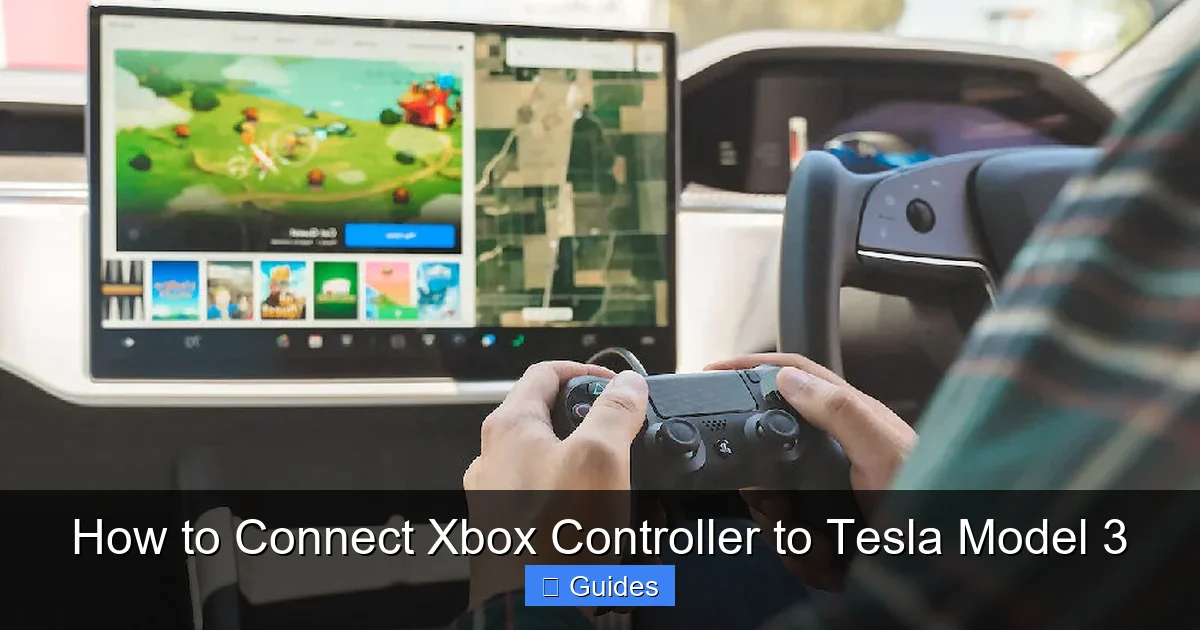
Visual guide about How to Connect Xbox Controller to Tesla Model 3
Image source: repairbooks.co.uk
Not all Xbox controllers are created equal when it comes to Tesla compatibility. The good news is that most modern Xbox controllers will work, but there are a few things to keep in mind.
The best options are the **Xbox One S controller** (released in 2016) and the **Xbox Series X|S controller** (released in 2020). Both of these models include built-in Bluetooth, which is essential for wireless pairing with your Tesla. Earlier models, like the original Xbox One controller (without Bluetooth), will only work if connected via USB. That’s not a dealbreaker, but it does limit your flexibility.
Here’s a quick breakdown:
– **Xbox One S Controller (Model 1708):** Features Bluetooth, USB-C charging, and improved ergonomics. This is the most widely compatible model.
– **Xbox Series X|S Controller (Model 1914):** The latest version with Bluetooth, USB-C, and enhanced triggers. Offers the best performance and battery life.
– **Original Xbox One Controller (Model 1537):** No Bluetooth—requires a USB connection. Still works, but less convenient.
If you’re using a third-party Xbox-style controller, check the packaging or manufacturer’s website to confirm Bluetooth support. Some budget controllers claim compatibility but may not pair reliably with Tesla’s system.
Also, make sure your controller is updated. Tesla’s software is constantly evolving, and older controller firmware can sometimes cause pairing issues. You can update your controller by connecting it to an Xbox console or a Windows PC via the Xbox Accessories app. This ensures you have the latest bug fixes and compatibility improvements.
One more tip: avoid using rechargeable battery packs or third-party charging grips unless they’re officially licensed. These can sometimes interfere with the controller’s Bluetooth signal or cause unexpected disconnections. Stick with AA batteries or the official rechargeable battery pack for the best results.
How to Connect Xbox Controller via Bluetooth (Wireless)
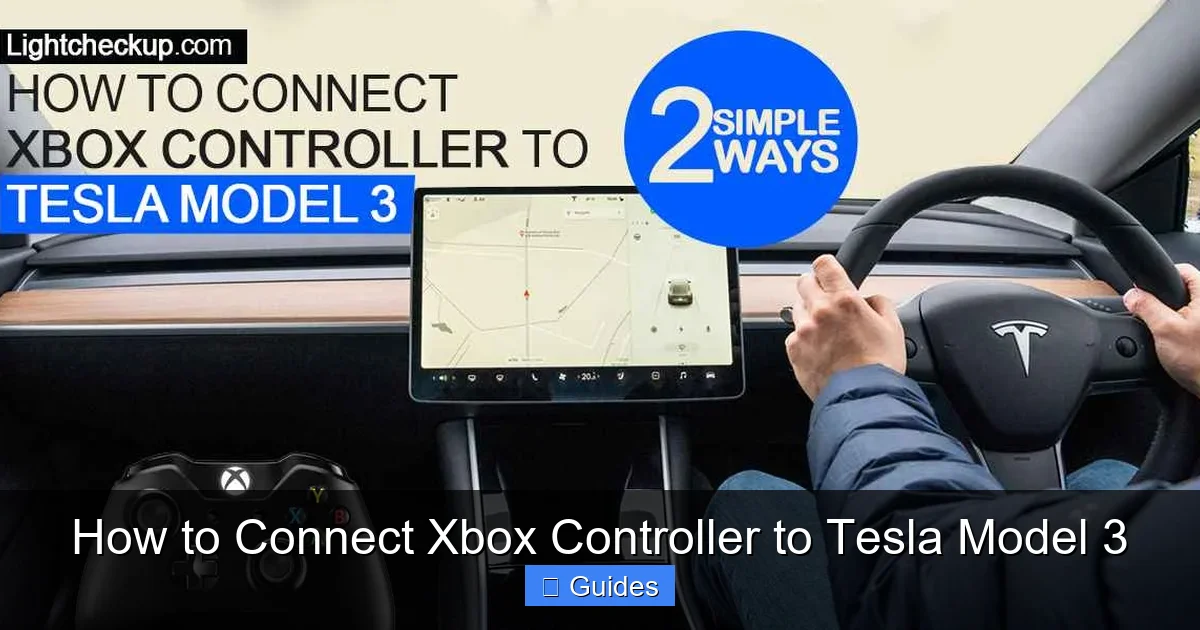
Visual guide about How to Connect Xbox Controller to Tesla Model 3
Image source: lightcheckup.com
Connecting your Xbox controller wirelessly via Bluetooth is the most convenient method—no cables, no clutter, just pure gaming freedom. Here’s how to do it step by step.
Step 1: Put Your Controller in Pairing Mode
Turn on your Xbox controller by pressing the Xbox button (the one with the Xbox logo in the center). Once it’s on, press and hold the **Pairing Button**—this is the small button located at the top of the controller, near the USB port. Hold it for about 3 seconds until the Xbox button starts flashing rapidly. This means the controller is in pairing mode and ready to connect.
Step 2: Access Bluetooth Settings on Your Tesla
On your Tesla Model 3’s touchscreen, tap the **Controls** icon (looks like a gear) in the bottom-left corner. Then go to **Bluetooth**. Make sure Bluetooth is turned on. Your car will start scanning for nearby devices.
Step 3: Select Your Controller
After a few seconds, you should see your Xbox controller appear in the list of available devices. It will usually show up as “Xbox Wireless Controller” or something similar. Tap on it to initiate the pairing process.
Step 4: Confirm the Connection
Your Tesla will attempt to connect. If successful, you’ll see a confirmation message, and the Xbox button on your controller will stop flashing and stay lit. The controller is now connected and ready to use.
Tips for a Smooth Bluetooth Connection
– Make sure your controller is within 10 feet of the car’s touchscreen for the best signal.
– Avoid placing metal objects or other electronics between the controller and the car, as they can block the Bluetooth signal.
– If the connection drops, try re-pairing. Sometimes restarting the controller helps—turn it off, wait 10 seconds, then turn it back on and re-enter pairing mode.
Bluetooth is great for casual gaming, but keep in mind that it can introduce a tiny bit of input lag compared to a wired connection. For most games, this won’t be noticeable, but if you’re playing something fast-paced, you might want to consider the USB method instead.
How to Connect Xbox Controller via USB (Wired)
Visual guide about How to Connect Xbox Controller to Tesla Model 3
Image source: getuniqueideas.com
If you want the most responsive, lag-free experience, connecting your Xbox controller via USB is the way to go. This method bypasses Bluetooth entirely, giving you a direct, stable connection. It’s especially useful for competitive games or if you’re experiencing wireless interference.
What You’ll Need
– A USB-C to USB-A cable (most Tesla Model 3s have USB-A ports in the center console and glovebox)
– Your Xbox controller (any model with a USB port will work)
Step 1: Plug in the Controller
Connect one end of the USB cable to your Xbox controller’s USB port (at the top) and the other end to one of the USB-A ports in your Tesla. The front USB ports in the center console are the most convenient, but you can also use the ones in the glovebox if you prefer to keep the cable out of sight.
Step 2: Wait for Recognition
Your Tesla should automatically detect the controller within a few seconds. You’ll see a notification on the screen confirming the connection. The Xbox button on the controller will light up and stay solid.
Step 3: Start Gaming
Once connected, open Tesla Arcade and launch a supported game. The controller should work immediately—no additional setup required.
Advantages of USB Connection
– **Lower latency:** No wireless signal means faster response times.
– **No battery drain:** The controller draws power from the car, so you don’t have to worry about dead batteries.
– **More reliable:** No risk of Bluetooth interference or disconnections.
Tips for USB Use
– Use a high-quality cable. Cheap cables can cause connection issues or fail to deliver enough power.
– If the controller isn’t recognized, try a different USB port or cable.
– For longer gaming sessions, consider using a USB hub if you need to charge your phone at the same time.
The USB method is ideal for serious gamers or anyone who wants the most reliable connection. Plus, since the controller charges while connected, you can game for hours without worrying about battery life.
Troubleshooting Common Connection Issues
Even with the best setup, you might run into a few hiccups when connecting your Xbox controller to your Tesla Model 3. Don’t worry—most issues are easy to fix with a little troubleshooting.
Controller Won’t Pair via Bluetooth
If your controller isn’t showing up in the Bluetooth menu, try these steps:
– Make sure the controller is in pairing mode (Xbox button flashing rapidly).
– Restart the controller by holding the Xbox button for 10 seconds, then turn it back on.
– Move closer to the car—Bluetooth range is limited.
– Forget the device in Tesla’s Bluetooth settings and try pairing again.
Controller Disconnects Frequently
This is often caused by low battery or signal interference. Try:
– Replacing the AA batteries or charging the controller.
– Moving away from other wireless devices (like phones or tablets).
– Using the USB connection instead for a more stable link.
Buttons Don’t Work in Game
If the controller connects but the buttons don’t respond, the game might not support controllers. Check the game description in Tesla Arcade—only certain titles allow external controllers. Also, make sure the game is updated to the latest version.
USB Connection Not Recognized
If your Tesla doesn’t detect the controller when plugged in:
– Try a different USB cable or port.
– Ensure the cable supports data transfer (some charging-only cables won’t work).
– Restart the car’s touchscreen by holding both scroll wheels on the steering wheel for 10 seconds.
Controller Works but Feels Laggy
This could be due to Bluetooth interference or low battery. Switch to USB for a more responsive experience, or move to a location with less electronic noise.
Multiple Controllers Not Working
Tesla supports up to four controllers, but they must be paired one at a time. Pair each controller individually through the Bluetooth menu. If one stops working, re-pair it.
Remember, Tesla’s software updates can sometimes affect controller compatibility. If you’re having persistent issues, check Tesla’s release notes or community forums for known bugs and fixes.
Best Games to Play with an Xbox Controller in Tesla Model 3
Now that your controller is connected, it’s time to pick a game. Tesla Arcade offers a growing library of titles, but not all are optimized for controllers. Here are some of the best options that truly shine with an Xbox gamepad.
Beach Buggy Racing 2
This colorful kart racer is one of Tesla’s most popular games. With support for up to four players, it’s perfect for family fun during charging stops. The analog sticks make steering smooth and precise, and the triggers are great for boosting and drifting.
Cuphead
A challenging run-and-gun platformer with hand-drawn animation. *Cuphead* is notoriously difficult, and the touchscreen controls just don’t cut it. With an Xbox controller, you’ll have the precision needed to dodge bullets and time your jumps perfectly.
Lunar Lander
A modern take on the classic arcade game. You control a spaceship trying to land safely on the moon. The analog stick gives you fine control over thrust and direction, making it much more enjoyable than tapping the screen.
Fallout Shelter
While not a fast-paced action game, *Fallout Shelter* benefits from controller support for menu navigation and vault management. It’s a great way to pass the time while your car charges.
Stardew Valley (if available)
Though not officially confirmed for Tesla Arcade yet, *Stardew Valley* is a fan favorite for controller play. If it ever arrives, it would be a perfect fit for relaxed, immersive gameplay.
Tips for the Best Gaming Experience
– Play in a well-lit area to reduce screen glare.
– Use headphones for better audio immersion (Bluetooth headphones work great with Tesla).
– Take breaks to avoid eye strain—especially during long charging sessions.
– Keep the car cool; gaming can generate heat, and you don’t want the touchscreen to overheat.
Gaming in your Tesla Model 3 isn’t just a novelty—it’s a legitimate way to enjoy high-quality games with proper controls. With an Xbox controller, you’re not just playing; you’re experiencing.
Conclusion
Connecting an Xbox controller to your Tesla Model 3 is a simple yet powerful upgrade to your in-car entertainment system. Whether you’re killing time at a supercharger or enjoying a quiet moment in your driveway, having access to responsive, console-quality controls transforms the Tesla touchscreen into a true gaming hub. With support for both Bluetooth and USB connections, you can choose the method that best fits your needs—wireless convenience or wired precision.
From pairing your controller to troubleshooting common issues, this guide has covered everything you need to get started. Remember to always park safely before gaming, keep your controller updated, and choose games that support external controllers for the best experience. And don’t forget—Tesla’s gaming library is always expanding, so keep an eye out for new titles that might become your next favorite.
So the next time you’re waiting for your Model 3 to charge, don’t just sit there. Grab your Xbox controller, fire up *Cuphead*, and turn that downtime into playtime. Your Tesla isn’t just a car—it’s a mobile gaming paradise.
Frequently Asked Questions
Can I connect an Xbox controller to my Tesla Model 3 while driving?
No, Tesla requires the car to be in Park mode to access games and connect controllers. This is a safety feature to prevent distracted driving. Always ensure the vehicle is safely parked before attempting to connect or use a controller.
Will an original Xbox One controller (without Bluetooth) work with Tesla Model 3?
Yes, but only via USB. The original Xbox One controller lacks Bluetooth, so you’ll need to use a USB cable to connect it to one of the car’s USB-A ports. It won’t work wirelessly.
How many Xbox controllers can I connect to my Tesla Model 3 at once?
You can connect up to four Xbox controllers simultaneously. This allows for local multiplayer gaming in supported titles like Beach Buggy Racing 2. Each controller must be paired individually through the Bluetooth menu.
This could be due to the controller not being in pairing mode, low battery, or interference. Make sure the Xbox button is flashing rapidly, replace the batteries if needed, and try re-pairing. Restarting the controller often helps.
Do I need to update my Xbox controller before connecting it to Tesla?
It’s recommended. Outdated firmware can cause compatibility issues. Update your controller using an Xbox console or Windows PC with the Xbox Accessories app to ensure smooth pairing and performance.
Can I use a PlayStation or Nintendo controller instead of an Xbox controller?
Tesla officially supports Xbox controllers, but some users report success with PlayStation DualShock 4 controllers via Bluetooth. Nintendo Switch Pro Controllers are not officially supported and may not work reliably. For the best experience, stick with Xbox controllers.

At CarLegit, we believe information should be clear, factual, and genuinely helpful. That’s why every guide, review, and update on our website is created with care, research, and a strong focus on user experience.