
Switching your Maserati’s display language to English is easier than you think. Whether you’re driving a Ghibli, Quattroporte, or Levante, this guide walks you through the process clearly and simply—no tech degree required.
So, you’ve just slid into the driver’s seat of your stunning Maserati—leather wrapped, engine purring, and that iconic trident badge gleaming. But when you fire up the infotainment system, everything’s in Italian, French, or worse… some language you don’t recognize. Don’t panic. You’re not locked out of luxury. Converting the English language on your Maserati display is actually pretty straightforward—once you know where to look.
Whether you’ve imported your Maserati from Europe, bought it used, or simply want to switch back to English after a trip abroad, this guide has you covered. We’ll walk you through every step, from locating the settings menu to confirming your new language choice. No confusing jargon, no tech overload—just clear, friendly instructions that work across most modern Maserati models, including the Ghibli, Quattroporte, Levante, and MC20.
And here’s the best part: once you make the switch, your entire digital experience transforms. From navigation prompts to climate controls, Bluetooth pairing messages to parking assist alerts—everything speaks your language. So let’s get started and make your Maserati truly yours.
In This Article
- 1 Key Takeaways
- 2 📑 Table of Contents
- 3 Understanding Your Maserati’s Infotainment System
- 4 Step-by-Step Guide to Changing Language to English
- 5 Troubleshooting Common Issues
- 6 Tips for a Smoother Experience
- 7 Why Language Matters in Luxury Vehicles
- 8 Final Thoughts
- 9 Frequently Asked Questions
- 9.1 Can I change the language on older Maserati models (pre-2014)?
- 9.2 Will changing the language affect my warranty?
- 9.3 Why is the English option not available in my Language menu?
- 9.4 Does changing the language reset my saved radio stations or phone pairings?
- 9.5 Can I set different languages for the display and navigation voice?
- 9.6 What if my touchscreen isn’t responding when I try to change the language?
Key Takeaways
- Language settings are found in the main menu: Access them through the touchscreen or steering wheel controls depending on your model.
- Most Maserati models use Maserati Touch Control Plus (MTC+): The interface is intuitive and supports multiple languages including English.
- Ensure your system is updated: Older software versions may have limited language options or bugs affecting display settings.
- Factory reset may be needed in rare cases: If language won’t change, a soft reset can often resolve the issue without losing personal data.
- Steering wheel shortcuts speed up navigation: Use voice commands or preset buttons to jump into settings faster.
- Language changes apply instantly: Once selected, the entire interface—including navigation, radio, and vehicle alerts—switches to English.
- Consult your owner’s manual for model-specific steps: Slight variations exist between model years and trims.
📑 Table of Contents
Understanding Your Maserati’s Infotainment System
Before diving into the language settings, it helps to understand what kind of system you’re working with. Most Maserati vehicles from 2014 onward come equipped with the Maserati Touch Control Plus (MTC+) infotainment system. This sleek, responsive interface runs on a custom platform developed in partnership with Magneti Marelli and is designed to blend high-end aesthetics with user-friendly functionality.
The MTC+ system features an 8.4-inch capacitive touchscreen (or larger in newer models like the MC20), housed centrally on the dashboard. It integrates audio, navigation, phone connectivity, climate control, and vehicle settings—all accessible through intuitive menus. Importantly, it supports multiple languages, including English, Spanish, French, German, Italian, Chinese, and Arabic, among others.
However, not all Maseratis are created equal when it comes to software. Older models (pre-2017) might run slightly outdated firmware, which can affect menu layouts or available options. Meanwhile, newer vehicles—especially those built after 2020—often include over-the-air update capabilities, meaning your system can stay current without visiting a dealership.
One common confusion point? The difference between “system language” and “navigation voice.” The system language controls everything you see on the screen—menus, buttons, error messages, etc.—while the navigation voice only affects spoken directions. You can set these independently, so even if your display is in English, your GPS can still speak in French (if you’re feeling fancy). But for most users, keeping both aligned simplifies the experience.
Another tip: if your car was originally sold in a non-English-speaking country, it may default to the local language. That doesn’t mean it can’t speak English—it just needs a quick adjustment. And don’t worry about voiding your warranty or messing up settings; changing the language is a standard, reversible function built into the system.
Step-by-Step Guide to Changing Language to English
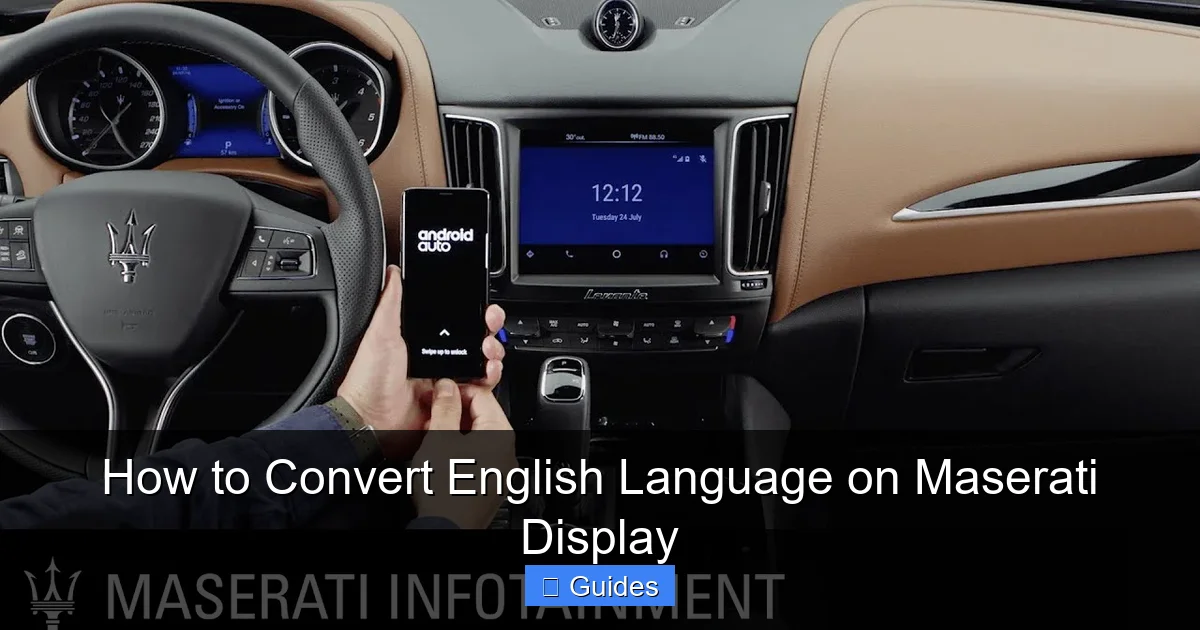
Visual guide about How to Convert English Language on Maserati Display
Image source: i.ytimg.com
Ready to make the switch? Follow these simple steps to convert the English language on your Maserati display. We’ll cover the most common method using the touchscreen, but we’ll also mention alternatives for models with physical buttons or steering wheel controls.
Accessing the Main Settings Menu
Start by turning on your vehicle—or at least putting it in accessory mode (key in ignition or push-button start without pressing the brake). The infotainment screen should power up within 10–15 seconds. Once it’s fully loaded, look for the “Settings” icon. It usually appears as a gear or cogwheel in the bottom-left or top-right corner of the home screen.
Tap it gently. If your screen is unresponsive, try cleaning it with a microfiber cloth—dust or fingerprints can sometimes interfere with touch sensitivity. On some older models, you might need to press and hold the “Menu” button on the center console instead.
Inside the Settings menu, scroll down (or swipe up) until you see a section labeled “System,” “General,” or “Preferences.” Tap that. Next, look for an option called “Language” or “Display Language.” It’s typically near the top of the list, right below “Date & Time” or above “Units.”
If you don’t see it immediately, don’t panic. Some models hide it under a submenu like “Regional Settings” or “Localization.” Take your time—the interface is logical, even if the labels aren’t in your preferred language yet.
Selecting English
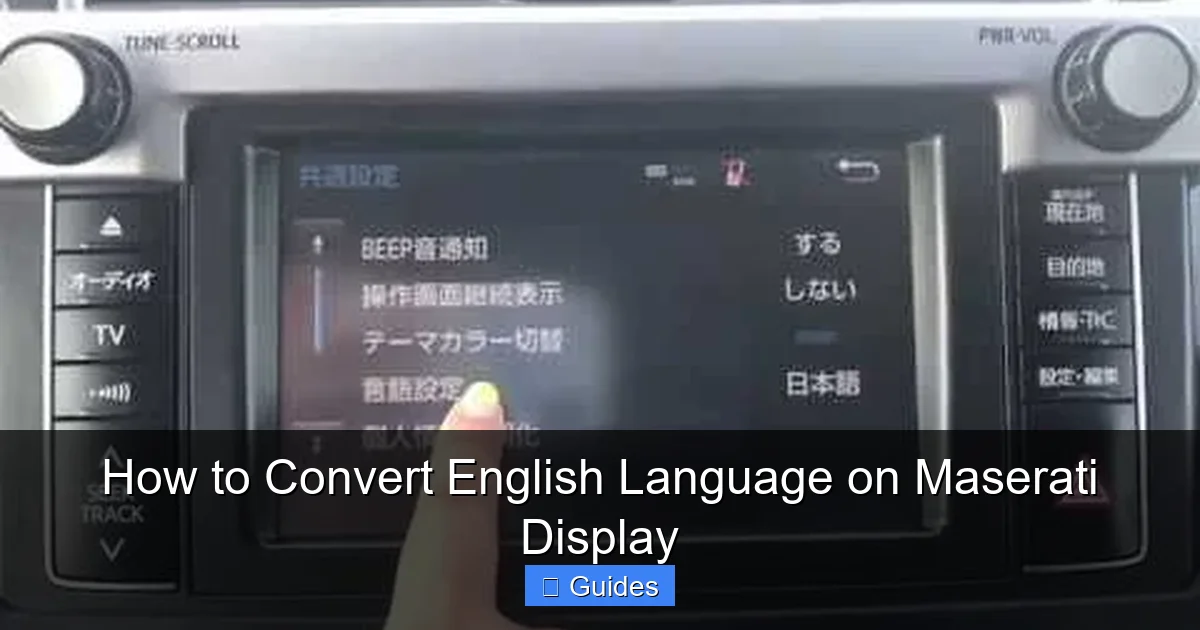
Once you’ve opened the Language menu, you’ll see a scrollable list of available languages. Use your finger to swipe up or down until you find “English” (or “Inglese” if you’re still in Italian, “Anglais” in French, etc.). Tap it once to select.
A confirmation prompt may appear asking, “Apply changes?” or “Confirm language selection?” Tap “Yes” or “OK.” The screen will briefly go blank or show a loading animation—this is normal. Within 5–10 seconds, the entire interface should refresh in English.
Verifying the Change
To double-check, exit the Settings menu and return to the home screen. Look at the icons, menu labels, and any active notifications. Are they now in English? Try opening the Navigation app—does it say “Enter destination” instead of “Inserisci destinazione”? Perfect.
If something still looks off, go back to Settings > Language and ensure English is highlighted. Occasionally, the system might revert if there’s a glitch during the update process.
Alternative Methods for Older or Specialty Models
Not every Maserati uses the same interface. For example, very early MTC+ systems (2013–2014) or certain Levante trims might require using physical buttons. In those cases:
– Press the “Menu” button on the center console.
– Use the rotary knob to scroll to “Settings.”
– Navigate to “System” > “Language.”
– Rotate to highlight “English” and press the knob to confirm.
For MC20 owners: the newer Maserati Intelligent Assistant (MIA) system has a slightly different layout, but the language path remains similar—Settings > General > Language.
And if you’re lucky enough to have voice control enabled, try saying, “Hey Maserati, change language to English.” While not always reliable, it’s worth a shot!
Troubleshooting Common Issues
Visual guide about How to Convert English Language on Maserati Display
Image source: i.ytimg.com
Even with clear instructions, things don’t always go smoothly. Here are some common hiccups—and how to fix them—when trying to convert the English language on your Maserati display.
Language Option Grayed Out or Missing
If you can’t select English—or the entire Language menu is missing—it could be due to outdated software. Maserati periodically releases firmware updates that expand language support and fix bugs. Check your system version by going to Settings > About > Software Version. If it’s below 3.0 (for MTC+), visit your local dealer or authorized service center for an update. Many dealers offer this free of charge, especially if your car is under warranty.
Another possibility: your vehicle’s region coding restricts certain languages. This is rare but can happen with gray-market imports. A dealership technician can usually override this with a diagnostic tool.
Screen Freezes or Doesn’t Respond After Change
Sometimes, changing the language triggers a temporary glitch. If your screen freezes, don’t restart the car immediately. Instead, wait 30–60 seconds—the system may just be processing the update. If it remains unresponsive, perform a soft reset:
– Turn off the ignition.
– Open the driver’s door (this ensures the system fully powers down).
– Wait 2 minutes.
– Restart the vehicle.
This clears temporary memory without affecting saved presets or paired phones.
Partial Language Conversion
You might notice that some parts of the interface—like the instrument cluster or head-up display—remain in the original language. That’s because these components use separate software modules. Unfortunately, not all clusters support full language switching. In most cases, only the central infotainment screen can be changed independently. For full English coverage, you may need a dealer-level reprogramming, which isn’t always available.
Voice Commands Still in Wrong Language
As mentioned earlier, voice recognition and navigation speech are separate settings. After switching your display to English, go to Settings > Navigation > Voice Guidance and select “English” there too. Also, check your phone’s language if you use Apple CarPlay or Android Auto—those apps mirror your device’s settings.
Tips for a Smoother Experience
Visual guide about How to Convert English Language on Maserati Display
Image source: i.ytimg.com
Now that your Maserati speaks your language, here are a few pro tips to keep things running smoothly:
– Update regularly: Check for software updates every 6–12 months. Newer versions often include better language support, faster response times, and improved compatibility with smartphones.
– Use steering wheel shortcuts: On many models, holding the “Phone” or “Voice” button for 2 seconds opens a quick-access menu where you can jump to Settings.
– Sync your phone language: If you use CarPlay or Android Auto, set your phone to English too. This ensures seamless integration and avoids mixed-language confusion.
– Bookmark the Settings path: Once you’ve found the Language menu, mentally note the steps (e.g., Home > Settings > System > Language). It’ll save time next time.
– Don’t panic over accents: Even in English mode, some navigation voices may have British, American, or Australian accents. You can usually choose your preference under Navigation > Voice Settings.
Why Language Matters in Luxury Vehicles
You might wonder: “It’s just words on a screen—why does it matter?” But in a car like a Maserati, every detail contributes to the experience. When your navigation says “Turn left in 500 meters” instead of “Svolta a sinistra tra 500 metri,” it feels more natural, more intuitive. It reduces cognitive load, especially during high-speed driving or unfamiliar routes.
Moreover, consistent language improves safety. Error messages, parking sensor alerts, and maintenance reminders are clearer when phrased in your native tongue. Imagine seeing “Freni surriscaldati” flash on your screen—you might not realize it means “Brakes overheating” until it’s too late.
Finally, personalization is part of the luxury promise. Your Maserati should reflect your preferences, not the defaults of its country of origin. Converting the English language on your Maserati display isn’t just a technical task—it’s an act of making the car truly yours.
Final Thoughts
Changing the language on your Maserati display is one of those small adjustments that makes a big difference. It’s quick, safe, and completely reversible. Whether you’re a new owner adjusting to your first Italian masterpiece or a seasoned driver refreshing your setup after a trip, this guide gives you everything you need.
Remember: start from the main Settings menu, navigate to Language, select English, and confirm. If you hit a snag, check your software version or try a soft reset. And always keep your system updated for the best experience.
Your Maserati deserves to speak your language—literally and figuratively. So go ahead, tap that screen, and enjoy the ride.
Frequently Asked Questions
Can I change the language on older Maserati models (pre-2014)?
Yes, but it depends on the infotainment system. Pre-2014 models may use older interfaces with limited language options. Check your owner’s manual or visit a dealer to confirm compatibility.
Will changing the language affect my warranty?
No. Adjusting display language is a standard user function and does not void your warranty or damage any systems.
This usually indicates outdated software or regional restrictions. Visit an authorized Maserati service center to update your system or unlock additional languages.
Does changing the language reset my saved radio stations or phone pairings?
No. Language changes only affect the interface text. All personal settings, including Bluetooth pairings and audio presets, remain intact.
Yes. The display language and navigation voice are separate settings. You can have an English screen with French voice guidance if desired.
What if my touchscreen isn’t responding when I try to change the language?
Clean the screen with a microfiber cloth, ensure the system is fully powered on, or perform a soft reset by turning off the car and waiting 2 minutes before restarting.

At CarLegit, we believe information should be clear, factual, and genuinely helpful. That’s why every guide, review, and update on our website is created with care, research, and a strong focus on user experience.