
Deleting a Bluetooth device from your 2016 Honda Civic is quick and simple, whether you’re switching phones or troubleshooting connection issues. This guide walks you through every step using the infotainment system, with clear instructions and helpful tips to ensure a smooth process.
In This Article
- 1 Key Takeaways
- 2 📑 Table of Contents
- 3 Why You Might Need to Delete a Bluetooth Device from Your 2016 Honda Civic
- 4 Understanding the 2016 Honda Civic Infotainment System
- 5 Step-by-Step Guide to Deleting a Bluetooth Device
- 6 Troubleshooting Common Issues When Deleting Bluetooth Devices
- 7 Best Practices for Managing Bluetooth Devices in Your Honda Civic
- 8 When to Seek Professional Help
- 9 Conclusion
- 10 Frequently Asked Questions
- 10.1 Can I delete multiple Bluetooth devices at once in my 2016 Honda Civic?
- 10.2 Will deleting a Bluetooth device affect my phone’s settings?
- 10.3 Why can’t I see the delete option for a paired device?
- 10.4 How many Bluetooth devices can my 2016 Honda Civic store?
- 10.5 What should I do if my Civic won’t pair with any device after deleting old ones?
- 10.6 Can I delete Bluetooth devices while driving?
Key Takeaways
- Access the Bluetooth menu via the Home screen: Start by tapping the “Home” button on your Civic’s touchscreen to begin the deletion process.
- Navigate to Device List to view paired devices: Once in the Bluetooth settings, select “Device List” to see all previously connected phones and gadgets.
- Select and delete unwanted devices individually: Tap on the device you want to remove and confirm deletion to clear it from the system.
- Restart the system if changes don’t appear immediately: A quick reboot of the infotainment system can help apply changes and refresh the connection list.
- Re-pair your current phone after cleanup: After deleting old devices, reconnect your preferred phone to ensure seamless hands-free calling and audio streaming.
- Keep your system updated for optimal performance: Regular software updates from Honda can improve Bluetooth stability and compatibility with newer devices.
- Use this process to resolve pairing conflicts: Removing old or conflicting devices often fixes connection drops and syncing problems.
📑 Table of Contents
- Why You Might Need to Delete a Bluetooth Device from Your 2016 Honda Civic
- Understanding the 2016 Honda Civic Infotainment System
- Step-by-Step Guide to Deleting a Bluetooth Device
- Troubleshooting Common Issues When Deleting Bluetooth Devices
- Best Practices for Managing Bluetooth Devices in Your Honda Civic
- When to Seek Professional Help
- Conclusion
Why You Might Need to Delete a Bluetooth Device from Your 2016 Honda Civic
Bluetooth connectivity in your 2016 Honda Civic isn’t just a convenience—it’s a core feature that enhances safety, entertainment, and overall driving experience. Whether you’re making hands-free calls, streaming music from your smartphone, or using voice commands to send texts, Bluetooth keeps you connected without taking your hands off the wheel. But over time, your car’s system can accumulate multiple paired devices—old phones, tablets, or even family members’ devices—that may no longer be in use. This clutter can lead to confusion, slower connection times, or even interference when trying to pair a new device.
There are several common reasons why you might want to delete a Bluetooth device from your Honda Civic. Maybe you’ve upgraded to a new phone and want to remove your old one from the system. Or perhaps your spouse or teen driver used the car and paired their device, and now you’d like to clear it out. In some cases, Bluetooth pairing issues—like failed connections, audio dropouts, or devices not showing up—can be resolved simply by removing outdated or conflicting pairings. Deleting unused devices also frees up memory in the car’s infotainment system, which can improve performance and responsiveness. Understanding how to manage these connections ensures your Civic’s technology works smoothly and efficiently, giving you a better, safer drive every time.
Understanding the 2016 Honda Civic Infotainment System
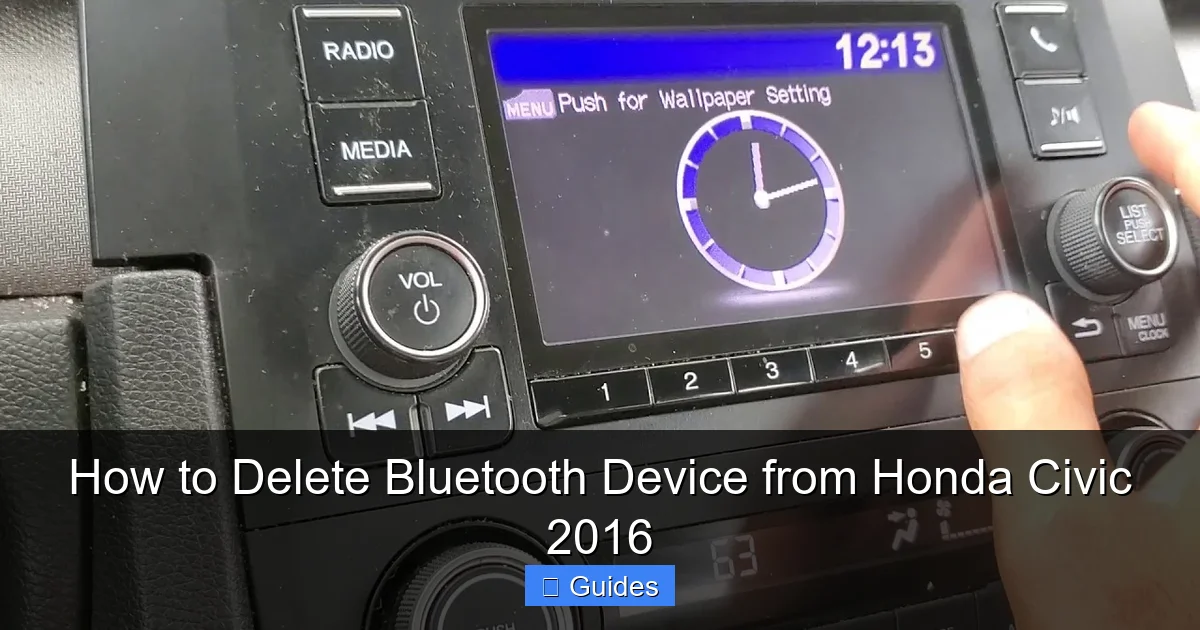
The 2016 Honda Civic comes equipped with a user-friendly infotainment system that supports Bluetooth connectivity for both phone calls and audio streaming. Depending on your trim level, you may have either the standard 5-inch display or the upgraded 7-inch touchscreen with Honda’s Display Audio system. Both versions allow you to pair multiple devices, but the interface and navigation may vary slightly. The system is designed to be intuitive, with clearly labeled menus and touch-based controls that make managing your connections straightforward.
Visual guide about How to Delete Bluetooth Device from Honda Civic 2016
Image source: bluetoothmag.com
Bluetooth Capabilities and Limitations
Bluetooth in the 2016 Civic supports hands-free calling via the HandsFreeLink (HFL) system and wireless audio streaming through A2DP (Advanced Audio Distribution Profile). This means you can make and receive calls using the car’s built-in microphone and speakers, as well as play music from your phone through the car’s audio system. However, there are some limitations to be aware of. The system can store up to 6 paired devices, but only one phone can be actively connected for calling at a time. Similarly, only one device can stream audio at once. If you try to connect a seventh device, the system will prompt you to delete an existing one before pairing the new device. Knowing these limits helps you manage your connections proactively and avoid frustration when adding new gadgets.
To access Bluetooth settings, start by pressing the “Home” button on your Civic’s touchscreen. This brings up the main menu, where you’ll find icons for Phone, Audio, Settings, and more. From here, tap the “Phone” icon to enter the HandsFreeLink menu. Once inside, look for the “Bluetooth Device List” or “Paired Devices” option—this is where all your connected devices are stored. The interface is designed with large, easy-to-tap buttons and clear labels, making it accessible even while driving. If you’re having trouble finding the right menu, consult your owner’s manual or use the voice command button on your steering wheel to say “Phone settings” or “Bluetooth devices” for guided navigation.
Step-by-Step Guide to Deleting a Bluetooth Device
Deleting a Bluetooth device from your 2016 Honda Civic is a simple process that takes just a few minutes. Whether you’re clearing out an old phone or resolving a pairing conflict, following these steps will help you remove unwanted devices quickly and safely. Always make sure your car is parked and the ignition is on (or the engine is running) to ensure the infotainment system has power. Never attempt to navigate complex menus while driving—safety first!
Visual guide about How to Delete Bluetooth Device from Honda Civic 2016
Image source: bluetoothmag.com
Step 1: Turn On the Ignition and Access the Home Screen
Start by turning the ignition to the “ON” position or starting the engine. This powers up the infotainment system and ensures all features are active. Once the screen lights up, wait a moment for the system to fully boot. You should see the Honda logo appear, followed by the main interface. Tap the “Home” button, usually located at the bottom of the screen or as a physical button near the display. This will take you to the central hub where all major functions are accessible.
Step 2: Open the Phone or HandsFreeLink Menu
From the Home screen, locate and tap the “Phone” icon. This opens the HandsFreeLink system, which manages all Bluetooth phone connections. If you don’t see the Phone icon immediately, check the bottom navigation bar or swipe left/right to find it. Once inside the Phone menu, you’ll see options like “Dial,” “Call History,” “Phonebook,” and “Settings.” Look for the “Settings” or “Bluetooth Device List” option—this is your gateway to managing paired devices.
Step 3: Locate the Paired Device List
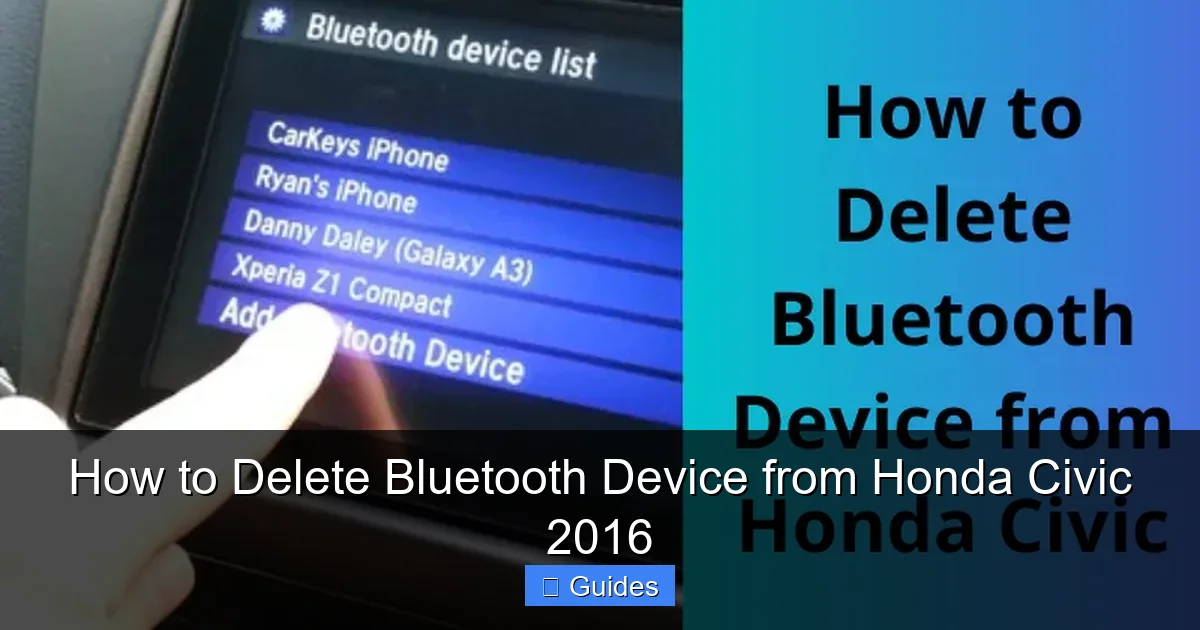
Tap on “Bluetooth Device List” or “Paired Devices” to view all devices currently stored in the system. You’ll see a list of names—these could be your phone, a family member’s device, or even a tablet or smartwatch. Each entry typically shows the device name and type (e.g., “iPhone 12,” “Samsung Galaxy S10”). Scroll through the list using the on-screen arrows or swipe gestures to find the device you want to delete. If the list is long, take your time to avoid accidentally selecting the wrong one.
Step 4: Select and Delete the Device
Once you’ve found the device you want to remove, tap on it to highlight it. A menu or confirmation prompt should appear, offering options like “Connect,” “Delete,” or “Edit.” Select “Delete” or “Remove Device.” The system will ask you to confirm the action—this is a safety feature to prevent accidental deletions. Tap “Yes” or “OK” to proceed. The device will immediately disappear from the list, and the system will no longer attempt to connect to it automatically.
Step 5: Confirm the Deletion and Exit
After deleting the device, double-check the list to ensure it’s no longer there. If you accidentally deleted the wrong device, don’t panic—you can always re-pair it later. Once you’re satisfied, press the “Back” button or “Home” button to exit the menu. The system will save your changes automatically. For good measure, you can restart the infotainment system by turning the ignition off and on again, or by holding the power button (if your model has one) for 10 seconds to perform a soft reset.
Troubleshooting Common Issues When Deleting Bluetooth Devices
Even with clear instructions, you might encounter a few hiccups when trying to delete a Bluetooth device from your 2016 Honda Civic. These issues are usually minor and fixable with a few simple steps. The most common problems include the device not appearing in the list, the delete option being grayed out, or the system freezing during the process. Understanding these scenarios and how to resolve them can save you time and frustration.
Visual guide about How to Delete Bluetooth Device from Honda Civic 2016
Image source: koala.sh
Device Not Showing Up in the List
If you can’t find the device you want to delete, it may not be currently paired or could be listed under a different name. Sometimes, devices appear with generic labels like “Phone” or “Device 1” instead of their actual names. Try refreshing the list by exiting and re-entering the Bluetooth menu. If the device was recently connected, it might take a moment to appear. Also, ensure the device is within range and Bluetooth is enabled on both the phone and the car. If it still doesn’t show up, the pairing may have been lost or corrupted—deleting it from the phone’s Bluetooth settings might help.
In some cases, the delete button may be grayed out or missing entirely. This usually happens if the device is currently connected or set as the primary phone. To fix this, disconnect the device first by going to the “Connected Devices” section and selecting “Disconnect.” Once it’s no longer active, return to the device list and try deleting it again. If the issue persists, restart the infotainment system or check for software updates through Honda’s official website or your local dealership.
System Freezes or Becomes Unresponsive
If the touchscreen freezes or becomes slow during the deletion process, don’t force it. Instead, perform a soft reset by turning the ignition off, waiting 30 seconds, and turning it back on. This reboots the system without affecting your saved data. For older models, you may need to hold the power and volume buttons simultaneously for 10–15 seconds to force a restart. After rebooting, try the deletion process again. If freezing continues, it could indicate a deeper software issue—consider visiting a Honda service center for diagnostics.
Best Practices for Managing Bluetooth Devices in Your Honda Civic
Keeping your Bluetooth connections organized not only improves performance but also enhances your overall driving experience. A well-maintained system connects faster, reduces interference, and prevents accidental calls or music playback from the wrong device. Adopting a few best practices can help you stay on top of your Civic’s Bluetooth settings and avoid common pitfalls.
Regularly Clean Up Old or Unused Devices
Make it a habit to review your paired devices every few months, especially after lending your car to someone or upgrading your phone. Removing old devices frees up space and reduces the chance of connection conflicts. For example, if you’ve switched from an Android to an iPhone, delete the old Android device to prevent it from interfering with your new phone’s pairing. This simple maintenance step can prevent headaches down the road.
Name Your Devices Clearly
When pairing a new device, take a moment to rename it in your phone’s Bluetooth settings to something recognizable, like “John’s iPhone” or “Family iPad.” This makes it easier to identify and manage devices in your Civic’s list. Avoid generic names like “Phone” or “Device,” which can cause confusion, especially in households with multiple drivers.
Re-Pair After Major Phone Updates
After updating your phone’s operating system (like upgrading to iOS 17 or Android 14), Bluetooth functionality can sometimes behave unpredictably. If you notice connection issues, try deleting and re-pairing your phone. This refreshes the connection and ensures compatibility with the latest software. It’s a quick fix that often resolves syncing problems without needing professional help.
Use One Primary Device for Calls
To avoid confusion, designate one phone as the primary device for hands-free calling. This is especially helpful in shared vehicles. You can set this preference in the HandsFreeLink settings by selecting “Set as Primary” after pairing. This ensures that incoming calls always route to the correct device, even if multiple phones are nearby.
When to Seek Professional Help
While most Bluetooth issues in the 2016 Honda Civic can be resolved with basic troubleshooting, there are times when professional assistance is needed. If you’ve tried deleting devices, restarting the system, and re-pairing your phone but still experience persistent problems—such as constant disconnections, audio distortion, or the inability to pair any device—it may indicate a hardware or software malfunction.
Signs that you should visit a Honda dealership or certified technician include: the Bluetooth menu not appearing at all, the system crashing repeatedly, or error messages like “Bluetooth Unavailable” or “Connection Failed.” These could point to a failing HandsFreeLink module, corrupted firmware, or antenna issues. A technician can run diagnostics, update the system software, or replace faulty components if necessary. Don’t hesitate to seek help if basic fixes don’t work—your safety and convenience are worth the investment.
Conclusion
Deleting a Bluetooth device from your 2016 Honda Civic is a straightforward task that can significantly improve your car’s connectivity and performance. Whether you’re clearing out old pairings, switching phones, or troubleshooting connection issues, following the steps outlined in this guide will help you manage your devices with confidence. Regular maintenance, clear naming conventions, and timely re-pairing after updates are simple habits that go a long way in keeping your infotainment system running smoothly.
Remember, your Civic’s Bluetooth system is designed to make driving safer and more enjoyable. By taking a few minutes to clean up unused devices and stay on top of updates, you ensure that every call, song, and voice command works seamlessly. If you ever run into persistent problems, don’t hesitate to reach out to a Honda professional. With the right care, your 2016 Civic will continue to deliver a reliable, high-tech driving experience for years to come.
Frequently Asked Questions
Can I delete multiple Bluetooth devices at once in my 2016 Honda Civic?
No, the 2016 Honda Civic does not support bulk deletion. You must delete each device individually by selecting it from the Bluetooth Device List and confirming removal. This ensures you don’t accidentally remove a device you still use.
Will deleting a Bluetooth device affect my phone’s settings?
No, deleting a device from your Civic only removes the pairing from the car’s system. Your phone will still remember the connection unless you also delete it from your phone’s Bluetooth settings. You can re-pair the device at any time.
Why can’t I see the delete option for a paired device?
The delete option may be grayed out if the device is currently connected or set as the primary phone. Disconnect the device first, then return to the list to delete it. A system restart may also help refresh the menu.
How many Bluetooth devices can my 2016 Honda Civic store?
The system can store up to 6 paired devices. If you try to pair a seventh device, you’ll need to delete an existing one first. Only one device can be actively connected for calls or audio at a time.
What should I do if my Civic won’t pair with any device after deleting old ones?
Try restarting the infotainment system by turning the ignition off and on. If that doesn’t work, reset the HandsFreeLink system through the settings menu or consult your owner’s manual for a full system reset procedure.
Can I delete Bluetooth devices while driving?
No, for safety reasons, avoid navigating complex menus while driving. Always park your car and ensure the ignition is on before making changes to Bluetooth settings. Use voice commands or ask a passenger for assistance if needed.

At CarLegit, we believe information should be clear, factual, and genuinely helpful. That’s why every guide, review, and update on our website is created with care, research, and a strong focus on user experience.