
Removing a Bluetooth device from your 2020 Honda Civic is simple and takes just a few minutes. Whether you’re switching phones, troubleshooting connection issues, or clearing old devices, this guide walks you through the process using the infotainment system. Follow these easy steps to keep your car’s Bluetooth system running smoothly and securely.
So, you’ve got a 2020 Honda Civic—sleek, reliable, and packed with tech. One of the coolest features? The Bluetooth connectivity that lets you make hands-free calls, stream music, and use voice commands without touching your phone. But what happens when you want to remove a Bluetooth device? Maybe you’re switching to a new phone, your ex is still connected (yikes!), or you’re just tired of your car trying to connect to your old tablet every time you start the engine.
Don’t worry—you’re not alone. Many Honda Civic owners find themselves asking, “How do I remove a Bluetooth device from my 2020 Honda Civic?” The good news? It’s easier than you think. And once you know the steps, you’ll wonder why you ever stressed about it.
In this guide, we’ll walk you through the entire process—step by step—so you can confidently manage your car’s Bluetooth connections. Whether you want to remove one device or clear them all, we’ve got you covered. We’ll also share tips to keep your system running smoothly, troubleshoot common issues, and even show you how to use the HondaLink app for remote management. By the end, you’ll be a Bluetooth pro, ready to handle any connection challenge that comes your way.
In This Article
- 1 Key Takeaways
- 2 📑 Table of Contents
- 3 Why You Might Need to Remove a Bluetooth Device
- 4 Step-by-Step Guide to Removing a Bluetooth Device
- 5 How to Remove All Bluetooth Devices at Once
- 6 Troubleshooting Common Bluetooth Issues
- 7 Using the HondaLink App for Device Management
- 8 Tips for Maintaining a Healthy Bluetooth Connection
- 9 When to Consider a Factory Reset
- 10 Conclusion
- 11 Frequently Asked Questions
- 11.1 How do I remove a Bluetooth device from my 2020 Honda Civic?
- 11.2 Can I remove all Bluetooth devices at once?
- 11.3 Why won’t my phone reconnect after removing it?
- 11.4 Does removing a device delete my call history?
- 11.5 Can I manage Bluetooth devices using the HondaLink app?
- 11.6 How often should I remove unused Bluetooth devices?
Key Takeaways
- Access the Bluetooth settings through the Home menu: Use the touchscreen or steering wheel controls to navigate to the device management section.
- Select the device you want to remove: Choose from the list of paired devices and confirm deletion to unpair it permanently.
- Clear all devices for a fresh start: If you’re selling your car or resetting connections, use the “Delete All” option to wipe the Bluetooth memory.
- Re-pair your phone after removal: Once removed, you can reconnect your device by following the standard pairing process.
- Use HondaLink app for remote management: The app allows you to manage connected devices and receive system updates for better performance.
- Regular maintenance prevents connection issues: Periodically removing unused devices helps maintain fast, reliable Bluetooth performance.
- Factory reset as a last resort: If problems persist, a full system reset can restore default settings and fix persistent glitches.
📑 Table of Contents
- Why You Might Need to Remove a Bluetooth Device
- Step-by-Step Guide to Removing a Bluetooth Device
- How to Remove All Bluetooth Devices at Once
- Troubleshooting Common Bluetooth Issues
- Using the HondaLink App for Device Management
- Tips for Maintaining a Healthy Bluetooth Connection
- When to Consider a Factory Reset
- Conclusion
Why You Might Need to Remove a Bluetooth Device
Before we dive into the how-to, let’s talk about the why. There are several common reasons why you might want to remove a Bluetooth device from your 2020 Honda Civic. Understanding these can help you decide whether a simple removal is enough or if a full reset is needed.
One of the most frequent reasons is upgrading to a new phone. Let’s say you just got the latest iPhone or Android device. You’ll want your new phone to connect seamlessly to your car’s audio system, but if your old phone is still paired, it might interfere with the connection. Removing the old device ensures your new one pairs quickly and without confusion.
Another common scenario? Sharing your car with family members or friends. If your spouse, teen driver, or roommate has paired their phone, you might want to remove it when they’re not using the car. This prevents accidental music streaming or call interruptions. Plus, it’s a privacy thing—nobody wants their personal calls echoing through the car speakers when they’re not around.
Then there’s the issue of clutter. Over time, your Honda Civic’s Bluetooth system can accumulate a list of paired devices—old phones, tablets, smartwatches, even that Bluetooth speaker you used once during a road trip. This can slow down the connection process and make it harder to find the device you actually want to use. Removing unused devices keeps your list clean and your system responsive.
And let’s not forget troubleshooting. If your Bluetooth keeps disconnecting, fails to pair, or has audio lag, removing and re-pairing devices can often fix the problem. It’s like giving your system a fresh start—sometimes, that’s all it takes to get things working smoothly again.
Finally, if you’re selling your car or returning a lease, removing all paired devices is a must. You don’t want the next owner accidentally accessing your contacts, call history, or music library. It’s a simple step that protects your privacy and ensures a clean handover.
Step-by-Step Guide to Removing a Bluetooth Device
Visual guide about How to Remove Bluetooth Device from Honda Civic 2020
Image source: koala.sh
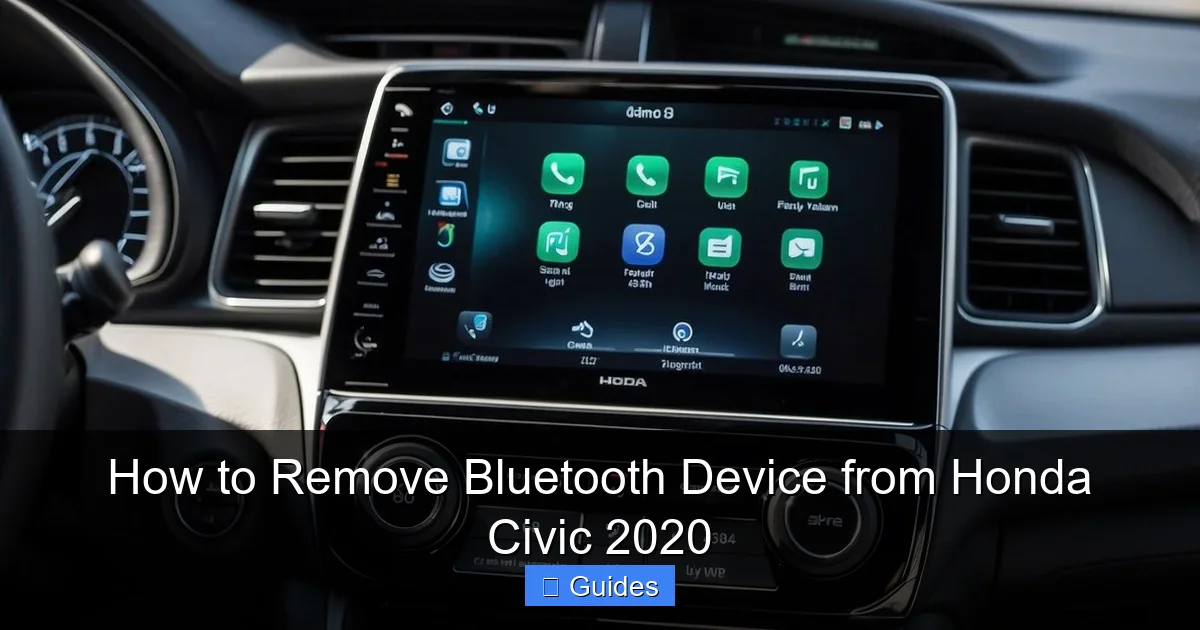
Now that you know why you might need to remove a device, let’s get into the nitty-gritty: how to actually do it. The process is straightforward and can be completed in under five minutes using your car’s infotainment system. Here’s a detailed, step-by-step guide to help you remove a Bluetooth device from your 2020 Honda Civic.
Step 1: Turn on Your Honda Civic
First things first—start your car or turn the ignition to the “ON” position. You don’t need to drive anywhere; just make sure the engine is running or the accessory mode is active. This powers up the infotainment system, which is essential for accessing the Bluetooth settings.
If your car is off, the screen may not respond, and the menu options won’t be available. So, even if you’re just sitting in the driveway, turn the key or press the start button to wake up the system.
Step 2: Access the Home Menu
Once your car is on, look at the central touchscreen. You should see the home screen with icons for audio, phone, navigation, and settings. Tap the “Home” button if you’re not already there. This is your gateway to all the system’s features.
If you’re using the steering wheel controls, you can also press the “Phone” or “Audio” button to bring up related menus, but for Bluetooth management, the Home screen is the best starting point.
From the Home screen, look for the “Phone” icon. Tap it to open the phone menu. Alternatively, you might see a “Settings” icon—tap that and then select “Phone” or “Bluetooth” from the list.
Once you’re in the Phone menu, you’ll see options like “Connect Phone,” “Call History,” and “Paired Devices.” We’re interested in the “Paired Devices” section, which lists all the devices currently connected to your car’s Bluetooth system.
Step 4: Select the Device You Want to Remove
In the “Paired Devices” list, you’ll see names of phones, tablets, or other gadgets that have been previously connected. Scroll through the list using the touchscreen or the knob on the center console.
When you find the device you want to remove—say, “John’s iPhone” or “Sarah’s Galaxy”—tap on it. This will open a submenu with options like “Connect,” “Disconnect,” and “Delete”.
Tap “Delete” to remove the device. A confirmation message will appear, asking if you’re sure you want to delete the device. This is your chance to double-check—make sure you’re removing the right one!
Step 5: Confirm the Deletion
Tap “Yes” or “Delete” to confirm. The device will be immediately removed from the list, and your car will no longer attempt to connect to it.
You’ll see the device disappear from the “Paired Devices” list. If you try to connect that device again, it will need to go through the full pairing process—just like the first time.
Step 6: Exit the Menu
Once the device is removed, you can exit the menu by tapping the “Back” button or the “Home” icon. Your Bluetooth system is now updated, and the unwanted device is gone for good.
That’s it! You’ve successfully removed a Bluetooth device from your 2020 Honda Civic. The whole process takes less than two minutes and requires no special tools or technical skills.
How to Remove All Bluetooth Devices at Once
Visual guide about How to Remove Bluetooth Device from Honda Civic 2020
Image source: koala.sh
Sometimes, removing one device at a time isn’t enough. Maybe you’re selling your car, returning a lease, or just want a complete reset. In those cases, you’ll want to remove all paired devices at once. Fortunately, the 2020 Honda Civic has a built-in feature for that.
Access the Paired Devices Menu
Start by following the same steps as before: turn on your car, go to the Home screen, and navigate to the “Phone” menu. Then, select “Paired Devices” to see the full list.
Look for the “Delete All” Option
At the bottom of the “Paired Devices” screen, you should see an option labeled “Delete All” or “Clear All Devices.” This is your one-stop solution for wiping the entire Bluetooth memory.
Tap on it, and a confirmation message will appear. It might say something like, “This will delete all paired devices. Continue?”
Confirm the Action
Tap “Yes” or “Delete All” to confirm. Within seconds, every device—phones, tablets, smartwatches—will be removed from the system.
This is especially useful if you’re handing over the car to someone else. It ensures no personal data remains accessible and gives the new user a clean slate.
Re-pair Your Devices (If Needed)
After deleting all devices, you’ll need to re-pair any devices you still want to use. For example, if you’re keeping your own phone, go through the standard pairing process: enable Bluetooth on your phone, search for “Honda Civic” in the device list, and enter the PIN when prompted.
While “Delete All” is convenient, use it wisely. Once you confirm, there’s no undo button—so make sure you really want to remove everything.
Troubleshooting Common Bluetooth Issues
Visual guide about How to Remove Bluetooth Device from Honda Civic 2020
Image source: vhv.rs
Even with the best setup, Bluetooth problems can happen. If you’ve removed a device but are still having connection issues, here are some common troubleshooting tips to get your system back on track.
Device Won’t Reconnect After Removal
Sometimes, after removing a device, it won’t reconnect—even when you try to pair it again. This can happen if the phone’s Bluetooth cache is corrupted or if the car’s system is still holding onto old data.
Try this: on your phone, go to Bluetooth settings, find your Honda Civic, and “Forget” or “Unpair” it. Then, restart both your phone and your car. After they’re back on, try pairing again. This clears any lingering connections and gives you a fresh start.
Bluetooth Keeps Disconnecting
If your Bluetooth connects but drops out frequently, it could be due to interference, low battery, or software glitches. Make sure your phone’s battery is above 20%, and avoid placing it near other wireless devices like tablets or smartwatches.
Also, check for software updates. Both your phone and your Honda Civic’s infotainment system should be up to date. Honda occasionally releases updates that improve Bluetooth stability.
Audio Lag or Poor Sound Quality
If music sounds choppy or calls have echo, try removing and re-pairing the device. Sometimes, the connection profile gets corrupted, and a fresh pairing fixes the issue.
You can also try switching the audio source. For example, if you’re using Bluetooth for music, try switching to USB or AUX to see if the problem persists. If it does, the issue might be with your phone or the car’s speakers—not Bluetooth.
Car Doesn’t Recognize the Phone
If your Honda Civic doesn’t show your phone in the device list, make sure Bluetooth is enabled on your phone and that it’s set to “Discoverable.” Also, check that your phone isn’t connected to another device (like a smartwatch or car stereo) that might be hogging the connection.
If all else fails, try a factory reset of the infotainment system. This is a last resort, but it can resolve deep-seated software issues.
Using the HondaLink App for Device Management
Did you know you can manage your Honda Civic’s Bluetooth settings from your phone? The HondaLink app offers remote access to many of your car’s features, including device management.
Download and Set Up HondaLink
First, download the HondaLink app from the App Store (iOS) or Google Play (Android). Create an account and link it to your vehicle using your VIN and registration details.
Once set up, you can view connected devices, receive system alerts, and even remotely start your car (if equipped).
Manage Paired Devices Remotely
While the app doesn’t let you delete devices directly, it shows you which devices are currently paired. This is helpful if you’re away from your car and want to check who’s connected.
You can also receive notifications if a new device pairs with your car—great for monitoring usage if you share your vehicle.
Receive Software Updates
HondaLink also delivers over-the-air updates for your infotainment system. These updates often include Bluetooth improvements, so keeping the app active ensures your system stays current.
Tips for Maintaining a Healthy Bluetooth Connection
To keep your Bluetooth system running smoothly, follow these simple maintenance tips:
- Remove unused devices regularly: Every few months, review your paired devices and delete any you no longer use.
- Keep your phone and car software updated: Check for updates on both devices to ensure compatibility.
- Avoid pairing too many devices: While the Civic can store several devices, too many can slow down the connection process.
- Restart your infotainment system occasionally: Turn your car off and on again to refresh the system.
- Use original charging cables: Cheap cables can cause power issues that affect Bluetooth performance.
When to Consider a Factory Reset
If you’ve tried everything—removing devices, re-pairing, updating software—and your Bluetooth still isn’t working, it might be time for a factory reset.
This wipes all settings and restores the infotainment system to its original state. It’s a nuclear option, but sometimes necessary.
To do this, go to Settings > System > Factory Reset. Follow the prompts and confirm. After the reset, you’ll need to reconfigure all settings, including Bluetooth, navigation, and audio preferences.
Only do this if other troubleshooting steps fail. And always back up any important data first.
Conclusion
Removing a Bluetooth device from your 2020 Honda Civic doesn’t have to be complicated. With just a few taps on the touchscreen, you can unpair unwanted devices, clear your connection list, and keep your system running smoothly. Whether you’re switching phones, troubleshooting issues, or preparing your car for sale, this guide gives you all the tools you need.
Remember to remove unused devices regularly, keep your software updated, and use the HondaLink app for remote monitoring. And if problems persist, don’t hesitate to try a factory reset as a last resort.
By following these steps, you’ll enjoy reliable, hassle-free Bluetooth connectivity every time you get behind the wheel. Your Honda Civic is more than just a car—it’s a smart, connected experience. Make the most of it.
Frequently Asked Questions
How do I remove a Bluetooth device from my 2020 Honda Civic?
Go to the Home screen, tap “Phone,” select “Paired Devices,” choose the device, and tap “Delete.” Confirm to remove it permanently.
Can I remove all Bluetooth devices at once?
Yes, in the “Paired Devices” menu, look for “Delete All” and confirm. This removes every paired device from your car’s system.
Why won’t my phone reconnect after removing it?
Try “forgetting” the car on your phone, restart both devices, and re-pair. This clears cached data and establishes a fresh connection.
Does removing a device delete my call history?
No, call history is stored separately. Removing a device only unlinks it from Bluetooth—your call logs remain unless manually deleted.
Can I manage Bluetooth devices using the HondaLink app?
The app shows paired devices and sends alerts, but you can’t delete them remotely. Use the car’s touchscreen for removal.
How often should I remove unused Bluetooth devices?
Every 3–6 months is ideal. Regular cleanup prevents clutter and keeps your connection fast and reliable.

At CarLegit, we believe information should be clear, factual, and genuinely helpful. That’s why every guide, review, and update on our website is created with care, research, and a strong focus on user experience.