
Setting your home address in your Tesla Model 3 unlocks convenient features like one-touch navigation and smart climate control. This guide walks you through the simple process using the touchscreen, voice commands, or the Tesla mobile app—ensuring your daily commute starts smoothly every time.
In This Article
- 1 Key Takeaways
- 2 📑 Table of Contents
- 3 Why Setting Your Home Address in Tesla Model 3 Matters
- 4 How to Set Your Home Address Using the Touchscreen
- 5 Setting Your Home Address with Voice Commands
- 6 Using the Tesla Mobile App to Set Your Home Address
- 7 Editing or Updating Your Home Address
- 8 Troubleshooting Common Issues
- 9 Maximizing the Benefits of Your Home Address
- 10 Privacy and Security Considerations
- 11 Conclusion
- 12 Frequently Asked Questions
- 12.1 Can I set multiple home addresses in my Tesla Model 3?
- 12.2 Will my home address be shared with third parties?
- 12.3 What if I move to a new house?
- 12.4 Does setting a home address require an internet connection?
- 12.5 Can I set my home address while driving?
- 12.6 Why isn’t the “Home” button appearing on my screen?
Key Takeaways
- Save time with one-touch navigation: Once your home address is set, you can navigate home instantly from the main screen or steering wheel button.
- Enable smart climate and charging features: Tesla uses your home location to pre-condition the cabin and optimize battery charging when parked at home.
- Set via touchscreen, voice, or mobile app: You have multiple easy options to input your home address depending on your preference.
- Ensure accurate GPS for best results: A strong GPS signal improves location detection and automates home/work recognition.
- Edit or update anytime: Your home address can be changed easily if you move or need to correct the location.
- Works seamlessly with Tesla’s ecosystem: Integration with the app and vehicle systems enhances overall convenience and automation.
- Privacy is protected: Your location data is stored securely and used only to improve your driving experience.
📑 Table of Contents
- Why Setting Your Home Address in Tesla Model 3 Matters
- How to Set Your Home Address Using the Touchscreen
- Setting Your Home Address with Voice Commands
- Using the Tesla Mobile App to Set Your Home Address
- Editing or Updating Your Home Address
- Troubleshooting Common Issues
- Maximizing the Benefits of Your Home Address
- Privacy and Security Considerations
- Conclusion
Why Setting Your Home Address in Tesla Model 3 Matters
Owning a Tesla Model 3 isn’t just about driving an electric car—it’s about experiencing a smarter, more intuitive way to get around. One of the simplest yet most powerful features is setting your home address. It might sound like a small step, but it unlocks a range of time-saving, comfort-enhancing, and energy-efficient functions that make daily driving smoother and more enjoyable.
Imagine pulling out of your driveway and pressing a single button to start navigation home. Or having your car automatically warm up or cool down before you even step inside because it knows you’re at home. These aren’t futuristic fantasies—they’re real features that activate the moment you save your home address in your Tesla Model 3. Whether you’re commuting to work, running errands, or heading out on a road trip, having your home location saved transforms your vehicle into a responsive, personalized assistant on wheels.
The Convenience Factor
Let’s face it—most of us drive home more than any other destination. By setting your home address, you eliminate the need to manually enter your location every time you want to go back. The Tesla Model 3 recognizes your frequent destinations and prioritizes them on the navigation screen. With one tap, you’re on your way. No typing, no searching—just instant routing.
Smart Climate and Charging Integration
Your Tesla Model 3 uses your home address to enable smart features like scheduled charging and cabin preconditioning. When the car detects you’re parked at home (based on GPS), it can begin charging at off-peak hours if you’ve set a charging schedule. It can also start heating or cooling the cabin before you leave, so your car is comfortable the moment you enter. This not only improves comfort but also helps preserve battery life by using grid power instead of draining the battery for climate control.
With your home address saved, Tesla’s navigation system becomes more predictive. It learns your routines and can suggest routes based on time of day, traffic patterns, and your usual destinations. For example, if you typically leave home at 7:30 a.m. for work, the car might proactively suggest leaving a few minutes earlier due to traffic. Over time, this creates a truly personalized driving experience.
How to Set Your Home Address Using the Touchscreen
The most straightforward way to set your home address in your Tesla Model 3 is through the central touchscreen. This method is ideal if you’re parked and have a stable GPS connection. Here’s how to do it step by step.
Visual guide about How to Set Home Address in Tesla Model 3
Image source: car-bags.com
Start by tapping the Navigation icon on the bottom left of your touchscreen. This opens the map interface, which displays your current location and nearby points of interest. If you’ve used navigation before, you might see recent destinations or saved locations already listed.
Step 2: Tap the Search Bar
At the top of the navigation screen, you’ll see a search bar labeled “Search destinations.” Tap on it to bring up the keyboard. You can now type in your home address. As you type, Tesla will suggest matching locations based on your input and GPS data.
Step 3: Select or Enter Your Address
If your home address appears in the suggestions, simply tap it to select. If not, continue typing the full address—including street number, street name, city, and ZIP code—until the correct location appears. Once selected, the map will zoom in to show the exact location.
Step 4: Save as “Home”
After selecting your address, a menu will appear with options like “Start Navigation,” “Add to Favorites,” or “Save as Home.” Tap Save as Home. You’ll be prompted to confirm the action. Once confirmed, your home address is saved and will appear as a quick-access button on the navigation screen.
Step 5: Verify and Test
To ensure it worked, exit the navigation menu and return to the main screen. You should now see a “Home” button in the quick navigation bar. Tap it to start routing home. If the route looks correct, you’re all set!
Pro Tips for Touchscreen Setup
- Use a stable GPS signal: If you’re indoors or in a garage, your GPS might not be accurate. Move to an open area if the location seems off.
- Double-check the address: A small typo can send you to the wrong neighborhood. Always verify the full address before saving.
- Save multiple locations: You can also save “Work” or other frequent destinations using the same method.
Setting Your Home Address with Voice Commands
If you prefer hands-free control, Tesla’s voice command system makes setting your home address quick and easy. This is especially useful if you’re driving and want to save a location without touching the screen.
Visual guide about How to Set Home Address in Tesla Model 3
Image source: driveteslacanada.ca
How to Use Voice Commands
To activate voice commands, press and hold the right scroll wheel on your steering wheel. You’ll hear a chime, and the car will listen for your instruction. Say clearly: “Navigate to [your full home address].” For example: “Navigate to 123 Maple Street, Springfield, IL 62704.”
Tesla will process the request and display the location on the map. If it’s correct, you’ll be asked if you want to start navigation. At this point, you can say “Save as Home” to store the address permanently. The car will confirm the action, and your home address will be saved.
Best Practices for Voice Input
- Speak clearly and slowly: Background noise or fast speech can confuse the system. Find a quiet moment to give the command.
- Use the full address: Include street number, name, city, and ZIP code for accuracy.
- Confirm the location: Always check the map to ensure the correct address was recognized before saving.
Limitations of Voice Commands
While voice commands are convenient, they may not always recognize complex addresses or unusual street names. If the system misinterprets your input, use the touchscreen method instead. Also, voice commands require an active internet connection, so ensure your car is connected to Wi-Fi or cellular data.
Using the Tesla Mobile App to Set Your Home Address
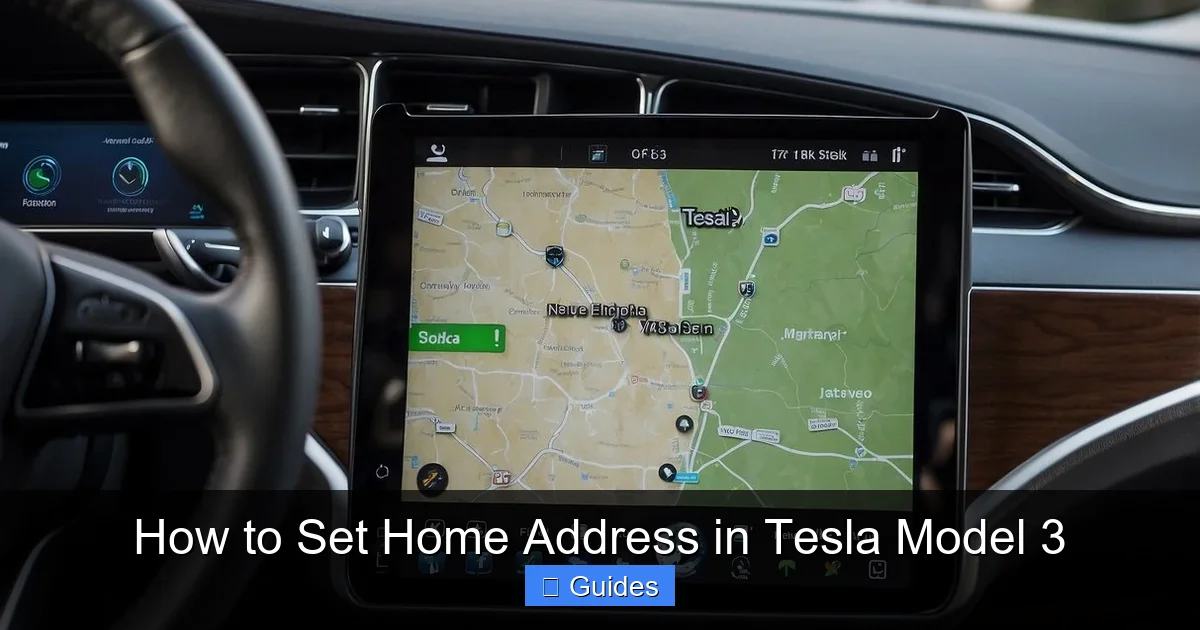
The Tesla mobile app offers another convenient way to manage your home address—especially if you’re away from your car or want to set it up before your first drive. The app syncs with your vehicle, so changes made on your phone appear instantly in the car.
Visual guide about How to Set Home Address in Tesla Model 3
Image source: koala.sh
Step-by-Step Guide via the App
- Open the Tesla app on your smartphone and ensure you’re logged in.
- Tap the Location tab at the bottom of the screen. This shows your car’s current location on a map.
- Tap the Search icon (magnifying glass) in the top right corner.
- Type your home address and select the correct result from the suggestions.
- Once the location is displayed, tap the Save button (usually a star or heart icon).
- Choose Home from the list of saved location types.
- Confirm the action. The app will sync with your car, and your home address will be saved.
Benefits of Using the App
- Remote setup: You can set your home address before picking up your car or while traveling.
- Syncs instantly: Changes appear in your vehicle the next time it connects to the internet.
- Easy editing: If you move, you can update your home address directly from your phone.
Tips for App Users
- Ensure your car is online: The app can only sync when your Tesla is connected to Wi-Fi or cellular data.
- Check app permissions: Make sure location services are enabled for the Tesla app on your phone.
- Update the app regularly: New features and improvements are frequently added, so keep the app up to date.
Editing or Updating Your Home Address
Life changes—and so do addresses. Whether you’ve moved to a new home, corrected a typo, or want to update your location for accuracy, Tesla makes it easy to edit your home address at any time.
How to Change Your Home Address
To update your home address, follow the same steps as setting it for the first time. Go to the navigation screen, search for your new address, and select “Save as Home.” The system will automatically replace the old address with the new one.
Alternatively, you can edit it through the Tesla app by searching for the new location and saving it as “Home.” The change will sync to your vehicle the next time it connects.
When to Update Your Address
- After moving: Update immediately to ensure navigation and smart features work correctly.
- If navigation is inaccurate: A wrong address can lead to missed turns or longer routes.
- For rental or temporary homes: If you’re staying somewhere temporarily, you can save it as “Home” and change it later.
Deleting or Replacing the Home Address
If you no longer want a home address saved, you can delete it by going to the navigation screen, tapping the “Home” button, and selecting “Remove” or “Delete.” You can then set a new one using any of the methods above.
Troubleshooting Common Issues
Even with a simple process, you might run into occasional hiccups when setting or using your home address. Here are some common issues and how to fix them.
GPS Not Detecting Location Accurately
If your Tesla shows the wrong location or struggles to find your home address, it’s likely a GPS issue. Try the following:
- Move your car to an open area with a clear view of the sky.
- Restart the car by turning it off and on again.
- Ensure your car has an active internet connection (Wi-Fi or cellular).
- Update your vehicle’s software to the latest version.
If you’ve saved your home address but it doesn’t show up as a quick-access button, try:
- Restarting the touchscreen by holding both scroll wheels until the screen turns off and back on.
- Checking if the address was saved correctly by searching for it again.
- Ensuring your car’s software is up to date.
Voice Command Not Recognizing Address
If voice commands fail to recognize your address:
- Speak more slowly and clearly.
- Use the full address, including ZIP code.
- Try the touchscreen or app method instead.
App Not Syncing with Vehicle
If changes made in the app don’t appear in your car:
- Ensure your car is online and connected to the internet.
- Force-close and reopen the Tesla app.
- Check that your phone and car are logged into the same Tesla account.
Maximizing the Benefits of Your Home Address
Once your home address is set, you can take full advantage of Tesla’s smart features to enhance your daily routine.
Schedule Charging for Off-Peak Hours
Use the Tesla app or touchscreen to set a charging schedule that starts when you’re typically parked at home. This ensures your car charges during cheaper electricity rates and is ready to go each morning.
Enable Cabin Overheat Protection
This feature keeps your car’s interior from getting too hot when parked at home. It uses minimal battery power to maintain a safe temperature, protecting pets, children, and electronics.
Use Scheduled Departure
Set a departure time in the app, and your Tesla will precondition the cabin and battery so everything is ready when you leave. No more waiting for the car to warm up in winter or cool down in summer.
Integrate with Smart Home Devices
If you have smart home systems like Philips Hue lights or Nest thermostats, you can create routines that trigger when you arrive home. For example, your lights turn on and your thermostat adjusts as you pull into the driveway.
Privacy and Security Considerations
Tesla takes privacy seriously. Your home address and location data are encrypted and stored securely. Tesla uses this information only to improve your driving experience and does not share it with third parties without your consent.
You can review and manage your data through the Tesla account portal. If you ever want to delete your location history or disable location services, you can do so in the app or vehicle settings.
Conclusion
Setting your home address in your Tesla Model 3 is a small step with big rewards. It unlocks instant navigation, smart climate control, optimized charging, and a more personalized driving experience. Whether you use the touchscreen, voice commands, or the mobile app, the process is quick and easy.
Once set, your Tesla becomes more than just a car—it becomes a responsive partner in your daily life. From the moment you press “Home” on the screen to the instant your cabin is comfortable upon arrival, every detail is designed for convenience and comfort. Take a few minutes today to set your home address, and start enjoying the full potential of your Tesla Model 3.
Frequently Asked Questions
Can I set multiple home addresses in my Tesla Model 3?
No, you can only save one location as “Home” at a time. However, you can save other frequent destinations like “Work” or “Gym” as additional favorites for quick access.
No, Tesla does not share your home address or location data with third parties. Your information is encrypted and used only to enhance your vehicle’s features and performance.
What if I move to a new house?
You can easily update your home address by searching for the new location in the navigation system or Tesla app and saving it as “Home.” The old address will be replaced automatically.
Does setting a home address require an internet connection?
Yes, an active internet connection (Wi-Fi or cellular) is needed to save and sync your home address, especially when using the app or voice commands.
Can I set my home address while driving?
Yes, you can use voice commands to set your home address while driving. Just press and hold the right scroll wheel and say your full address clearly.
This could be due to a GPS or software issue. Try restarting your car, ensuring a strong GPS signal, or updating your vehicle’s software to the latest version.

At CarLegit, we believe information should be clear, factual, and genuinely helpful. That’s why every guide, review, and update on our website is created with care, research, and a strong focus on user experience.