
Wondering how to tell if your Tesla is locked on the app? The Tesla mobile app provides real-time status updates, visual cues, and notifications to confirm whether your vehicle is securely locked or unlocked. By understanding these indicators and troubleshooting common issues, you can ensure your car remains safe and accessible only to you.
In This Article
- 1 Key Takeaways
- 2 📑 Table of Contents
- 3 Understanding Tesla’s Mobile App and Lock Status
- 4 Visual Cues on the Tesla App Home Screen
- 5 Using the Status Bar for Real-Time Updates
- 6 Push Notifications: Your Instant Alert System
- 7 Cross-Checking with Physical Devices
- 8 Troubleshooting Common App Issues
- 9 Advanced Tips and Pro Features
- 10 Conclusion
- 11 Frequently Asked Questions
Key Takeaways
- Check the Lock Icon: The lock icon on the home screen turns solid when the car is locked and hollow when unlocked.
- Use the Status Bar: The top of the app displays real-time vehicle status, including lock state, climate, and charging.
- Enable Push Notifications: Get instant alerts when your Tesla locks or unlocks remotely via the app.
- Verify with the Key Fob or Phone Key: Physical confirmation helps cross-check the app’s accuracy.
- Troubleshoot Connectivity Issues: Poor signal or app glitches can delay status updates—refresh or restart the app.
- Use the “Summon” Feature as a Test: If Summon works, the car is likely unlocked; if not, it may be locked.
- Check for Firmware Updates: Outdated software can cause sync issues between the app and vehicle.
📑 Table of Contents
Understanding Tesla’s Mobile App and Lock Status
Owning a Tesla isn’t just about driving an electric car—it’s about embracing a fully connected, tech-forward lifestyle. One of the most convenient features of Tesla ownership is the official Tesla mobile app, available for both iOS and Android. This app acts as a remote control for your vehicle, allowing you to lock and unlock doors, start the climate system, check charging status, and even summon your car from a parking spot—all from your smartphone.
But with great power comes great responsibility—especially when it comes to security. Knowing whether your Tesla is locked is crucial for peace of mind, particularly if you’ve parked in a public area or left the car unattended. The good news? The Tesla app makes it relatively easy to tell if your car is locked, provided you know where to look and how to interpret the signals.
The app communicates directly with your vehicle via cellular or Wi-Fi networks, sending real-time data about its status. However, like any digital system, it’s not immune to delays, glitches, or connectivity hiccups. That’s why it’s important to understand not just the visual cues, but also how to verify and troubleshoot lock status when things don’t seem right.
In this guide, we’ll walk you through every way to confirm whether your Tesla is locked using the app, from the most obvious indicators to lesser-known tricks. Whether you’re a new Tesla owner or a seasoned driver looking to refine your routine, this comprehensive breakdown will help you stay in control—and keep your car secure.
Visual Cues on the Tesla App Home Screen
Visual guide about How to Tell If Tesla Is Locked on App
Image source: s3-alpha.figma.com
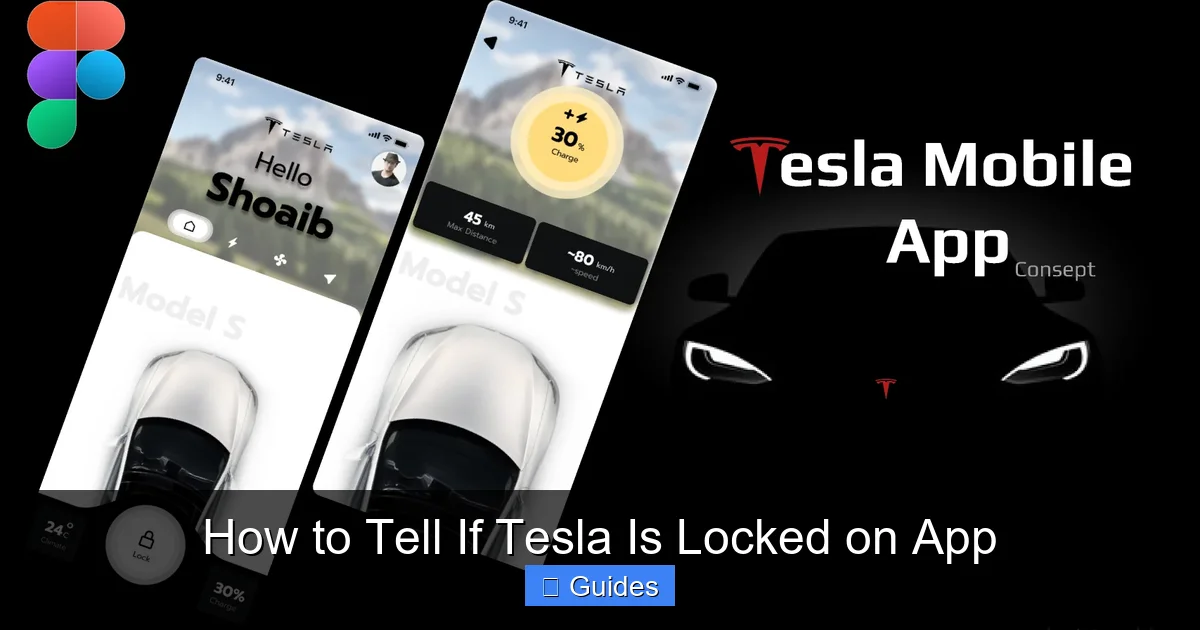
The first place to check whether your Tesla is locked is the app’s home screen. This is the default view when you open the Tesla app, and it’s designed to give you a quick snapshot of your vehicle’s current state. At the top of the screen, you’ll see a large image or rendering of your car, along with key status indicators.
One of the most telling visual cues is the lock icon, typically located near the door handles on the car graphic. When your Tesla is locked, this icon appears as a solid, filled-in lock. When the car is unlocked, the icon becomes hollow or outlined. This simple change is one of the fastest ways to confirm lock status at a glance.
For example, imagine you’ve just parked your Tesla Model 3 at the grocery store and walked away. You pull out your phone to double-check that you locked it. If the lock icon on the app is solid, you can breathe easy—your car is secure. But if it’s hollow, you’ll know immediately that you need to tap the lock button to secure it remotely.
Another helpful visual element is the door status indicators. These small icons appear near each door and trunk, showing whether they’re open or closed. While they don’t directly tell you if the car is locked, they provide context. If a door is open, the car cannot be fully locked, and the app will reflect that. Once all doors are closed, the lock icon will update accordingly.
Additionally, the app may display a “Locked” or “Unlocked” label near the vehicle image, especially after you’ve just sent a command. This text confirmation appears briefly but can be very reassuring, especially if you’re unsure whether your last action went through.
It’s also worth noting that the app’s interface can vary slightly depending on your Tesla model and the version of the app you’re using. For instance, the Model S and Model X have different door configurations than the Model 3 and Model Y, which might affect how the lock icons are displayed. However, the core principle remains the same: a solid lock means locked, a hollow one means unlocked.
Using the Status Bar for Real-Time Updates

Visual guide about How to Tell If Tesla Is Locked on App
Image source: koala.sh
Beyond the home screen visuals, the Tesla app includes a status bar at the very top of the screen that provides real-time information about your vehicle. This bar typically shows the car’s name, current charge level, climate status, and—most importantly—its lock state.
When you open the app, glance at the top. You’ll often see a line of text like “Locked • 78% Charged • Climate On.” This compact summary gives you a quick overview without needing to dive into submenus. If it says “Locked,” you’re good to go. If it says “Unlocked,” you’ll want to take action.
This status bar updates dynamically based on the last communication between your phone and the car. However, it’s not always instantaneous. If your Tesla is parked in an area with poor cellular coverage—like a parking garage or rural area—there might be a delay in receiving updates. In such cases, the status bar might show outdated information.
To ensure accuracy, try pulling down to refresh the app. This forces the app to reconnect with your vehicle and fetch the latest data. You’ll see a spinning wheel or loading animation, and within a few seconds, the status should update to reflect the current state.
Another tip: if you’ve just locked or unlocked your car using the app, wait a moment before checking the status bar. Sometimes there’s a brief lag as the command is processed and confirmed. If the status doesn’t change after 30 seconds, try refreshing or even closing and reopening the app.
The status bar is especially useful when you’re on the go and don’t have time to navigate through multiple screens. It’s your first line of defense in confirming lock status quickly and efficiently.
Push Notifications: Your Instant Alert System
Visual guide about How to Tell If Tesla Is Locked on App
Image source: gromcalc.com
One of the most underrated features of the Tesla app is its push notification system. When enabled, the app can send you instant alerts whenever your car locks or unlocks—whether you initiated the action or someone else did (like a valet or family member).
To make sure you’re getting these notifications, go to your phone’s settings and find the Tesla app. Under notifications, ensure that “Allow Notifications” is turned on, and that “Lock/Unlock” alerts are enabled. You can usually customize which events trigger a notification, so you’re not overwhelmed with alerts.
For example, let’s say you’re at work and your spouse uses their phone key to unlock the car to grab something from the trunk. If notifications are on, you’ll receive a pop-up on your phone saying, “Your Tesla has been unlocked.” This not only confirms the action but also alerts you to any unexpected access.
Similarly, if you remotely lock your car using the app, you’ll get a confirmation notification: “Your Tesla has been locked.” This is especially helpful if you’re unsure whether the command went through, perhaps because you were in a hurry or had a weak signal.
Push notifications are particularly valuable for security. If you ever receive an unexpected “unlocked” alert, it could indicate unauthorized access—prompting you to check the car immediately or contact Tesla support.
Keep in mind that notifications rely on a stable internet connection. If your phone is in airplane mode or has no data, you won’t receive alerts until connectivity is restored. Also, some users disable notifications to avoid distractions, but for security-conscious owners, they’re well worth enabling.
Cross-Checking with Physical Devices
While the Tesla app is powerful, it’s not infallible. That’s why it’s always a good idea to cross-check the app’s status with physical devices like the key fob or your phone acting as a key.
If you have a Tesla key fob, simply press the lock button and listen for the familiar horn chirp or see the lights flash. This confirms the car has received the command and is now locked. You can then open the app to verify that the lock icon has updated accordingly.
Similarly, if you use your smartphone as a key (a feature available on newer Teslas), walking away from the car should automatically lock it. As you move out of Bluetooth range, the car senses your departure and secures itself. You can confirm this by checking the app—it should show the car as locked within a minute or two.
This method is especially useful in situations where the app seems unresponsive. For instance, if the app shows your car as unlocked but you’re certain you locked it, try using the key fob to lock it again. Then refresh the app. If the status updates correctly, you’ll know the issue was a temporary sync delay.
Another practical tip: if you’re in a parking lot and unsure which Tesla is yours, use the app’s “Flash Lights” or “Honk Horn” feature. This not only helps you locate your car but also confirms that the app is communicating with the correct vehicle. Once you’ve found it, check the lock status visually—doors should be closed, and the car should appear secure.
Physical confirmation adds a layer of reliability that digital systems sometimes lack. It’s a simple habit that can prevent a lot of stress.
Troubleshooting Common App Issues
Even with all these tools, there are times when the Tesla app doesn’t behave as expected. Maybe the lock icon hasn’t updated, or the status bar still shows “Unlocked” even after you’ve sent a lock command. When this happens, don’t panic—there are several steps you can take to resolve the issue.
First, check your internet connection. The app needs a stable data or Wi-Fi signal to communicate with your car. If you’re in a basement, elevator, or remote area, the signal might be too weak. Move to a location with better coverage and try again.
Next, refresh the app by pulling down on the home screen. This forces a reconnection and often resolves minor sync issues. If that doesn’t work, try closing the app completely and reopening it. Sometimes a simple restart clears up glitches.
If the problem persists, consider restarting your phone. This resets the app’s background processes and can fix deeper connectivity problems. It’s a basic step, but surprisingly effective.
Another common issue is outdated app software. Make sure you’re running the latest version of the Tesla app by checking for updates in your device’s app store. Tesla frequently releases updates that improve performance and fix bugs.
Also, ensure your car’s firmware is up to date. You can check this in the car’s touchscreen under Controls > Software. If an update is available, install it when convenient—preferably when the car is parked and plugged in.
In rare cases, the issue might be with Tesla’s servers. If many users are reporting similar problems, it could be a temporary outage. You can check Tesla’s official social media or community forums for updates.
Finally, if none of these steps work, contact Tesla Support. They can remotely diagnose connectivity issues and help restore proper app functionality.
Advanced Tips and Pro Features
Once you’ve mastered the basics, there are several advanced features that can enhance your ability to monitor and control your Tesla’s lock status.
One such feature is Scheduled Locking. While the app doesn’t have a built-in timer for locking, you can use third-party automation tools like IFTTT (If This Then That) to create custom routines. For example, you could set your car to lock automatically every night at 10 PM, giving you peace of mind without lifting a finger.
Another powerful tool is the “Summon” feature. If you’re near your car and want to confirm it’s unlocked, try using Summon to move it forward or backward slightly. If Summon works, the car is definitely unlocked. If it doesn’t respond, it’s likely still locked—prompting you to send a remote unlock command.
You can also use the app’s “Location” feature to see where your car is parked. This is helpful if you’ve forgotten where you left it, but it also gives you context. For instance, if your car is in a secure garage, you might be less concerned about lock status than if it’s on a busy street.
For added security, consider enabling PIN to Drive in your car’s settings. This requires a four-digit code to be entered before the car can be driven, even if it’s unlocked. While it doesn’t affect the app’s lock status display, it adds an extra layer of protection.
Lastly, if you frequently travel or park in high-theft areas, consider using a Tesla-approved tracking device like the Tesla Tracker or a third-party GPS system. These devices provide real-time location data and can alert you if your car is moved without authorization.
Conclusion
Knowing how to tell if your Tesla is locked on the app is more than just a convenience—it’s a key part of responsible vehicle ownership. With the right knowledge, you can use the app’s visual cues, status indicators, notifications, and physical checks to stay confident that your car is secure.
From the solid lock icon on the home screen to the real-time updates in the status bar, the Tesla app offers multiple ways to confirm lock status. And when things don’t go as planned, troubleshooting steps like refreshing the app or checking your connection can quickly resolve most issues.
By combining digital tools with physical verification and staying up to date with app and firmware updates, you’ll ensure a seamless and secure experience every time you interact with your Tesla. Whether you’re locking up after a quick errand or checking in from across the country, the app puts control in your hands—literally.
So the next time you walk away from your Tesla, take a moment to open the app, glance at the lock icon, and breathe easy. Your car is safe, and you’re in the know.
Frequently Asked Questions
How do I know if my Tesla is locked using the app?
Check the lock icon on the home screen—it’s solid when locked and hollow when unlocked. You can also look at the status bar at the top of the app for a text confirmation.
Why does the app show my Tesla as unlocked when I know I locked it?
This could be due to a sync delay, poor signal, or app glitch. Try refreshing the app or using the key fob to lock the car again, then check the status.
Can I get notified when my Tesla locks or unlocks?
Yes, enable push notifications in the app settings. You’ll receive alerts whenever the car is locked or unlocked remotely or via phone key.
Does the Tesla app work without internet?
No, the app requires an internet connection to communicate with your car. Without data or Wi-Fi, you won’t be able to send commands or receive updates.
What should I do if the app isn’t updating the lock status?
First, refresh the app by pulling down. If that doesn’t work, restart the app or your phone. Ensure both the app and car firmware are up to date.
Can someone else unlock my Tesla if they have the app?
Only if they have access to your Tesla account. Always use strong passwords and enable two-factor authentication to protect your account.

At CarLegit, we believe information should be clear, factual, and genuinely helpful. That’s why every guide, review, and update on our website is created with care, research, and a strong focus on user experience.