
Hyundai’s “Consider Taking a Break” feature is designed to promote safe driving by alerting tired drivers—but sometimes it can be overly sensitive or disruptive. If you’re wondering how to turn off consider taking a break Hyundai, this guide walks you through every method, from temporary silencing to permanent deactivation, depending on your model and preferences.
If you’ve ever been cruising down the highway in your Hyundai, enjoying the ride, only to be interrupted by a persistent pop-up saying “Consider Taking a Break,” you’re not alone. This feature, part of Hyundai’s Driver Attention Warning (DAW) system, is meant to keep you safe by detecting signs of driver fatigue. But let’s be honest—sometimes it feels more like an annoying nag than a helpful reminder. Maybe you’ve just started your journey, or you’re wide awake but driving steadily. Yet, the alert still pops up, flashing on your dashboard or infotainment screen.
You’re probably here because you want to know: How do I turn off “Consider Taking a Break” in my Hyundai? The good news is, there are ways to manage or even disable this feature—depending on your vehicle model and year. The bad news? It’s not always as simple as flipping a switch. Some Hyundais allow full deactivation, while others only let you silence it temporarily. But don’t worry. This guide will walk you through every step, explain why the system behaves the way it does, and help you regain control over your driving experience—without compromising safety.
In This Article
- 1 Key Takeaways
- 2 📑 Table of Contents
- 3 What Is the “Consider Taking a Break” Feature?
- 4 How to Turn Off “Consider Taking a Break” in Your Hyundai
- 5 Alternative Methods to Manage the Alert
- 6 Why You Might Want to Keep It On
- 7 Troubleshooting Common Issues
- 8 Final Thoughts: Should You Turn It Off?
- 9 Frequently Asked Questions
- 9.1 Can I permanently turn off the “Consider Taking a Break” alert in my Hyundai?
- 9.2 Why does my Hyundai keep saying “Consider Taking a Break” even when I’m not tired?
- 9.3 Will turning off the alert affect my warranty or insurance?
- 9.4 How do I reset the Driver Attention Warning system?
- 9.5 Can a Hyundai dealer disable the “Consider Taking a Break” feature for me?
- 9.6 Is the “Consider Taking a Break” feature available on all Hyundai models?
Key Takeaways
- Understand the purpose: The “Consider Taking a Break” alert is part of Hyundai’s Driver Attention Warning (DAW) system, aimed at reducing fatigue-related accidents.
- Not all models allow full disable: Some Hyundai vehicles let you turn off the alert completely, while others only allow temporary silencing.
- Use the infotainment menu: Most modern Hyundais let you access DAW settings through the touchscreen under Settings > Driver Assistance.
- Steering input matters: The system monitors driving patterns—frequent lane drifting or erratic steering triggers the alert.
- Reset after long drives: The alert may reappear after extended trips; knowing how to manage it ensures a smoother experience.
- Safety first: While disabling the feature is possible, consider keeping it active for long highway drives or night trips.
- Check your owner’s manual: Model-specific instructions vary—always refer to your vehicle’s manual for accurate guidance.
📑 Table of Contents
What Is the “Consider Taking a Break” Feature?
Before we dive into how to turn off consider taking a break Hyundai, it’s important to understand what this feature actually does. The “Consider Taking a Break” alert is part of Hyundai’s Driver Attention Warning (DAW) system, a safety technology designed to monitor your driving behavior and detect signs of fatigue or inattention.
The system uses data from your vehicle’s sensors—primarily the steering angle sensor and lane departure warning cameras—to analyze how you’re driving. If it notices patterns that suggest drowsiness—like frequent small corrections, drifting between lanes, or inconsistent speed—it will trigger the alert. This usually appears as a coffee cup icon with a message on your dashboard or infotainment screen, sometimes accompanied by a chime.
The idea is simple: if you’re showing signs of fatigue, the car wants to remind you to pull over, stretch, grab a coffee, or take a nap. It’s similar to features found in other brands like Toyota’s Driver Alertness Monitor or Ford’s Driver Fatigue Detection.
But here’s the catch: the system isn’t perfect. It can’t read your mind or check your energy levels. It only sees what the sensors detect. So if you’re driving smoothly but have been on the road for a while, it might still flag you—even if you’re fully alert. That’s why many drivers find the feature helpful in theory but frustrating in practice.
How the System Detects Fatigue
The DAW system doesn’t use heart rate monitors or eye-tracking cameras like some high-end luxury cars. Instead, it relies on behavioral cues. Here’s how it works:
– Steering input analysis: The system tracks how often and how sharply you turn the wheel. Erratic or overly smooth steering (like holding the wheel perfectly still) can both trigger the alert.
– Lane keeping patterns: If your car frequently drifts toward lane markings without signaling, the system may interpret this as a sign of inattention.
– Driving duration: Most DAW systems activate after you’ve been driving for a certain amount of time—usually around 60 to 90 minutes—even if your driving is perfect.
Once these patterns are detected, the system calculates a “driver attention level” and displays it on your screen, often as a bar graph or score. If the score drops too low, the “Consider Taking a Break” message appears.
It’s worth noting that the system resets after you turn off the engine and restart the car. So if you take a short break and come back, it starts fresh. But on long road trips, it can become repetitive.
Why You Might Want to Turn It Off
Now, you might be thinking: “If it’s meant to keep me safe, why would I want to disable it?” Fair question. And the answer is: safety isn’t the only factor. Here are some common reasons drivers look for ways to turn off the alert:
– False alarms: The system can be overly sensitive, especially on straight highways where minimal steering input is normal.
– Short commutes: If you’re only driving for 20 minutes, the alert might not even activate—but if it does, it feels unnecessary.
– Personal preference: Some drivers find constant reminders distracting or annoying, even if they’re well-intentioned.
– Medical conditions: Certain conditions, like Parkinson’s or essential tremor, can cause slight steering movements that the system misinterprets as fatigue.
– Night driving: Driving at night can sometimes trigger the system more easily due to reduced visibility and lighting conditions.
That said, it’s important to weigh the pros and cons. Disabling a safety feature—even one that’s annoying—can reduce your overall protection on the road. We’ll talk more about that later. But first, let’s get into the practical steps.
How to Turn Off “Consider Taking a Break” in Your Hyundai
Visual guide about How to Turn Off Consider Taking a Break Hyundai
Image source: hyundaimaintenance.com
Now for the main event: how to actually turn off consider taking a break Hyundai. The method varies slightly depending on your vehicle’s model, year, and infotainment system. But in most cases, you’ll be using the touchscreen menu. Here’s a step-by-step guide that works for most modern Hyundai models, including the Tucson, Santa Fe, Elantra, and Palisade.
Step 1: Access the Settings Menu
Start by turning on your Hyundai and ensuring the infotainment system is active. Look for the “Settings” icon on your touchscreen—it usually looks like a gear or wrench. Tap it to open the main settings menu.
From there, navigate to the “Driver Assistance” or “Safety” section. The exact wording may vary. In some models, it’s labeled “Vehicle Settings” or “Convenience.”
Step 2: Find Driver Attention Warning (DAW)
Once you’re in the Driver Assistance menu, look for an option called “Driver Attention Warning,” “DAW,” or “Fatigue Detection.” This is the system that controls the “Consider Taking a Break” alert.
Tap on it to open the submenu. You should see options like “On,” “Off,” or “Sensitivity.”
Step 3: Turn Off the Feature
If your Hyundai allows it, you’ll see a toggle switch or checkbox next to “Driver Attention Warning.” Simply switch it to “Off.” This will disable the system entirely, and you won’t see the alert again—until you restart the car or re-enable it.
But here’s the catch: not all models let you turn it off completely. Some Hyundais only allow you to adjust the sensitivity (e.g., High, Normal, Low) or silence the alert temporarily.
Step 4: Check for Temporary Silence Options
If you can’t turn off the feature permanently, look for a “Silence” or “Dismiss” option when the alert appears. On some models, you can tap “OK” or “Dismiss” on the pop-up to make it go away for the current drive cycle.
This won’t disable the system, but it will stop the notification from showing up again until you restart the car or drive for a long time.
Step 5: Restart the Vehicle (If Needed)
After making changes, it’s a good idea to turn off your Hyundai, wait 10–15 seconds, and restart it. This ensures the new settings take effect.
Now, test it out. Drive for a while and see if the alert appears. If it doesn’t, you’ve successfully turned it off. If it does, you may need to try a different method or check your owner’s manual.
Model-Specific Instructions
Let’s break it down by popular Hyundai models:
– Hyundai Tucson (2020–2024): Go to Settings > Driver Assistance > Driver Attention Warning > Off.
– Hyundai Santa Fe (2021–2024): Settings > Safety > Driver Attention Warning > Toggle Off.
– Hyundai Elantra (2022–2024): Settings > Vehicle > Driver Assistance > DAW > Off.
– Hyundai Palisade (2020–2024): Settings > Driver Assistance > Driver Attention Warning > Disable.
Older models (pre-2018) may not have a digital menu option. In those cases, the feature might be controlled via the instrument cluster or not user-configurable at all.
Alternative Methods to Manage the Alert
Visual guide about How to Turn Off Consider Taking a Break Hyundai
Image source: thecarhow.com
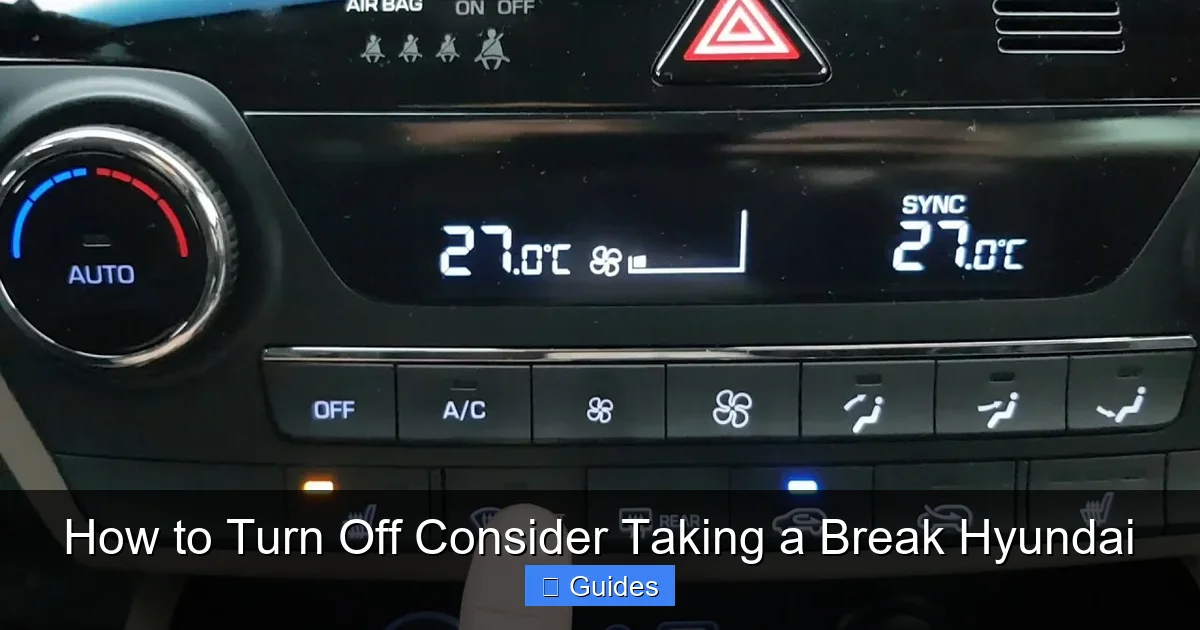
If your Hyundai doesn’t allow you to turn off the “Consider Taking a Break” alert, or if you only want to reduce how often it appears, there are still ways to manage it.
Adjust the Sensitivity Setting
Some models let you change the sensitivity of the DAW system. Instead of turning it off, you can set it to “Low” or “Normal” to reduce false alerts.
To do this, go back to the Driver Assistance menu and look for “Sensitivity” under the DAW settings. Choose a lower setting to make the system less reactive.
This won’t eliminate the alert, but it can make it less frequent—especially on highways or during steady driving.
Improve Your Driving Habits
Believe it or not, how you drive can influence when the alert appears. The system is designed to detect fatigue, but it interprets certain behaviors as signs of tiredness.
Try these tips to reduce unnecessary alerts:
– Make small steering corrections: Avoid holding the wheel perfectly still. Gentle, natural movements signal active driving.
– Use turn signals consistently: Signaling before lane changes helps the system understand your intentions.
– Maintain steady speed: Frequent acceleration and braking can be misinterpreted as inattention.
– Take actual breaks: If you’ve been driving for over two hours, pull over for 10–15 minutes. This resets the system and improves safety.
These habits won’t turn off the feature, but they can help you avoid triggering it unnecessarily.
Use Voice Commands (If Available)
Some newer Hyundai models with Blue Link or advanced voice recognition allow you to control settings using voice commands.
Try saying: “Turn off driver attention warning” or “Disable fatigue alert.” If your car supports it, the system may respond and guide you through the menu.
This isn’t available on all models, but it’s worth a try if you’re hands-free driving.
Why You Might Want to Keep It On
Visual guide about How to Turn Off Consider Taking a Break Hyundai
Image source: thecarhow.com
Before you go ahead and disable the feature for good, it’s worth considering the safety benefits. The “Consider Taking a Break” alert isn’t just a nag—it’s a proven tool for reducing accidents.
According to the National Highway Traffic Safety Administration (NHTSA), drowsy driving contributes to over 90,000 crashes each year in the U.S. alone. Many of these occur on long, monotonous highways where drivers lose focus without realizing it.
The DAW system acts as a second set of eyes, noticing subtle changes in your driving that you might miss. Even if you feel alert, fatigue can sneak up on you—especially during night drives or after long workdays.
When the Feature Is Most Useful
The alert is most valuable in these situations:
– Long road trips: After 2–3 hours of driving, your reaction time slows, even if you don’t feel tired.
– Night driving: Reduced light and circadian rhythms make fatigue more likely.
– Monotonous roads: Straight highways with little traffic can lull you into a trance-like state.
– After meals or medication: Certain foods or drugs can cause drowsiness without obvious symptoms.
In these cases, the “Consider Taking a Break” message could literally save your life.
Balancing Convenience and Safety
So what’s the solution? You don’t have to choose between annoyance and safety. Instead, consider a balanced approach:
– Keep it on for long drives: Enable the feature when you’re on the highway or driving at night.
– Turn it off for city driving: Disable it during short commutes or stop-and-go traffic where false alerts are common.
– Use it as a reminder, not a rule: Treat the alert as a suggestion, not a command. If you’re truly tired, pull over—even if the car doesn’t say so.
This way, you get the best of both worlds: safety when you need it, and peace of mind when you don’t.
Troubleshooting Common Issues
Even after following the steps, you might run into problems. Here are some common issues and how to fix them.
The Alert Keeps Coming Back
If you’ve turned off the feature but the alert still appears, it could be because:
– The setting didn’t save properly. Try turning the car off and on again.
– Your model doesn’t allow permanent disable. Check your owner’s manual.
– The system resets after a software update. Reapply your settings.
No Option to Turn It Off
Some older or base-model Hyundais don’t allow users to disable DAW. In these cases, your only options are:
– Dismiss the alert each time it appears.
– Adjust driving habits to reduce triggers.
– Consult a Hyundai dealer—they may be able to disable it via diagnostic tools (though this isn’t guaranteed).
The System Is Too Sensitive
If the alert appears too often, try:
– Lowering the sensitivity setting.
– Ensuring your lane departure warning cameras are clean and unobstructed.
– Avoiding overly smooth driving on highways—make small, natural steering inputs.
Final Thoughts: Should You Turn It Off?
So, should you turn off consider taking a break Hyundai? The answer depends on your driving habits, vehicle model, and personal preference.
If you’re a frequent long-distance driver, keeping the feature on is a smart safety move. But if you’re mostly driving short distances in the city, and the alert feels more like a distraction than a help, disabling it is perfectly reasonable.
The key is to stay informed and in control. Know how the system works, how to manage it, and when it’s actually useful. And remember: no technology replaces good judgment. If you’re feeling tired, pull over—regardless of what your car says.
With the steps in this guide, you now have the tools to customize your Hyundai’s safety features to fit your lifestyle. Drive safe, stay alert, and enjoy the ride.
Frequently Asked Questions
Can I permanently turn off the “Consider Taking a Break” alert in my Hyundai?
It depends on your model and year. Many newer Hyundai vehicles allow you to disable the Driver Attention Warning system through the infotainment menu, but some only let you silence it temporarily or adjust sensitivity.
Why does my Hyundai keep saying “Consider Taking a Break” even when I’m not tired?
The system monitors steering patterns and driving duration, not your actual fatigue level. If you’re driving smoothly on a straight road, it may still trigger the alert after 60–90 minutes of continuous driving.
Will turning off the alert affect my warranty or insurance?
No, disabling a driver assistance feature like DAW does not void your warranty or impact insurance coverage. However, it may reduce your vehicle’s safety rating in some evaluations.
How do I reset the Driver Attention Warning system?
Turn off your Hyundai, wait 15 seconds, and restart it. This resets the DAW system and clears any stored driving data from the previous trip.
Can a Hyundai dealer disable the “Consider Taking a Break” feature for me?
In some cases, yes. Dealers have access to diagnostic tools that may allow them to disable certain safety features, but this is not guaranteed and may vary by region and model.
Is the “Consider Taking a Break” feature available on all Hyundai models?
No, it’s typically found on models with advanced safety packages, such as the Tucson, Santa Fe, Palisade, and Elantra from 2020 onward. Older or base-trim models may not include it.

At CarLegit, we believe information should be clear, factual, and genuinely helpful. That’s why every guide, review, and update on our website is created with care, research, and a strong focus on user experience.