
Turning on the digital speedometer in your Infiniti QX50 is simple and enhances your driving experience with real-time speed data. This guide walks you through every step, from accessing the settings menu to customizing your display preferences for optimal visibility and convenience.
If you’re driving an Infiniti QX50, you’re already enjoying a blend of luxury, performance, and advanced technology. One of the standout features in this SUV is its customizable digital instrument cluster—especially the digital speedometer. Unlike traditional analog gauges, the digital speedometer offers a clean, modern display that shows your current speed in large, easy-to-read digits. Whether you’re cruising down the highway or navigating city traffic, having instant access to your speed in a clear format can improve safety and driving confidence.
But here’s the thing: not every driver knows how to activate or customize this feature. Maybe you’ve noticed the option in your dashboard but weren’t sure how to turn it on. Or perhaps you’ve been using the analog speedometer out of habit and want to switch to the digital version for a sleeker look. Whatever your reason, this guide is here to help. We’ll walk you through the entire process—step by step—so you can turn on the digital speedometer in your Infiniti QX50 with ease. No technical jargon, no confusing menus—just simple, practical instructions you can follow right from your driver’s seat.
By the end of this article, you’ll not only know how to enable the digital speedometer, but you’ll also understand how to personalize it to suit your driving style. We’ll cover everything from basic activation to advanced customization, troubleshooting tips, and even how to keep your system running smoothly. So buckle up, grab your keys, and let’s get started on unlocking one of the QX50’s most useful—and underused—features.
In This Article
- 1 Key Takeaways
- 2 📑 Table of Contents
- 3 Understanding the Infiniti QX50 Digital Instrument Cluster
- 4 Step-by-Step Guide to Turn On the Digital Speedometer
- 5 Customizing Your Digital Speedometer Display
- 6 Troubleshooting Common Issues
- 7 Tips for Maximizing Your Digital Speedometer Experience
- 8 Conclusion
- 9 Frequently Asked Questions
- 9.1 Can I switch back to the analog speedometer after enabling the digital one?
- 9.2 Does the digital speedometer work with cruise control?
- 9.3 Why isn’t the digital speedometer option showing up in my menu?
- 9.4 Can I customize the size of the digital speedometer numbers?
- 9.5 Will turning on the digital speedometer affect my fuel economy?
- 9.6 How do I reset the digital speedometer to factory settings?
Key Takeaways
- Access the Vehicle Information Display: Use the steering wheel controls to navigate to the digital speedometer option.
- Enable Digital Speedometer via Settings: Go to the “Display” or “Meter” menu and select “Digital Speedometer” to activate it.
- Customize Display Preferences: Adjust brightness, color themes, and layout for better visibility day or night.
- Understand Analog vs. Digital Modes: The QX50 allows switching between analog and digital speed displays depending on your preference.
- Use Steering Wheel Controls Efficiently: Master the INFO and arrow buttons to quickly toggle settings without distraction.
- Reset or Restore Default Settings: If issues arise, a simple reset can restore the original configuration.
- Stay Updated with Software: Ensure your infotainment system is up to date for full functionality and new features.
📑 Table of Contents
Understanding the Infiniti QX50 Digital Instrument Cluster
Before diving into the steps to turn on the digital speedometer, it’s helpful to understand what you’re working with. The Infiniti QX50 comes equipped with a high-resolution digital instrument cluster located directly behind the steering wheel. This cluster replaces the traditional mechanical gauges with a fully digital display that can show a variety of information, including speed, RPM, fuel level, navigation cues, and even driver assistance alerts.
The beauty of this system is its flexibility. Unlike older vehicles where the speedometer is fixed, the QX50 allows you to switch between different display modes. You can choose to view your speed in a classic analog format—complete with a sweeping needle—or opt for a modern digital readout that shows your speed in bold, numerical form. The digital speedometer is especially useful in low-light conditions or when you want a distraction-free view of your current speed.
One of the key advantages of the digital speedometer is its accuracy and readability. The numbers are large, crisp, and update in real time, giving you instant feedback without having to interpret a needle’s position. This can be particularly helpful when driving at highway speeds or in areas with strict speed limits. Plus, the digital display can be customized to match your preferences—whether you want a bright white readout or a softer amber glow for nighttime driving.
It’s also worth noting that the digital instrument cluster is part of Infiniti’s broader InTouch system, which integrates with the vehicle’s infotainment and safety features. This means that enabling the digital speedometer doesn’t just change how your speed is displayed—it can also enhance your overall driving experience by providing better integration with navigation, cruise control, and driver assistance systems.
Step-by-Step Guide to Turn On the Digital Speedometer
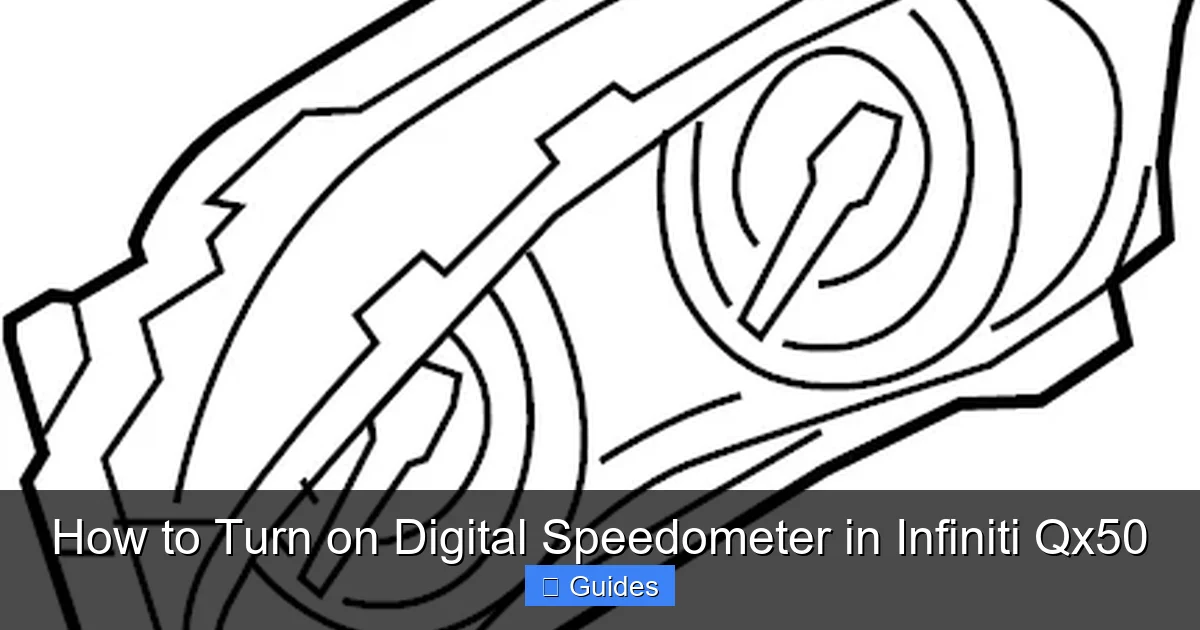
Visual guide about How to Turn on Digital Speedometer in Infiniti Qx50
Image source: images.simplepart.com
Now that you know what the digital speedometer is and why it’s beneficial, let’s get into the practical part: how to turn it on. The process is straightforward and can be completed in just a few minutes using the controls on your steering wheel. Here’s a detailed, step-by-step guide to help you activate the digital speedometer in your Infiniti QX50.
Step 1: Start Your Vehicle and Locate the Steering Wheel Controls
First, make sure your Infiniti QX50 is turned on. You don’t need to be driving—just ensure the ignition is in the “On” position so the instrument cluster is powered up. Once the dashboard lights up, look to your steering wheel. On the left side, you’ll find a set of buttons labeled with icons and text. These are your primary controls for navigating the vehicle information display.
The most important buttons for this process are the “INFO” button and the arrow keys (up, down, left, right). The INFO button is typically located near the top of the cluster and is used to access the main menu. The arrow keys allow you to scroll through options and make selections. Familiarize yourself with these buttons before proceeding—they’re your gateway to customizing your dashboard.
Step 2: Access the Vehicle Information Display Menu
Press the “INFO” button on the left side of your steering wheel. This will bring up the main menu on your instrument cluster. You’ll see several options, such as “Trip Computer,” “Fuel Economy,” “Maintenance,” and “Settings.” Use the arrow keys to navigate to the “Settings” option and press the center button (or the right arrow, depending on your model year) to enter the settings menu.
Once inside the settings menu, you’ll find a list of subcategories. Look for an option labeled “Display,” “Meter,” or “Instrument Cluster.” The exact wording may vary slightly depending on your QX50’s model year and software version, but the function is the same. Use the arrow keys to highlight this option and press the center button to select it.
Inside the Display or Meter menu, you’ll see several customization options. These may include “Brightness,” “Theme,” “Language,” and “Speedometer Type.” Use the arrow keys to scroll down until you find “Speedometer Type” or a similar option. This is the setting that controls whether your speed is displayed in analog or digital format.
When you highlight this option, you’ll likely see two choices: “Analog” and “Digital.” By default, many QX50 models come set to “Analog,” which displays the speed with a traditional needle and dial. To switch to the digital speedometer, use the arrow keys to select “Digital” and press the center button to confirm your choice.
Step 4: Confirm and Exit the Menu
After selecting “Digital,” the change should take effect immediately. You’ll notice that the speedometer display behind your steering wheel now shows your current speed in large, digital numbers instead of a sweeping needle. If you don’t see the change right away, try pressing the “Back” button or waiting a few seconds—sometimes the system needs a moment to update.
Once you’ve confirmed that the digital speedometer is active, use the “Back” button or the “INFO” button to exit the menu. You can now drive normally, enjoying the clarity and modern look of your new digital speed display.
Step 5: Test the Feature While Driving
To ensure everything is working correctly, take your QX50 for a short drive. As you accelerate and decelerate, watch the digital speedometer to confirm that the numbers update smoothly and accurately. You should also test it at different speeds—city driving, highway cruising, and stop-and-go traffic—to make sure the display remains clear and responsive.
If you notice any lag, flickering, or incorrect readings, don’t panic. These issues are rare but can usually be resolved with a simple reset or software update, which we’ll cover later in this guide.
Customizing Your Digital Speedometer Display
Visual guide about How to Turn on Digital Speedometer in Infiniti Qx50
Image source: digitaltrends.com
Now that your digital speedometer is active, you might want to personalize it further. The Infiniti QX50 offers several customization options that allow you to tailor the display to your preferences. Whether you want a brighter screen for daytime driving or a softer glow at night, these settings can enhance both comfort and functionality.
Adjusting Brightness and Contrast
One of the most common adjustments drivers make is changing the brightness of the instrument cluster. If the display is too bright at night, it can cause glare and eye strain. Conversely, if it’s too dim during the day, it may be hard to read.
To adjust the brightness, return to the “Display” or “Meter” menu using the steering wheel controls. Look for an option labeled “Brightness” or “Display Brightness.” Use the arrow keys to increase or decrease the level. Some models also offer an “Auto” mode that adjusts brightness based on ambient light conditions—this is a great option if you frequently drive at different times of day.
Changing the Color Theme
Another way to personalize your digital speedometer is by changing the color theme. The QX50 typically offers multiple color schemes, such as white, blue, amber, or red. These themes affect not only the speedometer but also other elements of the instrument cluster, like warning lights and navigation prompts.
To change the theme, navigate to the “Theme” or “Color” option within the Display menu. Scroll through the available options and select the one you prefer. For example, a white or blue theme might look sleek and modern, while an amber or red theme can reduce eye fatigue during nighttime driving.
Rearranging Display Layout
Some QX50 models allow you to rearrange the layout of the instrument cluster. This means you can choose which information appears where—such as placing the digital speedometer in the center or moving it to the side to make room for navigation or audio controls.
To customize the layout, look for an option like “Layout” or “Display Layout” in the settings menu. You may be able to drag and drop elements or select from preset configurations. This feature is especially useful if you frequently use features like adaptive cruise control or lane-keeping assist, as it allows you to prioritize the information that matters most to you.
Enabling Additional Information Overlays
Beyond just speed, the digital instrument cluster can display other useful data. For example, you can enable overlays for fuel economy, trip distance, tire pressure, or even real-time navigation directions. These overlays appear alongside the speedometer and can help you stay informed without taking your eyes off the road.
To enable these features, go to the “Information” or “Overlay” section in the settings menu. Toggle on the options you want to see, such as “Fuel Economy” or “Navigation Guidance.” Keep in mind that too many overlays can clutter the display, so it’s best to choose only the ones you actually use.
Troubleshooting Common Issues
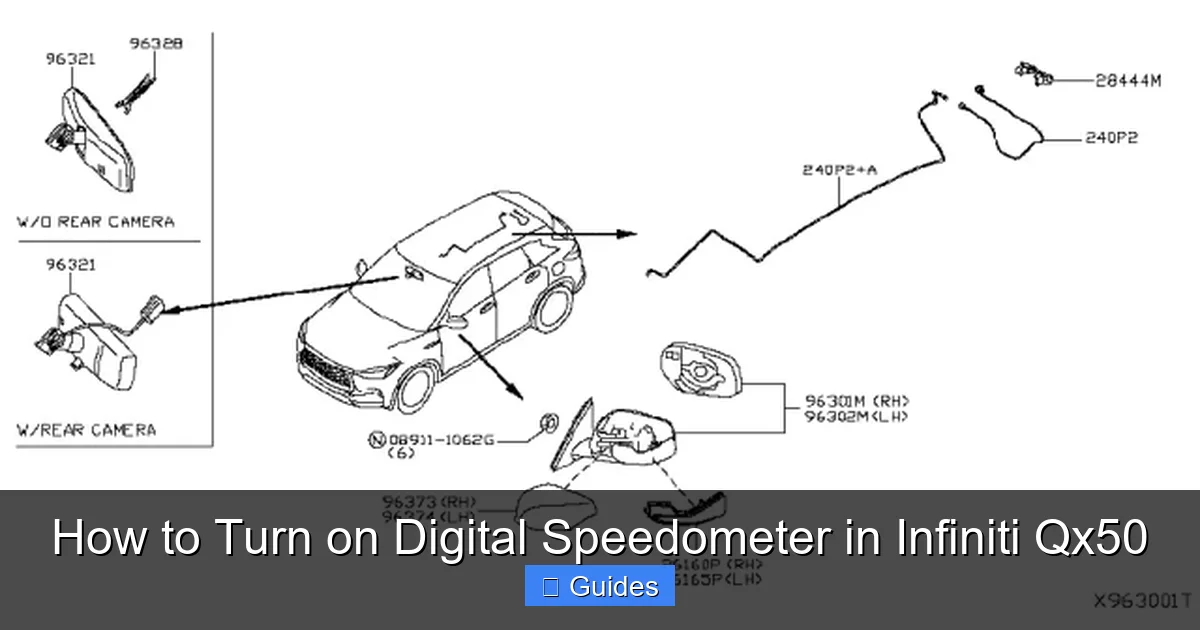
Visual guide about How to Turn on Digital Speedometer in Infiniti Qx50
Image source: infinitipartsdeal.com
Even with a well-designed system like the Infiniti QX50’s, occasional issues can arise. If you’re having trouble turning on the digital speedometer or if the display isn’t working as expected, don’t worry—most problems are easy to fix with a few simple steps.
Digital Speedometer Not Appearing
If you’ve followed the steps above but the digital speedometer still isn’t showing up, the first thing to check is whether the feature is actually available on your model. While most QX50 trims include the digital instrument cluster, some base models may only have a partial digital display or a hybrid analog-digital setup.
To confirm, consult your owner’s manual or visit the Infiniti website and enter your vehicle’s VIN to check the original specifications. If your model doesn’t support a full digital speedometer, you may need to consider an aftermarket upgrade or accept the analog display.
Display Flickering or Glitching
If the digital speedometer appears but flickers, freezes, or shows incorrect readings, it could be a software glitch. Try turning the vehicle off completely, waiting 30 seconds, and then restarting it. This simple reset often resolves temporary issues.
If the problem persists, check for available software updates. Infiniti periodically releases updates for the InTouch system that can fix bugs and improve performance. You can check for updates through the infotainment screen or by visiting an authorized Infiniti service center.
Settings Not Saving
Sometimes, changes you make to the display settings don’t save after you turn off the vehicle. This can be frustrating, especially if you’ve spent time customizing the layout and brightness.
To fix this, ensure that you’re pressing the center button or “OK” to confirm each change. Some settings require an extra confirmation step. Also, avoid making multiple changes in quick succession—give the system a moment to process each adjustment.
Steering Wheel Controls Not Responding
If the INFO or arrow buttons on your steering wheel aren’t working, it could be due to a loose connection or a software issue. Try pressing the buttons firmly and ensuring they’re not stuck. If that doesn’t work, check the vehicle’s fuse box for any blown fuses related to the steering wheel controls.
In rare cases, the issue may require professional diagnosis. If the buttons remain unresponsive, contact your local Infiniti dealer for assistance.
Tips for Maximizing Your Digital Speedometer Experience
Now that you’ve successfully turned on and customized your digital speedometer, here are a few tips to help you get the most out of this feature.
Use It for Safer Driving
The digital speedometer isn’t just about aesthetics—it can actually improve safety. By providing a clear, real-time readout of your speed, it reduces the need to glance at the analog gauge, which can be especially helpful in heavy traffic or on unfamiliar roads. Use this feature to maintain consistent speeds, especially in school zones or construction areas.
Combine with Cruise Control
If your QX50 is equipped with adaptive cruise control, the digital speedometer works seamlessly with this system. When cruise control is active, the display will show your set speed alongside your current speed, making it easy to monitor your progress. This is particularly useful on long highway drives.
Keep the System Updated
Infiniti regularly releases software updates that can improve the performance of your digital instrument cluster. Check for updates every few months, either through the infotainment system or by visiting a service center. Updated software can fix bugs, add new features, and enhance overall reliability.
Teach Family Members
If other people drive your QX50—such as a spouse or teen driver—take a few minutes to show them how to use the digital speedometer. This ensures everyone can benefit from the feature and reduces the risk of accidental setting changes.
Experiment with Themes
Don’t be afraid to try different color themes and layouts. You might discover a combination that you prefer for different driving conditions. For example, use a bright white theme during the day and switch to amber at night for better visibility.
Conclusion
Turning on the digital speedometer in your Infiniti QX50 is a simple yet powerful way to enhance your driving experience. With just a few button presses, you can switch from a traditional analog display to a modern, customizable digital readout that’s easier to read and more informative. Whether you’re looking to improve safety, reduce eye strain, or simply enjoy a sleeker dashboard, this feature is well worth activating.
Throughout this guide, we’ve covered everything you need to know—from accessing the settings menu to customizing brightness, color, and layout. We’ve also addressed common issues and provided practical tips to help you get the most out of your digital speedometer. Remember, the key to a great driving experience is not just performance and comfort, but also the small details that make everyday tasks easier and more enjoyable.
So the next time you get behind the wheel of your QX50, take a moment to explore the digital instrument cluster. You might be surprised by how much you enjoy the clarity and convenience of a digital speedometer. And if you ever run into trouble, just refer back to this guide—or reach out to your local Infiniti dealer for support.
With the right settings and a little know-how, your Infiniti QX50 can deliver not just luxury and power, but also a smarter, more intuitive driving experience. Happy driving!
Frequently Asked Questions
Can I switch back to the analog speedometer after enabling the digital one?
Yes, you can easily switch back to the analog speedometer at any time. Simply return to the “Speedometer Type” setting in the Display menu and select “Analog.” The change takes effect immediately.
Does the digital speedometer work with cruise control?
Absolutely. The digital speedometer displays both your current speed and your set cruise control speed, making it easy to monitor your driving without distractions.
Some base model QX50s may not include the full digital instrument cluster. Check your owner’s manual or vehicle specifications to confirm if your trim supports this feature.
Can I customize the size of the digital speedometer numbers?
The size of the digital speedometer is generally fixed, but you can adjust brightness and color to improve visibility. Some themes may make the numbers appear larger or more prominent.
Will turning on the digital speedometer affect my fuel economy?
No, the digital speedometer is purely a display feature and does not impact engine performance or fuel efficiency. It only changes how information is shown on the dashboard.
How do I reset the digital speedometer to factory settings?
To reset, go to the “Settings” menu, find “Reset” or “Restore Defaults,” and confirm. This will return all display settings—including the speedometer—to their original configuration.

At CarLegit, we believe information should be clear, factual, and genuinely helpful. That’s why every guide, review, and update on our website is created with care, research, and a strong focus on user experience.