
Turning on the heads up display (HUD) in your GMC Yukon is simple and enhances driving safety by projecting key info onto the windshield. This guide walks you through setup, customization, and troubleshooting for a seamless experience.
In This Article
- 1 Key Takeaways
- 2 📑 Table of Contents
- 3 What Is a Heads Up Display and Why It Matters in Your GMC Yukon
- 4 How to Check If Your GMC Yukon Has a Heads Up Display
- 5 Step-by-Step Guide: How to Turn On Heads Up Display GMC Yukon
- 6 Customizing Your Heads Up Display for Maximum Benefit
- 7 Troubleshooting Common Heads Up Display Issues
- 8 Tips for Getting the Most Out of Your GMC Yukon’s Heads Up Display
- 9 Conclusion: Drive Smarter with Your GMC Yukon’s Heads Up Display
- 10 Frequently Asked Questions
Key Takeaways
- Check Your Trim Level: Not all GMC Yukon models come with a heads up display. Ensure your Yukon Denali, AT4, or SLT trim includes this feature before attempting activation.
- Use the Steering Wheel Controls: Most HUD functions are controlled via buttons on the left side of the steering wheel, including brightness and positioning.
- Adjust Brightness and Position: Customize the HUD’s brightness and vertical position to match your line of sight for optimal visibility during day and night driving.
- Enable via Infotainment System: Access the HUD settings through the GMC Infotainment System under “Display” or “Vehicle” settings to turn it on or off.
- Calibrate After Repairs: If your windshield was replaced or the vehicle underwent major repairs, the HUD may need recalibration by a certified technician.
- Use in Conjunction with Driver Assistance: The HUD works best when paired with features like adaptive cruise control and lane departure warnings for a safer drive.
- Troubleshoot Common Issues: If the HUD won’t turn on, check fuses, ensure the feature is enabled in settings, and restart the vehicle.
📑 Table of Contents
- What Is a Heads Up Display and Why It Matters in Your GMC Yukon
- How to Check If Your GMC Yukon Has a Heads Up Display
- Step-by-Step Guide: How to Turn On Heads Up Display GMC Yukon
- Customizing Your Heads Up Display for Maximum Benefit
- Troubleshooting Common Heads Up Display Issues
- Tips for Getting the Most Out of Your GMC Yukon’s Heads Up Display
- Conclusion: Drive Smarter with Your GMC Yukon’s Heads Up Display
What Is a Heads Up Display and Why It Matters in Your GMC Yukon
Imagine driving down the highway, glancing at your speed, navigation directions, and incoming calls—all without taking your eyes off the road. That’s exactly what a heads up display (HUD) does. In the GMC Yukon, this advanced technology projects essential driving information directly onto the windshield, right in your line of sight. It’s like having a futuristic co-pilot that keeps you informed and focused.
The heads up display in the GMC Yukon isn’t just a flashy tech feature—it’s a safety tool. By minimizing the need to look down at the dashboard or center console, it reduces distraction and helps you maintain better control of the vehicle. Whether you’re navigating city streets or cruising on the interstate, the HUD ensures you stay aware of critical data like speed, turn-by-turn directions, and even alerts from driver assistance systems.
But here’s the thing: not every GMC Yukon comes equipped with a heads up display. It’s typically available on higher trims like the Denali, AT4, and SLT, especially when paired with optional technology packages. If you’ve got one of these models, you’re in luck—activating and using the HUD can significantly improve your driving experience. And the best part? Turning it on is easier than you might think.
How to Check If Your GMC Yukon Has a Heads Up Display
Visual guide about How to Turn on Heads Up Display Gmc Yukon
Image source: i.pinimg.com
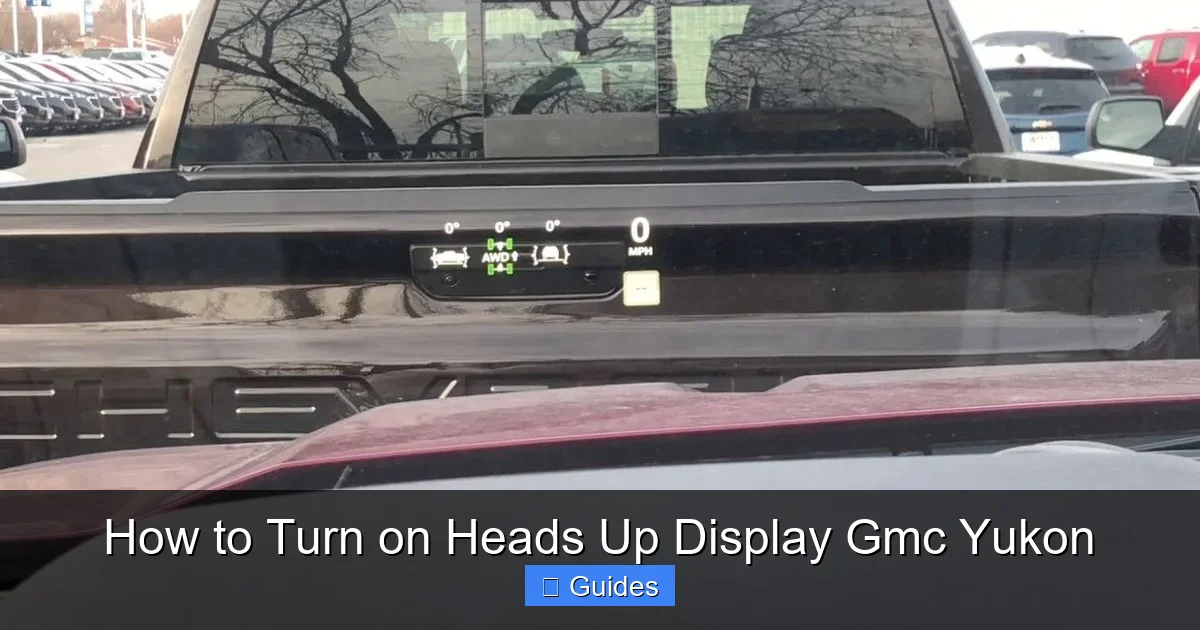
Before you start fiddling with buttons and menus, it’s important to confirm whether your GMC Yukon actually has a heads up display. This feature isn’t standard on all trims, so assuming it’s there could lead to confusion and frustration. Let’s walk through how to verify if your Yukon is HUD-ready.
First, check your vehicle’s trim level. The heads up display is most commonly found on the Denali and Denali Ultimate trims, which are the top-tier models in the Yukon lineup. The AT4 and SLT trims may also include it, but usually only when you’ve added the optional Technology Package or Premium Package. If you’re unsure, you can look up your vehicle’s build sheet using your VIN on the GMC website or consult your owner’s manual.
Another way to confirm is by inspecting the windshield. Vehicles equipped with a HUD have a special reflective coating on the inside of the glass that allows the projection to appear clearly. You might also notice a small projector unit mounted near the base of the windshield, typically behind the dashboard on the driver’s side. If you see this component, there’s a good chance your Yukon has HUD capability.
You can also test it out. Start your vehicle and look closely at the windshield while the engine is running. If the HUD is active, you should see a faint glow or projection, especially in low-light conditions. If nothing appears, don’t panic—it might just be turned off or disabled in the settings. We’ll cover how to turn it on in the next section.
Step-by-Step Guide: How to Turn On Heads Up Display GMC Yukon
Visual guide about How to Turn on Heads Up Display Gmc Yukon
Image source: player1.mx
Now that you’ve confirmed your GMC Yukon has a heads up display, it’s time to turn it on. The process is straightforward and can be completed in just a few minutes. Whether you’re a tech-savvy driver or someone who prefers simple instructions, this step-by-step guide will have your HUD up and running in no time.
Using the Steering Wheel Controls
The most common way to activate the heads up display is through the steering wheel controls. On the left side of the steering wheel, you’ll find a cluster of buttons labeled with icons for audio, cruise control, and vehicle settings. Look for a button with a small windshield icon or one labeled “HUD” or “Display.” Pressing this button will toggle the HUD on or off.
Once activated, you should see information like your current speed, navigation cues, and audio details projected onto the windshield. If the display appears too dim or too bright, use the same button or adjacent controls to adjust the brightness. Some models allow you to cycle through different brightness levels with repeated presses.
Accessing HUD Settings via the Infotainment System
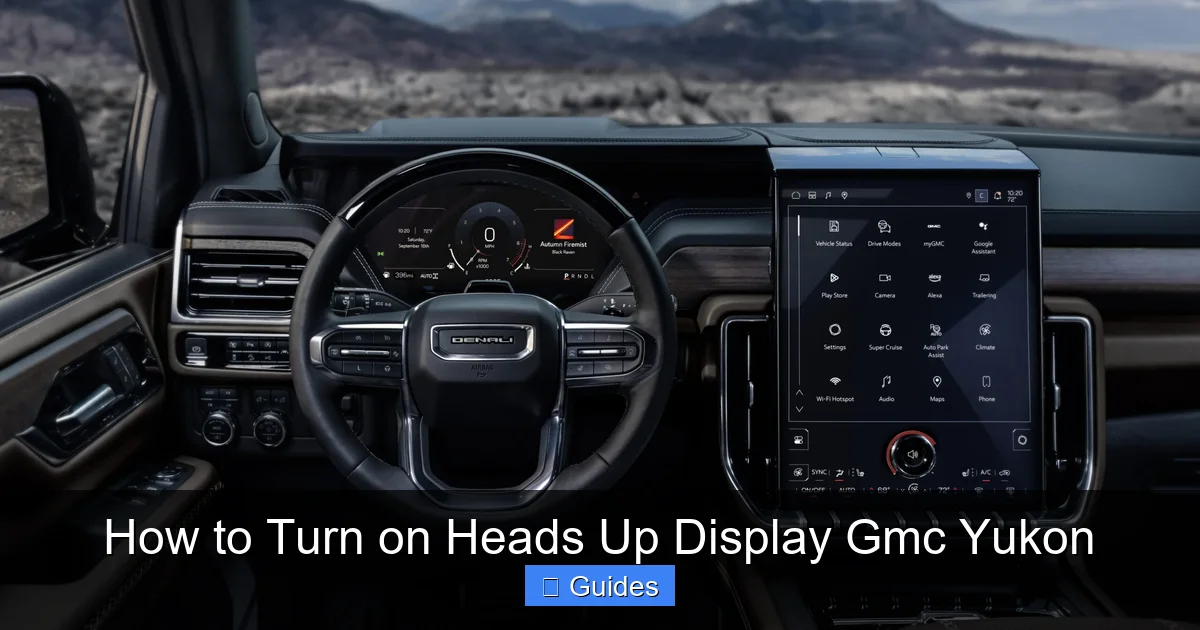
If the steering wheel button doesn’t work or you want more control over the display, you can enable the HUD through the GMC Infotainment System. Start by turning on your vehicle and waiting for the touchscreen to fully load. From the home screen, tap on the “Settings” icon—usually represented by a gear or wrench symbol.
Navigate to the “Vehicle” or “Display” section, depending on your Yukon’s software version. Look for an option labeled “Heads Up Display” or “HUD.” Tap on it to open the settings menu. Here, you’ll find a toggle switch to turn the HUD on or off. Make sure it’s switched to the “On” position.
Within this menu, you can also customize what information appears on the HUD. Options typically include speed, navigation, audio, phone calls, and driver assistance alerts. You can choose to show all, some, or none of these, depending on your preference. This flexibility allows you to tailor the display to your driving style and needs.
Adjusting Brightness and Position
Once the HUD is on, you’ll want to make sure it’s positioned correctly and at the right brightness level. The goal is to have the information appear clearly in your line of sight without obstructing your view of the road. Most GMC Yukons allow you to adjust both the vertical position and brightness of the display.
To adjust the position, use the steering wheel controls or the infotainment menu. Look for options like “HUD Position” or “Display Height.” Use the up and down arrows or sliders to move the projection higher or lower on the windshield. Ideally, it should sit just below your natural line of sight—low enough to see without looking down, but high enough to avoid blocking traffic.
Brightness adjustment is equally important. During the day, you may want the HUD to be brighter so it’s visible in sunlight. At night, a dimmer setting prevents glare and eye strain. Many Yukons have an automatic brightness feature that adjusts based on ambient light, but you can also set it manually. Use the brightness controls in the HUD settings menu to find the perfect level for your driving conditions.
Customizing Your Heads Up Display for Maximum Benefit
Visual guide about How to Turn on Heads Up Display Gmc Yukon
Image source: gmauthority.com
Turning on the heads up display is just the beginning. To get the most out of this feature, you’ll want to customize it to match your driving habits and preferences. The GMC Yukon offers a range of customization options that let you control what information appears, how it’s displayed, and when it activates.
Choosing What Information to Display
One of the biggest advantages of the HUD is that it can show multiple types of data simultaneously. But showing too much at once can be distracting. That’s why it’s important to choose only the information you really need. For example, if you frequently use navigation, you might want to prioritize turn-by-turn directions and upcoming street names. If you’re more concerned about speed, you can set the HUD to highlight your current speed and speed limit warnings.
In the HUD settings menu, you’ll find toggles for each type of information. Common options include:
– Current speed
– Speed limit (if available via GPS or camera)
– Navigation instructions
– Audio source and track info
– Incoming phone calls
– Driver assistance alerts (like lane departure or forward collision warnings)
You can enable or disable each of these individually. For instance, you might turn off audio info if you prefer to glance at the center screen for music details, but keep navigation and speed on for safety.
Setting Up Alerts and Warnings
The HUD becomes even more powerful when paired with GMC’s driver assistance technologies. Features like Lane Keep Assist, Forward Collision Alert, and Adaptive Cruise Control can send visual and audio warnings through the HUD. When these systems detect a potential hazard, a warning symbol or message will flash on the windshield, grabbing your attention without requiring you to look away from the road.
To ensure these alerts appear on the HUD, make sure the corresponding driver assistance features are enabled in the vehicle settings. You can usually find these under “Safety” or “Driver Assistance” in the infotainment menu. Once activated, the HUD will automatically display relevant warnings when triggered.
For example, if you drift out of your lane without signaling, the HUD might show a yellow or red lane icon with a warning message. Similarly, if a vehicle suddenly brakes ahead, a forward collision alert might appear as a red car icon with a flashing border. These visual cues work alongside audible alerts to keep you informed and responsive.
If you use Apple CarPlay or Android Auto, the HUD can display navigation prompts directly from your smartphone. When you start a route in Google Maps, Waze, or Apple Maps, the turn-by-turn directions will appear on the windshield. This is especially helpful in unfamiliar areas or during heavy traffic, where you need quick, clear guidance.
Incoming phone calls can also be managed through the HUD. When someone calls, the caller’s name or number will appear on the display, and you can accept or decline the call using the steering wheel buttons. This keeps your hands on the wheel and your eyes on the road, reducing distraction.
To get the most out of these features, make sure your phone is properly connected via Bluetooth or USB. Also, ensure that the relevant apps are allowed to send notifications to the vehicle. You can manage these permissions in the phone settings or within the GMC Infotainment System.
Troubleshooting Common Heads Up Display Issues
Even the most reliable technology can sometimes act up. If your heads up display isn’t working as expected, don’t panic. Most issues are easy to fix with a few simple steps. Here’s how to troubleshoot the most common problems with the HUD in your GMC Yukon.
HUD Won’t Turn On
If pressing the HUD button or enabling it in the settings doesn’t activate the display, start by checking the basics. First, make sure the vehicle is in “Run” mode—some systems won’t activate the HUD when the engine is off or in accessory mode. Also, verify that the feature is enabled in the infotainment menu. It’s possible it was accidentally turned off.
Next, check the fuses. The HUD is powered by a specific fuse in the vehicle’s electrical system. If this fuse is blown, the display won’t work. Consult your owner’s manual to locate the correct fuse box and check the HUD-related fuse. If it’s damaged, replace it with one of the same rating.
If the fuse is fine and the settings are correct, try restarting the vehicle. Turn the ignition off, wait 30 seconds, and then restart. This can reset the infotainment system and restore HUD functionality.
Display Is Too Dim or Too Bright
If the HUD is on but hard to see, the brightness or position may need adjustment. Use the steering wheel controls or infotainment menu to increase or decrease brightness. If the automatic brightness feature isn’t working, switch to manual mode and set it to a comfortable level.
Also, check the windshield for dirt, smudges, or glare. Even a small smudge can distort the projection. Clean the inside of the windshield with a microfiber cloth and glass cleaner to improve clarity.
Projection Is Misaligned or Blurry
If the HUD image appears crooked, too high, or too low, use the position adjustment controls to realign it. Most Yukons allow you to move the display up or down in small increments. Adjust it until the information sits comfortably in your line of sight.
If the image is blurry, it could be due to a dirty projector lens or a calibration issue. Avoid touching the projector unit yourself—improper handling can damage it. If cleaning the windshield doesn’t help, visit a GMC dealership for professional calibration.
If the HUD shows speed but not navigation or driver alerts, check the content settings. Make sure the relevant options are enabled in the HUD menu. Also, ensure that your navigation app is running and sending data to the vehicle. For driver assistance alerts, confirm that the corresponding systems are active.
If the problem persists, try disconnecting and reconnecting your phone or restarting the infotainment system. Sometimes a simple reset resolves connectivity issues.
Tips for Getting the Most Out of Your GMC Yukon’s Heads Up Display
Now that your HUD is up and running, here are some practical tips to help you use it effectively and safely. These suggestions will help you integrate the feature into your daily driving routine and get the most value from this advanced technology.
Use It in All Driving Conditions
Don’t save the HUD for highway driving—use it in the city, on country roads, and during night drives. The more you use it, the more natural it will feel. Over time, you’ll learn to glance at the projection without breaking your focus on the road.
Combine with Voice Commands
Pair the HUD with GMC’s voice recognition system. Say “Hey GMC” or press the voice command button on the steering wheel to ask for directions, make calls, or change music. The results will appear on the HUD, keeping your hands and eyes where they belong.
Regularly Update Your Vehicle Software
GMC periodically releases software updates that improve HUD performance and add new features. Check for updates through the infotainment system or visit a dealership to ensure your Yukon is running the latest version.
Keep the Windshield Clean
A clean windshield is essential for a clear HUD projection. Make it a habit to clean the inside of the glass regularly, especially before long trips. Avoid using ammonia-based cleaners, as they can damage the reflective coating.
Teach Passengers About the HUD
If you frequently drive with passengers, let them know what the HUD is and how it works. This prevents confusion and ensures everyone understands that the projection is a safety feature, not a distraction.
Conclusion: Drive Smarter with Your GMC Yukon’s Heads Up Display
The heads up display in your GMC Yukon is more than just a cool gadget—it’s a powerful tool that enhances safety, convenience, and overall driving experience. By projecting essential information directly onto your windshield, it helps you stay informed without taking your eyes off the road. Whether you’re checking your speed, following navigation, or receiving a warning from a driver assistance system, the HUD keeps you connected and in control.
Turning on the heads up display is simple, whether you use the steering wheel controls or the infotainment menu. Once activated, take the time to customize it to your preferences—adjust the brightness, position, and content to create a display that works best for you. And if you run into any issues, most problems can be resolved with basic troubleshooting steps.
As automotive technology continues to evolve, features like the HUD are becoming standard in modern vehicles. By learning how to use it effectively, you’re not just keeping up with the times—you’re driving smarter, safer, and more confidently. So the next time you get behind the wheel of your GMC Yukon, take a moment to turn on the heads up display and experience the future of driving, today.
Frequently Asked Questions
How do I know if my GMC Yukon has a heads up display?
Check your trim level—Denali, AT4, and SLT models often include it, especially with optional packages. Look for a projector near the windshield or check your owner’s manual for confirmation.
Can I turn on the heads up display manually?
Yes, you can turn it on using the steering wheel button or through the infotainment system under “Vehicle” or “Display” settings.
Make sure navigation is enabled in the HUD settings and that your phone or GPS is actively sending directions. Also, check that your app permissions allow data sharing.
Can I adjust the brightness of the heads up display?
Yes, use the steering wheel controls or the infotainment menu to adjust brightness. Some models also have an automatic brightness feature based on ambient light.
What should I do if the HUD image is blurry?
Clean the inside of the windshield and check the projector lens. If the issue persists, visit a GMC dealership for professional calibration.
Does the HUD work at night?
Yes, the HUD works at night and can be adjusted to a lower brightness setting to avoid glare and eye strain.

At CarLegit, we believe information should be clear, factual, and genuinely helpful. That’s why every guide, review, and update on our website is created with care, research, and a strong focus on user experience.