
Turning on the radio in your Tesla Model Y is simple once you know where to look. This guide walks you through every method—from traditional FM/AM to SiriusXM and streaming services—so you can enjoy your favorite tunes on every drive.
In This Article
- 1 Key Takeaways
- 2 📑 Table of Contents
- 3 Introduction: The Tesla Model Y Audio Experience
- 4 Understanding the Tesla Model Y Media Interface
- 5 How to Turn On FM and AM Radio
- 6 Using SiriusXM Satellite Radio (If Subscribed)
- 7 Streaming Radio and Music Apps
- 8 Using Voice Commands to Control the Radio
- 9 Customizing Your Audio Settings
- 10 Conclusion: Enjoy Every Mile with Great Sound
- 11 Frequently Asked Questions
- 11.1 How do I turn on the radio in a Tesla Model Y?
- 11.2 Can I use voice commands to play the radio?
- 11.3 Does the Tesla Model Y have AM radio?
- 11.4 How do I save a radio station as a preset?
- 11.5 Can I listen to streaming apps like Spotify in my Model Y?
- 11.6 Why is my radio signal weak in certain areas?
Key Takeaways
- Access the radio via the main touchscreen: The radio interface is built into the central display, not a physical dial or button.
- Use the Media tab to switch sources: Tap the Media icon to toggle between FM, AM, SiriusXM, and streaming apps.
- Presets save your favorite stations: Long-press any station to save it as a preset for quick access later.
- Streaming apps offer more variety: Spotify, Apple Music, and TuneIn Radio provide endless music, talk shows, and podcasts.
- Voice commands simplify control: Say “Play [station name]” or “Tune to 98.5 FM” to activate the radio hands-free.
- Ensure connectivity for streaming: A strong Wi-Fi or cellular connection is needed for online radio and app-based audio.
- Customize audio settings: Adjust bass, treble, balance, and fade from the Audio Settings menu for the best sound.
📑 Table of Contents
- Introduction: The Tesla Model Y Audio Experience
- Understanding the Tesla Model Y Media Interface
- How to Turn On FM and AM Radio
- Using SiriusXM Satellite Radio (If Subscribed)
- Streaming Radio and Music Apps
- Using Voice Commands to Control the Radio
- Customizing Your Audio Settings
- Conclusion: Enjoy Every Mile with Great Sound
Introduction: The Tesla Model Y Audio Experience
Driving a Tesla Model Y isn’t just about silent acceleration and futuristic design—it’s also about enjoying a premium audio experience. Whether you’re commuting to work, taking a weekend road trip, or just running errands around town, having access to your favorite music, news, or talk shows makes every journey more enjoyable. But unlike traditional cars with physical radio knobs and buttons, the Tesla Model Y relies entirely on its large, responsive touchscreen to control all media functions—including the radio.
At first glance, new Tesla owners might be surprised (or even a little confused) by the lack of a traditional radio dial. Where do you turn it on? How do you change stations? The good news is that once you get familiar with the interface, using the radio in your Model Y becomes second nature—and often more convenient than older systems. With support for FM, AM, SiriusXM, and a wide range of streaming services, the Model Y offers more audio options than most conventional vehicles.
In this comprehensive guide, we’ll walk you through every step of turning on and using the radio in your Tesla Model Y. Whether you’re a first-time Tesla owner or just need a refresher, you’ll learn how to access different radio sources, save your favorite stations, use voice commands, and even customize your audio settings for the best listening experience. Let’s dive in.
Understanding the Tesla Model Y Media Interface
Visual guide about How to Turn on Radio in Tesla Model Y
Image source: images.autodaily.com.au
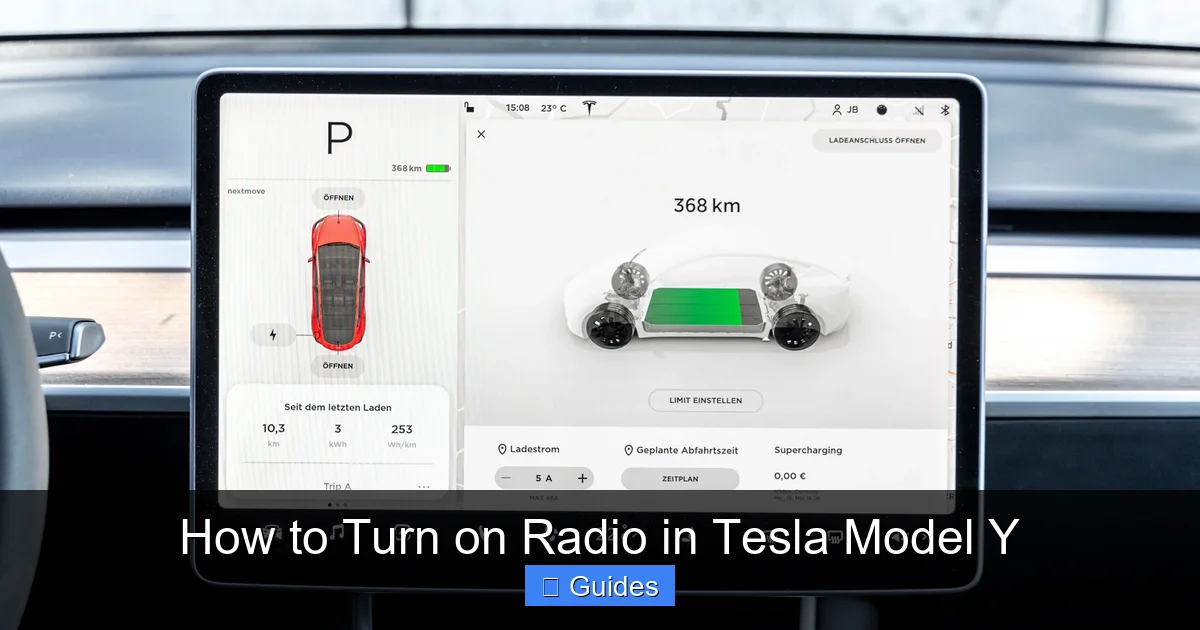
Before you can turn on the radio, it’s important to understand how the Tesla Model Y’s media system works. Unlike older cars with separate buttons for radio, CD, and auxiliary inputs, the Model Y consolidates all audio controls into one sleek, intuitive touchscreen interface. This central hub—located right in the middle of your dashboard—is your gateway to music, podcasts, audiobooks, and live radio.
When you start your Model Y, the main screen automatically displays the navigation map by default. To access the radio or any other media source, you’ll need to tap the Media icon, which looks like a musical note and is usually located at the bottom of the screen. Tapping this icon opens the Media menu, where you can choose from a variety of audio sources.
The Media menu typically shows icons for:
– FM Radio
– AM Radio
– SiriusXM (if subscribed)
– Streaming apps (Spotify, Apple Music, TuneIn, etc.)
– Bluetooth audio
– USB or phone audio
Each of these options can be selected with a single tap, and the interface updates instantly to show relevant controls like station tuning, play/pause, and volume.
No Physical Buttons? No Problem
One of the most common questions from new Tesla owners is: “Where’s the radio button?” The answer is simple—there isn’t one. Tesla has eliminated physical controls in favor of a fully digital interface. This design choice reduces clutter and allows for greater flexibility, but it does require a slight adjustment in how you interact with your car’s audio system.
Instead of twisting a knob or pressing a button, you’ll use touch gestures on the screen. For example, to change the radio station, you’ll swipe left or right on the station tuner or tap the “+” and “–” buttons. Volume is controlled either by the scroll wheel on the steering wheel or by tapping the volume slider on the screen.
While this might feel unfamiliar at first, most users find that the touchscreen is faster and more responsive than traditional controls—especially when combined with voice commands.
Customizing the Media Bar
Another helpful feature is the customizable media bar that appears at the bottom of the screen when you’re playing audio. This bar shows the current song or station, playback controls (play, pause, skip), and a quick-access button to return to the full Media menu. You can also swipe left or right on this bar to switch between recently used audio sources—making it easy to jump from Spotify back to FM radio without navigating through menus.
Over time, the system learns your preferences and may prioritize your most-used apps in the media bar. For example, if you listen to Spotify every morning, it might appear first when you tap the Media icon.
How to Turn On FM and AM Radio
Visual guide about How to Turn on Radio in Tesla Model Y
Image source: koala.sh
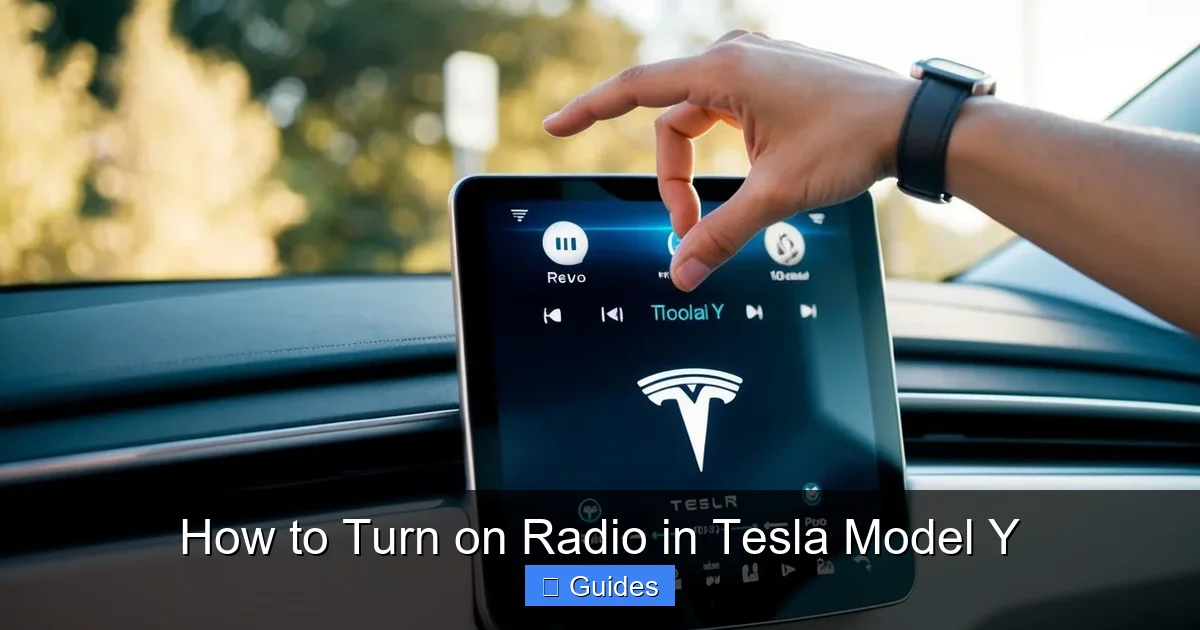
Now that you understand the interface, let’s get to the main event: turning on the radio. The process is straightforward, but it helps to know exactly where to look.
Step-by-Step: Turning On FM Radio
1. Start your Tesla Model Y and ensure the screen is active.
2. Tap the Media icon (musical note) at the bottom of the screen.
3. Select “FM” from the list of audio sources.
4. The screen will now display the FM tuner, showing the current frequency (e.g., 98.5 MHz).
5. Use the “+” and “–” buttons or swipe left/right on the tuner to find a station.
6. Once you find a station you like, tap the star icon to save it as a preset (we’ll cover presets in detail later).
That’s it! You’re now listening to FM radio. The audio will play through your car’s premium sound system, which includes multiple speakers strategically placed for optimal sound quality.
Step-by-Step: Turning On AM Radio
The process for AM radio is nearly identical:
1. Tap the Media icon.
2. Select “AM” from the audio sources.
3. Use the tuner to find a station (AM stations are typically news, talk, or sports channels).
4. Save your favorite AM stations as presets for quick access.
Keep in mind that AM radio may have weaker signal quality in certain areas, especially in urban environments with tall buildings or during nighttime hours when atmospheric interference increases. If you’re having trouble picking up AM stations, try driving to a more open area or switching to FM or streaming.
Tips for Better Radio Reception
– Check your location: Radio signals can vary greatly depending on where you are. Rural areas often have stronger FM signals, while AM may work better at night.
– Avoid interference: Electronic devices, power lines, and even weather can affect radio reception. If the signal cuts out, try moving to a different location.
– Use presets wisely: Save stations from different regions if you travel frequently. This way, you can quickly switch to a strong local signal when needed.
Using SiriusXM Satellite Radio (If Subscribed)
Visual guide about How to Turn on Radio in Tesla Model Y
Image source: cdn.shopify.com
If you’ve subscribed to SiriusXM, your Tesla Model Y offers access to hundreds of commercial-free music channels, live sports, news, and talk shows. SiriusXM is especially useful for long road trips where local radio stations may fade in and out.
How to Access SiriusXM
1. Tap the Media icon.
2. Select “SiriusXM” from the list.
3. If it’s your first time using it, you may need to activate your subscription via the Tesla app or SiriusXM website.
4. Once activated, browse channels by category (Music, Sports, News, Comedy, etc.) or use the search function.
5. Tap any channel to start listening.
Benefits of SiriusXM in the Model Y
– Nationwide coverage: Unlike FM/AM, SiriusXM works almost anywhere in the U.S., even in remote areas.
– No ads (on most music channels): Enjoy uninterrupted music, sports, and entertainment.
– Exclusive content: Access shows and events not available on traditional radio.
Managing Your SiriusXM Subscription
You can manage your SiriusXM subscription directly through the Tesla app or by visiting the SiriusXM website. If you’re not yet subscribed, Tesla often offers trial periods for new owners—check your account for any available promotions.
Streaming Radio and Music Apps
While traditional radio is great, many Tesla Model Y owners prefer streaming services for their vast libraries and personalized playlists. The good news? Your Model Y supports a wide range of popular apps.
Popular Streaming Apps Available
– Spotify: One of the most widely used music platforms. Connect your account and access millions of songs, playlists, and podcasts.
– Apple Music: Ideal for iPhone users. Offers high-quality audio and seamless integration with Apple devices.
– TuneIn Radio: A fantastic alternative to traditional radio, offering live stations from around the world, plus podcasts and talk shows.
– YouTube Music: Great for music videos and personalized recommendations.
– Pandora: Known for its radio-style stations based on your favorite artists.
How to Set Up Streaming Apps
1. Tap the Media icon.
2. Select the app you want to use (e.g., Spotify).
3. If it’s your first time, you’ll be prompted to log in with your account credentials.
4. Once logged in, browse music, search for stations, or play your saved playlists.
Tips for Better Streaming Experience
– Use Wi-Fi when possible: Streaming uses data, so connect to Wi-Fi at home or work to avoid using your cellular plan.
– Download playlists offline: Some apps (like Spotify Premium) allow you to download music for offline listening—perfect for areas with poor signal.
– Use voice commands: Say “Play my Discover Weekly playlist” or “Play jazz on TuneIn” to control your music hands-free.
Using Voice Commands to Control the Radio
One of the coolest features of the Tesla Model Y is its voice command system. Instead of fumbling with the touchscreen while driving, you can simply speak to control your radio.
How to Activate Voice Commands
Press and hold the right scroll wheel on the steering wheel, or say “Hey Tesla” (if enabled). Then say your command.
Common Radio Voice Commands
– “Play 98.5 FM”
– “Tune to AM 880”
– “Play SiriusXM Hits 1”
– “Play my Spotify playlist”
– “Play news on TuneIn”
– “Turn up the volume”
Voice commands are fast, safe, and incredibly convenient—especially when you’re on the highway or in heavy traffic.
Customizing Your Audio Settings
To get the best sound from your Model Y’s radio and streaming apps, take a moment to customize your audio settings.
Accessing Audio Settings
1. Tap the Controls icon (looks like a gear) on the main screen.
2. Select “Audio”.
3. Here, you can adjust:
– Bass, Treble, Balance, and Fade
– Surround Sound (if equipped)
– Volume Limit (to protect your hearing)
Recommended Settings for Radio
– Bass: Slightly increased for richer sound on talk radio or music.
– Treble: Moderate boost for clearer vocals and instruments.
– Balance: Centered for even sound distribution.
– Fade: Slightly forward if you’re the primary listener.
Experiment with these settings to match your personal preferences and the type of content you’re listening to.
Conclusion: Enjoy Every Mile with Great Sound
Turning on the radio in your Tesla Model Y might seem tricky at first, but once you get the hang of it, you’ll appreciate the simplicity and power of the touchscreen interface. Whether you’re tuning into your favorite FM station, catching up on news via AM, enjoying commercial-free music on SiriusXM, or streaming your personalized playlists, the Model Y offers a rich and flexible audio experience.
Remember, the key is to explore the Media menu, use presets to save your go-to stations, and take advantage of voice commands for a safer, more convenient drive. And don’t forget to customize your audio settings to get the best sound quality.
With these tips, you’re all set to enjoy every mile with great music, news, and entertainment. Happy driving—and happy listening!
Frequently Asked Questions
How do I turn on the radio in a Tesla Model Y?
Tap the Media icon on the touchscreen, then select FM, AM, or SiriusXM. Use the tuner to find a station and tap the star to save it as a preset.
Can I use voice commands to play the radio?
Yes! Press the right scroll wheel and say commands like “Play 98.5 FM” or “Tune to SiriusXM Hits 1” to control the radio hands-free.
Does the Tesla Model Y have AM radio?
Yes, the Model Y supports both AM and FM radio. Access them through the Media menu on the touchscreen.
How do I save a radio station as a preset?
While listening to a station, tap the star icon next to the frequency. It will be saved for quick access later.
Can I listen to streaming apps like Spotify in my Model Y?
Absolutely. The Model Y supports Spotify, Apple Music, TuneIn, and more. Log in through the Media menu to start streaming.
Why is my radio signal weak in certain areas?
Radio signals can be affected by location, buildings, and weather. Try switching to SiriusXM or streaming for more reliable audio in low-signal areas.

At CarLegit, we believe information should be clear, factual, and genuinely helpful. That’s why every guide, review, and update on our website is created with care, research, and a strong focus on user experience.