
Using Apple CarPlay on your Nissan Rogue is easier than you think. This guide walks you through setup, features, and troubleshooting to help you enjoy hands-free calls, music, navigation, and more—safely and efficiently.
In This Article
- 1 Key Takeaways
- 2 📑 Table of Contents
- 3 Introduction to Apple CarPlay and the Nissan Rogue
- 4 Is Your Nissan Rogue Compatible with Apple CarPlay?
- 5 How to Set Up Apple CarPlay on Your Nissan Rogue
- 6 Using Apple CarPlay Features in Your Nissan Rogue
- 7 Tips for the Best Apple CarPlay Experience
- 8 Troubleshooting Common Apple CarPlay Issues
- 9 Conclusion: Enjoy a Smarter, Safer Drive with Apple CarPlay
- 10 Frequently Asked Questions
- 10.1 Does the Nissan Rogue support wireless Apple CarPlay?
- 10.2 Can I use Google Maps with Apple CarPlay in my Rogue?
- 10.3 Why won’t my iPhone connect to CarPlay in my Nissan Rogue?
- 10.4 Can I use CarPlay while charging my iPhone wirelessly?
- 10.5 How do I update the infotainment system in my Nissan Rogue?
- 10.6 Is Apple CarPlay free to use in the Nissan Rogue?
Key Takeaways
- Check Compatibility: Apple CarPlay is available on most 2018 and newer Nissan Rogue models with compatible infotainment systems.
- Wired or Wireless? Most Nissan Rogue models support wired CarPlay via USB; wireless CarPlay is limited to select trims or requires aftermarket upgrades.
- Simple Setup Process: Connect your iPhone via USB, follow on-screen prompts, and enable Siri for full functionality.
- Use Siri for Safety: Voice commands let you send texts, make calls, and get directions without taking your eyes off the road.
- Keep Software Updated: Regularly update your iPhone and Nissan’s infotainment system to avoid glitches and access new features.
- Troubleshoot Common Issues: If CarPlay isn’t working, check cables, restart devices, or reset the head unit.
- Explore CarPlay Apps: Use Apple Maps, Spotify, WhatsApp, and more directly from your Rogue’s touchscreen.
📑 Table of Contents
- Introduction to Apple CarPlay and the Nissan Rogue
- Is Your Nissan Rogue Compatible with Apple CarPlay?
- How to Set Up Apple CarPlay on Your Nissan Rogue
- Using Apple CarPlay Features in Your Nissan Rogue
- Tips for the Best Apple CarPlay Experience
- Troubleshooting Common Apple CarPlay Issues
- Conclusion: Enjoy a Smarter, Safer Drive with Apple CarPlay
Introduction to Apple CarPlay and the Nissan Rogue
Driving should be about the journey—not fumbling with your phone while behind the wheel. That’s where Apple CarPlay comes in. It’s Apple’s smart solution for bringing your iPhone’s most useful features safely into your car. And if you’re driving a Nissan Rogue, you’re in luck: many recent models come equipped with Apple CarPlay support, making it easier than ever to stay connected without compromising safety.
The Nissan Rogue is one of the most popular compact SUVs on the road, praised for its comfort, fuel efficiency, and advanced tech features. From the 2018 model year onward, Nissan began integrating Apple CarPlay into the Rogue’s infotainment system, especially on higher trims like the SV and SL. This means you can access your favorite apps, music, messages, and navigation tools directly through the car’s built-in display—all while keeping your hands on the wheel and eyes on the road.
But just because your Rogue supports CarPlay doesn’t mean it’s automatically ready to go. Setting it up correctly, understanding its features, and knowing how to fix common issues are key to getting the most out of this powerful integration. Whether you’re a new Rogue owner or upgrading from an older model, this guide will walk you through everything you need to know about using Apple CarPlay on your Nissan Rogue—from initial setup to advanced tips and troubleshooting.
Is Your Nissan Rogue Compatible with Apple CarPlay?
Visual guide about How to Use Apple Carplay on Nissan Rogue
Image source: cdn.mos.cms.futurecdn.net
Before diving into setup, it’s important to confirm whether your specific Nissan Rogue model supports Apple CarPlay. Not all trims or model years include this feature, so checking compatibility is the first step.
Model Year and Trim Requirements
Apple CarPlay became available on the Nissan Rogue starting with the 2018 model year. However, it’s not standard on every trim. Typically, CarPlay is included on the SV, SL, and Platinum trims, which come with the more advanced NissanConnect infotainment system. The base S trim, especially in earlier years, may not support CarPlay at all.
To verify, check your vehicle’s window sticker (Monroney label) or look up your VIN on Nissan’s official website. You can also consult your owner’s manual or visit a Nissan dealership for confirmation.
Infotainment System Requirements
Your Rogue must have a compatible infotainment system to run CarPlay. Most CarPlay-enabled Rogues use the NissanConnect system with a 7- or 8-inch touchscreen. Look for features like Bluetooth, USB ports, and smartphone integration. If your system supports Android Auto, it likely also supports Apple CarPlay, as Nissan typically includes both on the same trims.
iPhone Compatibility
On the iPhone side, you’ll need an iPhone 5 or newer running iOS 7.1 or later. For the best experience, Apple recommends iOS 13 or higher, as newer versions include improved CarPlay performance, better app support, and enhanced voice recognition through Siri.
Wired vs. Wireless CarPlay
Most Nissan Rogue models support wired Apple CarPlay only. This means you’ll need to connect your iPhone to the car’s USB port using a Lightning cable. Wireless CarPlay—which allows connection without a cable—is not natively supported on the Rogue. However, some aftermarket solutions or newer model years (2023 and up, depending on region and trim) may offer wireless capability. Always check your specific model’s features.
How to Set Up Apple CarPlay on Your Nissan Rogue
Visual guide about How to Use Apple Carplay on Nissan Rogue
Image source: i.ytimg.com
Setting up Apple CarPlay on your Nissan Rogue is a straightforward process. Once you’ve confirmed compatibility, follow these steps to get connected.
Step 1: Prepare Your iPhone
Before connecting, make sure your iPhone is ready:
– Ensure it’s charged or connected to a power source.
– Turn on Bluetooth and Wi-Fi (even for wired CarPlay, these help with initial pairing).
– Enable Siri: Go to Settings > Siri & Search and toggle on “Listen for ‘Hey Siri’” and “Press Side Button for Siri.”
– Update your iPhone to the latest iOS version via Settings > General > Software Update.
Step 2: Connect via USB
Locate the USB port in your Rogue—usually in the center console or near the gear shifter. Use an Apple-certified Lightning cable (or USB-C to Lightning for newer iPhones) to connect your iPhone to the port.
Once connected, the car’s infotainment screen should detect your iPhone. A prompt may appear asking if you want to enable CarPlay. Tap “Allow” on your iPhone and “Yes” on the car screen.
Step 3: Grant Permissions
Your iPhone may ask for permission to share data with the car. Allow access to:
– Phone
– Messages
– Music
– Maps
– Third-party apps (like Spotify or WhatsApp)
These permissions let CarPlay display relevant information and respond to voice commands.
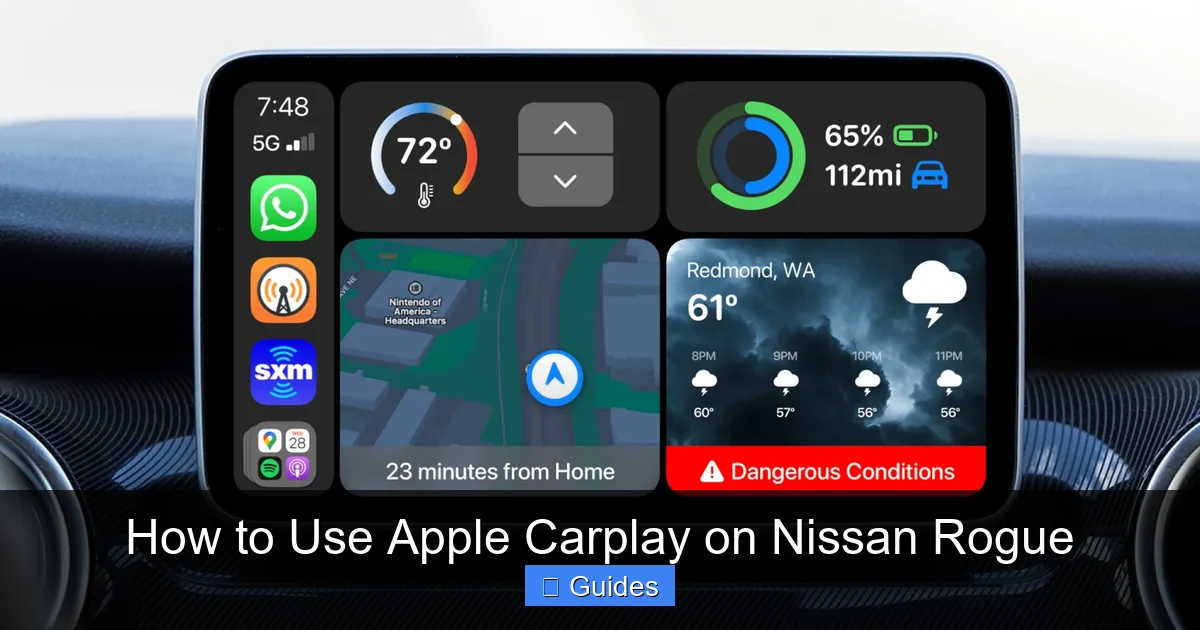
Once connected, the CarPlay interface will appear on your Rogue’s screen. It looks like a simplified version of your iPhone home screen, with app icons arranged in a grid. You can swipe left or right to access more apps.
Use the touchscreen to open apps, or press and hold the voice command button on your steering wheel to activate Siri.
Step 5: Customize Your Experience
You can personalize CarPlay by rearranging app icons on your iPhone. Go to Settings > General > CarPlay, select your vehicle, and drag apps to reorder them. You can also choose which apps appear on the CarPlay home screen.
Using Apple CarPlay Features in Your Nissan Rogue
Visual guide about How to Use Apple Carplay on Nissan Rogue
Image source: 9to5mac.com
Now that CarPlay is set up, let’s explore how to use its most useful features while driving your Rogue.
Apple Maps is one of the most popular CarPlay features. It provides turn-by-turn directions, real-time traffic updates, and estimated arrival times.
To use it:
– Say, “Hey Siri, navigate to [destination]” or tap the Maps icon.
– Enter your destination using voice or the touchscreen.
– Follow the on-screen and voice-guided directions.
Pro tip: Save frequent destinations like “Home” or “Work” in Apple Maps for quick access. You can also share your ETA with contacts directly from CarPlay.
Making and Receiving Calls
CarPlay lets you make hands-free calls using Siri or the phone app.
To make a call:
– Say, “Hey Siri, call [contact name]” or tap the Phone icon and select a contact.
– Use the car’s microphone and speakers for clear audio.
Incoming calls will appear on the screen. Tap “Accept” or say “Answer” to take the call. You can also decline or send a quick reply via text.
Sending and Reading Messages
Stay in touch without touching your phone. When someone texts you, a notification will appear on the CarPlay screen.
To reply:
– Tap the message notification.
– Say your reply when prompted by Siri.
– Confirm by saying “Send” or tapping the send button.
You can also initiate a text by saying, “Hey Siri, text [contact]” and dictating your message.
Note: For safety, CarPlay only allows voice-to-text messaging while driving. You can’t type manually.
Listening to Music and Podcasts
CarPlay supports music apps like Apple Music, Spotify, Pandora, and Audible. Simply open your preferred app and browse playlists, albums, or podcasts.
Use voice commands like:
– “Play my Chill playlist”
– “Play the latest episode of [podcast name]”
– “Skip this song”
The audio plays through your Rogue’s sound system, and playback controls appear on the screen.
Using Third-Party Apps
Many popular apps work with CarPlay, including:
– WhatsApp (for voice messages and calls)
– Google Maps (if installed and enabled)
– Waze (for community-based navigation)
– Amazon Music, Deezer, and others
To use third-party apps, make sure they’re CarPlay-compatible and enabled in your iPhone’s CarPlay settings.
Voice Commands with Siri
Siri is your co-pilot in CarPlay. Press and hold the voice button on your steering wheel or say “Hey Siri” to activate it.
Use Siri to:
– Get directions
– Send messages
– Make calls
– Play music
– Check the weather
– Set reminders
Example: “Hey Siri, what’s the weather like today?” or “Hey Siri, remind me to pick up groceries at 6 PM.”
Tips for the Best Apple CarPlay Experience
To get the most out of CarPlay in your Nissan Rogue, follow these practical tips.
Use a High-Quality USB Cable
A faulty or low-quality cable can cause connection issues. Always use an Apple-certified Lightning or USB-C cable. Avoid cheap knockoffs, as they may not support data transfer properly.
Keep Your iPhone Charged
CarPlay uses your phone’s data and processing power. If your iPhone battery is low, it may disconnect or perform poorly. Use a car charger to keep it powered during long drives.
Update Software Regularly
Apple and Nissan release updates that improve CarPlay performance and fix bugs. Check for iPhone updates monthly and visit a Nissan dealer or use Nissan’s online tools to update your infotainment system.
Clean the Touchscreen
Fingerprints and smudges can make the screen hard to read. Wipe it gently with a microfiber cloth to keep it clear.
Use Do Not Disturb While Driving
Enable “Do Not Disturb While Driving” on your iPhone (Settings > Focus > Do Not Disturb). This minimizes distractions and lets CarPlay handle notifications safely.
Explore CarPlay Settings
Customize your experience by going to Settings > General > CarPlay on your iPhone. You can:
– Rearrange apps
– Choose which apps appear
– Set a preferred navigation app
– Enable or disable certain features
Troubleshooting Common Apple CarPlay Issues
Even with proper setup, you might run into occasional problems. Here’s how to fix the most common CarPlay issues in your Nissan Rogue.
CarPlay Won’t Connect
If your iPhone doesn’t appear on the screen:
– Check the USB cable and port. Try a different cable or port.
– Restart your iPhone and the car’s infotainment system.
– Ensure CarPlay is enabled in iPhone Settings > General > CarPlay.
– Make sure your iPhone isn’t in Low Power Mode.
CarPlay Disconnects Frequently
Intermittent disconnections can be frustrating. Try:
– Using a different USB cable.
– Cleaning the USB port with compressed air.
– Updating your iPhone and car software.
– Disabling Bluetooth on your iPhone (sometimes it conflicts with wired CarPlay).
Siri Isn’t Responding
If Siri doesn’t activate:
– Check that Siri is enabled in iPhone settings.
– Ensure the microphone isn’t blocked.
– Speak clearly and at a normal volume.
– Restart the infotainment system.
Apps Not Appearing in CarPlay
If an app isn’t showing up:
– Confirm it supports CarPlay (check the app’s website or App Store description).
– Enable it in iPhone Settings > General > CarPlay > [Your Car] > Customize.
– Update the app to the latest version.
Audio Quality Issues
If music or calls sound distorted:
– Check your iPhone’s volume and the car’s audio settings.
– Ensure the audio source is set to USB or CarPlay.
– Try disconnecting and reconnecting the cable.
Factory Reset (Last Resort)
If nothing works, you may need to reset the infotainment system. This varies by model, but usually involves holding down the power and volume buttons for 10–15 seconds. Consult your owner’s manual or contact Nissan support.
Conclusion: Enjoy a Smarter, Safer Drive with Apple CarPlay
Using Apple CarPlay on your Nissan Rogue transforms your driving experience. It brings the power of your iPhone into the car in a safe, intuitive way. From navigation and music to messaging and calls, CarPlay keeps you connected without compromising safety.
Setting it up is quick and easy, and once it’s running, you’ll wonder how you ever drove without it. Just remember to keep your software updated, use quality cables, and take advantage of Siri for hands-free control.
Whether you’re commuting to work, running errands, or heading out on a road trip, Apple CarPlay helps you stay focused on the road while still accessing the features you need. With the tips and troubleshooting advice in this guide, you’re well-equipped to enjoy everything CarPlay has to offer in your Nissan Rogue.
So plug in, speak up, and drive smarter—your Rogue and your iPhone are ready to work together.
Frequently Asked Questions
Does the Nissan Rogue support wireless Apple CarPlay?
Most Nissan Rogue models only support wired Apple CarPlay via USB. Wireless CarPlay is not standard, though some newer trims or aftermarket upgrades may offer it. Check your specific model’s features to confirm.
Can I use Google Maps with Apple CarPlay in my Rogue?
Yes, if you have Google Maps installed on your iPhone and it’s enabled in CarPlay settings. You can use it just like Apple Maps for navigation with voice guidance and real-time traffic.
Why won’t my iPhone connect to CarPlay in my Nissan Rogue?
Common causes include a faulty USB cable, outdated software, or disabled CarPlay settings. Try using a different cable, updating your iPhone and car system, and ensuring CarPlay is enabled in your iPhone settings.
Can I use CarPlay while charging my iPhone wirelessly?
No, CarPlay requires a wired connection via USB. Wireless charging pads won’t transmit data, so you’ll need to plug in your iPhone with a cable to use CarPlay.
How do I update the infotainment system in my Nissan Rogue?
Visit a Nissan dealership or use Nissan’s online portal to check for software updates. Some models allow updates via USB, while others require dealer assistance. Always back up your settings first.
Is Apple CarPlay free to use in the Nissan Rogue?
Yes, Apple CarPlay is free to use. However, it requires a compatible iPhone and may use mobile data for navigation and streaming. Consider using Wi-Fi or a data plan to avoid extra charges.

At CarLegit, we believe information should be clear, factual, and genuinely helpful. That’s why every guide, review, and update on our website is created with care, research, and a strong focus on user experience.